
Topic
This guide provides instructions for viewing and interacting with configured device role, global, and end user custom fields. For instructions to create new custom fields, refer to NinjaOne Custom Fields: Setup.
Environment
NinjaOne endpoint management
Description
Custom fields allow you to track additional information inside the NinjaOne platform. Select a category to learn more:
View and Interact with Custom Fields on a Dashboard
You can configure custom fields to work with all dashboards through inheritance. For example, a device custom field can be inherited to an End User Dashboard or an Organization Dashboard, or both. On most dashboards (end user, organization, device), you can find custom fields under the Custom tab. Learn more about inheritance with our NinjaOne Custom Fields: Setup guide.
If the inherited custom field contained a value, the value will also be inherited and display on the Device Dashboard and the Devices search page.
For the purpose of this article, our screenshots will use the Device Dashboard as an example.
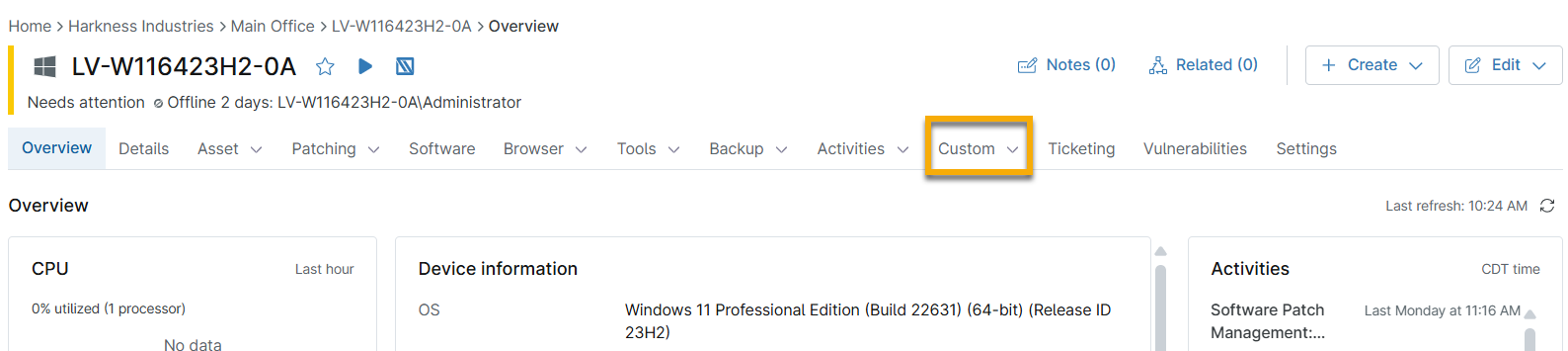
- Access the custom fields through the Custom or Custom Fields tab on the dashboard. Select the tab of custom fields you would like to view. For more information about custom field tabs, refer to NinjaOne Platform: Device Roles.
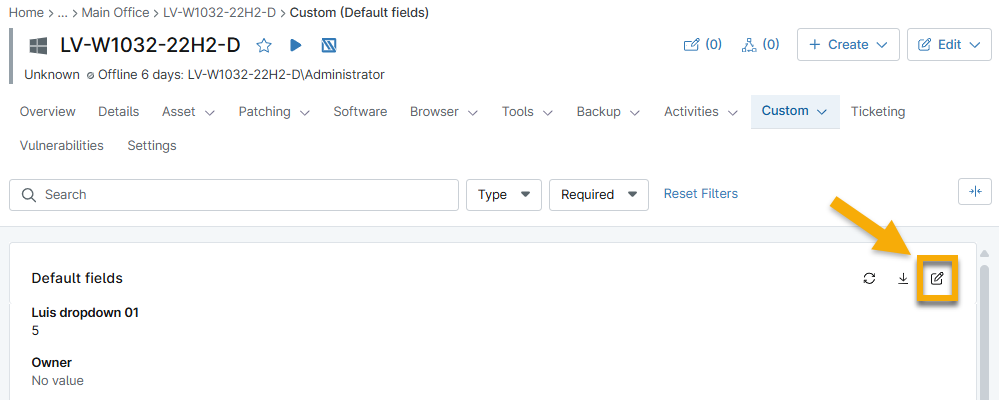
- Click the pencil icon to make changes.
- Enter your data into the provided fields and then click Save in the top right corner.
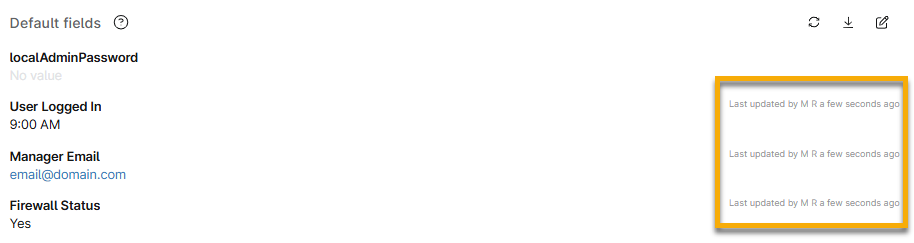
After you update a custom field, the time that the field was updated will be listed, along with either the name of the technician who updated a field or "scripts" (indicating that the field was updated via CLI or custom script). Additionally, the technician's name and the date/time of the update will be listed as an entry in the Activity Feed on the device's Overview tab.
Delete Custom Fields
- Access the page in Administration where you created the custom field.
- Move your cursor over the custom field row and click the ellipsis button.
- Click Delete.

Additional Resources
Refer to the following resource(s) to learn more about using custom fields in NinjaOne: Custom Fields: Resource Catalog.