
Active Directory User Management allows technicians to manage users within AD domain controllers from directly within the NinjaOne app.
Important Note: NinjaOne system administrators have access to Active Directory User Management by default. Technicians with custom permissions may be granted access to this feature using user permissions.
Table of Contents
To find Active Directory Domain Controllers:
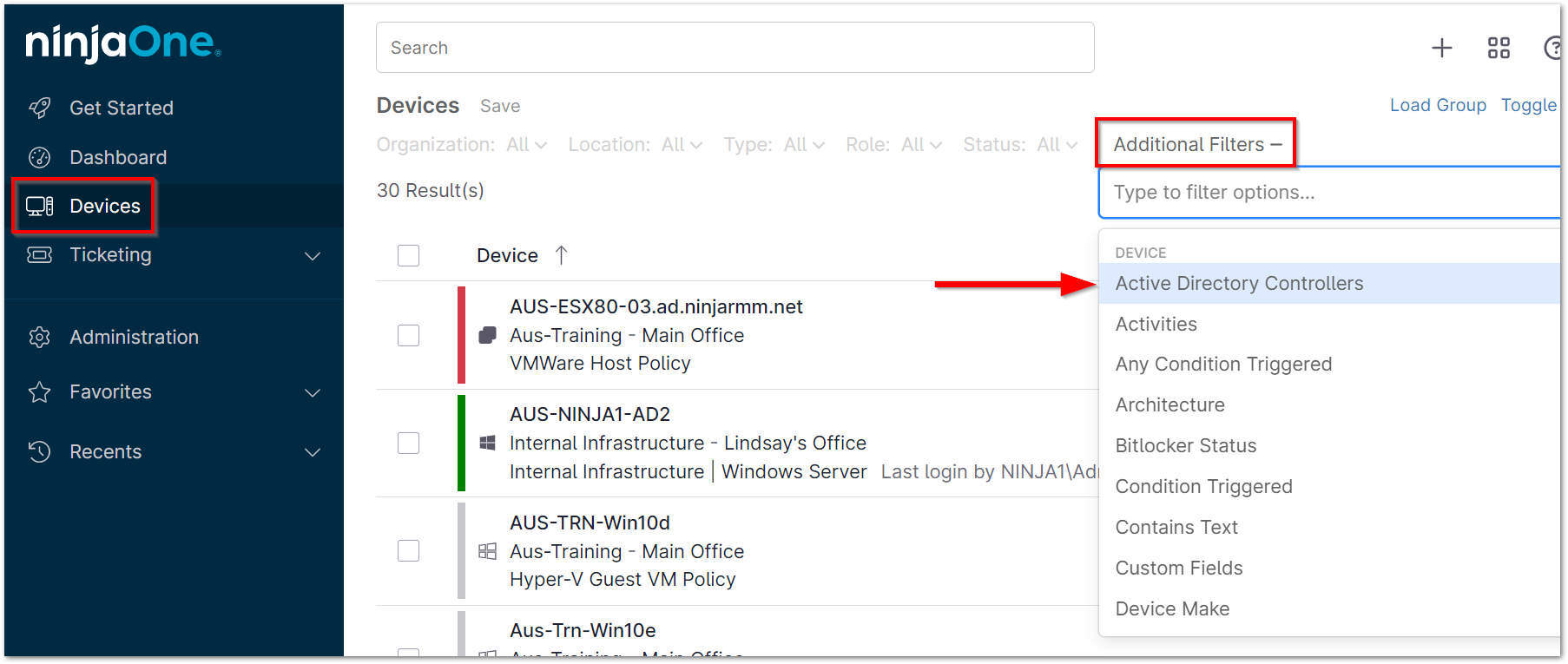
Active Directory Domain Controllers can easily be filtered for under the Devices tab.
- Navigate to the Devices tab in the left navigation pane.
- Click Additional Filters+ at the top of the page, and then select 'Active Directory Controllers'.
 Important Notes:
- Technicians may also select further filters to narrow down the list, such as a filter for a particular organization or device status.
- NinjaOne automatically detects whether a machine is an AD Domain Controller. No further action is required.
To manage Active Directory users:
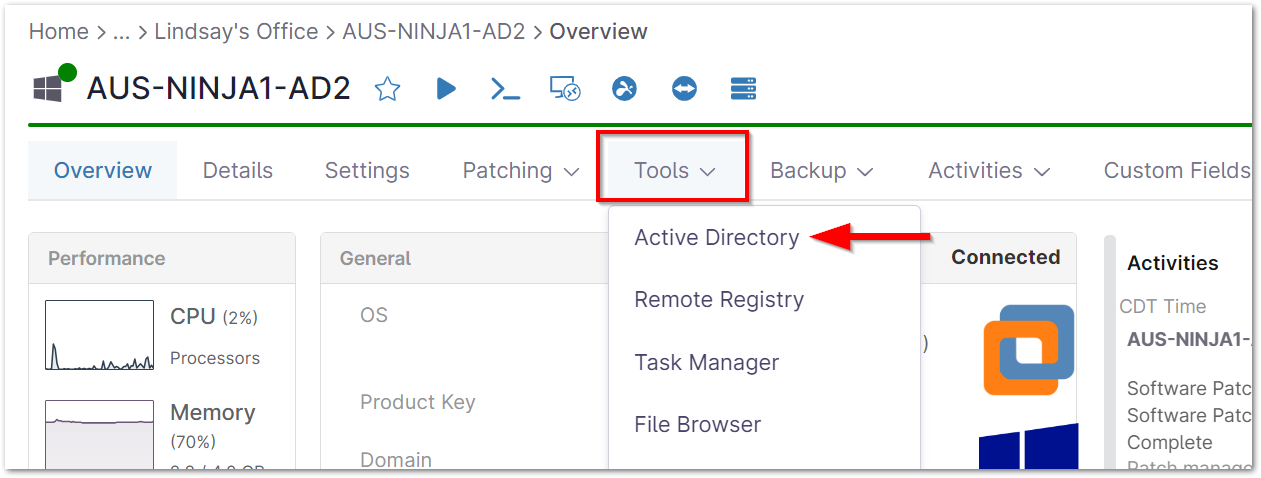
- Use the steps above to navigate to the device dashboard for the AD domain controller in NinjaOne.
- Expand the Tools tab and select Active Directory.
The list of users populates on the left side of the screen. When selected, a user's account summary displays in the middle of the screen and settings display on the right.Important Note: If you have a large number of users, you can use the search bar to locate a specific user, or enter a partial search term to return a list of users matching the search query.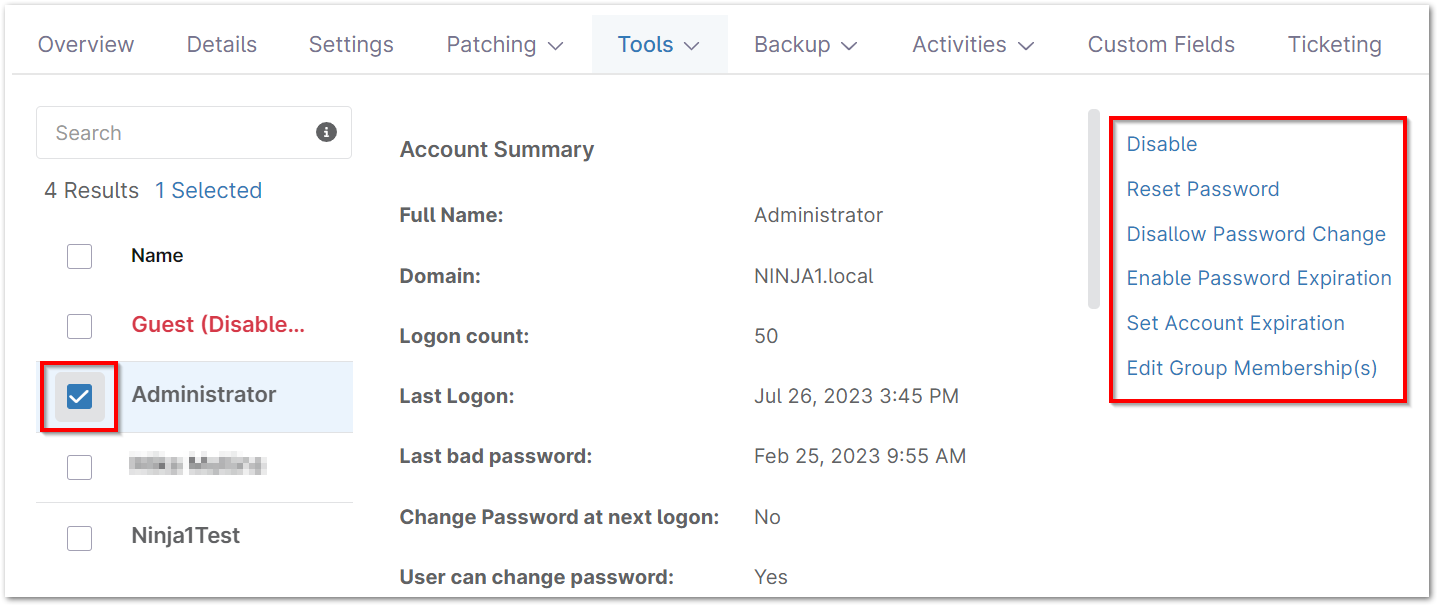
- Refer to the table below for setting options.
Option Description Enable/Disable Enable/disable the user (depending on the current state). You will be prompted to confirm the completion of this action. Reset Password Enter and confirm a new password for the user. Opt to have the user change their password at the next logon, or to unlock the user if it is currently locked due to incorrect password attempts. Require/Do Not Require Password Change Require/do not require user to change their password (depending on the current state). You will be prompted to confirm the completion of this action. Allow/Disallow Password Change Allow/disallow the user to change their password (depending on the current state). You will be prompted to confirm the completion of this action. Enable/Disable Password Expiration Enable/disable password expiration. You will be prompted to confirm the completion of this action. Set Account Expiration Choose a date and time for the account to expire. If account expiration is set, you will see an additional option to Disable Account Expiration.
Edit Group Membership(s) Select the group(s) that the user should be a part of.
If multiple users are selected, the actions are limited to Disable, Enable, or Reset Password.
Important Note: Technicians must authenticate via MFA upon each action taken against an AD user.
For a list of frequently asked questions about Active Directory User Management, please see Active Directory User Management (BETA): FAQ.