
Topic
This article answers frequently-asked questions about NinjaOne IT Asset Management.
Environment
NinjaOne IT Asset Management (ITAM)
Index
Select a topic to continue:
- Does NinjaOne ITAM manage barcode readers or label makers?
- How do I define a specific piece of software that is licensed to my organization?
- How do I identify license consumption per device? Can I change the quantity?
- How do I view which devices or end users are assigned to a license?
- How do I know when a software license is up for renewal?
FAQ
Does NinjaOne ITAM manage barcode readers or label makers?
No. However, we can provide a workaround. This workaround will use the following URL format we provided in the Configure Asset Fields section in NinjaOne ITAM: Getting Started.
- Navigate to the Devices search page and export at least the Asset ID and Device name fields.
- Use the output from Step 1 to create a concatenation of the following URL (enter your domain and asset ID where indicated in the following sample), which you can then send to a third-party QR or Barcode creator for the appropriate labels:
https://[domain]/#/assetManagement/search?assetId=[Asset ID Field]
- When the scannable object is created and the label has been applied to the object, it can be scanned from a label-reading device, which will then direct you to the Asset info form.
The Asset info form is configured to work with most next-field settings, allowing you to update information from the label-reading device.
How do I define a specific piece of software licensed to my organization?
Refer to NinjaOne Asset Management: Software Licenses to learn how to record a software license in NinjaOne. License details can include general information, such as purchase date and manufacturer, and any entities associated with the license that contribute to the license count.
How do I identify license consumption per device? Can I change the quantity?
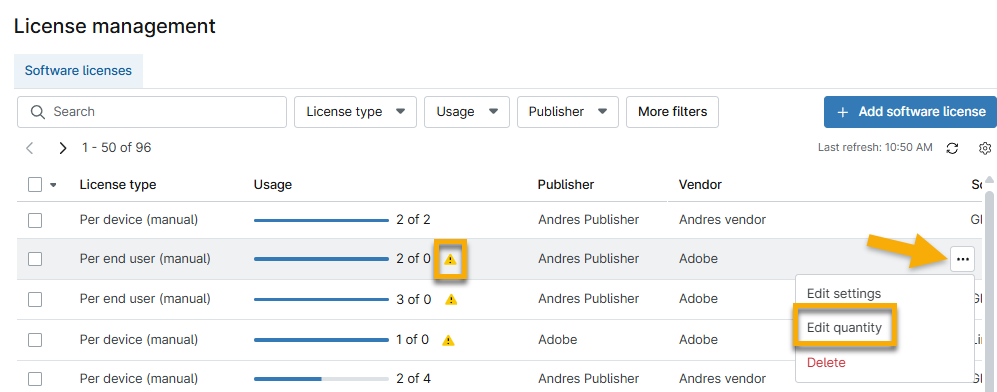
From the License management page, review the Usage column. If your asset lacks sufficient licensing, you will see an alert next to the count. Move your mouse cursor over the icon to review the alert.
You can update this quantity by moving your mouse cursor over the row, clicking the ellipsis menu, and then selecting Edit quantity.
How do I view which devices or end users are assigned to a license?
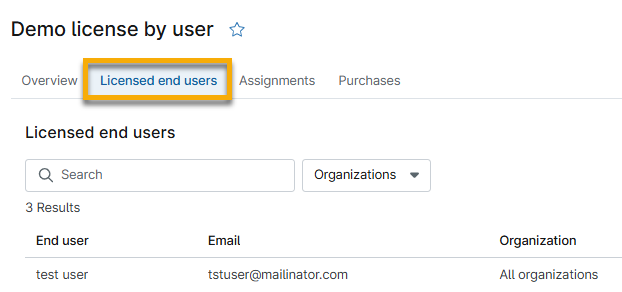
Open the license detail page from the License management page and open the Licensed end user or Licensed device tab. This tab name will vary depending on how the license was assigned. Change this data by clicking Edit → Edit settings → Assignments.
You can also open the user detail page from the End users dashboard and view the information located at Asset → Licenses. Refer to NinjaOne Dashboards: Assets for more information.
How do I know when a software license is up for renewal?
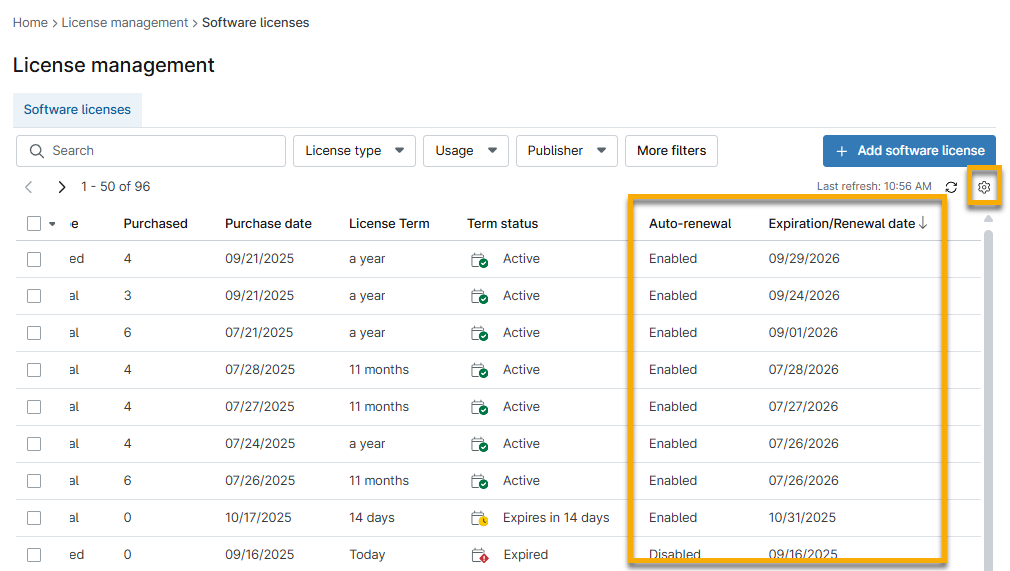
If auto-renewal is enabled for a license and includes an expiration or renewal date, you can view this data in the Auto-renewal and Expiration/Renewal date columns on the License management page. If these columns do not appear, open Table settings and ensure they are added.
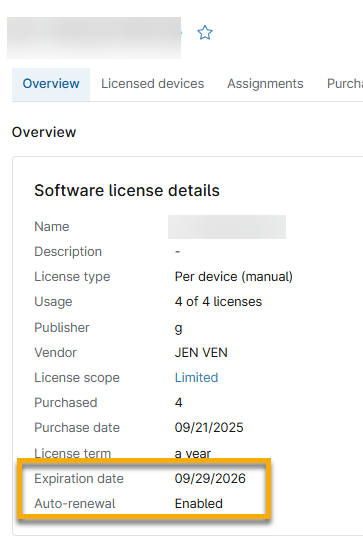
You can also view this data from the license detail page.
Additional Resources
Refer to the following resources to learn more about ITAM in NinjaOne: