
Topic
This article explains how to view software assessment data on the NinjaOne dashboards for vulnerability management.
Environment
NinjaOne Endpoint Management
Description
The Real-Time Vulnerability Assessment in NinjaOne provides customers the ability to assess the software on their NinjaOne endpoints for Vulnerabilities. Uniquely, the Real-Time Vulnerability Assessment feature runs entirely on the existing inventory that NinjaOne has collected for you, so there is no additional load time or impact on endpoints. As software changes on devices, the associated Common Vulnerabilities and Exposures (CVEs) update immediately. A significant benefit of this approach is the prompt identification of new software CVEs as they become present on the devices, without the hassle of finding the correct time to "scan" your devices.
Before proceeding with this article, ensure that you have activated the Vulnerability Management application in NinjaOne. For instructions to do so, refer to NinjaOne Vulnerability Management: Getting Started with Configuration and Setup.
Index
Select a category to learn more:
- Important Considerations
- How to Access the Vulnerability Overview Page
- How to Read the Vulnerability Overview Data
- Additional Resources
Important Considerations
Before getting started, take note of the following information:
- Once activated, CVE findings will begin populating the Vulnerabilities dashboard and showing up on your devices within a few minutes. Unless you set permissions to restrict visibility, all technicians will be able to view the new CVE findings.
- To manage visibility, navigate to the technician's account page or role editor, select System permissions, and choose an option from the Vulnerability access drop-down menu. To learn more about technician permissions, refer to NinjaOne Platform: Permission Settings for Technicians.
- We have provided a new control for this feature. You can completely deactivate or enable this feature, but NinjaOne will activate it by default. Learn more at NinjaOne Endpoint Management: Getting Started with Vulnerability Data.
- To activate or deactivate the feature, navigate to Administration → Apps → Installed→ NinjaOne Vulnerability Management and click Edit in the Vulnerabilities from Real-Time Software Assessment widget.
- You can also use this widget to control whether device health is impacted by vulnerabilities that are found. For more information regarding device health, refer to NinjaOne Endpoint Management: Customize Device Health Statuses.
A Note About Update Frequency
You may experience the following timing patterns depending on whether the CVE is related to software or operating systems.
- Software-related CVEs will update within a few minutes of installation, updates, or removal. NinjaOne will display these as Real-Time Assessment in the Sources column.
- Operating system-related CVEs will update within approximately 1 hour of a NinjaOne patch scan completing and showing that the CVEs exist or no longer exist. NinjaOne will display these as NinjaOne Patch in the Sources column.
How to Access the Vulnerability Overview Page
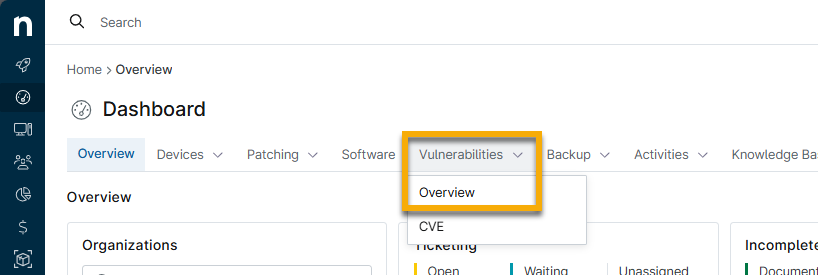
The Vulnerability Overview page is available on the System and Organization Dashboards. Click the Vulnerabilities tab and then select Overview.
To view this data, you must be a system administrator or a technician with the System → Vulnerability access permission set to Allowed.
How to Read the Vulnerability Overview Data
Use the charts on the Vulnerability Overview page to identify and prioritize the remediation of your managed endpoints. Use the drop-down menus at the top of the page to filter your results.
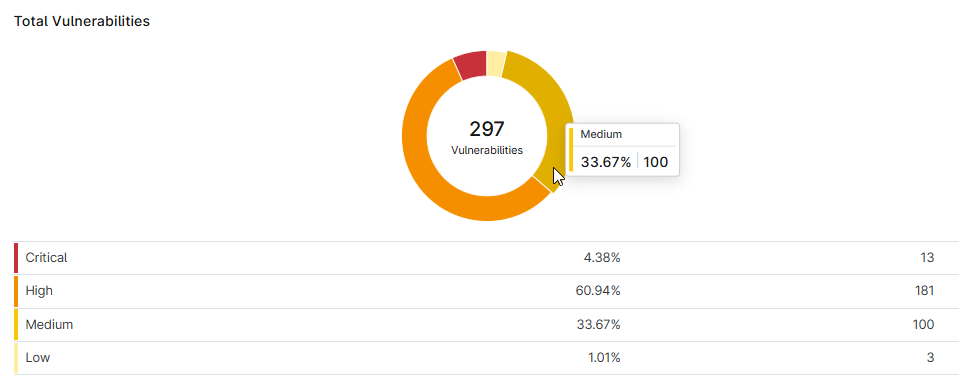
Total Vulnerabilities
Move your cursor over a section of the chart to view the percentage and total number of devices affected.
Click the severity data row to navigate to the Vulnerability CVE page, which will be filtered to show only the severity level that you selected.
Top 10 Vulnerabilities by Device Count
This section shows only the top 10 CVEs by device count.
Click the CVE ID to navigate to the CVE detail page, where you can view risk information, CVSS score, an outline of which devices are impacted, and a link to the National Vulnerability Database, which provides enrichment data for the CVE record and improves troubleshooting efficiency.
Click the number next to the CVE ID to navigate to the Devices search page, which will be filtered to display all devices affected by the CVE ID.

Top 10 Impacted Device Roles
Move your mouse cursor over a section of the chart to view the total number of devices affected. Click the chart to navigate to the Devices search page, which will be filtered to display all devices that fit the criteria.

Top 10 Devices by Vulnerability Count
This section shows only the top 10 devices by vulnerability count.
Click the device name or the number next to the device name to navigate to the Vulnerabilities tab on the device dashboard. The page will be pre-filtered to show the related vulnerabilities affecting that device.

Additional Resources
Refer to Vulnerability Management: Resource Catalog to learn more about managing vulnerabilities in NinjaOne.