
Topic
This article discusses the NinjaOne SaaS Backup Advanced Search Dashboard.
Environment
Description
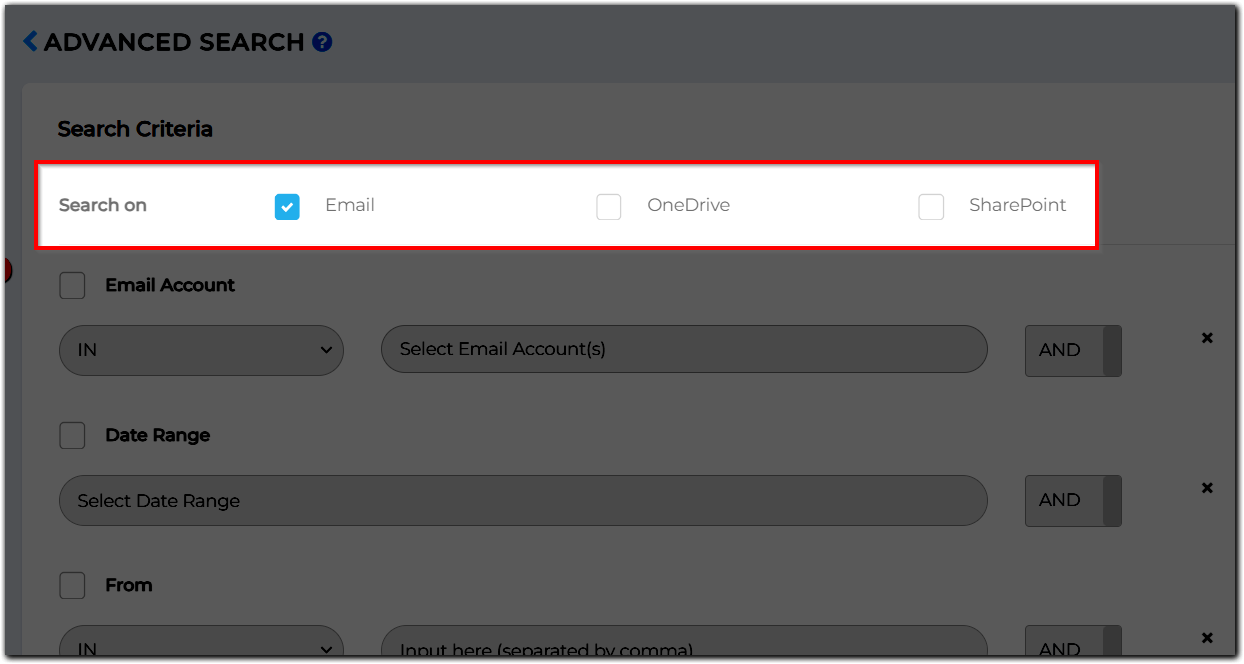
Advanced search lets you search email content using multiple search criteria. You can search by using any one or more of the below attributes for emails and email accounts backed up or archived with NinjaOne SaaS Backup.
- Email Attributes
- Tips to Optimize Free Text Search
- Attachment Content Search
- Frequently Asked Questions
EMail Attributes
| Email Attribute | Definition |
|---|---|
| Email Accounts | Search within one or more email account(s) |
| Department | Search within a department |
| Date Range | Search within a date range |
| To / CC / BCC / FROM | Search in To / CC / BCC / FROM fields of an email |
| Subject | Search in the subject of the email |
| Email Header | Search in email header |
| Body | Search in the email body |
| Attachment | Search within attachments – both content and file name |
| Size (KB) | Search for emails greater than or less than a specific size |
| Tag | Search for email tags |
| Legal hold | Search emails with legal hold |
| Folder | Search within a folder |
| Archive Message ID | Search for any message whose message ID is known |
Tips to Optimize Free Text Search
- Use comma to separate values: Use comma (,) to separate email or keywords, e.g.: [email protected], [email protected], John, Jane.
- Special characters are not allowed, except currency symbols, underscores, apostrophes, and quotation marks (i.e., $ ' _").
- Any phrase before a comma is counted as one keyword.
- For example: for "the hills, high, very high mountain" the keywords will be "the hills," "high," and "very high mountain".
- [email protected] can be searched through full or partial keywords.
- For example: "johndoe," "john," "joh," "jo," "j," "do," or "[email protected]." For a faster search, please try to use a large search string.
- If you want to search a group of emails, you can look for the keyword “@yourdomain.com.”
- Do not use "@domain" only as a keyword, considering emails with "@yourdomain.com" and "@yourdomain2.com" can be used.
Search Internal Emails: "Internal Emails" refer to emails distributed only within the company's internals. For example, the CEO sent an email to the sales team.
To / CC / BCC Only IN @yourdomain.com AND From Only IN @yourdomain.com Search External Emails: "External Emails" refer to emails that are distributed outside the company. E.g., Quotation emails from your sales representative to the customers.
To / CC / BCC Not IN @yourdomain.com OR From Not IN @yourdomain.com Inbound Emails: "Inbound Emails" refer to emails that the company receives.
Folder Not IN Sent Items Outbound emails: "Outbound Emails" refer to emails that the company employees send.
Folder IN Sent Items
Attachment Content Search
Attachment Content Search is a search criterion that enables attachment content search through an indexing process. This process organizes and stores data in a structured format. Once indexed, the system can retrieve relevant results faster, as it no longer searches all content in real-time but instead uses the optimized index for efficient data retrieval.
How to search attachment content
Log in to the Organization Email Portal (Partner Portal > Organization > Access Email Portal).
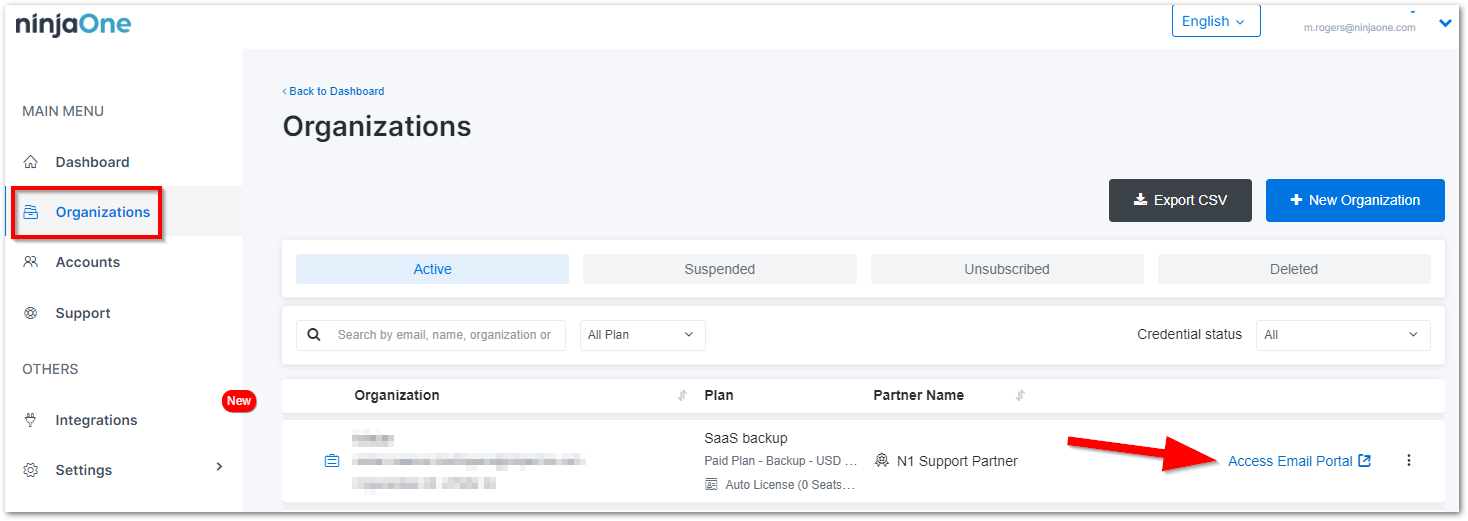
Figure 1: Access EMail Portal (click to enlarge) Navigate to the Advanced Search page.
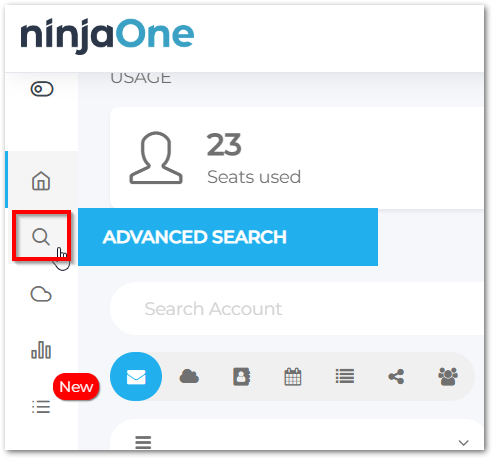
Figure 2: Advanced Search (click to enlarge) - Enter email, attachment content, and any other desired fields, and then click Search.
The system will display the results.


Keyword search results
The system highlights keyword search results across all products (email, OneDrive, SharePoint), making it easier for users to locate what they need.
Advanced search capabilities by plan
| Feature | Backup Plan | Archiver Plan |
|---|---|---|
| Highlight keyword search result |  | |
| Search attachment content |  | |
Frequently Asked Questions
- What is the maximum document content size that can be reindexed?
- Why is the attachment content field locked?
- Is the search case-sensitive?
- Why didn’t I get results after entering criteria?
- What can we do with the results of an advanced search?
- How can I set search criteria?
- How do I download, restore, and migrate from Advanced Search results?
- What is the AND / OR operator logic?
What is the maximum document content size that can be reindexed?
The system supports reindexing documents with a total size of up to 10 MB per email.
What file formats are supported for attachment content search?
Most file formats are supported, except for audio, image, video, octet-stream, application/rar, application/zip, and application/x-7z-compressed.
Why is the attachment content field locked?
This could happen if the user is subscribed to the Backup plan. Attachment content search is available only on the Archiver plan. You may consider upgrading their subscription.
To upgrade, go to the Partner Portal > Organization menu, select the organization, and click on the Subscriptions tab. A confirmation pop-up will include additional indexing information.
A notification banner will also appear on the Organization Email portal to inform users of reindexing after upgrading.
Is the search case-sensitive?
No, the search is not case-sensitive.
Why didn’t I get results after entering criteria?
This may occur if you didn’t enter complete words. The system supports full-word searches only, not partial matches.
What can we do with the results of an advanced search?
You can download, migrate, and restore emails from the search results of an advanced search.
How can I set search criteria?
- Go to Advanced Search.
- If the needed criteria are not showing by default, click Add More Criteria(s).
- Select the criteria you want to search for.
- Fill out the desired search criteria and click Search.
This will show all results based on the set criteria.
How do I download, restore, and migrate from Advanced Search results?
- Generate email search results based on the chosen criteria (see "How Do I Set Search Criteria" above).
- Please select the emails you want to Download, Restore or Migrate. You can select one message, all messages on the page, or all emails from the result.
- After selecting email(s), click the Download, Restore, or Migrate button.
What is the AND / OR operator logic?
When selecting more than one search criteria
Select the operator AND / OR for each criterion
We will resolve the search criteria from top to bottom
For example, if you create a search using the following criteria:
- Criteria C1 AND
- Criteria C2 OR
- Criteria C3 AND
- Criteria C4
The system will process it as:
(C1 AND C2) OR (C3 AND C4)
This is essentially two separate searches with the results merged.