Topic
This article discusses how to work with Maintenance Mode in NinjaOne.
Environment
NinjaOne Endpoint Management
Description
Maintenance mode allows you to suppress selected features, such as patching and alerts, for a device or devices for a designated time window.
Suppression options vary depending on device type. With cloud monitors, for example, you only have the option to suppress emails, short message services (SMS), and push notifications for technicians.
Index
Select a category to learn more:
- Enabling Maintenance Mode for a Single Device
- Enabling Maintenance Mode for Multiple Devices
- Scheduling Maintenance Mode With an Automation
- Enabling the Maintenance Mode Patching Policy
- Updating or Clearing Maintenance Mode from Devices
- Additional Resources
Enabling Maintenance Mode for a Single Device
- Select the device in the Device dashboard, then place your cursor over the run icon → Maintenance and select Configure.

- In the Enable Maintenance Mode dialog box, configure maintenance mode options:
- Start: Specify when maintenance mode should start on the machine. Select Now (upon setting the maintenance window) or specify a date and time.
- End: Choose when the maintenance window should end. If you select Never, you can manually end the machine's maintenance window.
- Features to suppress: Choose which alerts or messages to turn off during the maintenance window.
- Reason Message: Enter an optional reason for the alert suppression. This message will appear in the device's Activities log.
When finished, click Enable.

OS-Specific Activity Suppression
Some features cannot be suppressed depending on the device's operating system. In the following table of available features, macOS and Linux-only activities are marked with an asterisk (*).
| Feature | Description |
|---|---|
| Notifications* | This feature suppresses all email, short message service (SMS), and push notifications. This option will always be selected when enabling maintenance mode and cannot be deselected. |
| Condition alerts* | Conditions will not be evaluated (and therefore will not trigger). |
| Automations/tasks* | This feature suppresses all scheduled tasks and scheduled scripts, as well as the ability to run scripts manually. |
| Patch scanning and updates | This feature suppresses all scheduled or ad-hoc OS and software patch scans and apply cycles. |
| Anti-virus scans | This feature suppresses all scheduled or ad-hoc scans for the integrated antivirus. |
Enabling Maintenance Mode for Multiple Devices
You can select devices from different organizations and operating systems, and even devices not currently online.
- Open the Devices tab in the left navigation pane, then check the checkboxes to select the devices needing maintenance mode.
- Place your cursor over the Run menu at the top of the list, then select Maintenance → Configure.
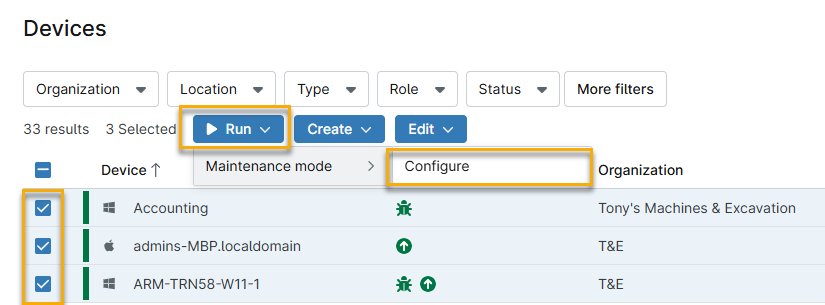
3. Configure maintenance mode using the options described in Figure 2 above.
Scheduling Maintenance Mode with an Automation
Technicians can now schedule maintenance mode in advance for devices using automations. This feature allows for flexible, recurring maintenance windows that suppress alerts and notifications during planned activities, which is helpful for overnight patching, reboots, or routine Maintenance.
Maintenance Mode automation considerations
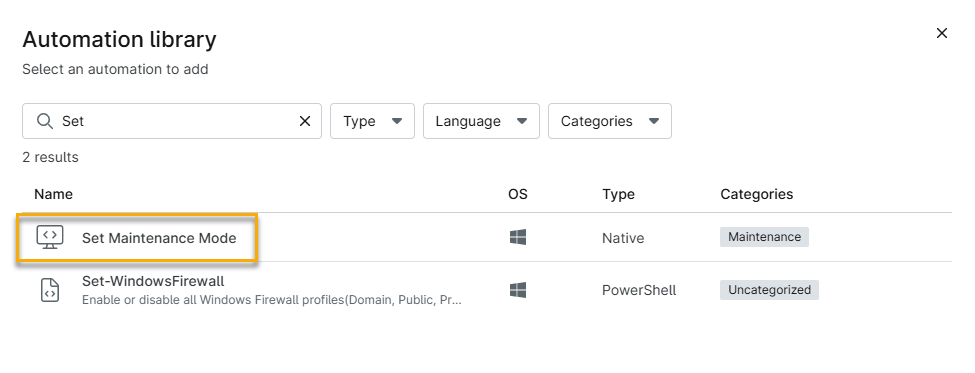
- The Set Maintenance Mode automation is available on the NinjaOne platform version 10.0.0 or later.
- The Set Maintenance Mode automation falls under the Maintenance category.
- The Set Maintenance Mode automation is compatible with Windows, macOS, and Linux operating systems.
- Executing the Set Maintenance Mode automation on a machine already in maintenance mode will overwrite the previously existing maintenance mode.
- When the Set Maintenance Mode automation is executed, the device's entry into maintenance mode will appear in the Overview dashboard's Activities feed.
- Technicians need the following permissions to view and run the Set Maintenance Mode automation:
System → Maintenance mode → View Update Create Delete
Automation Library → View, Run on default access or View, Run Access in the Maintenance category (where the automation resides)
- Technicians need the following permissions to view and run the Set Maintenance Mode automation:
To create a maintenance mode scheduled automation:
- Follow the configuration procedure in
Figure 4: The Automation Library (click to enlarge) - Configure the following options for the scheduled automation:
- Duration: You can set the duration to Expires or Never Expires. If you choose the latter, your device will remain in Maintenance Mode when the automation finishes running.
- Duration value: Specify how many hours you would like the device to remain in maintenance mode.
- Features to suppress: Specify whether you wish to prevent any or all of the following alerts: Email/SMS notifications, Condition alerts, and Notification channels.
Figure 5: Automation condition options (click to enlarge) Enabling the Maintenance Mode Patching Policy
This new patching policy setting lets devices automatically enter maintenance mode during patching install operations, suppressing alerts and notifications while patches are applied and devices reboot. This policy helps reduce false positives and unnecessary noise during routine patch deployments. The patching policy is available on the NinjaOne platform version 10.0.0 or later.
To apply the Maintenance Mode policy:
1. In NinjaOne, click Administration → Policies → Agent Polices and select the policy you wish to configure.Figure 6: Policy Administration (click to enlarge) 2. Select the patching link in the left Navigation bar (This link may show as Patching, macOS Patching, or Windows Patches, depending on your operating system), then scroll to the Update Schedule and check the checkbox for Maintenance Mode.
Figure 7: Maintenance Mode in the Update Schedule (click to enlarge) Updating or Clearing Maintenance Mode From Devices
Devices in maintenance mode display a yellow wrench icon indicating the active maintenance window.There are three different places that you can manage and clear maintenance mode from devices:
The Device page
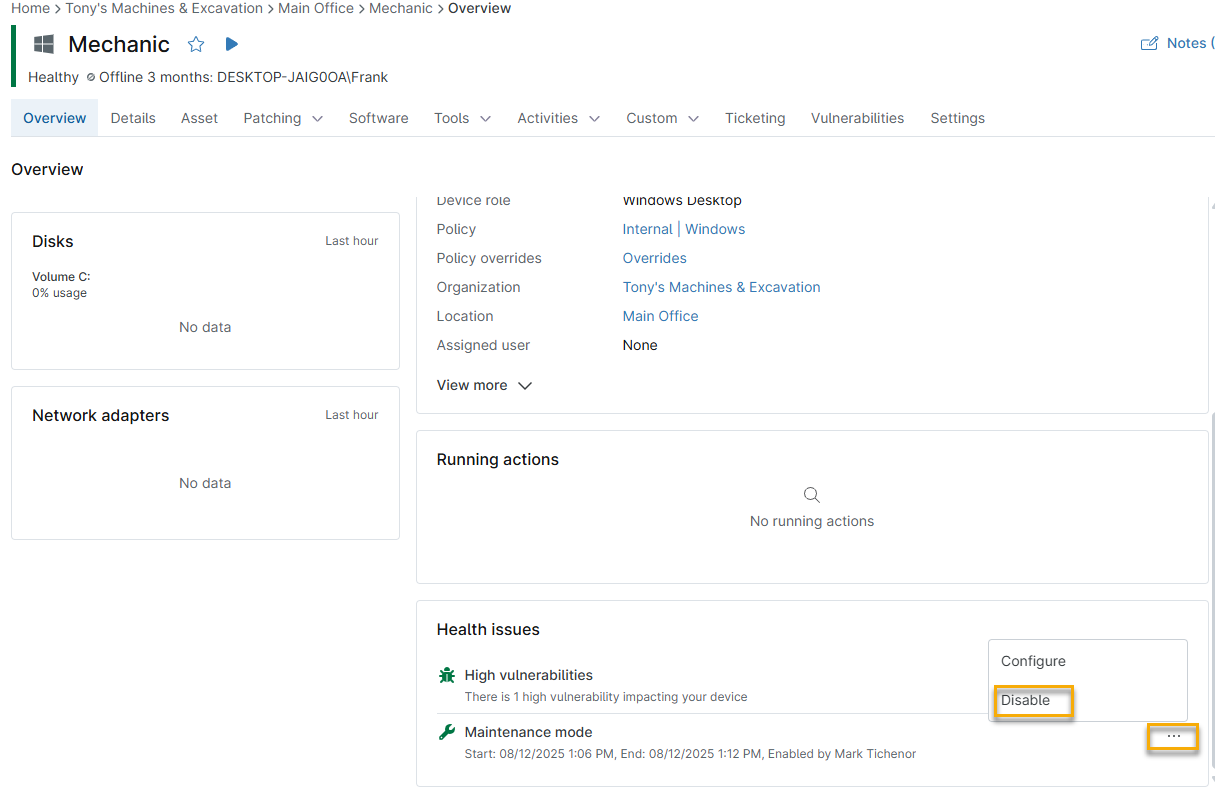
- Navigate to the device, then click the three dots (ellipsis) icon on the right side of the Health section.
- To update the maintenance window, select Configure. After changing settings, the system will prompt you to confirm the override of your previous maintenance window. Click Yes to continue.
- To clear the maintenance window, select Disable. The system will prompt you to confirm that the device's maintenance mode should be disabled.
Figure 8: Disable maintenance mode, dashboard health section (click to enlarge) The Devices tab
In the Devices tab, check the checkboxes for the devices you are updating.
- To update the maintenance window, move your cursor over the Run menu at the top of the list, then select Maintenance → Configure. After changing settings, the system will prompt you to confirm the override of your previous maintenance window. Click Yes to continue.
- To clear the maintenance window, move your cursor over the Run menu at the top of the list, then select Maintenance → Disable. The system will prompt you to confirm that the device's maintenance mode should be disabled.
The Maintenance dashboard
The maintenance dashboard, available at the system and organization levels, lets you view all devices with current or future maintenance windows scheduled.
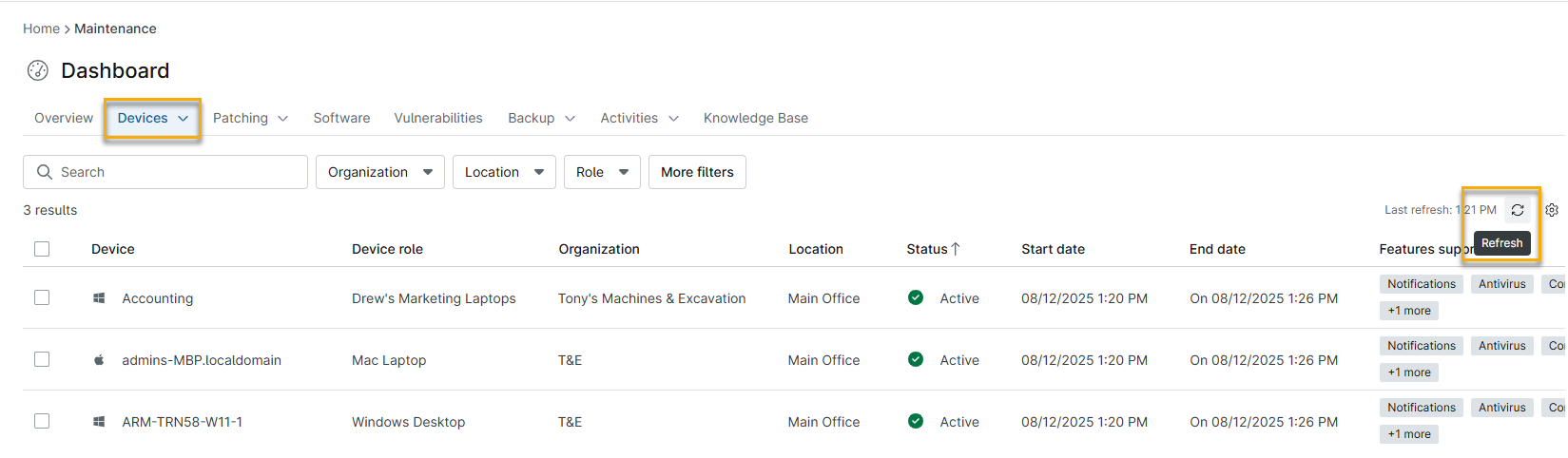
- From either the system dashboard (click Dashboard in the left navigation pane) or the organization dashboard (select an organization from the system dashboard), open the Devices tab and select Maintenance.
Figure 9: Navigating to device maintenance (click to enlarge) - The system will show a list of devices currently in maintenance mode. You can sort by clicking the header names for Organization, Name, Device Role, Start Date, or End Date. Click Refresh to refresh the list.
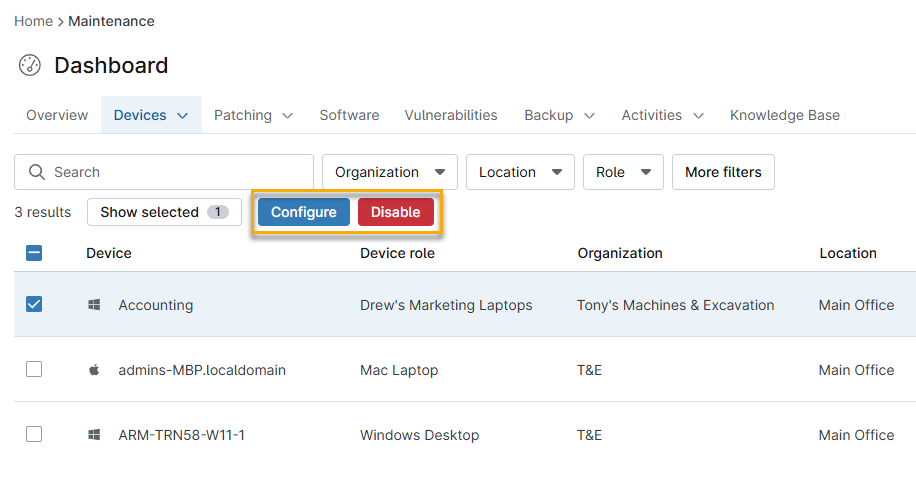
Figure 10: The Device Maintenance dashboard (click to enlarge) - Select the devices. Additional options to Configure or Disable will appear at the top of the list.
- Configure lets you override the existing maintenance window for the device or devices.
- Disable allows you to clear the maintenance window from the device or devices.
Figure 11: Maintenance mode override options (click to enlarge) Maintenance mode status priority
When a device is placed in maintenance mode, the health status set for this event will override the status for all other active events on that device.
Suppose a device is put under maintenance mode (and Under Active Maintenance is set to Yellow/needs attention, but it is also an offline server (and Server Down is set to Red/unhealthy). In that case, the system will display the device as yellow in the dashboard.Additional Resources
- For a list of frequently asked questions about maintenance mode, refer to Maintenance Mode: FAQ.
- To learn more about device management, refer to Device Enrollment & Management: Resource Catalog.
- Configure the following options for the scheduled automation: