
In IT management, working in the background means running maintenance and administrative tasks without interrupting the end user. This approach, known as Background Mode, allows technicians to handle updates, monitoring, and troubleshooting silently, keeping endpoints secure and maintaining user productivity.
For Managed Service Providers (MSPs) and IT teams, background access reduces downtime and enables faster response times. Instead of waiting for users to log off or closing active sessions, technicians can safely perform work in the background.
How Background Mode Works
In most IT environments, background execution means running system tasks silently, without needing user input or disrupting active sessions.
Common examples include:
- Installing patches or deploying software while users continue working.
- Running scripts or applying configuration changes remotely.
- Gathering logs or restarting services without requiring a reboot or user interruption.
Without a remote monitoring and management (RMM) platform, these processes often rely on manual scripts or scheduled jobs, which can be time-consuming and harder to track.
NinjaOne’s Background Mode streamlines operations by providing secure, logged, and non-intrusive remote access to managed devices.
How to Use Background Mode with NinjaOne
Now that you understand what Background Mode does, let’s look at how to set it up and use it effectively. This section walks you through three short steps: giving technicians the right permissions, enabling the feature in NinjaOne Remote, and starting a background connection to a device.
You’ll also find best practices and examples to help you apply this feature safely and efficiently in day-to-day IT operations.
Step 1: Give Technicians Permission to Access Background Mode
Before technicians can connect to a device in Background Mode, their role must include the right permissions. These permissions determine who can configure NinjaOne Remote and who can start background sessions.
- Go to Administration → Users & Roles Accounts → Technician Roles.
- Open the configuration page for the technician role you want to edit..
- In the left menu, select System.
- Scroll down to the NinjaOne Remote permissions section.
- Confirm that the following permissions are set to Allowed:
5.1 Background Mode for NinjaOne Remote
5.2 (Optional) Configure NinjaOne Remote – This permission is not required to access Background Mode but is recommended if technicians need to adjust NinjaOne Remote settings.
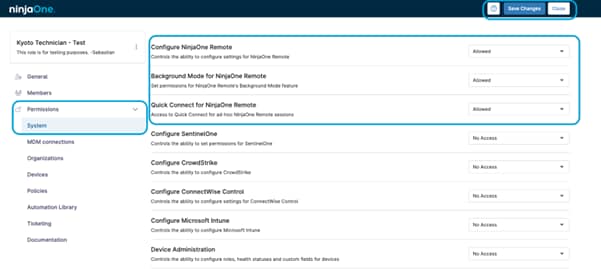
- Click Save Changes at the top of the page.
Once these permissions are enabled, authorized technicians will be able to configure and use Background Mode securely within NinjaOne Remote.
Step 2: Enable Background Mode for NinjaOne Remote
Once permissions are configured, you can enable Background Mode in the NinjaOne Remote application settings:
- Go to Administration → Apps → Installed → NinjaOne Remote.
- Locate the Background Mode section in the main configuration panel.
- Click Enable on the right side of the widget.
- Confirm again in the popup window when prompted.
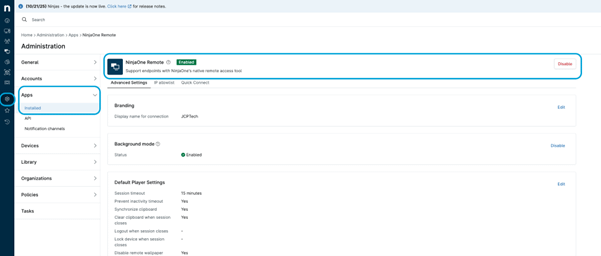
When enabled, the Background Mode status will be displayed as Enabled. This confirms that technicians with the proper permissions can now start remote background sessions on managed devices.
Step 3: Use Background Mode to Connect to a Device
Once Background Mode is enabled, technicians can start a background session directly from the Device menu. This allows you to access and manage the endpoint without displaying a remote session to the user.
- Go to Devices on the left-hand menu.
- Select the device you want to access.
- In the Overview tab, locate the NinjaOne Remote icon at the top right of the page.
- Click the arrow next to the icon and choose Connect in Background Mode.

- NinjaOne will establish a silent connection to the selected endpoint. You can then open built-in remote tools such as File Explorer, Registry Editor, Service Manager, or PowerShell to perform maintenance or troubleshooting.
The user will not see any remote session, and all actions performed through Background Mode are automatically logged for auditing and compliance.
The Benefits of Using NinjaOne for Background Management
- Work without interruptions: Technicians can securely access endpoints and perform background maintenance while users continue their normal workflows.
- Resolve issues faster: With real-time access to managed devices, technicians can troubleshoot and apply fixes immediately, without requiring the user to log off.
- Keep a clear activity record: NinjaOne automatically logs when a background session starts and ends, along with the technician’s name. This helps you maintain visibility and accountability for remote work.
Background Mode in NinjaOne provides a simple, reliable way to manage endpoints efficiently, without disrupting users or losing visibility of what’s being done.
Strategies and Best Practices for Background Mode in NinjaOne
To get the most out of Background Mode, keep these practical tips in mind:
- Limit access: Make sure only technicians whose role requires it, can use Background Mode.
- Use it for updates and fixes: With Background Mode you can deploy software, apply patches, or troubleshoot devices without interrupting the user.
- Plan ahead: Decide when it’s best to use Background Mode and on which devices.
- Check your session logs: NinjaOne records all remote sessions, including background ones, so you can later review when they occurred and which technician started them.
You can use Background Mode to apply updates while users work, manage or troubleshoot services that stopped responding, or collect logs for diagnostics. It’s a simple and quiet way to keep systems healthy without disrupting anyone.