
Topic
This article explains how to integrate Microsoft Intune with NinjaOne to import your devices.
Environment
- NinjaOne Integrations
- Microsoft Intune
- Microsoft Windows
- Apple macOS
Description
Use the Microsoft Intune integration in NinjaOne to identify the devices on the network and review saved jobs and their history.
The Microsoft Intune device discovery process in NinjaOne supports multiple membership types that you can maintain in Microsoft Entra ID, including static (assigned) and dynamic rules. NinjaOne will deduplicate devices that exist in multiple selected Microsoft Entra ID groups to prevent the creation of duplicate unmanaged devices in the console. To learn more about the data fields that are imported and displayed for unmanaged devices synced from Microsoft Intune, refer to NinjaOne Platform: Finding Discovered Devices.
View additional tutorials in our video library.
Index
Select a category to learn more:
- Important Considerations
- Enable Microsoft Intune in NinjaOne
- Microsoft Intune Device Discovery
- Resolve a "Pending" Account Status
- Run a Manual Discovery to Sync New Devices
- Additional Resources
Important Considerations
You may experience a delay when Microsoft Intune deploys applications. Some devices may only "check in" once every 24 hours, even if you run a manual sync.
If you delete the NinjaOne agent deployment application from Microsoft Intune, NinjaOne will not detect this change and will continue to sync with Microsoft Intune.
You must run a manual discovery job to sync devices that were added after the initial discovery run. We are working to improve this process in a future release.
Grant Technicians Access to Configure Microsoft Intune
System administrators have access to the Microsoft Intune integration by default. To grant a technician access, you must select "Allow" for System → Configure Microsoft Intune on their account or role configuration page.
Refer to User Permissions: Permission Options for more information.
Enable Microsoft Intune in NinjaOne
To get started, you must activate the third-party application:
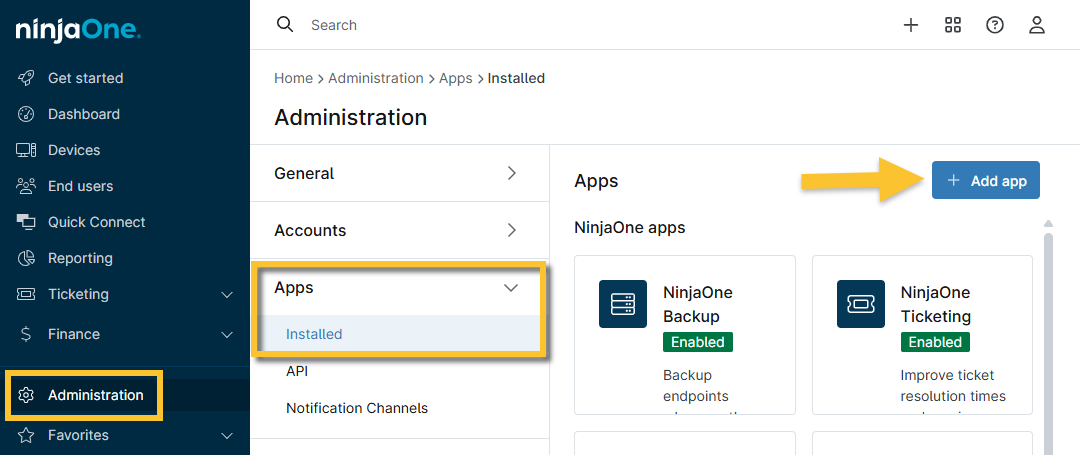
- Navigate to Administration → Apps → Installed and click Add app.
- Find and select Microsoft Intune.
- On the application page, click Enable.
Microsoft Intune Device Discovery
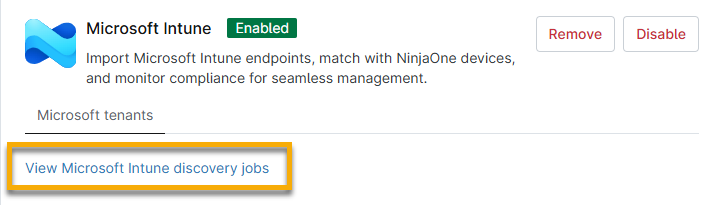
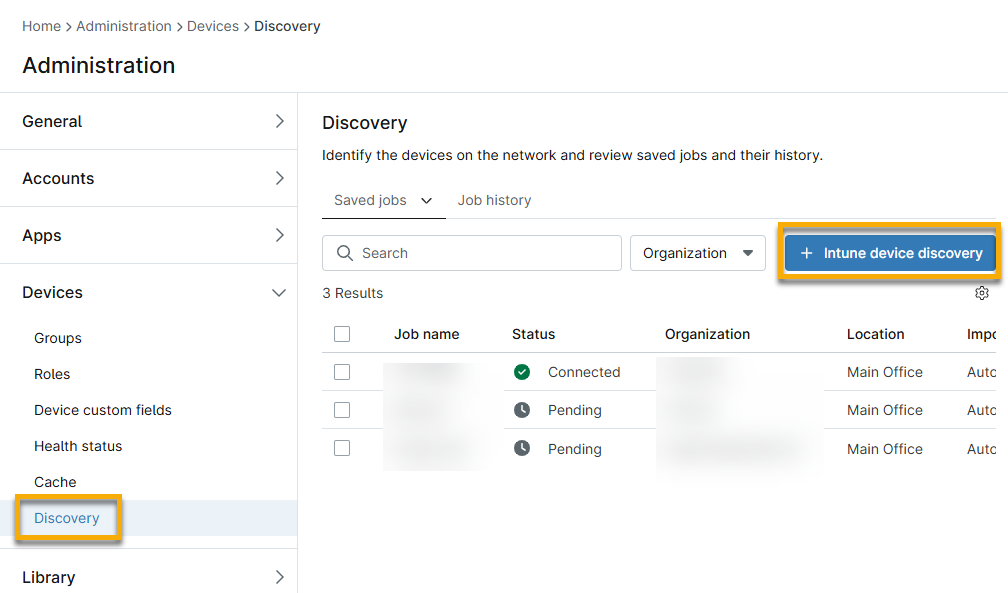
To start adding devices, click View Microsoft Intune discovery jobs to navigate to the Administration → Devices → Discovery page and perform the following steps.
- Click Intune device discovery.
- Enter a unique identifier for Job name.
- Select the organization where the devices will be assigned. The Target organization drop-down menu will show all organizations in NinjaOne.
- Select the organization's location from the Target location drop-down menu.
- By default, the discovery process installs the NinjaOne agent on the device. If you do not want this to occur, or if the agent has already been deployed through Microsoft Intune admin center, clear the Deploy agent to discovered devices checkbox. To learn more about the NinjaOne agent deployment in Microsoft Intune, refer to NinjaOne Agent Installation: Deploy via Microsoft Intune. If NinjaOne cannot automatically deploy the agent to the device, NinjaOne will create an unmanaged device account in the console. For more information about unmanaged devices, refer to Working with Unmanaged Devices in NinjaOne (ITAM).
- Click Sign in with Microsoft and follow the prompts to authorize NinjaOne with your Microsoft 365 account. Accept the request to grant permissions to NinjaOne.
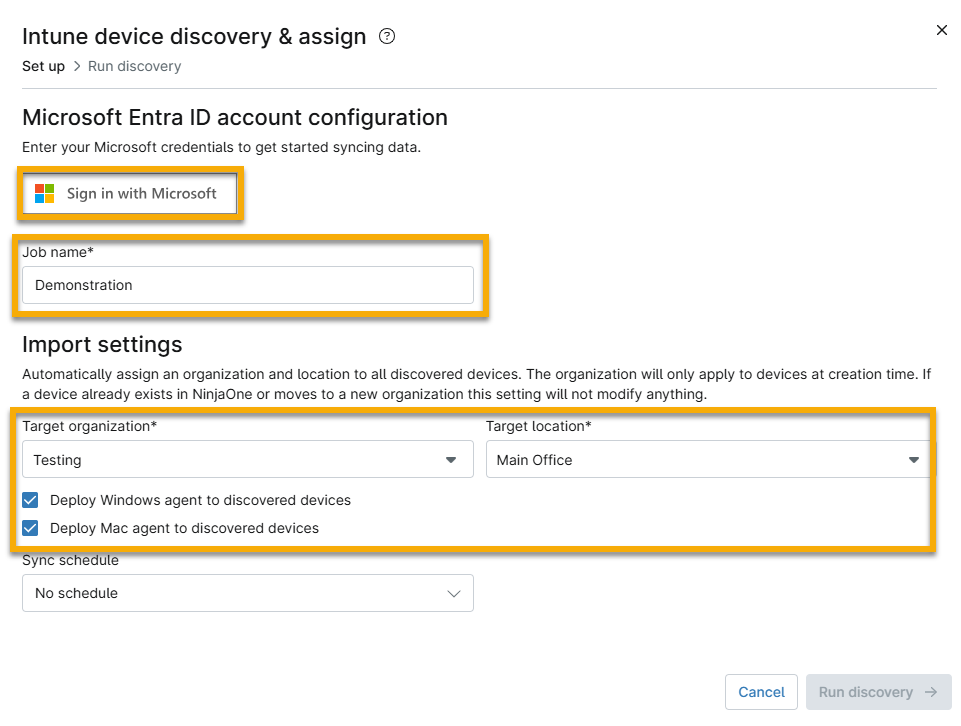
Optionally, you can set a sync schedule by clicking the Sync schedule dropdown and setting your preferred schedule.
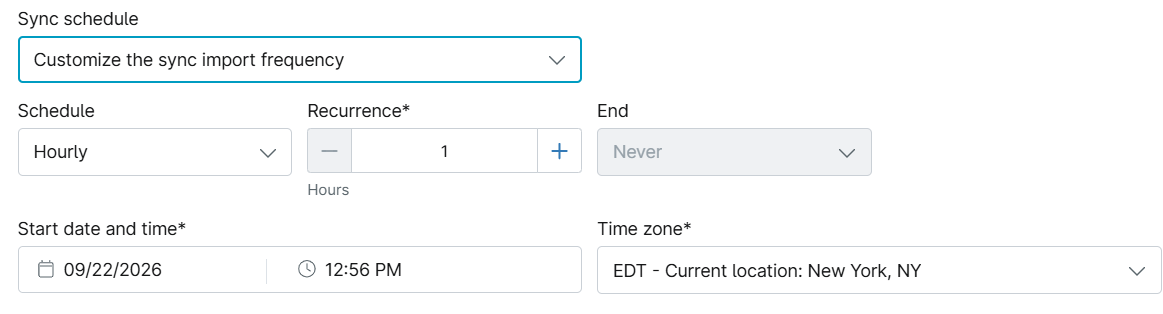
After you click Accept, you will return to the NinjaOne Intune device discovery & assign configuration dialog. You should now be able to view the Microsoft tenant name and Microsoft tenant ID fields populated with data.
- Click Run Discovery.
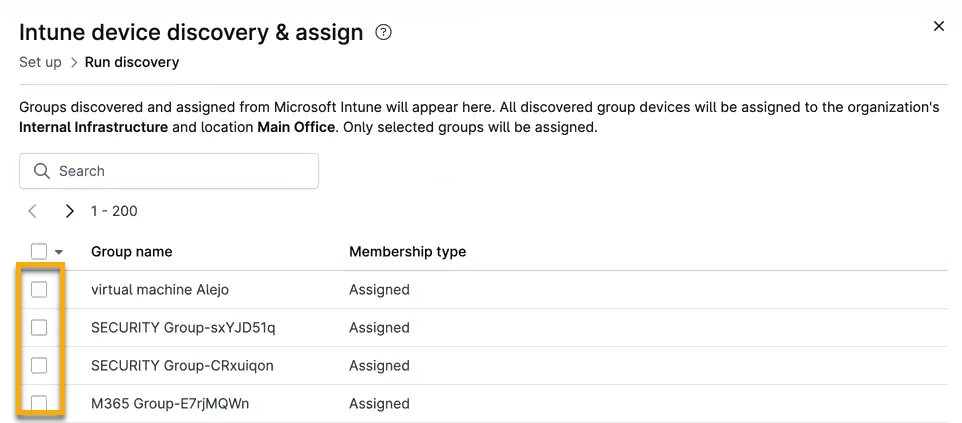
The dialog will update to show the Run discovery tab, which lists all Microsoft Entra ID Groups from your connected Microsoft account.
- Select the checkbox for each group of devices you would like to assign to the organization and location. You can use the search field to find the group by name.
- Click Assign to set the connection and run the discovery.
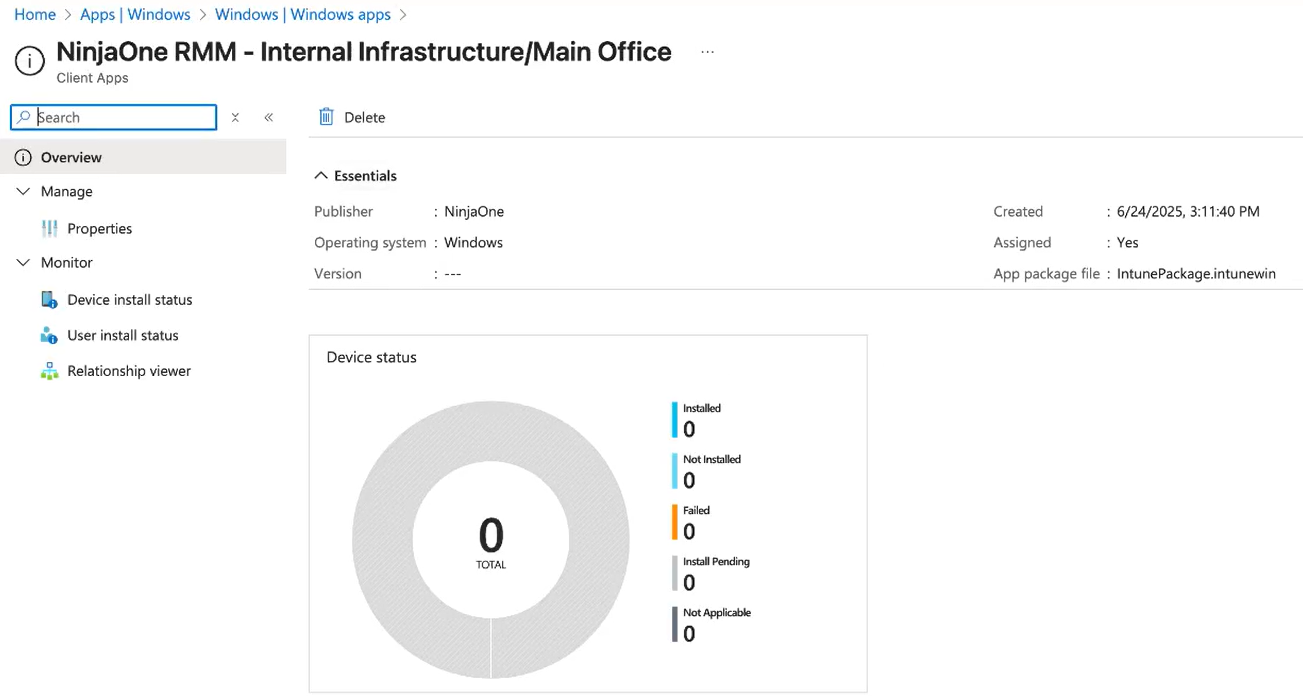
In Microsoft 365, you can navigate to Apps → Windows to find the NinjaOne RMM application. You may need to wait a few moments and refresh the page for the changes to update.
Resolve a "Pending" Account Status
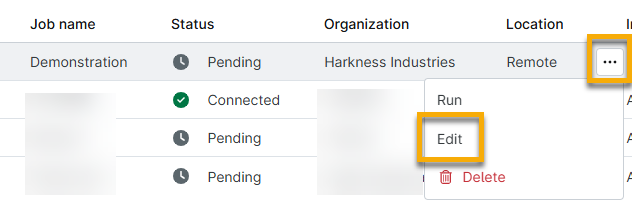
If you encounter any errors when attempting to log in to Microsoft during the discovery process, you may see "Pending" in the Status column.
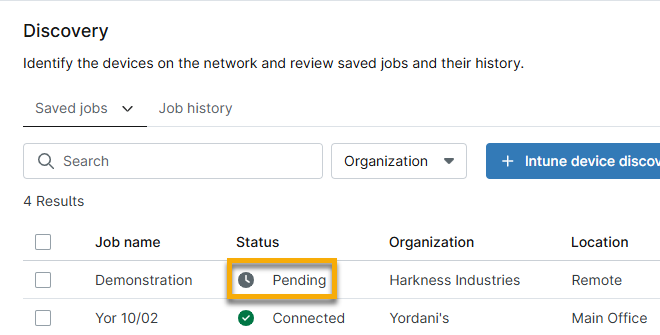
To correct this issue, perform the following steps:
- Select the checkbox next to the job name and then click Edit.
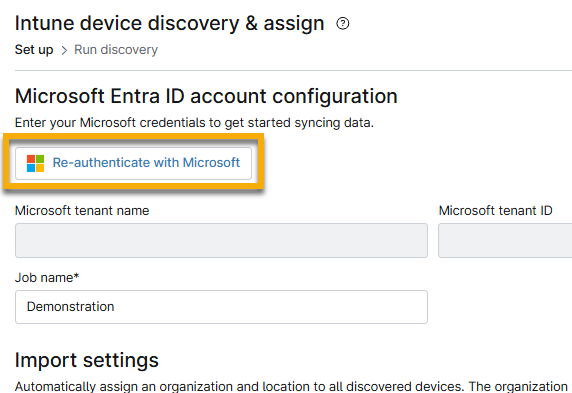
- Click Re-authenticate with Microsoft.
Run a Manual Discovery to Sync New Devices
To run a manual discovery job and sync devices that were added after the initial discovery run, follow these steps:
- Move your cursor over the job and click the actions (ellipsis) menu.
- Select one of the following options from the Run menu:
- Run incremental sync looks at any new devices that have been granted direct membership to the selected group.
- Run differential sync, Disregards the membership tracking for the group, and retrieves all new data. This method can take substantially longer, especially if you have a large number of devices.
- Click Run.
For more information, refer to NinjaOne Platform: Finding Discovered Devices.

Additional Resources
To learn more about device discovery with Microsoft Intune, refer to these guides: