
Topic
The Backup Deletes Dashboard provides a view for any backup data that was requested to be deleted by a technician. This view consolidates all backup deletion requests into one view, allows users to force a deletion, or cancel a deletion request during the 72-hour data hold. You can also view system level activities any time backup data is initially deleted, forced deleted, canceled, and once the data is officially deleted after the 72-hour hold.
Environment
Index
Scheduled Deletes
The dashboard is only visible if there are scheduled deletes. If you go to Dashboard > Backup > Overview, an indicator will appear if there is a scheduled deletion of backup activity. The indicators will also appear at the device and organization levels.

Figure 1: NinjaOne → System dashboard → Backup → Scheduled deletion banner
If there are scheduled deletes, you can also access the Scheduled Deletes dashboard by going to Dashboard > Backup > Scheduled Deletes.
Each device that has scheduled deletions will have its own row. The table can display the following:
| Options | Description |
|---|---|
| Node | All backup data for the machine. |
| Plan | A specific plan being deleted. |
| File/Folder | A file or folder in a F/F job or if a volume is being deleted. |
| Details | Specific information as to what plan, file, or folder. |
Force or Cancel a Deletion
To force or cancel a deletion, select one or more devices to view the two options.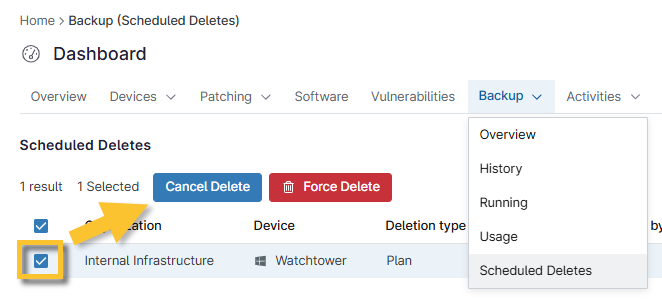
Figure 2: NinjaOne → System dashboard → Backup → Scheduled Deletes → Action options
Force Delete
This action will override the 72-hour wait and begin deleting data within minutes. This requires the System Administrator role and will also prompt for a mandatory two-factor authentication as this is a destructive action.
To force a deletion, click Force Delete, and then click Delete in the Confirm delete data window. Only system administrators have the permissions to force a deletion. Otherwise, the option will be grayed out.
Cancel Delete
To cancel a scheduled delete, select a scheduled delete, click Cancel Delete, and then confirm the cancellation in the Cancel delete data window.
Backup Deletion Activities
To delete activities within the NinjaOne console, navigate to Administration > General > Activities. NinjaOne highly recommends turning these notifications on and having them alert the appropriate person so that there is always awareness when a destructive action of deleting backup data is scheduled. By having these alerts, you will be made aware, and can cancel the delete if it was a mistake.
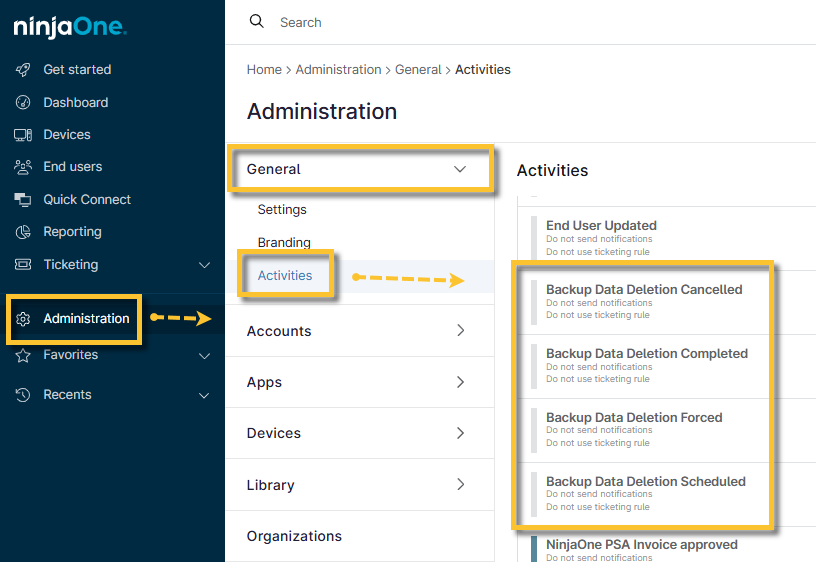
Figure 3: NinjaOne → Administration → General → Activities → Backup deletion options
Device Activities
In the Devices grid, you can also click an activity to view more specific details surrounding an event. Upon selection, the scheduled deletion date updates to reflect the soonest available time to be deleted by the system. The deletion start time is typically within minutes.
You can view all activities related to deletion in the All Activity > Backup > Filter on the four new activities.

Figure 4: NinjaOne system dashboard → Activities → Filter for Type = Backup