
Topic
This article explains how to configure MDM policies for Apple devices in NinjaOne.
Environment
- NinjaOne Mobile Device Management (MDM)
- Apple iOS
- Apple iPadOS
Description
NinjaOne Mobile Device Management (MDM) policies determine how users can use company and personally-owned devices. System Administrators can control which apps device owners can use, password requirements, default WiFi networks, and other device settings.
Index
Select a topic to continue:
Create a New MDM Policy
To learn more about creating and managing policies in NinjaOne, refer to NinjaOne Policies: Resource Catalog.
- Click Administration in the sidebar menu, then open the Policies drop-down menu and select MDM Policies.
- Click Create New Policy.
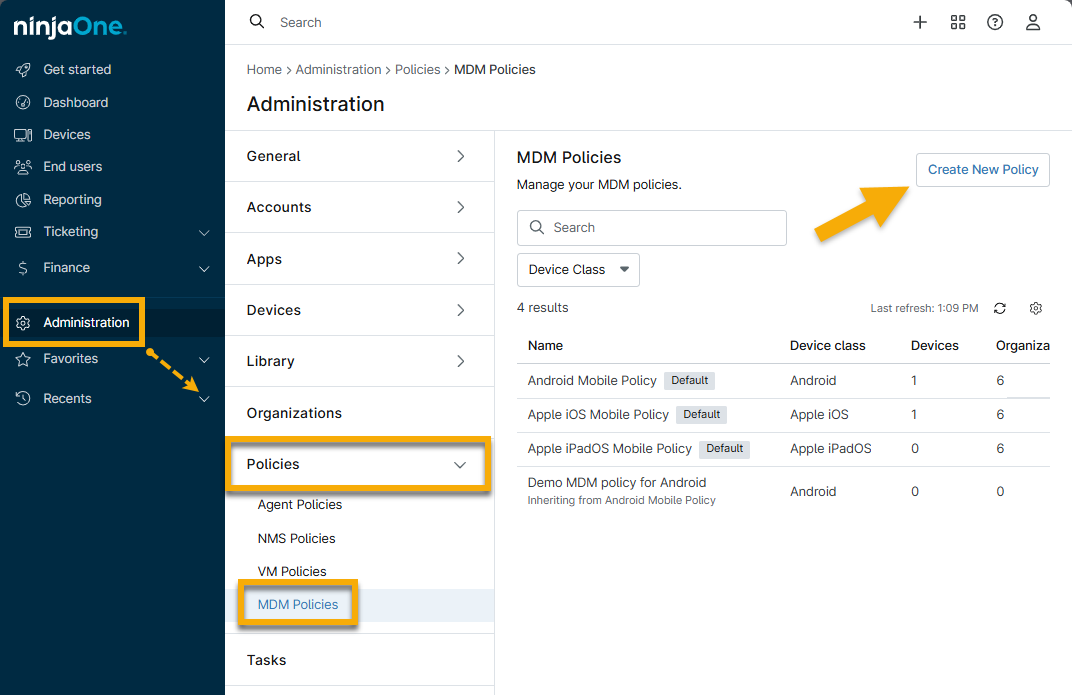
- Enter policy details and select the device role (Android, Apple iOS, or Apple iPad) from the Role drop-down menu.
- Click Save.
Apple Policy Configuration
Use the following sections to learn more about each configuration option in the NinjaOne MDM policy for Apple.
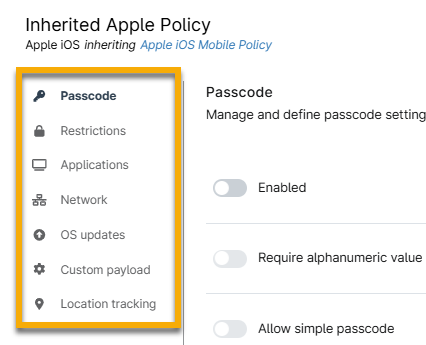
Passcode
Click the Enabled toggle to activate the passcode policy. You can then configure password values, passcode criteria, update requirements, and auto-lock settings.
For more information about this section, refer to NinjaOne Apple MDM Policy Settings: Passcode.
Restrictions
The Restrictions page includes configuration options for the following features:
- Functionality
- Application
- Security and Privacy
- Media
- iCloud
- Classroom
- Apple Intelligence
- Wallpaper
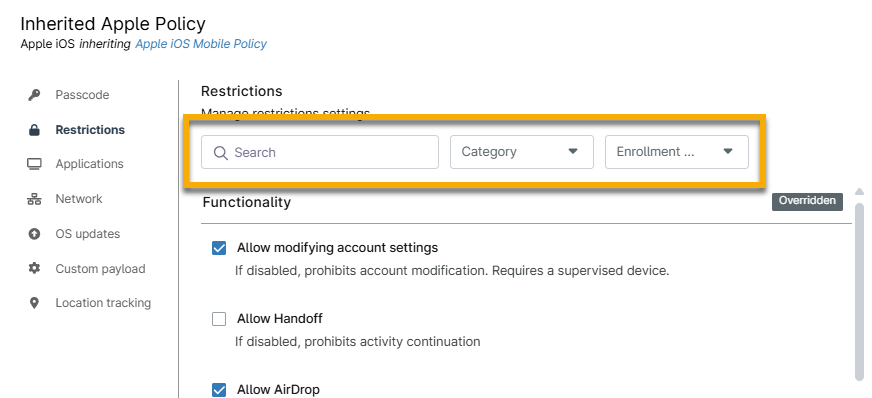
Use the Category drop-down menu to filter the appropriate category, and then restrict a feature by selecting the checkbox next to it. Use the search bar to find specific restrictions, or use the Enrollment type drop-down menu to find supervised or unsupervised settings.
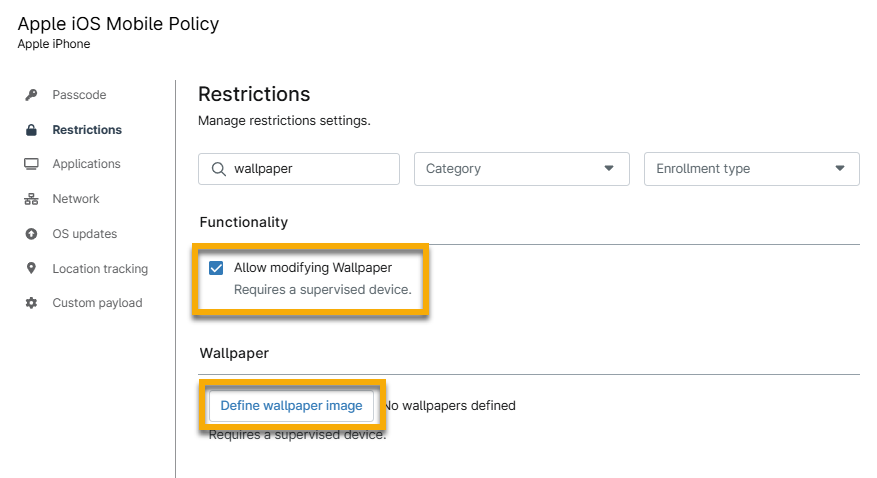
You can define whether wallpaper images are permitted for a supervised iOS or iPadOS device. Use the search field to find this feature and then click Define wallpaper image. Defining the wallpaper image does not prevent the user from modifying it.
Wallpaper requirements:
- Format all file types to PNG, JPG, or JPEG
- File types cannot exceed 5 MB
- File dimensions cannot exceed 10,000 pixels
Applications
Adding apps via the MDM policy editor allows technicians to control which apps are available to end users and which are blocked from use.
In addition, NinjaOne's MDM tool supports apps assigned via Apple's App and Books Volume Purchase Program (VPP). NinjaOne supports Apple Business Manager (ABM) content tokens per organization or location and provides information related to the token, assigned apps, and licenses from the NinjaOne Apple MDM application page in NinjaOne. To learn more about VPP support, refer to NinjaOne MDM: Apple Apps and Books.
To learn how to add and manage apps in the policy, refer to NinjaOne MDM: Application Configuration and Management.
Network
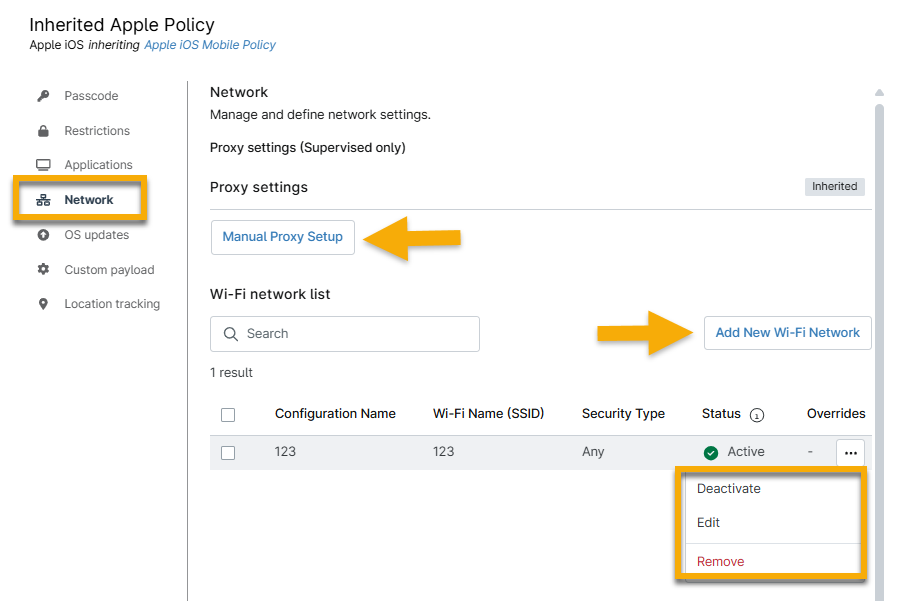
Add a policy network structure via manual proxy setup and WiFi.
- All WiFi networks saved to the policy apply to the physical device. When defining WiFi security, use the Security drop-down menu to specify the security option your WiFi should use during setup (typically WPA2).
- If you configure a global proxy, the user can deactivate it on the device.
- Ensure that the Service Set Identifier (SSID) on the device matches the one in the NinjaOne policy. This data is case sensitive.
- Move your mouse cursor over the connection settings to select options to deactivate, edit, or remove a network.
OS updates
Set policies that define which operating system (OS) versions to approve and when, and establish deadlines for devices. Devices can update whether they are locked with a passcode or not, and can directly integrate with Apple's various APIs and additional server-side logic to simplify and further automate update management.
For more information, refer to NinjaOne MDM: OS Update Management.
Custom Payload
Use this section to define a specific configuration profile for your devices. NinjaOne deploys each custom payload as a separate MDM profile to the device.
Custom payloads allow NinjaOne to support all Apple MDM payloads. There may be a slight delay in implementing new Apple functionalities, but we will expedite the development of an appropriate solution.
To learn more about Apple configuration profiles and profile-specific payloads, refer to Apple's resources at TopLevel | Apple Developer Documentation (external link).
For more information about configuring this data in a NinjaOne policy, refer to NinjaOne MDM Policy Settings: Custom Payloads.
Location Tracking
Use this section to track the precise locations of mobile devices and devices that support the Global Positioning System (GPS). Learn more at NinjaOne MDM: Location Tracking.
Resync Policy
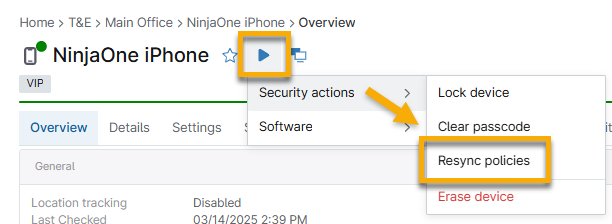
Click the action button on the device dashboard to use the Resync Policies tool. Technicians must have minimum permissions of View, Update to perform this action. Resyncing the policy will create an entry in the Activities section.
Additional Resources
To learn more about configuring and managing Apple MDM policies in NinjaOne, refer to the following resources: