
Topic
This article explains how you can view and manage support requests from within the NinjaOne Dojo.
Environment
- NinjaOne Platform
- NinjaOne Dojo
Description
NinjaOne users in technician roles can submit and discuss requests and issues with our Support and Billing teams via email. Technicians can also create, view, and manage support requests directly within NinjaOne. Select a topic to continue.
- Submit a Request (Ticket) to NinjaOne Support or NinjaOne Billing
- Support Request Categories
- Viewing Your Requests
- Responding to Your Requests
- Development Ticket Status
Submit a Request to NinjaOne Support or NinjaOne Billing
- Log in to your NinjaOne instance.
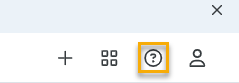
- In the top navigation bar, click the question mark ( ? )icon.
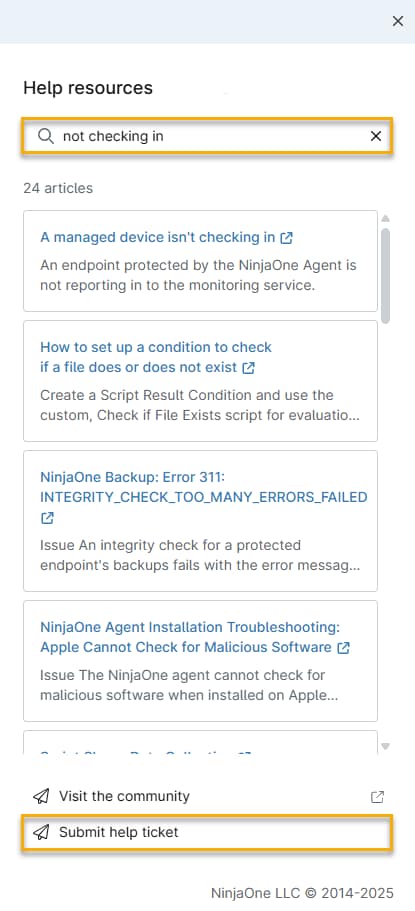
- The Help resources menu will open. In the Search help article box, enter the keywords corresponding to the inquiry for which you require assistance.
- If no applicable help results appear, select Submit help ticket.
- The Submit Help ticket form will open. Complete all applicable fields and selections. As you populate the Subject field, a count of suggested knowledge base topics from the NinjaOne Dojo might appear below it. Providing more information results in more detailed suggestions. We recommend reviewing these articles, as they may resolve your issue and prevent the need for a support ticket.
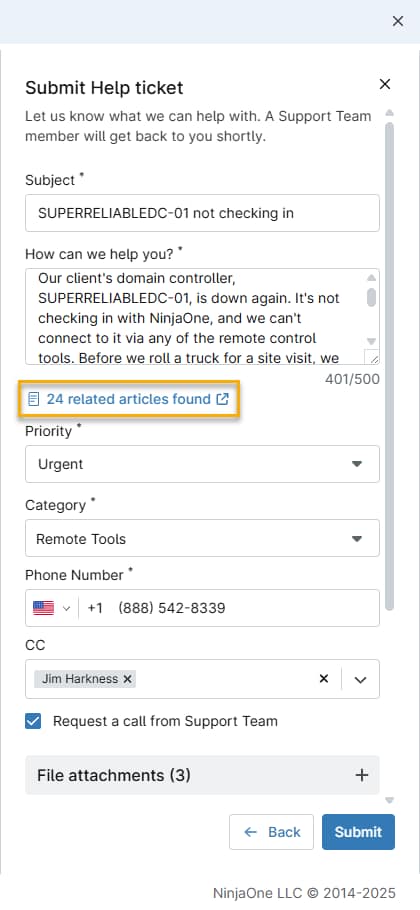
- Classify your request by selecting the most applicable topic from the Category menu. Correct categorization reduces response times and can enhance the accuracy of the support you receive. For category definitions, refer to this article's Support Request Categories section.
- Optionally, in the CC field, designate one or more additional NinjaOne users to be correspondents on the ticket.
- Use the File attachments field to include files related to your request, such as a screenshot of the issue you're experiencing. You can attach up to five files. To remove a file, move your cursor over its entry in the list. Click the ellipses icon that appears. Then, click Delete.
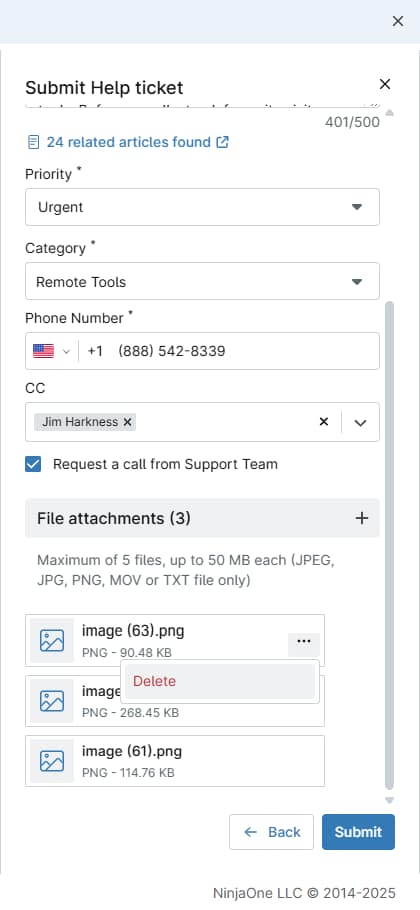
- Click Submit to send the ticket to our team. When you do so, you'll receive an email at the address associated with your NinjaOne account, confirming receipt of the ticket and its details.
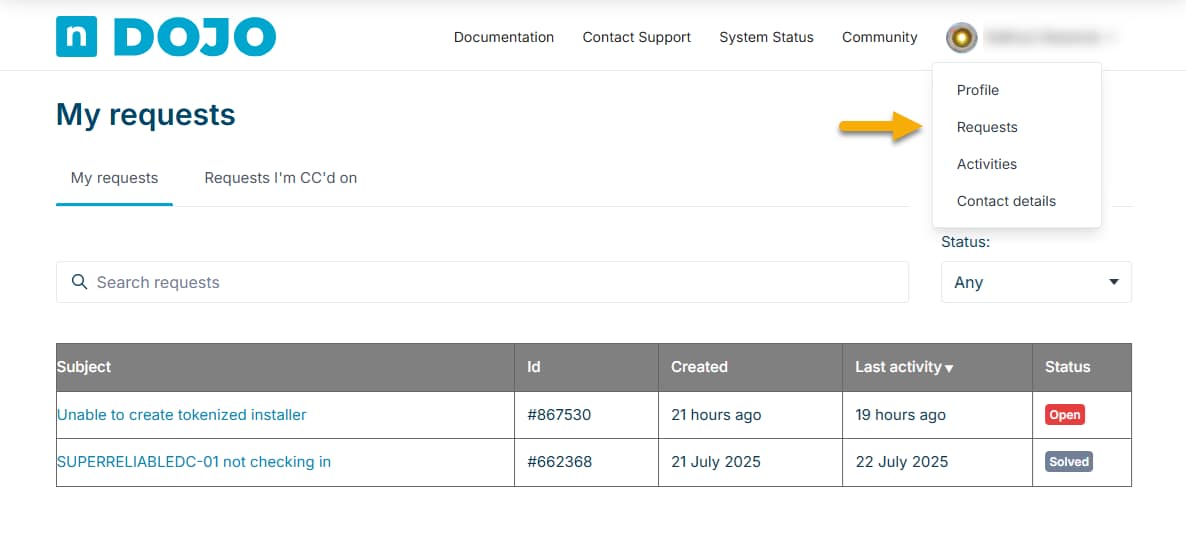
- You can update your ticket by clicking your profile icon in the top navigation bar of the NinjaOne Dojo and selecting Requests in its drop-down menu.
- When the My requests page opens, click the subject line of the ticket you'd like to update.
- The ticket update dialog will open. Add any additional information or files you'd like the team to receive, then click Submit.

Support Request Categories
The following table lists the values available in the Category drop-down menu for Support Ticket requests and their definitions.
| Category Names | Description |
|---|---|
| AD User Management | Active Directory user management, authentication, domain integration, and AD-related configurations within NinjaOne Submit AD Discovery requests as "Network Discovery." |
| Activities | Activities dashboard, activity logging, and viewing historical actions performed within the platform |
| Security Integrations | Antivirus integrations and management including Bitdefender GravityZone and SDK, SentinelOne, CrowdStrike, MalwareBytes, and Webroot AV-specific vulnerabilities belong here. |
| API | NinjaOne Public API, API authentication, rate limiting, or API functionality issues |
| Automation | All Automation features, scheduled scripts, scheduled tasks, and scripting |
| Backup | Backup solutions, including NinjaOne Backup, NinjaOne SaaS Backup, CloudBerry integration, ShadowProtect, and ImageManager |
| Branding | Custom branding, white-labeling features, and personalization of the NinjaOne interface |
| Custom Fields & Documentation | Creating, managing, or displaying custom fields and documentation features |
| Devices | Device management and monitoring, including BitLocker and FileVault encryption, Cloud Monitors, Device Roles, Linux, Mac, and Windows agent, Tray Icons, Maintenance Mode, RAID monitoring, Software Inventory, and Warranty Tracking |
| Groups & Search | Device search functionality, creating device groups, and search filters |
| Ticketing/PSA Integrations | Third-party integrations, including PSA tools such as Accelo, Autotask, ConnectWise, HaloPSA, and RepairShopr, as well as documentation platforms such as IT Glue |
| IT Operations | All inquiries related to managing browser configurations, risk scoring and behavioral analytics |
| MDM | All Mobile Device Management requests, including device enrollment, iOS, Android, iPadOS policies, and mobile device configuration |
| Network Discovery and Management | Network-related features, including Auto Discovery, Custom SNMP monitoring, and Network Monitoring System (NMS) |
| Ninja Mobile Apps | NinjaOne Mobile applications, including the NinjaOne Mobile app and NinjaOne Assist |
| Ninja PSA and Billing | NinjaOne Billing feature (formerly called NinjaOne PSA) excluding Ticketing, Documentation, and IT Asset Management (ITAM). |
| Notifications | Notification channels, alert configurations, email notifications, and notification delivery |
| Organizations | Location management, Credential Exchange, Node Approval processes, and organizational structure |
| Other | All requests that don't fit other categories, such as feature requests, general UI problems, localization issues, privacy concerns, and Sales or Account Manager requests |
| Patch and Vulnerability Management | Patching and updates, including OS patching for Windows, macOS, and Linux, third-party application patching (3PP), and device-agnostic patching Patching vulnerabilities belong here. |
| Policies Management | Policy creation, management, overrides, children, and conditions. |
| Remote Tools & Chat | Remote access and control tools, including:
|
| Reporting | All report-related inquiries, including executive summaries, regular reports, custom reports, scheduling, and data accuracy |
| Ninja Ticketing | NinjaOne's built-in ticketing system and ticket management features |
| Identity & User Management | User account management, user permissions and roles, SCIM provisioning, identity management |
| Virtualization | Virtual environment monitoring, including VMware monitoring and Hyper-V integration |
| IT Asset Management | All inquiries related to unmanaged devices, asset fields, software license management and device discovery |
| NinjaOne Katana Agentic AI | Any issue using our agentic AI assistant built natively into NinjaOne that transforms operational data into actionable intelligence |
Viewing Your Requests
- Once you've created or we've copied you in on a ticket, you can view it by clicking your profile icon in the top navigation bar of the NinjaOne Dojo and selecting Requests in its drop-down menu.

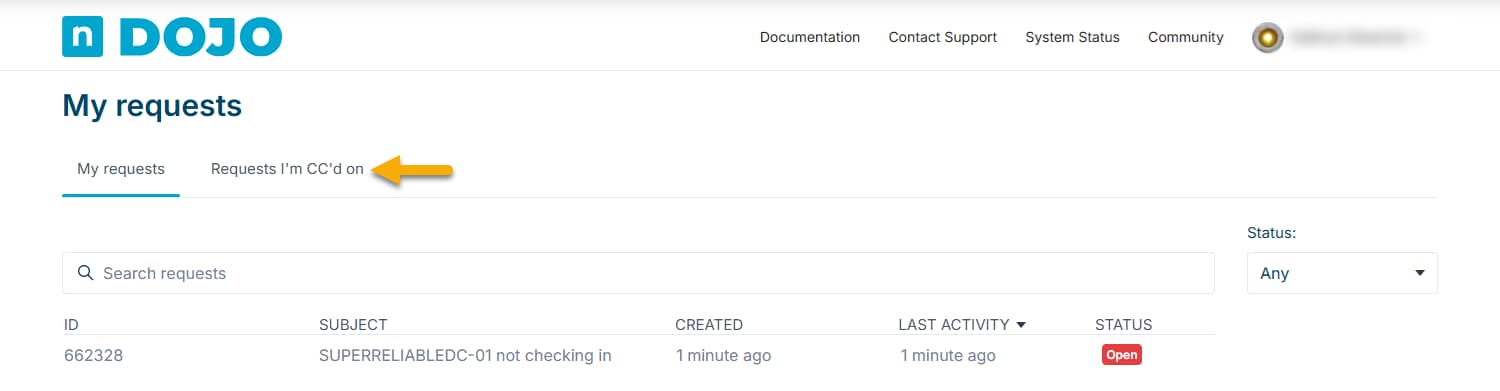
All tickets for which you are a participant will appear on the My requests page.
- To view only the tickets we've copied you in on, click Requests I'm CC'd on.
Responding to Your Requests
- To correspond on an active ticket, click its entry in the selected view.
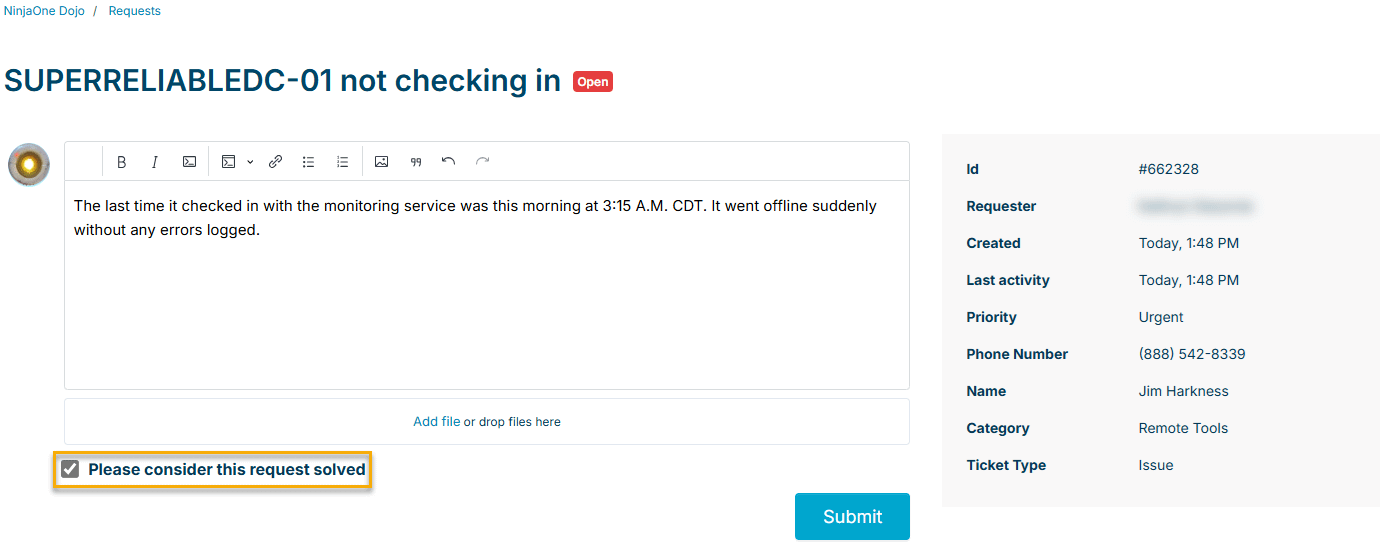
- The ticket detail dialog will open. Scroll to the bottom of the ticket.
- Type your response in the text box. You can also attach files to your reply.
- When you finish creating your response, click Submit.
You can also mark the ticket as reolved by selectiing the Please consider this request solved checkbox to the left of the Submit button. This option may not appear immediately after creating the request. If it does not, refresh the page after you receive an email confirming receipt of your case.
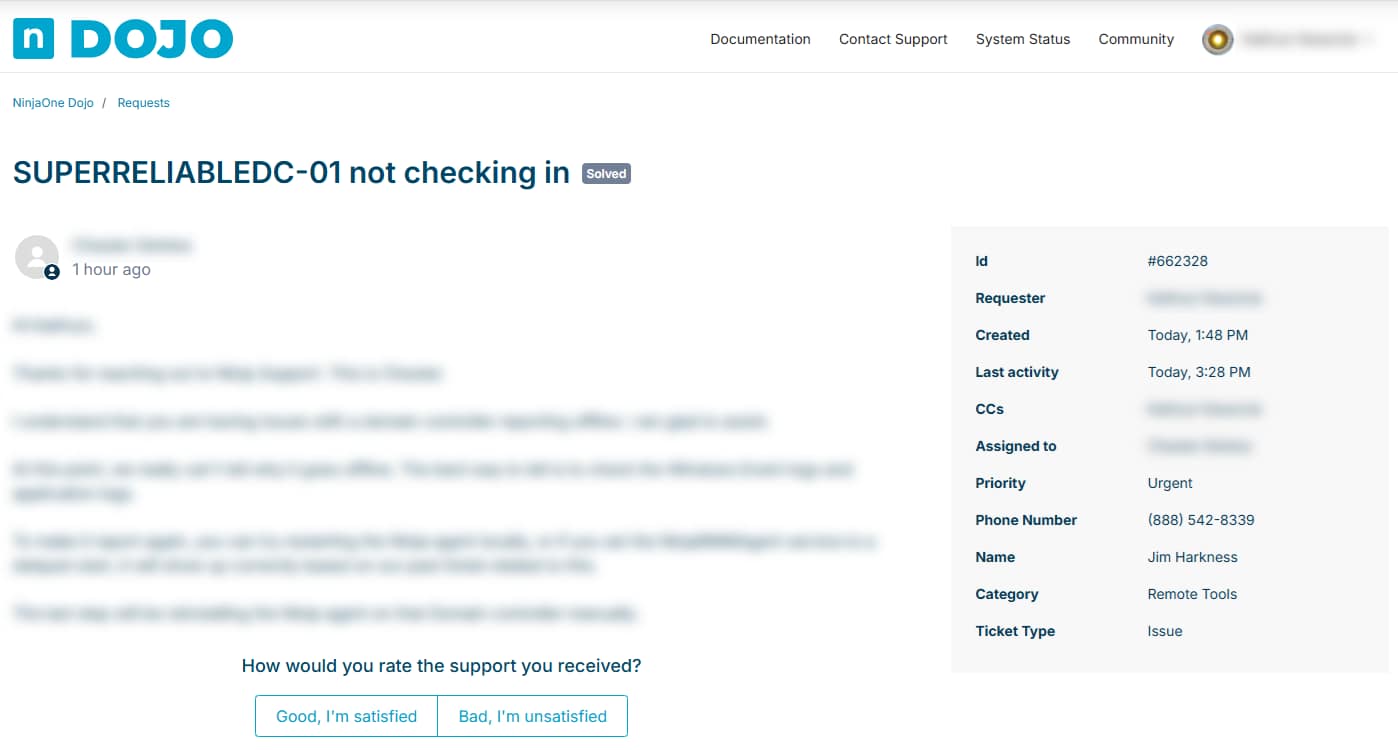
After ticket resolution, you can submit feedback on your experience with the NinjaOne team and leave a comment.
Development Ticket Status
If NinjaOne Support has escalated your ticket to our development team for further assistance, you can track its progress in the Development Ticket Status field.
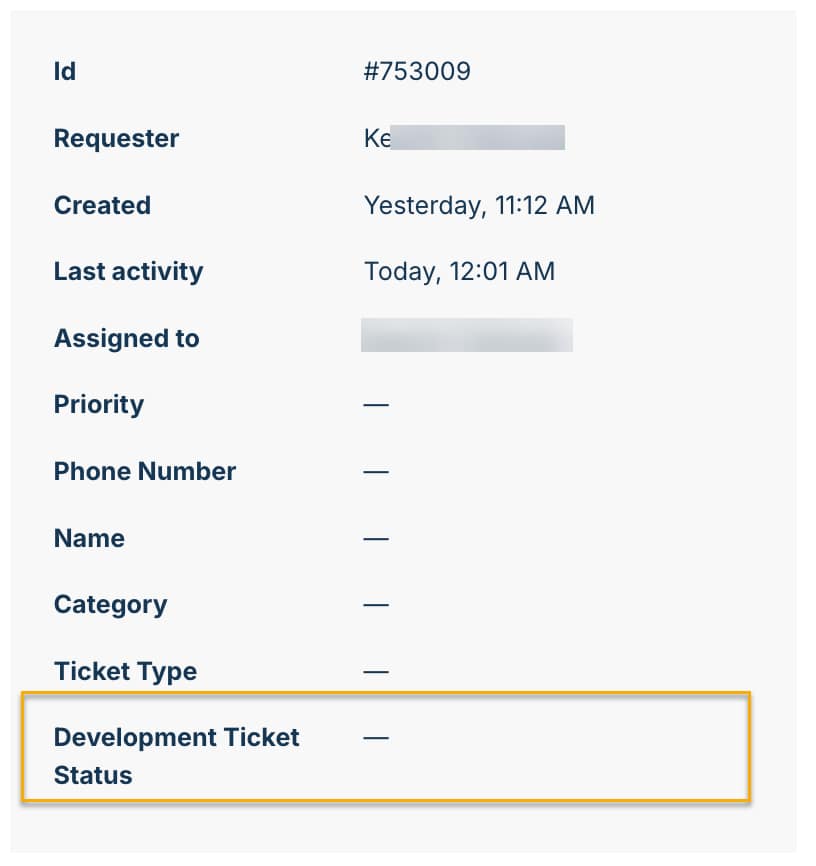
Here's a list of potential statuses and their corresponding indications.
| Ticket Status | What the Status Indicates |
|---|---|
| Submitted | We’ve received your ticket and it’s awaiting initial review by our team. |
| In Queue | Your ticket is in line and ready to be worked on by our engineering team. |
| Under Investigation | We’re gathering more information to better understand the issue. |
| In Progress | Our team is actively working on resolving your issue. |
| Code Change Submitted | A potential solution has been developed and is being reviewed by our engineers. |
| Code Change Approved | The solution has been reviewed and approved, and is being prepared for release. |
| Testing | The solution is being tested to make sure it works as expected. |
| Ready for Release | The solution has passed testing and is scheduled to be released. |
| Info Requested | We need more details from you to continue working on your ticket. |
| Waiting on Dependency | We’re waiting on another team, partner, or system before we can proceed. |
| Deployed to Production | The solution is now live and available to you. |
| Investigation Complete | The development team has concluded their Investigation and findings are shared in the support ticket. |
| No Further Action Planned | After review, we will not be making any changes. |
How We Keep You Informed
As your ticket moves through the stages above, NinjaOne sends automated updates triggered by key progress points, so you'll always know when your ticket status changes. Additionally, for active tickets, we occasionally send proactive updates even if the status hasn't changed, so you know that your request is still being monitored and worked on. These communications keep you informed, reduce uncertainty, and ensure you always have visibility into your support interactions.
If you have any questions about your ticket status, don't hesitate to contact our support team.