
Topic
This article explains how to find discovered devices in NinjaOne.
To learn how to discover devices or create the discovery job, refer to the Additional Resources section within this article.
Environment
NinjaOne Endpoint Management
Description
Identify the devices on the network and review saved jobs and their history. Select a category to learn more:
Find the Discovery Job
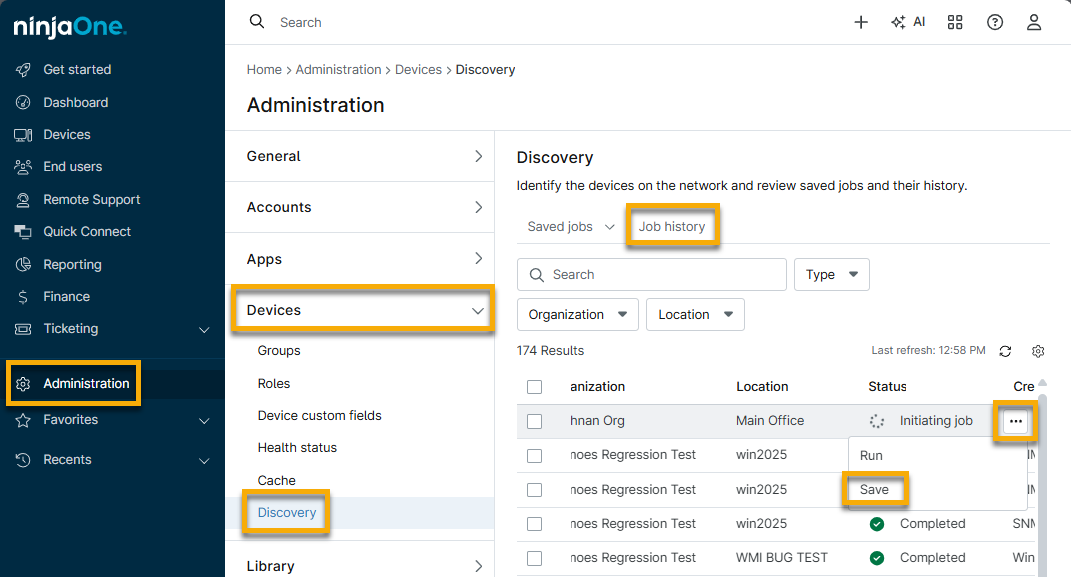
After you add the discovery job for the device, NinjaOne stores the job entry in the Job history tab. Use the search field and filters to find the data.
You can save the job to easily find it later from the Saved jobs tab. To do so, move your cursor over the row and click the Actions button, then select Save.
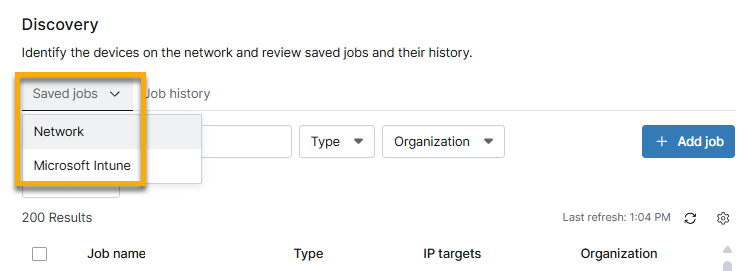
When you search for the saved job, open the Saved jobs tab and select either Network or Microsoft Intune, depending on the device type and discovery method.
Run the Discovery Job
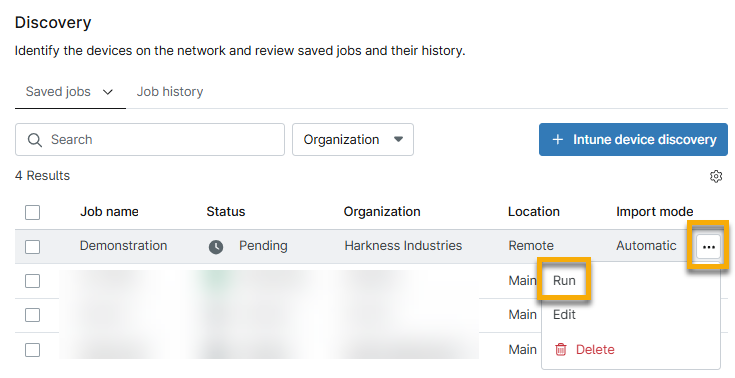
The discovery job will run initially when you first create it in NinjaOne. Subsequent runs will find new devices added after job creation.
To run the job and find new devices, move your cursor over the job and click the ellipsis button. Then, select Run.
Find Discovered Devices
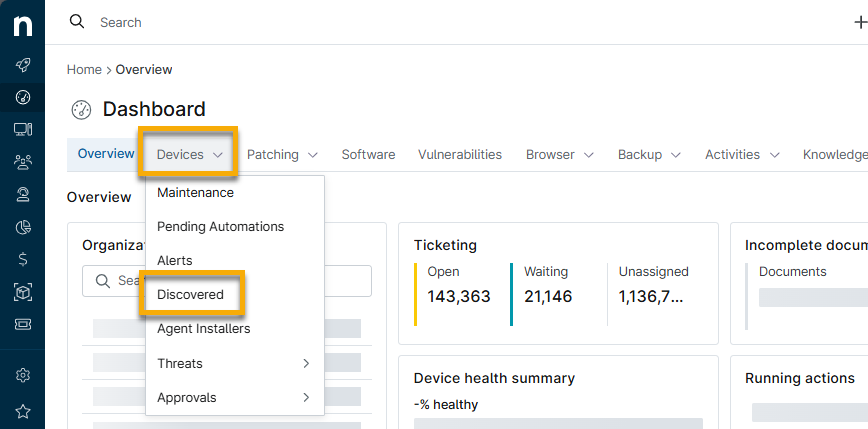
After the discovery job is complete, you can manage all discovered devices from the NinjaOne dashboard.
From the system or organization dashboard, click Devices and select Discovered.
When discovered network or Intune devices are linked to managed or unmanaged devices in NinjaOne, you can find key information from the device dashboard. Click Details → Discovered.

Convert a Discovered Device to an Unmanaged Device
If you don't want to manage devices, you can convert them to unmanaged devices and track them in NinjaOne using NinjaOne IT Asset Management (ITAM).
From the Devices → Discovered page on the system or organization dashboard, move your cursor over the device in question and click the ellipsis button. Select Convert to unmanaged device.

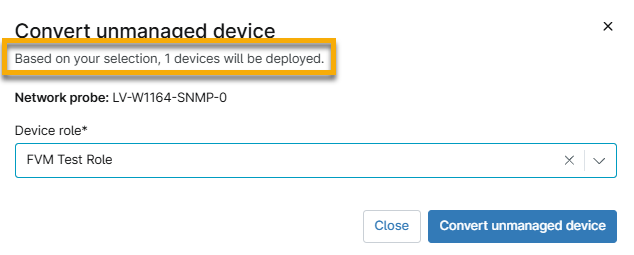
Select a role for the device, then click Convert unmanaged device again. To learn more about device roles, refer to NinjaOne Platform: Device Roles.
Additional Resources
Refer to the following resources to learn more about network discovery in NinjaOne: