
Topic
This article explains how to configure permissions for technicians in NinjaOne. This article addresses the settings for an individual technician account, which you can use as a reference when setting up a role.
Environment
NinjaOne Platform
Description
After creating technicians in NinjaOne, you can assign them permissions for various product features to ensure they have the minimum necessary access to perform their responsibilities.
Select a section to learn more.
- Navigating to Technician Permissions
- Important Considerations
- Basic Technician Settings
- Additional Resources
Navigating to Technician Permissions
You can change an individual technician's permissions or assign them to a role with specific, pre-set permissions. Refer to NinjaOne Accounts: User Roles to learn more about roles.
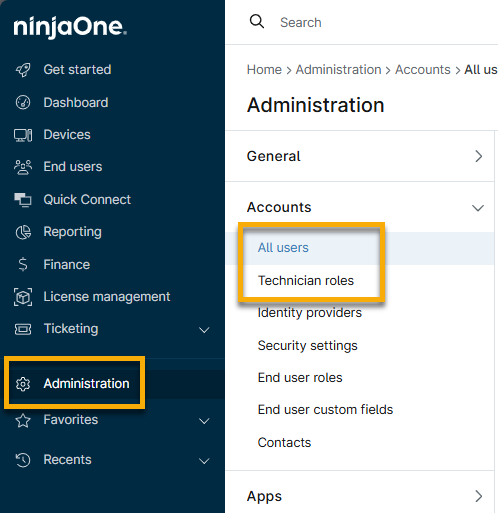
Access individual accounts at Administration → Accounts → All users. Access the role permissions at Administration → Accounts → Technician Roles.
Important Considerations
Activate the Permission Configurations
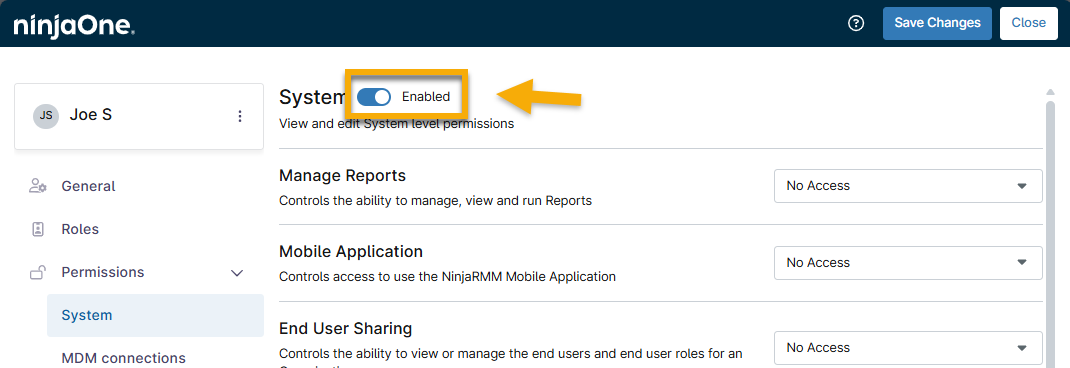
You must activate the Enabled toggle at the beginning of each permission page to configure the settings.
Manage Default Permissions
By default, specific permissions will automatically update to provide recommended access levels after you activate the section. You can change the selection by choosing a new permission level from the drop-down menus.
For some Permission sections, you can set Default Access, which determines the access level for all subsequent permissions within a category. For example, you can set the default access to all organizations to View, but then change the access level for a single organization to View, Update, or Delete. To change the default access, select the checkbox next to the individual organization name and then click Edit Permissions.

Review Permission Definitions
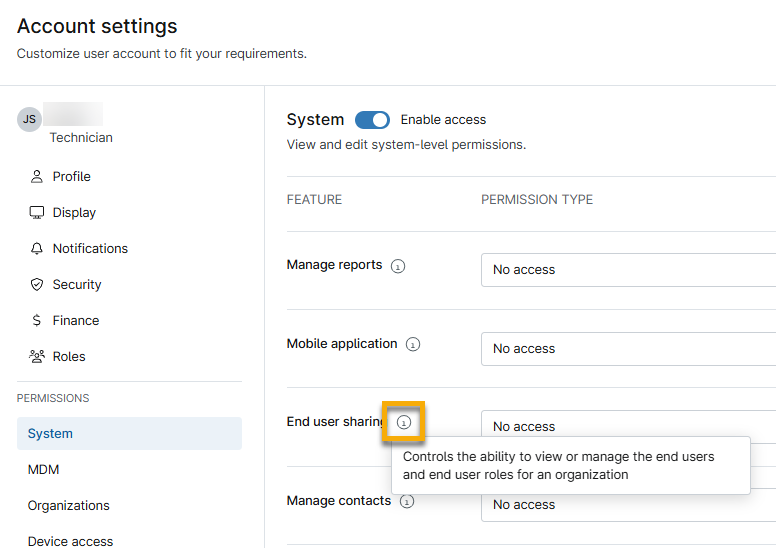
Each permission provides a tooltip that explains the purpose of the permission. Move your mouse cursor over this tooltip to learn more.
Basic Technician Settings
Refer to the tables below for detailed information about each category's permission settings. For the purposes of this article, we will update the permissions for individual technicians.
Profile
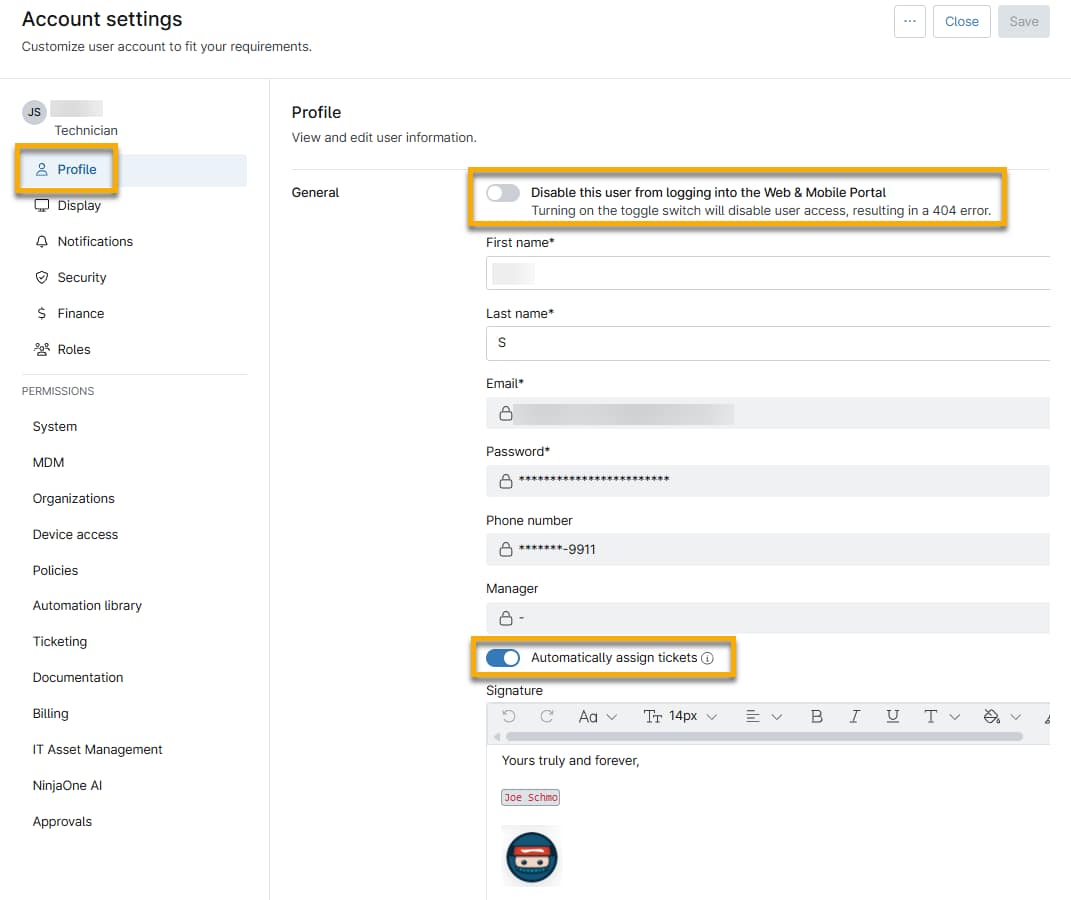
Use these settings to record basic user information. Refer to the table below for a description of each field and toggle.
| Field or Toggle | Description |
|---|---|
| Disable this user from logging into the Web & Mobile Portal | Turning on the toggle switch will disable user access, resulting in a 404 error. To learn more about the mobile portal, refer to NinjaOne Assist Mobile Application. |
| First name | Add the technician's first name as it should appear on the platform. |
| Last name | Enter the technician's surname as it should appear on the platform. |
| The invitation to log in to NinjaOne is sent to this account, and the end user will use this account for all future access to their portal. | |
| Password | Click Reset Password to resend the NinjaOne invitation. The end user will be prompted to create a new password. |
| Phone number | The end user's personal or work mobile number will be used to complete authentication if you select SMS in the Security tab. |
| Manager | Optionally, add the user to whom the technician reports. You can use this data with related items. |
| Automatically assign tickets | This toggle is related to event-based automation actions. If a system administrator configures the action to auto-assign based on "least open ticket" or "longest time since last ticket assignment," the ticket is automatically assigned to the technician with the fewest open tickets or the longest time since they were last assigned a ticket (based on the selected condition). |
| Signature | This field appears after you create the technician account. Add a signature that will be applied to a ticket's public responses. |
Display
View and edit display preferences.
| Field | Description |
|---|---|
| Preferred language | Select the technician's preferred language to ensure a clear understanding of all platform verbiage. |
| Timeout session | If activated, this option specifies the amount of time the technician can be idle in NinjaOne before receiving a warning and being logged out. |
| Getting started tab | Show or hide the Getting Started page in NinjaOne. |
Notifications
View and edit notification preferences.
| Field | Description |
|---|---|
| Email alerts | Configure whether the technician receives notifications via the email associated with their NinjaOne account. |
| SMS alerts | Configure whether the technician receives notifications on their mobile device. |
| Organization alerts | To allow the technician to receive organization-specific alerts, select all organizations or the organization the technician has access to. |
Security
View and edit security settings.
| Field | Description |
|---|---|
| User authentication | Select the authentication type for the account:
|
| MFA methods | The technician will be able to select their MFA method at login, which will set the Status to Enabled on their Account settings page. When the Status is Enabled, you can use the actions menu to set up a new method, edit, or remove the keys. Some MFA methods may not appear if they are not set up in Administration → Accounts → Security settings. |
Finance
The Hourly cost field enables you to track the estimated costs for each of your customers, including base wage, expected productivity, additional expenses such as taxes, benefits, paid time off, training, and other overheads. If you do not enter a value for this field, time entries will use the default hourly cost.
Only system administrators or technicians with NinjaOne Billing → Administrative Actions access can update this field. When you update this field, you can also update existing time entries for the technician. For more information, refer to NinjaOne Platform: User Roles.
Additional Resources
Refer to User Management: Resource Catalog to learn more about managing users and technicians in NinjaOne.