
Topic
This article discusses how to manually delete your local backup data if the device is no longer reachable from NinjaOne.
Environment
NinjaOne Device Backup
Description
These instructions assume the local storage device is no longer reachable via NinjaOne Device Backup, and therefore, you must manually remove local backup data. If NinjaOne Device Backup can still access the device, refer to these articles instead:
- NinjaOne Device Backup: Deleting Image Backup Data
- NinjaOne Device Backup: Deleting File/Folder Backup Data
There may be situations where you wish to delete local backup data, but the device is no longer in use and unreachable in NinjaOne. In these situations, you must manually remove the local backup data from the network share where it is stored. It is critical to know the exact location of the local data and the correct method for removing it.
Manually Deleting Local Backups
Deleting local backup data works in a similar way regardless of plan type, but there are some differences. Image backup plans allow you to select which volumes you wish to delete the backups for, and specify whether you want to delete local data, cloud data, or both. File/Folder Backup deletion will remove all backup data for the specified plan that NinjaOne can access, regardless of its storage location.
To delete local backup data, follow these steps:
- Navigate to the device dashboard in NinjaOne, move your cursor over the Backup tab, and then select Manage.
The backup plans you set up at the policy level will display on the page. - Select the checkbox next to the plan that contains the data you want to remove. If this is an Image Backup plan, you can click the plan name to select individual volumes to delete.
- Click the Delete data button. Alternatively, you can place your cursor over the actions menu at the far end of the plan listing and select Delete data.
.png)
- A new dialog will open, displaying deletion information and options. If you selected an Image Backup plan, and your backups contain both local and cloud data, you'll have the option to select just local, just cloud, or both. Use the drop-down menu to make your selection. File/Folder Backup plans will remove all data regardless of data location, and so will not display the Data location drop-down menu.
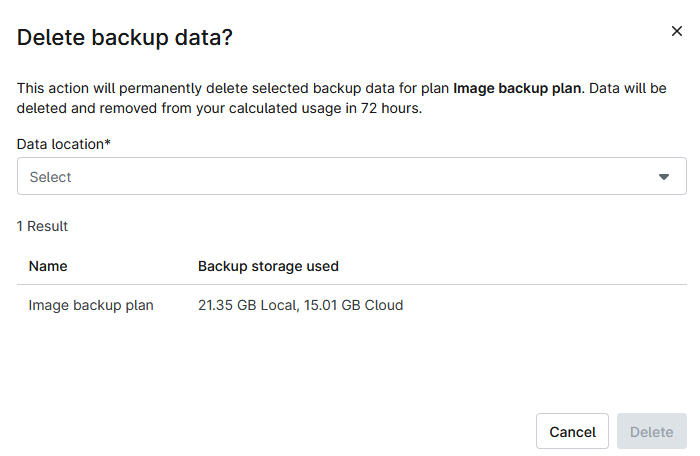
- Make a note of the local path displayed in the dialog. Noting the exact path is critical to avoid accidental deletion of vital data. Place your cursor over the Local storage path to reveal a Copy to Clipboard option, if you'd like to copy the path to your clipboard.

- Click Delete.
- On the local storage device, navigate to the exact path as noted in the dialog (step five) and manually delete the data from the share.