

ServiceNow Scheduled Data Imports for Device Configuration
With NinjaOne's Version 5.9 release, you have the option to activate the ServiceNow Marketplace app when you configure your ServiceNow connection settings with NinjaOne, which allows devices to be synced automatically from NinjaOne to ServiceNow on a set schedule.
With devices and organizations synced with NinjaOne and ServiceNow, you can see when incident tickets are created in ServiceNow from the activity log on the NinjaOne device dashboard. 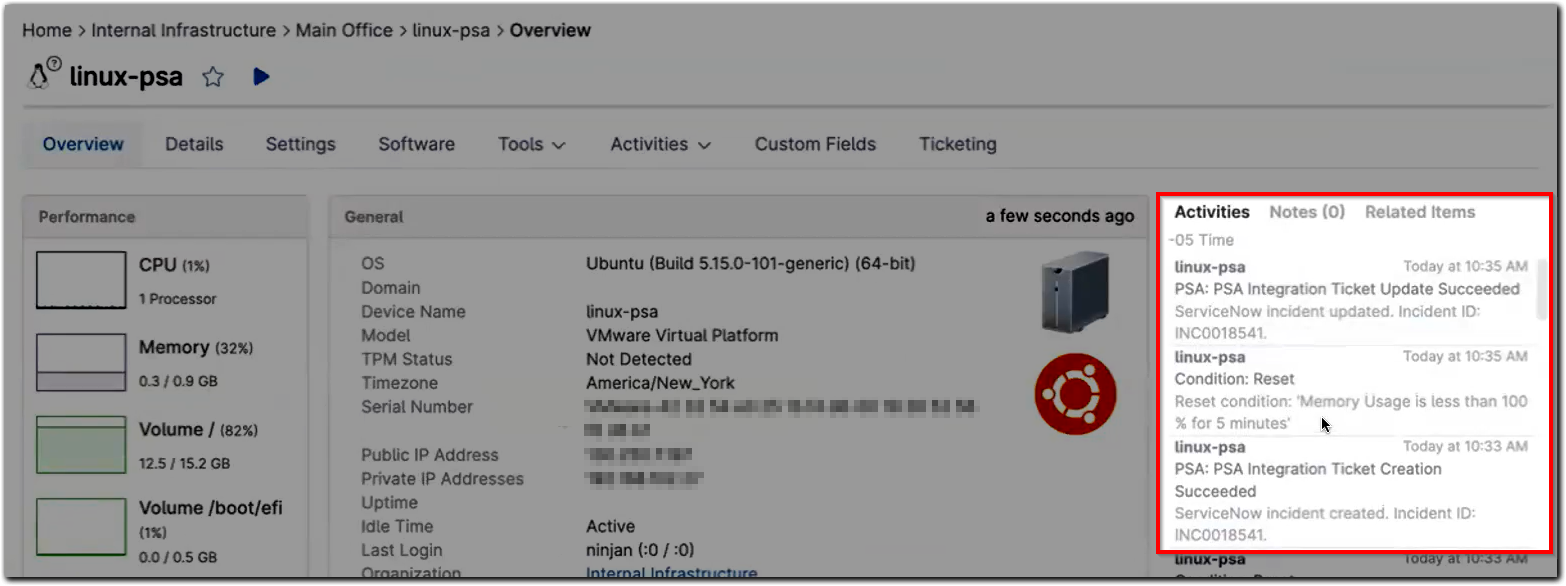
NinjaOne Integration in ServiceNow:
After you activate the ServiceNow Marketplace app while configuring the integration in NinjaOne, new dashboards will become available in ServiceNow: NinjaOne Integration and NinjaOne Device Info.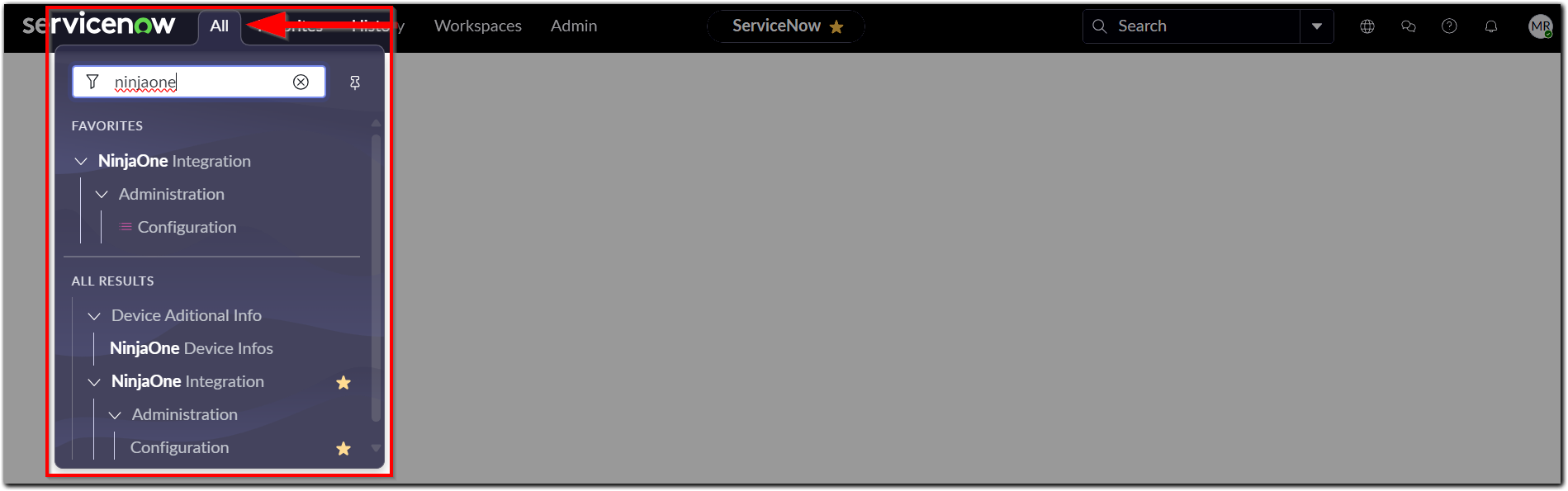
From the NinjaOne Integration | Administration | Configuration settings page in ServiceNow, administrators can schedule device import syncs, update REST messages, and manage the outbound OAuth registry.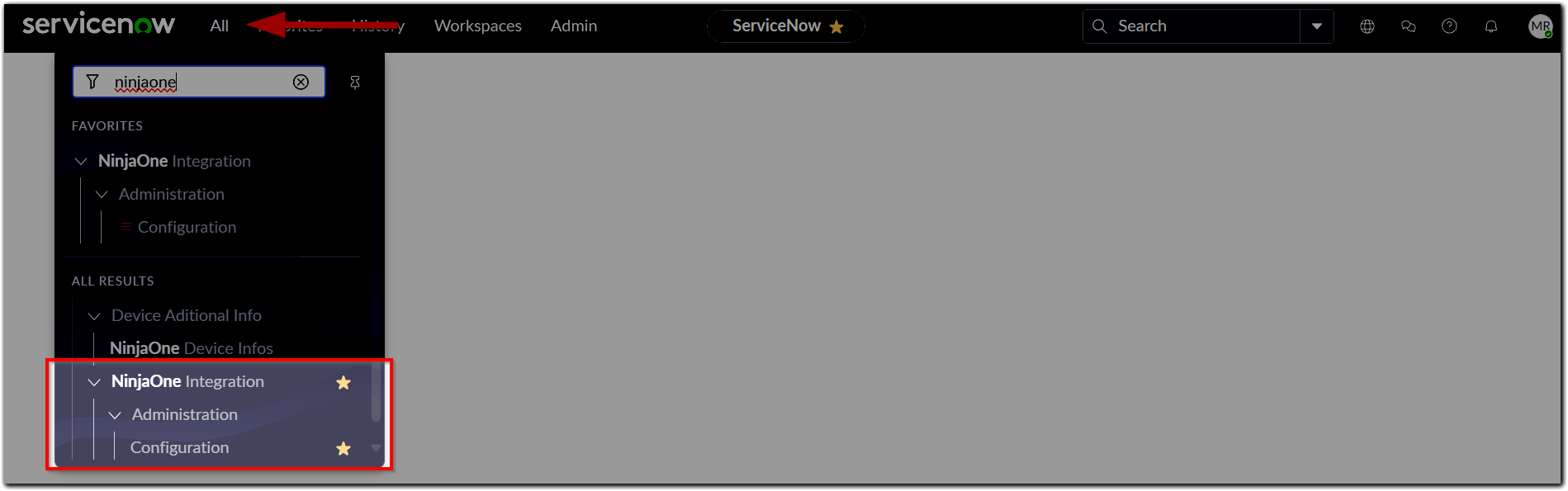
From the Device Additional Info | NinjaOne Device Infos page, administrators can view configuration items, device remote URL, UUID, last login name, management links, operating system information, IP addresses, and product keys. 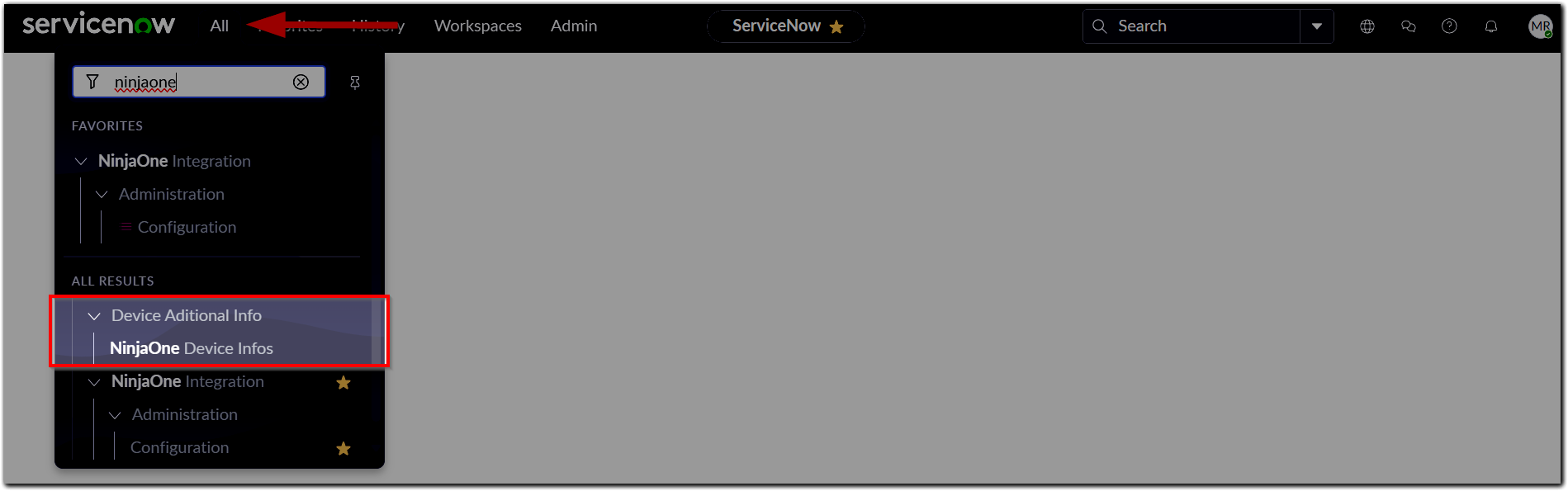
Manage Scheduled Imports in ServiceNow for NinjaOne
The NinjaOne integration with ServiceNow automatically creates a scheduled import on the NinjaOne Configuration Settings page. You can change this schedule or execute an immediate sync by following the instructions below.
- Navigate to and log in to ServiceNow.
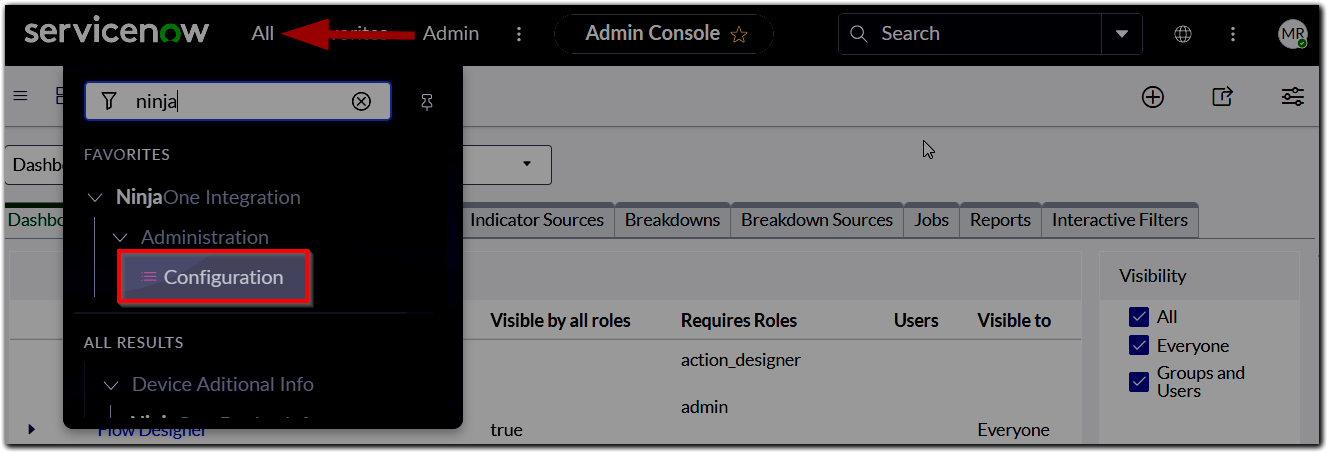
- In the top navigation pane, click All and type "NinjaOne" into the search field. Click Configuration under NinjaOne Integration.
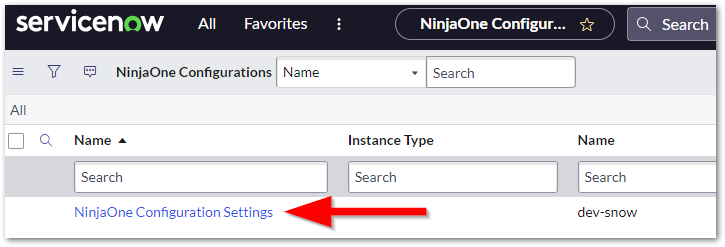
The NinjaOne Configurations page displays. - Click the NinjaOne Configurations Settings hyperlink.
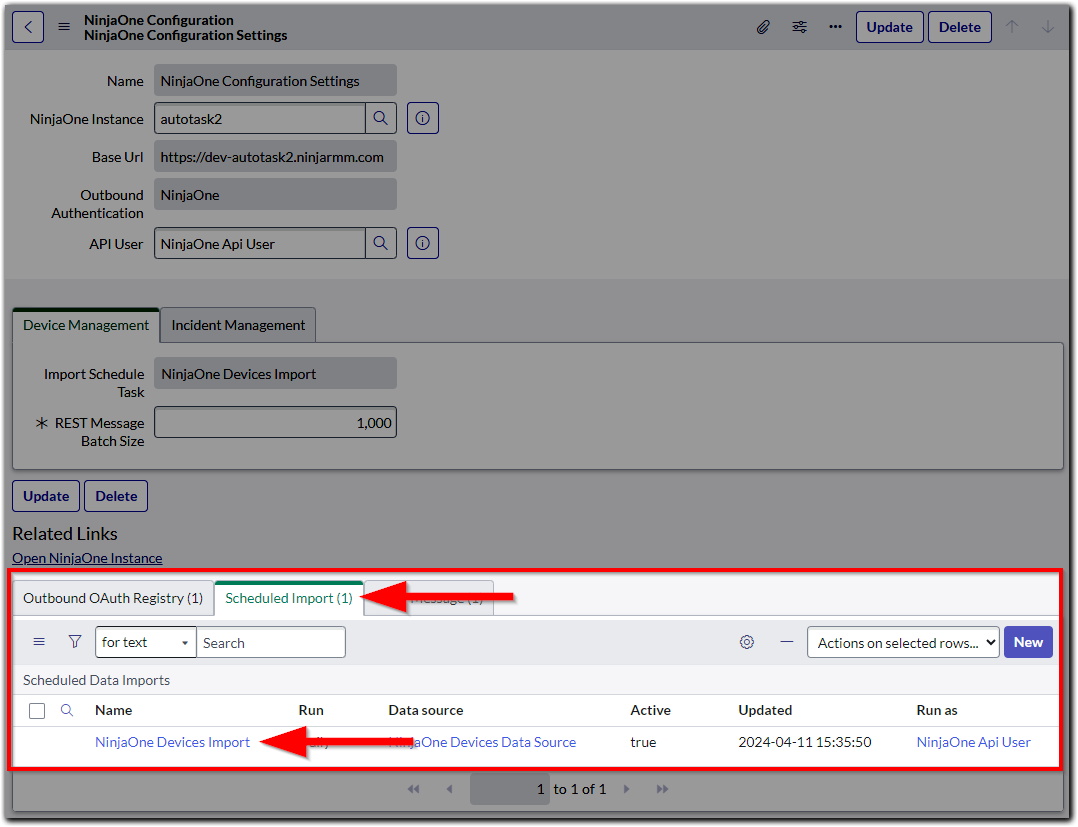
The configuration settings page displays with the NinjaOne instance information and Outbound OAuth Registry information (see ServiceNow Integration guide). - Open the Scheduled Import tab at the bottom of the page. Click the hyperlink in the Name column to open the schedule editor page.
- To change the device import sync schedule, click the here hyperlink in the banner message at the top of the page.
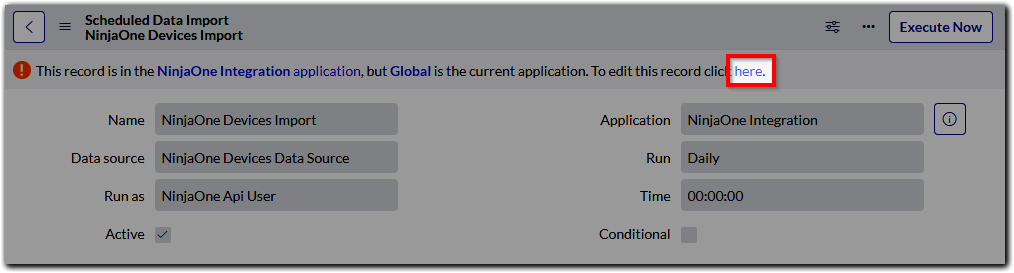
- By default, the device import sync is scheduled to run every day. This schedule adheres to the time zone you set up in ServiceNow administration.
- You can create multiple schedules by selecting the "Periodically" option from the Run dropdown. In the Repeat Interval field(s), you can opt to set the sync to run every X number of days or X number of hours/minutes/seconds.
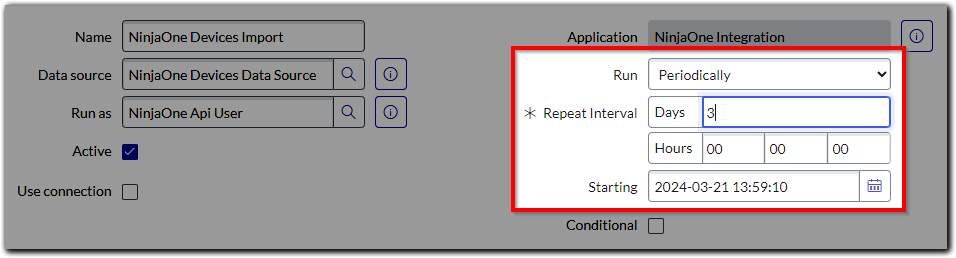
- To learn more about scheduled imports in ServiceNow, please refer to this ServiceNow documentation.
- To run a device import sync immediately, click the Execute Now button.
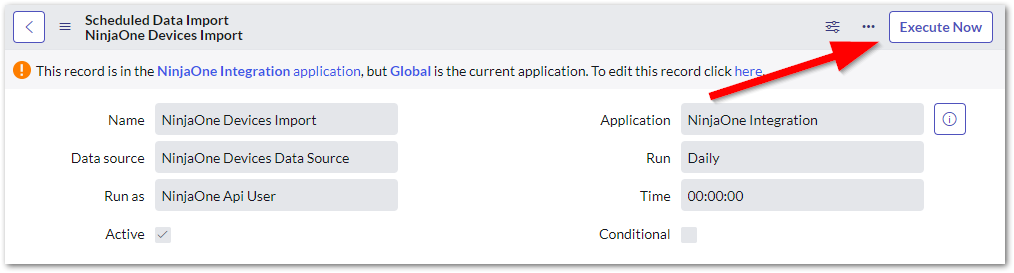
The device updates can be confirmed via the Configuration Items dashboard in ServiceNow, and also under the ServiceNow App Sync History tab in NinjaOne.