
Topic
This article explains how to bypass NinjaOne Multifactor Authentication (MFA) when adding an identity provider (IdP) in NinjaOne.
Environment
NinjaOne Platform
Description
Skip Login MFA will conditionally skip NinjaOne Login MFA based on evidence in the SAML (Security Assertion Markup Language) response that MFA was performed during the user's login through an IdP. This ensures the user does not need to enter MFA twice to access NinjaOne.
Select a topic to learn more:
Important Notes
Consider the following information.
- NinjaOne supports all IdPs for MFA bypass. If you are using a branded site, you have to add both the native and branded URLs to your IdP's affiliated URL (Uniform Resource Locator) list.
- For example:
https://<branding_hostname>/ws/account/saml-login.
- For example:
- There are two different workflows related to SAML.
- Service Provider (SP) initiated workflow: You navigate to NinjaOne to log in, and you are forwarded to the identity provider.
- Identity Provider (IdP) initiated workflow: You navigate to your identity provider to log in, and you are forwarded to NinjaOne to log in.
Configure Skip Login MFA
The following example is configured via Okta.
- Navigate to Administration → Accounts → Identity Providers.
- Click + Add provider.

- Add your IdP metadata. Refer to NinjaOne Identity Access Management: Configure Single Sign-On for instructions.
- Click Test Connection.
- Your IdP connection platform should open in a new tab. Enter your credentials and log in.
- If prompted to receive a push notification, click to send. The SSO configuration dialog will open, indicating the connection has been validated.
- Follow all prompts from the IdP to validate the assertion.
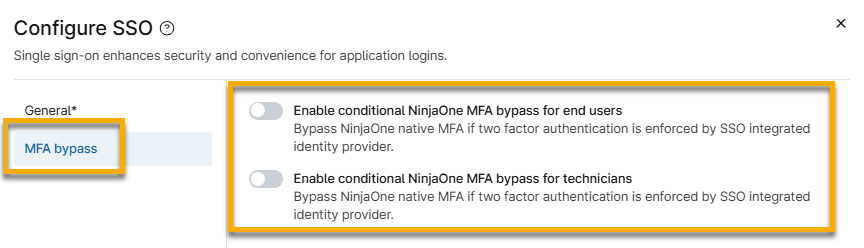
If you successfully import the metadata from your IdP, you will be able to activate the Enable conditional NinjaOne MFA bypass toggle button.
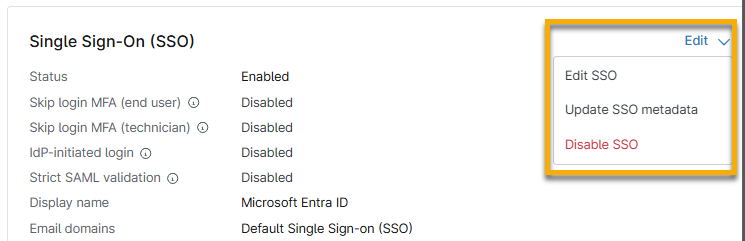
- You can update this information at any time; to change the settings for an existing IdP, open the IdP details from the Identity providers page, click Edit, and then click Edit SSO.
- Click MFA bypass in the sidebar menu and select the appropriate toggle depending on whether you want to activate the MFA bypass for technicians or end users.
- The configuration dialog will open. Copy the MFA attribute name and value from your identity provider and paste it into the SAML MFA attribute name* field to bypass NinjaOne MFA.
- Select one MFA attribute option that best meets the organization’s requirements. There are two options available:
- Contains ANY SAML MFA attribute value
- Contains ALL SAML MFA attribute value

- After selecting the MFA attribute option, select the value from the drop-down menu. You can use a custom value by typing into the field and then pressing Enter on your keyboard. The Validate assertion action will evaluate the SAML assertion to verify whether the attribute name and value entered were present.

- Click Validate assertion to test the connection, and then click Apply.
- Click Save.
Additional Resources
To learn more about NinjaOne's identity services, refer to Identity Authentication and Management: Resource Catalog.