
Topic
This guide provides instructions for setting up the ConnectWise Manage integration.
Environment
- NinjaOne Integrations
- ConnectWise Manage
Description
ConnectWise Manage (also known as ConnectWise PSA) is a separate ticketing and project management software from ConnectWise Control (formerly ScreenConnect), which NinjaOne also offers as an integrated tool for remote access and support.
Index
Select a topic to learn more:
- Compatibility
- Prerequisites
- Expected Behavior
- Activate the ConnectWise Manage Integration
- Map NinjaOne to ConnectWise
- Additional Resources
Compatibility
On-premises ConnectWise servers must use ConnectWise Server Version 2019.1 or newer.
ConnectWise Lite is not compatible with the NinjaOne integration.
Prerequisites
- You should have a working ConnectWise Manage account.
- Service boards in ConnectWise Manage must have an active status. For more information, refer to the following ConnectWise University documentation: Service Board Setup Table: ConnectWise (external link).
- You must create a Public or Private API Key in ConnectWise. To learn more, refer to ConnectWise: REST API Key Set-Up.
Expected Behavior
- The configuration sync is an automated process, but there is no indication on the screen that it has completed. Once you install an agent on a machine, the configuration will appear in ConnectWise within minutes.
- If you change the configuration, you are required to sync settings only if you have a reason to force a sync.
- If you change a company in ConnectWise, NinjaOne will clear all mapping settings the next time the integration syncs.
Activate the ConnectWise Manage Integration
To activate the integration in NinjaOne, perform the following steps:
- Within NinjaOne, click Administration in the sidebar menu and open the Apps section.
- Click Add app.
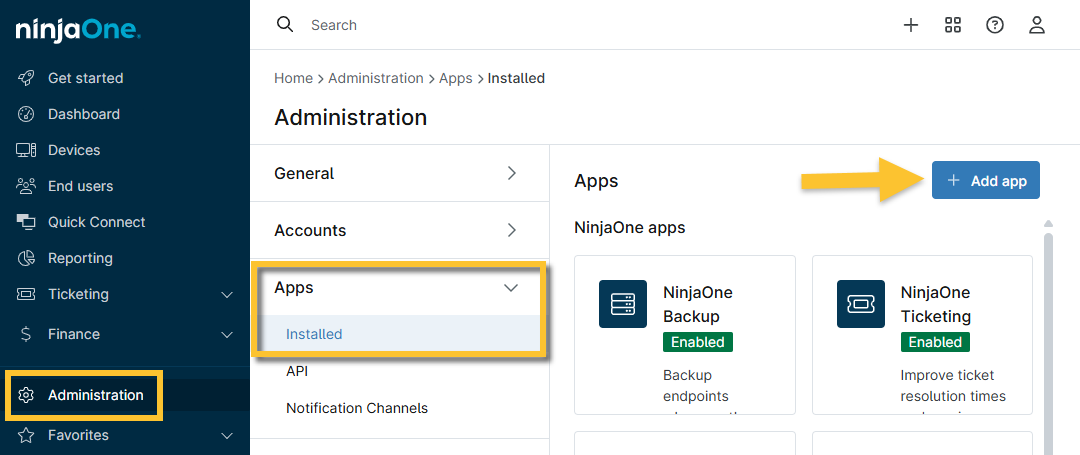
Figure 1: Add an integration to NinjaOne
- Choose ConnectWise Manage from the list of available apps.
- Click Continue in the confirmation window.
The ConnectWise integration configuration screen displays. - Click Enable.
- In the connection dialog, enter your ConnectWise account credentials and API keys.
- Click Test to verify the connection.
- When you notice the success notification, click Save.
https://[mspserver.com]/v4_6_release/apis/3.0/Map NinjaOne to ConnectWise
Use the following resources to map your organizations and devices to NinjaOne from ConnectWise.
- NinjaOne Integrations: Map Organizations to ConnectWise Companies
- NinjaOne Integrations: Map Devices to ConnectWise Products and Agreements
- NinjaOne Integrations: Map Devices to ConnectWise Configuration Types
Additional Resources
Use the following resources to learn more about the ConnectWise and NinjaOne integration.