
Topic
This article discusses personal usage policies for Android devices in NinjaOne MDM.
Environment
- NinjaOne MDM
- Android OS
Description
Personal usage policies provide a more straightforward, centralized method of managing devices for work while still allowing for personal use.
Eligible devices
There are two categories of devices that you can manage with a personal usage policy:
- Personally owned (BYOD) Devices: These devices are user-owned, with a separate enrolled work profile.
- Company-Owned, Personally-Enabled (COPE) Devices: These devices are company-owned, but allow personal use.
Navigating to the personal usage profile
- Click Administration in the left side navigation pane and open the Policies tab, then click MDM Policies.
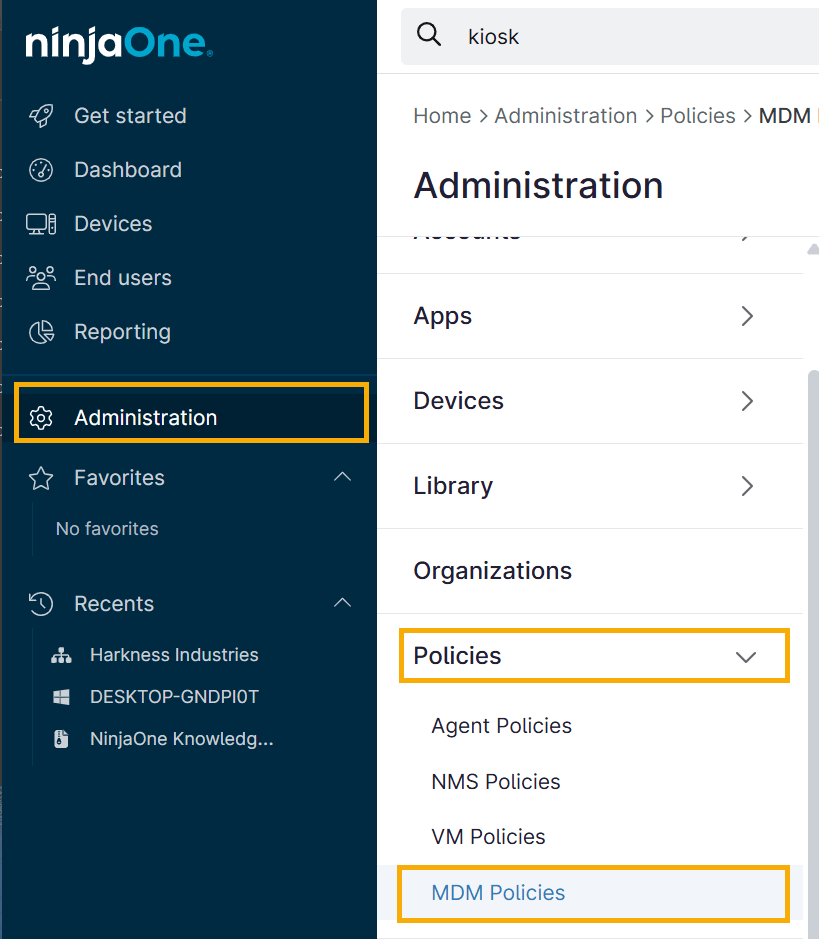
Figure 1: The navigation menu (click to enlarge)
- Select the parent MDM policy from the MDM Policies list.
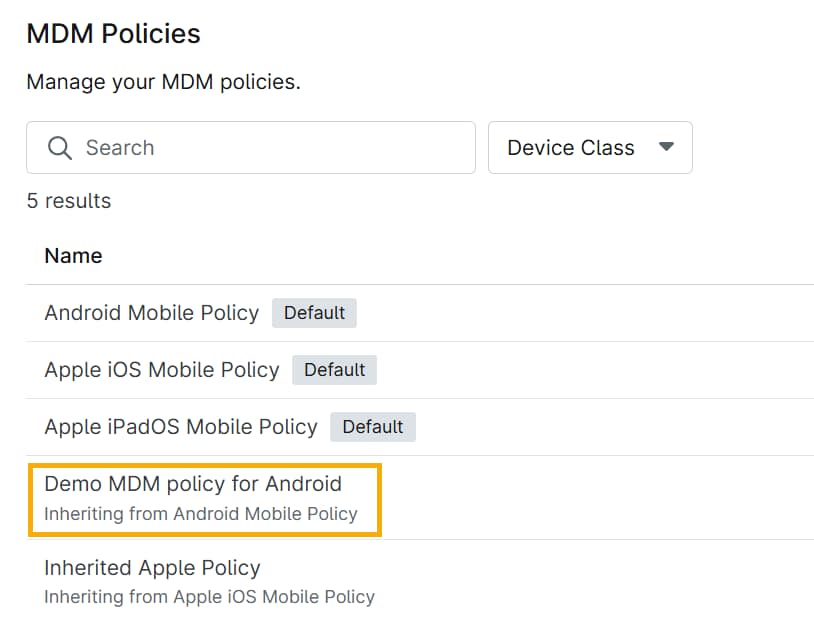
Figure 2: The MDM Policies list (click to enlarge)
- Click Personal Usage in the options menu on the left-hand side of the window.
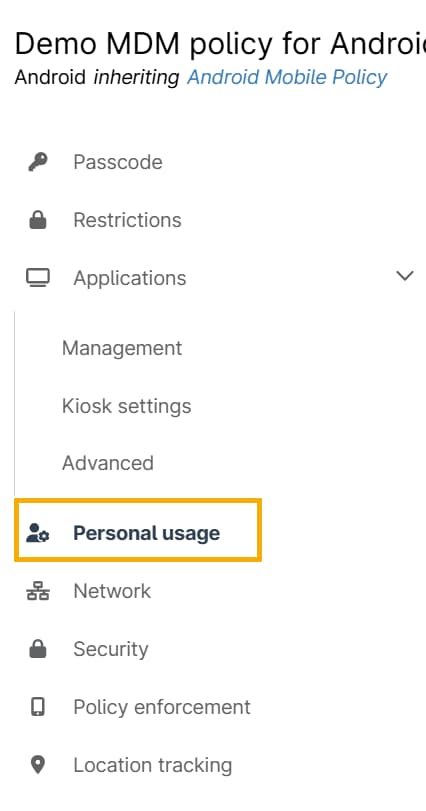
Figure 3: The Options menu (click to enlarge)
Configuring device options
There are three configuration categories: Cross-profile policies applied on the device, Personal usage policies, and Managed applications.
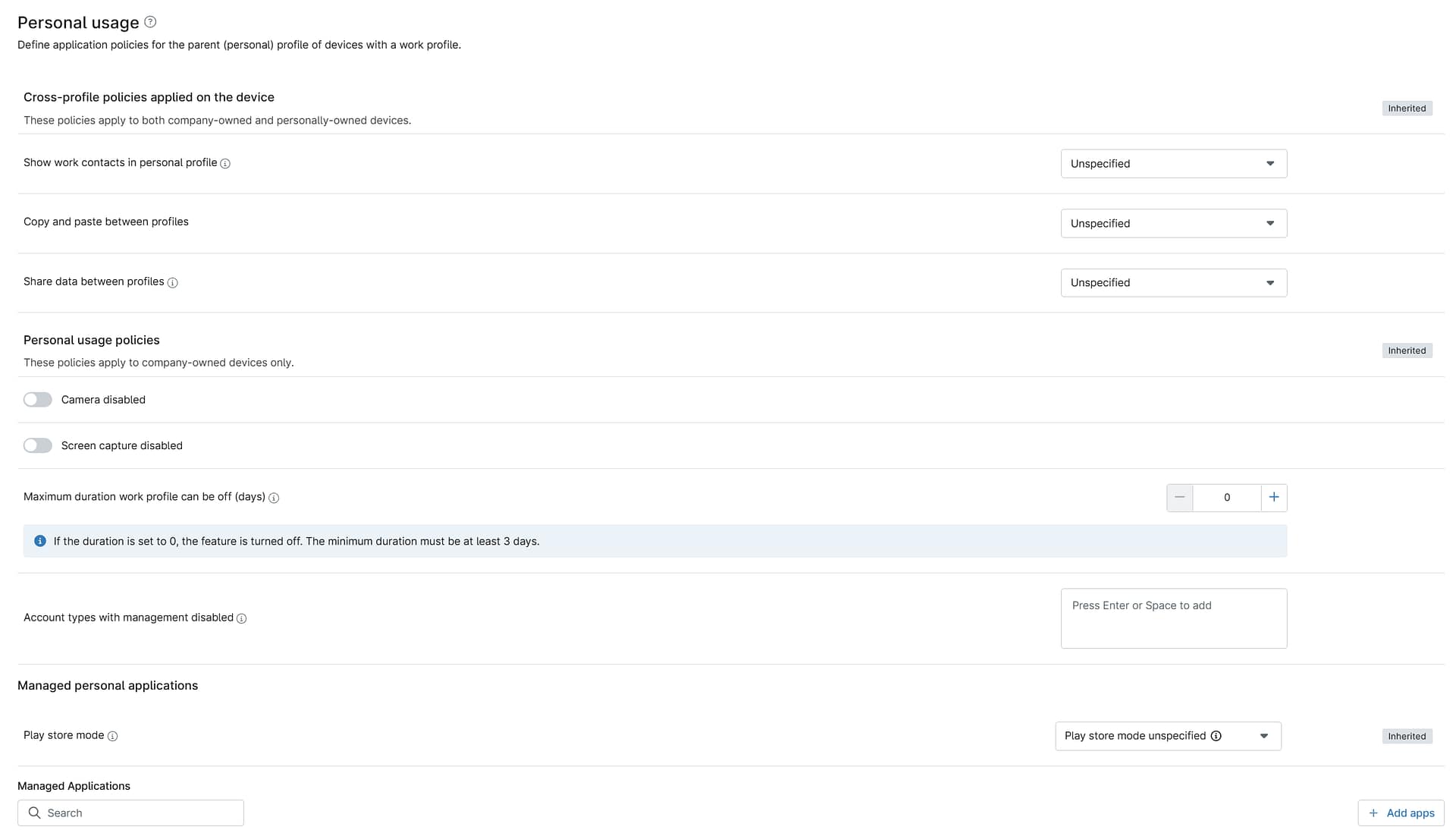
Figure 4: Configuration options (click to enlarge)
Cross-profile policies applied on the device
These options govern policies that apply to both the work and personal profiles on the device.
- Show work contacts in personal profile
- Copy and paste between profiles
- Share data between profiles
You can set each of these options to Allowed, Disallowed, Disallowed except System, or Unspecified (which functions identically to Allowed).
Personal usage policies
These policies govern camera and screen capture functions:
- Camera Disabled
- Screen capture disabled
These functions are off by default. Toggle the slider switches to turn them on.
Managed applications (company-owned devices only)
Although company-owned devices managed under this policy allow for personal use, some applications may not be allowable due to compliance, security, or other business reasons.
Download and install the app
- In the policy's Managed Applications section, click Add Apps, then use the drop-down menu to choose Play Store or System App as the download source.
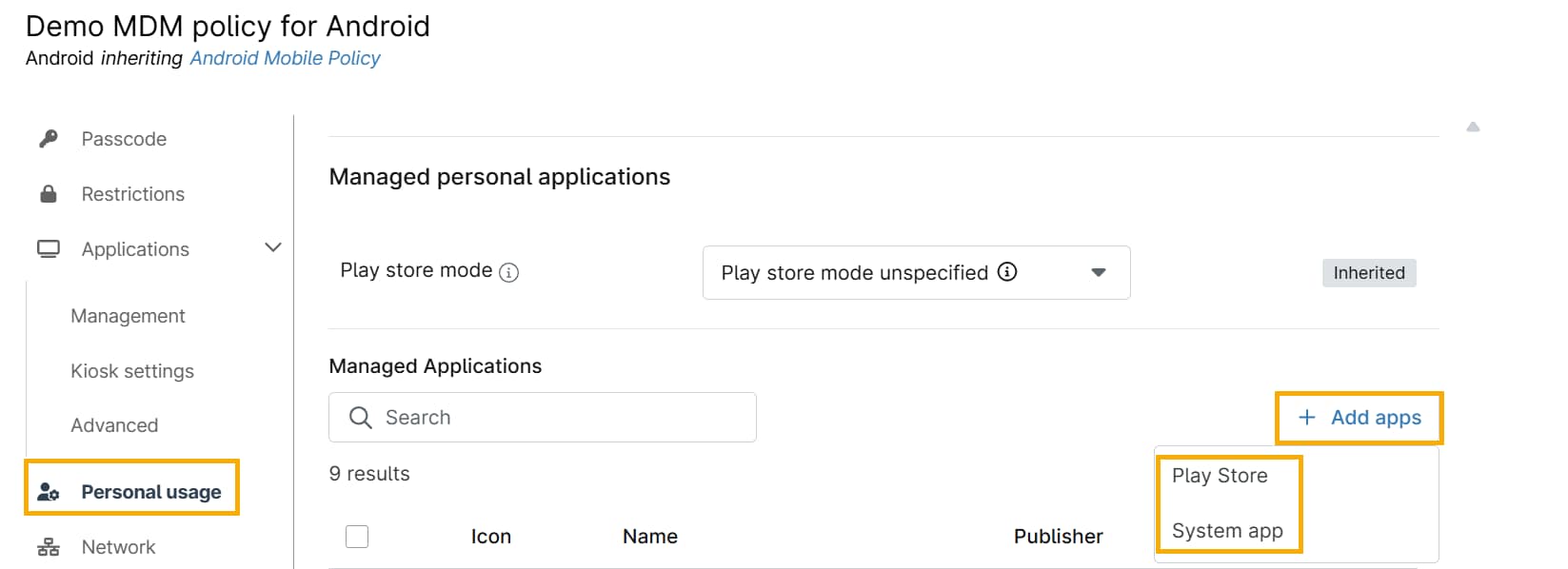
Figure 5: The Managed Applications section (click to enlarge)
- On the Add New Package screen, select the Android connection from the drop-down menu, then find and click the app you wish to manage.
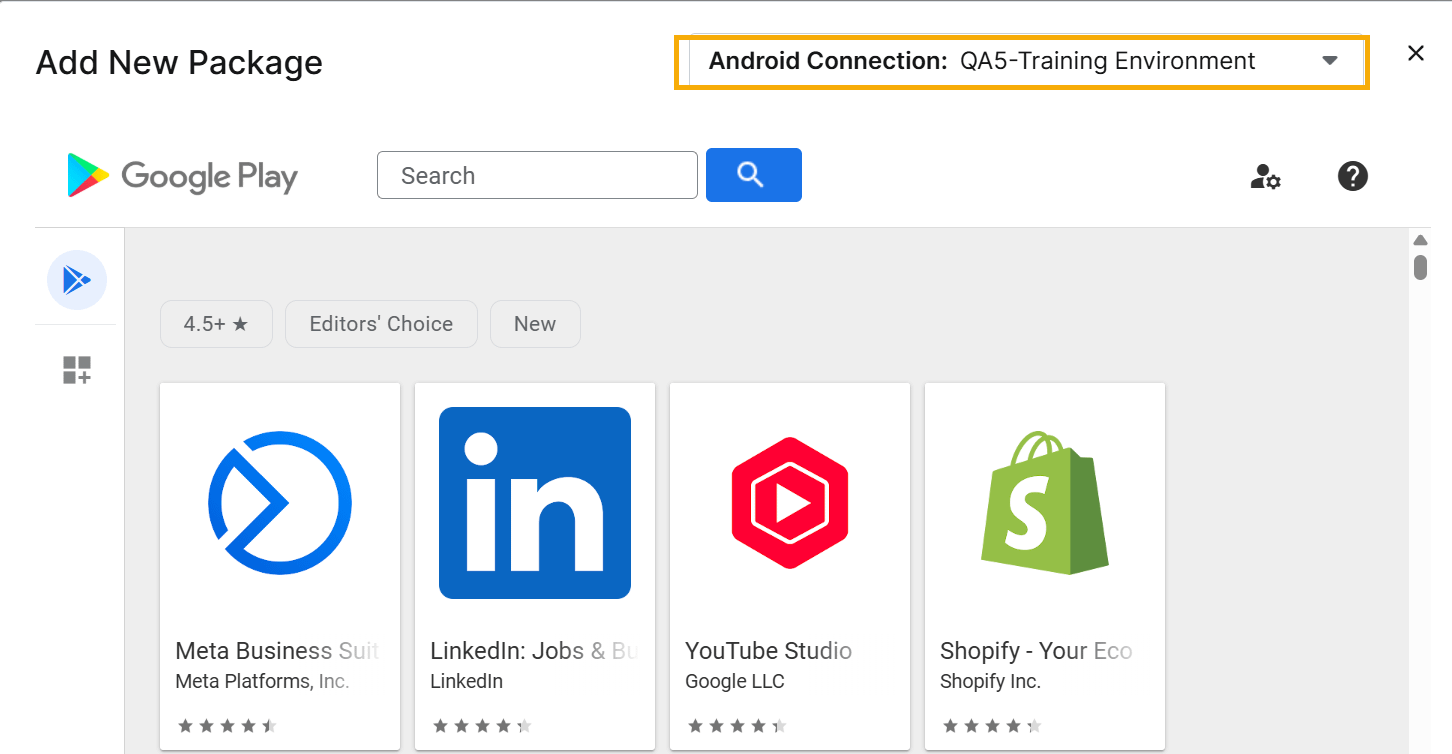
Figure 6: The Android Play Store (click to enlarge)
Set app restrictions
Select the app in the Managed Applications list, either by activating the checkbox next to the application name and clicking Edit or hovering your cursor over the application and clicking the ellipsis button→ Edit.

Figure 7: The Managed App list (click to enlarge)
Select the app status from the Assignment Type drop-down menu. Choose from the following:
- Unspecified: This setting does not apply a restriction. Selecting this option gives you the same permissions as Available.
- Blocked: Users will not be able to download this app. Blocking an app will remove it from all devices managed under the personal usage policy, along with all application data on the user's personal profiles.
- Available: Users can download and use this app.
Additional Resources
NinjaOne MDM: Adding a Company-Owned, Personally Enabled (COPE) Android device to NinjaOne