
Topic
This article discusses image backup plans in NinjaOne Device Backup.
Environment
NinjaOne Device Backup
Description
About NinjaOne Image Backup
NinjaOne Image Backup backs up your data at the volume level. It enables you to back up complete operating systems, applications, and files, ready for restoration in the event of hardware failure, malware, or other disasters. NinjaOne Image Backup requires only one full backup, with periodic revisions recorded according to the retention schedule you specify in your backup plan. This feature saves significant storage space and backup time.
To learn more about setting up NinjaOne Device Backup, refer to NinjaOne Device Backup: Setup Guide.
Image Backup Plans
A backup plan is the predefined set of instructions that NinjaOne follows to create and save your backups. You can configure image backup plans in two different ways: at the policy level or the device level (as a policy override). These options offer the flexibility to configure image backup plans for either multiple devices or a single device, depending on your needs. The video below provides a brief explanation of the available options.
To learn more about NinjaOne Backup, refer to our video library.
Refer to the following sections for more information about image backup options.
For instructions about setting up NinjaOne Device Backup, refer to NinjaOne Device Backup: Setup Guide.
Creating a Backup Plan
The following two sections provide a brief overview of creating a backup plan at the policy level or device level.
Policy Level
A policy-level backup plan applies to all devices assigned to that policy. For more information about how policies work in NinjaOne, refer to NinjaOne Policies: Create and Manage a Policy.
To create an image backup plan at the policy level:
- In NinjaOne, navigate to Administration → Policies and select the policy you want to configure an image backup plan for.
- Select the Backup tab in the side navigation bar.
- From the Backup navigation menu, select Image.
- Click Enable to activate the image backup plan.

- In the General section, select your Backup Destination (Local, Cloud only, or Hybrid).
- Set the backup frequency to hourly, daily, weekly, or monthly. Cloud-only also offers intra-daily options (3, 4, 6, or 12-hour increments).
- When setting the Image backup schedule to monthly, you can select a custom date from the calendar. Note that this option does not allow you to select days 29 to 31, because NinjaOne Device Backup cannot apply those days to all calendar months.
- With hourly Image retention plans, you can manually sync specific revisions to the Cloud. Refer to the Sync to the Cloud section below for details.
- Select your Retention options from the drop-down menu. NinjaOne pre-populates these fields with default retention settings. You can adjust them to suit your preferences. Refer to NinjaOne Device Backup: Image Backup Plans: Retention Options for a detailed explanation of retention options and settings.
- Choose one or more of the additional settings listed in the Additional Backup Policy Settings section below.
- Click Save.
Device Level (Policy Override)
A device-level policy override applies only to the specific device you configure it for and supersedes the policy-level backup plan.
To set up a device-level policy override, follow these steps:
- In NinjaOne, navigate to the dashboard of the device where you want to configure a backup plan.
- Open the Settings tab.
- Select Policies.
- Scroll to the Policies page and in the Device Overrides section, select Edit.
- Select Backups.
- From the Backup drop-down menu, select Image.
Select Edit.
This page shows the same options available when creating a policy-level plan. However, any changes you make here will override the policy-level settings for the device.
- After you make your selections, click Save.
Inherited Policies
Inherited policies are the backup plan settings a device receives from its assigned policy. NinjaOne displays a label next to each setting to indicate whether the device inherited it from the policy or whether an override is in effect.
To revert an override to its original policy setting:
- Move your cursor over the policy listing to reveal the option to revert an overridden status to its inherited value.

- Select Revert.
- Click Save.
Additional Image Backup Policy Settings
This table lists the additional options available when creating Image Backup plans.
| Setting | Options |
|---|---|
| Exclusion | You can exclude specific volumes, removable disks, or specific files or folders as needed. Your options for this setting are as follows:
|
| Power options |
|
| Pre/post plan automations | If you would like to schedule a script to run before or after the backup job (for example, you could stop specific applications from running during backup or install all available patches after completion), use the Add Automation hyperlinks in Pre/Post plan automation to select an option from the Automation Library. For post-plan automations, you can configure one of the following behaviors:
For more information about the Automation library, refer to: NinjaOne Endpoint Management: Getting Started with Automation Scripting. |
Sync to the Cloud
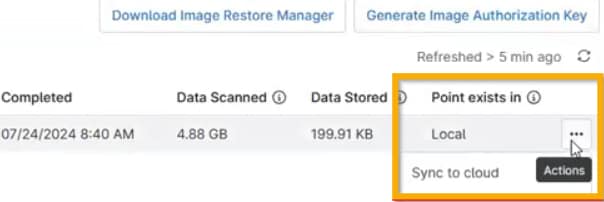
Hourly Image retention plans provide the added ability to sync specific revisions to the cloud manually. You can access this option by navigating to Backup → Device → Manage from the device dashboard, then choosing Sync to cloud from the actions menu.
You must have a local backup point to sync a revision to the cloud. The column entry for Point exists in will indicate whether the backup point listed is local.
Additional Resources
Refer to the articles listed below for more information about image backup plans.