
Topic
This article explains how to use remote tools in NinjaOne. This article is not related to NinjaOne Remote; refer to NinjaOne Remote: Getting Started for instructions regarding our native application.
Environment
- NinjaOne Endpoint Management
- Microsoft Windows
- Apple macOS
- Linux
Description
Remote tools allow you to access and manage different aspects of a device without having to access the machine itself or interrupt the end user.
There are three or four different types of remote tools available at the device level, depending on the device operating system. Task Manager, File Browser, and Service Manager are available for all OS types.
View additional tutorials in our video library.
Index
Select a category to learn more:
- Where to Find Remote Tools in NinjaOne
- Remote Registry
- Task Manager
- File Browser
- Service Manager
- Additional Resources
Where to Find Remote Tools in NinjaOne
Access remote tools from the Tools tab on the device dashboard.

Remote Registry
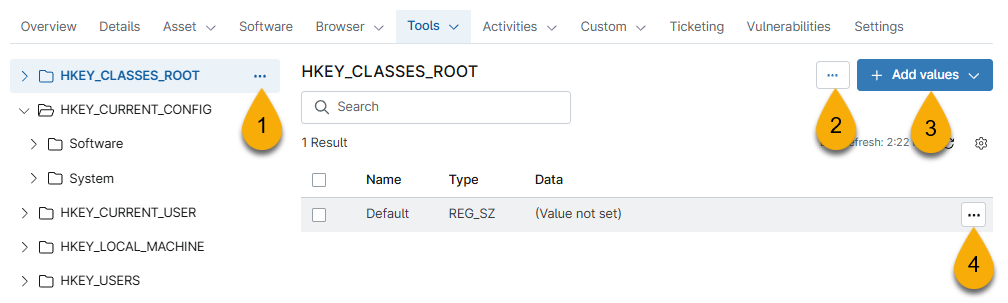
Remote Registry allows you to view and manage the registry on a device. You can use the arrows next to each folder icon to expand or contract locations within the registry.
Select a registry location to view the actions you can take for each path.
- The actions menu next to the folder path name provides the following options:
- Add key
- Copy path
- Refresh
- Rename
- Delete
- The actions menu within the folder path detail provides the following options:
- Rename
- Copy path
- Delete
- The Add values menu provides the following options:
- String value
- DWORD (32-bit) value
- QWORD (64-bit) value
- Multi-string value
- Expandable string value
- Place your mouse cursor over the path value to view the following options in the actions menu:
- Modify value
- Delete
Task Manager
The Task Manager tab displays a list of all tasks that are currently running on the device.
Place your mouse cursor over a task to view the available actions.

If you select End Process Tree, the process in question and any other processes that stemmed from it will end. A dialog will show you which processes will end as a result of this action and prompt you to confirm before taking action.
File Browser
The File Browser tab allows you to view the files and folders that are currently on a device. Click the folders to navigate through the file tree. The path of your navigation will be displayed, and you can click any portion of the path to navigate backward.
As illustrated in Figure 4, the navigation path separates each folder with a backward slash (). Figure 4 reflects the following breadcrumbs that you would click to navigate back to that folder:
- C:\
- Windows
- Branding
- Basebrd
- en-us
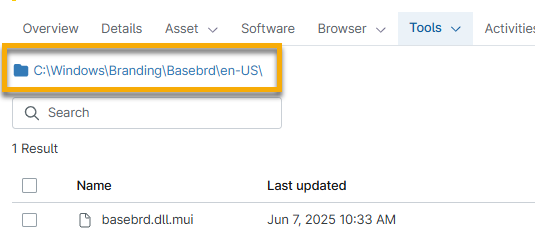
Click the blue folder icon at the beginning of the navigation path to return to the root of the File Browser at any time.
Within a folder, click Add to create a new folder or upload files.

Place your mouse cursor over the folder path to access the actions menu, where you can rename or delete the folder. You can also click the copy icon to copy the folder name or path.

Service Manager
The Service Manager tab displays a list of all services that are currently running on the device.
Place your mouse cursor over the service name to access the actions menu, where you can start the service manually or change the startup type.

Additional Resources
Refer to Remote Tools: FAQ for a list of frequently asked questions about remote tools.