
Topic
This article explains how to use NinjaOne Billing, a Professional Services Automation (PSA) tool that offers a single-pane view for billing and invoice management.
Environment
NinjaOne Billing
Description
NinjaOne Billing allows you to:
- Automate the billing of devices by quantity and manually bill other items. Manage billing in advance or in arrears, or with different offsets.
- Automate the billing of ticket time entries.
- Automatically generate invoices from agreements on a recurring schedule for each of your organizations.
- Synchronize generated invoices to QuickBooks Online or Xero integrations.
Index
- Technician Permissions: Access and Configure the Tool
- Enable and Configure the Billing Tool
- Manage Agreement Services, Invoices, and Time Entries
- Billing Activities and Notifications
- Additional Resources
Technician Permissions: Access and Configure the Tool
A new permission has been added to technician accounts and technician roles: NinjaOne Billing. Activate the toggle at the top to activate the permission, and then select an option from the drop-down menu to allow or restrict the ability to configure and access the NinjaOne Billing tool and its ticketing features.
Refer to NinjaOne Platform: Permission Settings for Technicians for more information.

Enable and Configure the Billing Tool
To activate the NinjaOne Billing feature, navigate to Administration → Apps → NinjaOne Billing and click Enable.
Use the following sections to learn about different tab functions within the application.

General
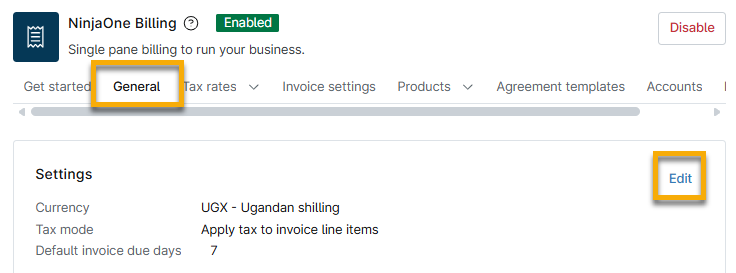
Edit Settings to determine which currency will be used across all invoices created in NinjaOne and the default invoice due date. NinjaOne will apply currency changes to new invoices and existing, incomplete invoices.
Tax Rates
Configure tax rates to add to your agreement services. Learn more at NinjaOne Billing: Tax Rates.
Invoice Settings
Configure Invoice settings to control how time entry items are displayed on invoices. This allows you to present information in the format of your preference.
Refer to NinjaOne Billing: Invoice Settings to learn how to edit invoice generation and time entry templates.
Products
Products are the line items or merchandise being sold, which can be added to service agreements for invoicing. When selecting Products on the NinjaOne Billing configuration page, choose whether you want to view active or inactive products. Inactive products can be reactivated for use.
Refer to NinjaOne Billing: Products to learn how to create a product for the PSA.
Agreement Templates
Agreements bill a specific product or group of products at a certain frequency and create rules for mapping time entries. Agreement templates build the core data for invoice creation.
Agreement templates can be created in the Billing administrator section and then copied into each organization at Finance → Agreements.
Refer to NinjaOne Billing: Agreement Services to learn how to create a service agreement template.
Accounts
You can leverage account codes in NinjaOne Billing to configure the account associated with each product. To support this change, we've created default accounts for each of the existing product types in NinjaOne. Their account mapping will also persist in your accounting tool.
This functionality changes the way you interact with product types in NinjaOne. We removed the dependency requiring a product type to determine the quantity calculation. Instead of using the product type, you will use a quantity source to specify what type of lookup you want to use for each product.
Refer to NinjaOne Billing: Account Codes to learn more.
Integrations
If you use a third-party billing tool that is compatible with NinjaOne, you can enable it in this tab. Refer to NinjaOne PSA and Billing: Enable the QuickBooks Integration for instructions.
Manage Agreement Services, Invoices, and Time Entries
Once activated, the NinjaOne Billing tool provides a Finance tab in the sidebar menu, where you can create and manage agreements, view invoices, and recalculate prices on time entries. You can also perform these actions from the Finance tab on the organization dashboard.

Understanding Billing Periods
When you generate an invoice, NinjaOne will track the billing period start date and end dates for each non-time-entry product on the invoice. You can edit the start and end dates before approving the invoice.
| Billing Interval | Description |
|---|---|
Next Bill Date |
|
Start Bill Date |
|
Agreements
Refer to NinjaOne Billing: Agreement Services to learn how to manage agreement services from the Finance tab.
Invoices
Refer to NinjaOne Billing: Invoices to learn how to manage invoices from the Finance tab.
Time Entries
Refer to NinjaOne Billing: Time Entries to learn how to manage time entries from the Finance tab.
Billing Activities and Notifications
Direct events to alert notification channels or technicians, or create ticketing rules from Administration → General → System activities. Learn more about creating alerts or notifications for these activities with our Device and System Activity Notification Feed article.

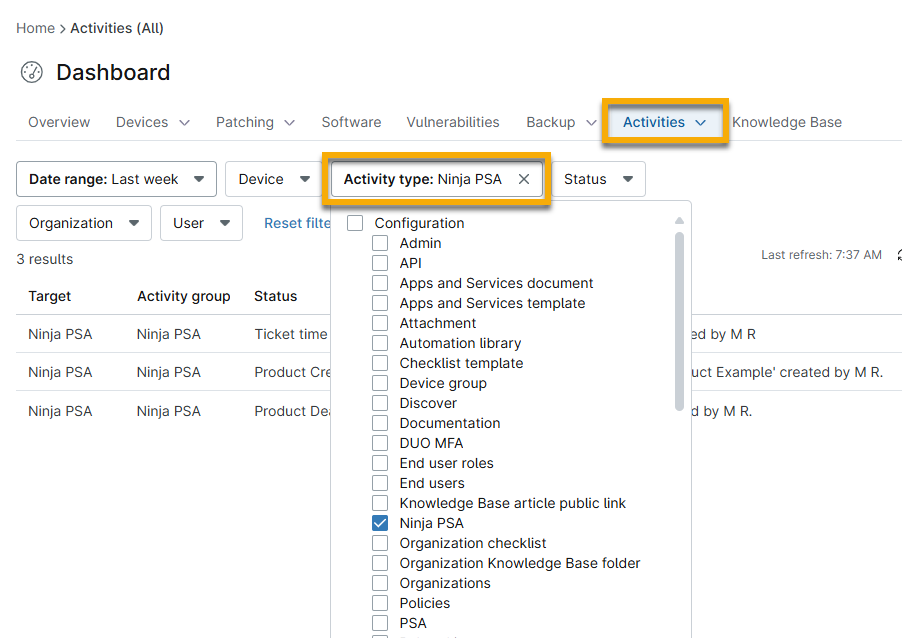
When these alerts are created, they display on the system or organization dashboard at Activities → All. Select Ninja PSA from the Activity type filter to focus your search results. You can also use the PSA filter, which is related to the integrated vendor PSA offerings in NinjaOne. Refer to our Integrations and Third-Party Apps: Resource Catalog to learn more about integrations.
Additional Resources
Refer to NinjaOne Billing: Resource Catalog to view all related articles.