
Topic
This article discusses how to configure and manage mobile device management (MDM) policies for Android devices in NinjaOne.
Environment
NinjaOne Mobile Device Management (MDM)
Description
Android policy functionality depends on how you enroll the device in NinjaOne Mobile Device Management (MDM). NinjaOne policies take complete control over work-only device types; if the device is personally owned, some policy settings, such as restrictions, may not apply.
You must activate the Android Mobile Device Management (MDM) application before configuring the Android MDM policy. Refer to Enable the Android MDM application for more information.
If you attempt to apply managed configurations to an additional app after the limit is reached, Android will error on processing the policy. In order to remove the processing error, at least one managed configuration or one app with managed configuration must be removed from the policy.
Select a topic to continue:
Mobile Device Enrollment Types
After you activate MDM and enroll your Apple or Android account, you can add mobile devices and categorize their enrollment type as Personal usage, No personal usage allowed, or Dedicated device.
Enrollment types define how a device is enrolled. Android MDM has three enrollment types:
-
Personal usage (personally-owned): A personally owned device is typically considered a Bring Your Own Device (BYOD) enrollment. NinjaOne has limited access to device information and actions.
NinjaOne uses the Android Device Policy application, or a link on a device already in active use, to enroll these devices. NinjaOne then enables an organization to manage the applications and data within the work profile alone, with no visibility or management of the personal (or parent) profile.
You can also use this enrollment type for Company-Owned, Personally Enabled (COPE) devices. Refer to NinjaOne MDM: Adding a Company-Owned, Personally Enabled (COPE) Android device to NinjaOne for more information. For these devices, employers control data and security policies within the work profile. Outside the work profile, the device remains suitable for personal use.
-
No personal usage allowed (For Work or Company-Owned): These devices are company-owned and enrolled exclusively for business purposes, with no work profile separation.
- The company has unrestricted control over apps, settings, and configurations, and can perform full device wipes without concern for personal data loss.
- NinjaOne blocks personal accounts and unauthorized app installations by policy.
- Users generally cannot modify core device settings.
- Dedicated device (no specific user): This usage type is similar to No personal usage allowed, but the device is not associated with a single user and does not expect personal usage or corporate identity authentication. For additional details, refer to the Android API's dedicated Device provisioning guide (external link).
Create a New Policy
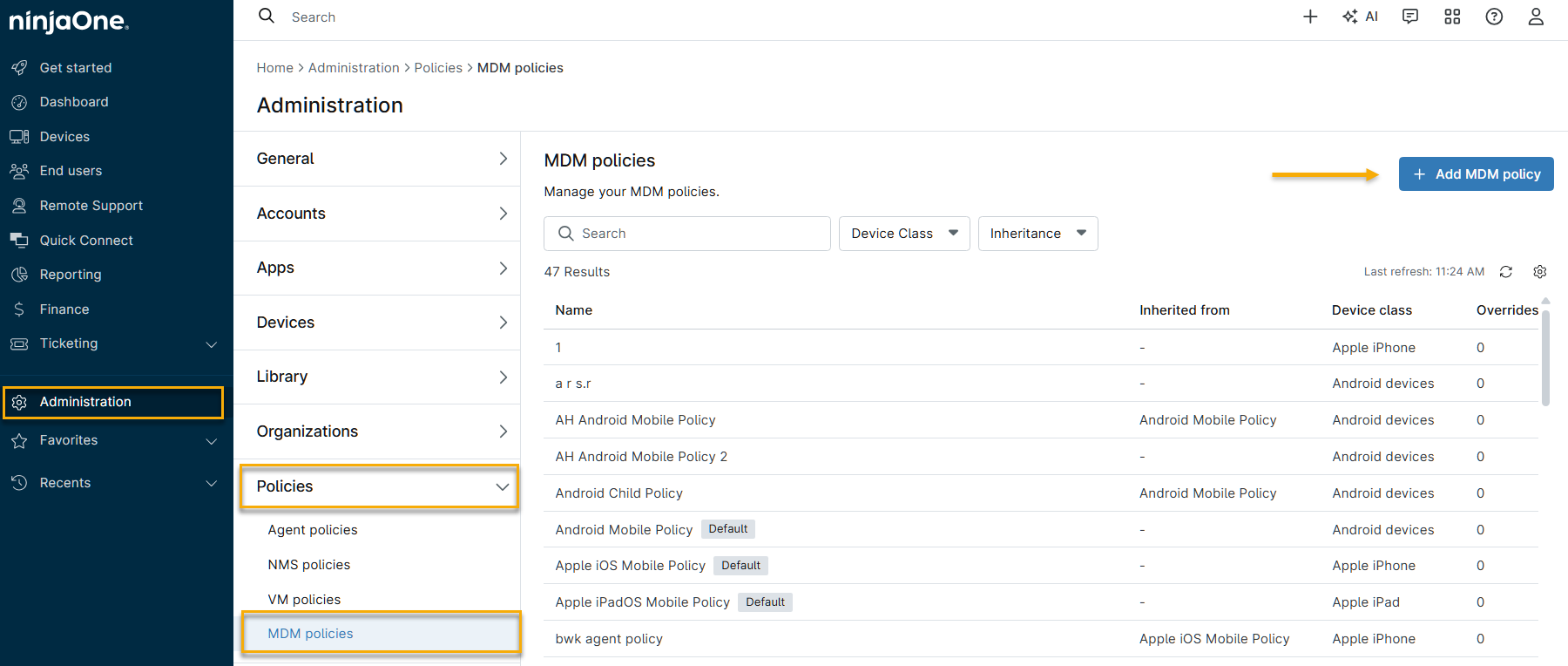
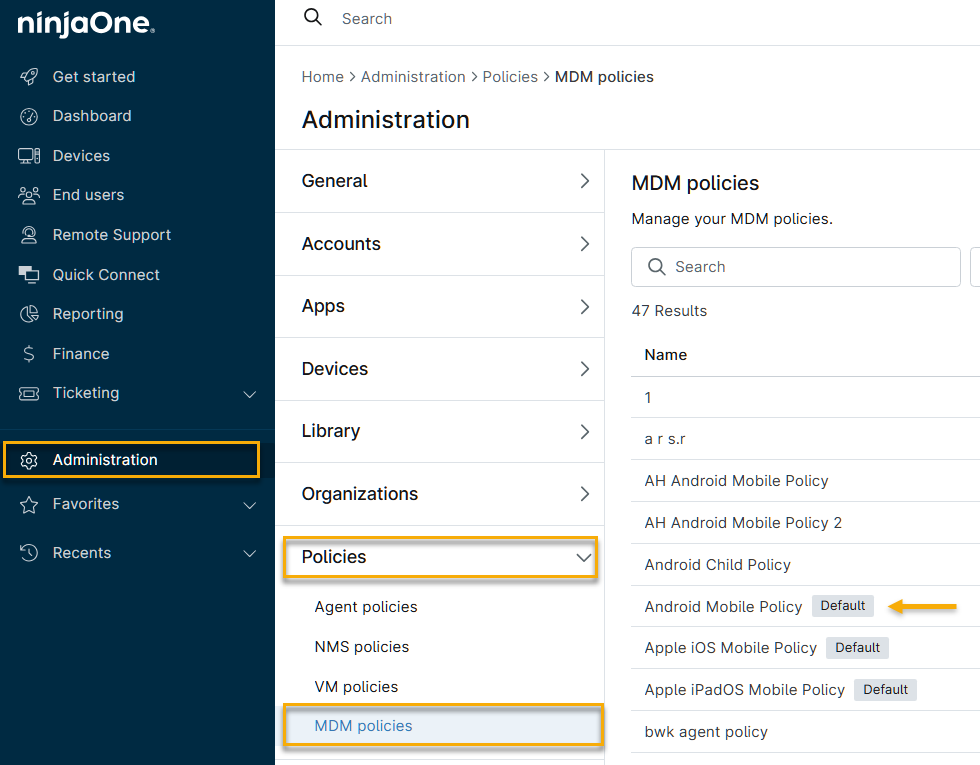
- In NinjaOne, navigate to Administration → Policies, then select MDM Policies from the drop-down menu and click Add MDM policy.
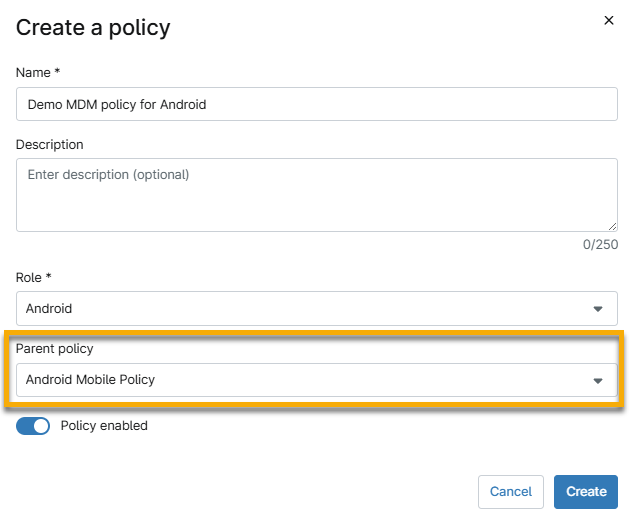
- Select a device role, enter the policy details, and activate the Policy enabled toggle. The role you select determines which policies you can set as the parent. Refer to the Inherited Policy Details section of this article for more details. When finished, click Create.
Inherited Policy Details
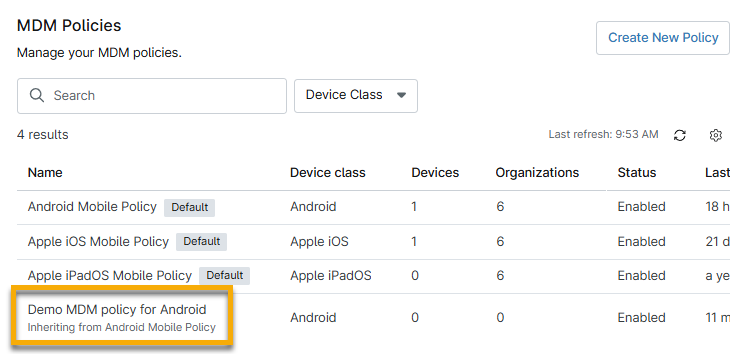
NinjaOne supports policy inheritance for MDM policies. The role you select determines which policies can serve as the parent policy. You must choose an MDM-specific role to create an MDM-specific parent-child policy relationship.
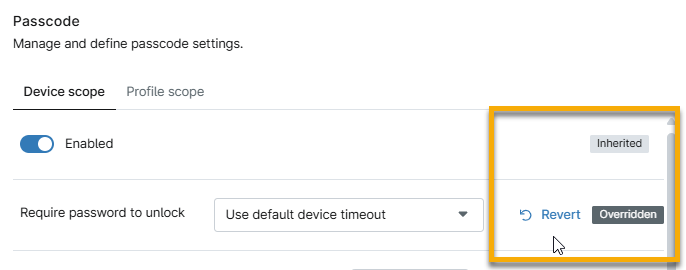
NinjaOne displays an Inherited tag in the new policy, along with an option to override individual settings. To revert to inherited settings, move your cursor over the policy name and click Inherited policies.
Important Considerations
- Inherited policies cannot remove applications, WiFi configurations, or Android policy enforcements. Instead, you must deactivate these items in the configuration editor.
- Deactivating changes the status column to Inactive, and the Inherited label changes to Overridden.
Configure the Policy
Follow these steps to configure a new policy, or edit an existing policy's configuration settings.
- Navigate to Administration → Policies → MDM Policies, then select the policy in the list.
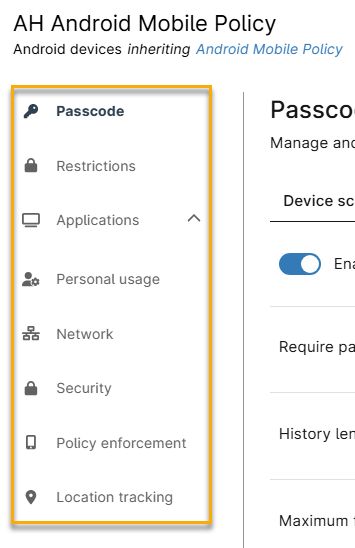
- Use the configuration links to access settings for the following categories. This article describes the settings for each category in the following tables.
- Passcode
- Restrictions
- Applications
- Personal usage
- Network
- Security
- Policy enforcement
- Location tracking
Passcode
Passcode settings let you require and set passcodes to unlock devices and profiles.
Passcode Options Explained
Use the table below to learn about each passcode configuration option.
| Setting | Description |
|---|---|
| Device scope and Profile scope | Set the passcode on the device, the work profile, or both. |
| Enabled | Activate this toggle to require passcode entry. |
| Require password to unlock | Choose whether the device will need a passcode to unlock after every timeout, or every day. |
| History length | Specify the number of previously used passcodes NinjaOne remembers to prevent reuse. |
| Maximum failed passwords for wipe | Define the number of password attempts before NinjaOne wipes the device. The maximum is 100. |
| Maximum age (days) | Specify the maximum password age (in days) after which NinjaOne requires a newly created password. |
| Password quality | Select the criteria for acceptable password strength. |
Viewing Passcode Status in the Devices Dashboard
NinjaOne shows passcode setting information in the Devices dashboard → Details → Security.
Restrictions
NinjaOne obtains most Android policy restrictions directly from the Android Management API, which provides relevant JSON representation and definitions. In this section, you can activate or deactivate device functionality, security, and connectivity.
Note the following about how restrictions are applied:
- NinjaOne delivers only values that have been modified from their default settings to a device.
- If the device was enrolled with a work profile, NinjaOne applies restrictions to that profile only.
Restrictions Options Explained
Use the table below to learn about the configuration options for restrictions.
| Category | Description |
|---|---|
| Functionality |
Restrict device functions, such as:
|
| Application |
Control application parameters such as:
|
| Security & Privacy |
Control the ability to perform functions affecting device security or privacy, including:
|
| Network & internet |
Govern the device's ability to use networks, including:
|
Applications
The Applications section has three tabs: Managed Apps, Kiosk Settings, and Advanced.
| Tab | Description |
|---|---|
| Managed Apps | Select specific applications to install or block on mobile devices. |
| Kiosk settings | Activate the native Android Kiosk environment and display all deployed applications added to the assigned policy. |
| Advanced | Add advanced configurations that can activate supported applications to perform system actions or access categories, such as setting a default Home or Launcher app. |
To learn more about adding and modifying these applications, refer to MDM: Android Application Management.
Personal Usage
The configuration options in the Personal usage section let you control policies for the parent device's personal profile.
Personal Usage Options Explained
Use the table below to learn about personal usage configuration options.
| Category | Description |
|---|---|
| Cross-profile policies applied on the device | Control policies that apply to both the personally-owned and company-owned profiles on the device. |
| Show work contacts in personal profile | Control whether work contacts appear in the device's personal dialer and contacts app. |
| Copy and paste between profiles | Control whether users can copy content from one profile and paste it into the other. |
| Share data between profiles | Control whether users can share data from apps in one profile with apps in the other. |
| Personal applications that can read work notifications |
Specify the package names of personal apps that NinjaOne allows to read work profile notifications. By default, no personal apps can read work profile notifications; system apps are exempt from this restriction. Each entry must be a valid app package name (for example, |
| Personal usage policies |
Set the following personal usage abilities:
|
| Private Space policy |
Control whether users can create a Private Space on the device. Private Space is available on Android 15 and above. Select from the following options:
|
| Managed personal applications | These options let you restrict the personal Google Play Store to specified applications, or allow full store access. |
Network
This section enables you to manage network settings for the device, including setting up proxies and specifying authorized WiFi networks.
Network Settings Explained
Use the table below to learn about network configuration options.
| Setting | Description |
|---|---|
| Manual proxy setup | Set up a proxy server for internet access. Activating direct proxy deactivates any established WiFi networks on the device. Refer to the Configure WiFi SSID Settings section of NinjaOne MDM: Android Enrollment Profiles for more information. |
| WiFi network list | To add a WiFi network, click Add WiFi Network, then enter the configuration name and WiFi name (SSID), and select the appropriate security type. |
Security
The Security section enables you to encrypt the device, manage developer settings, define how data is moved for work, and more. The settings in this section are enforced directly through the Android Management API (AMAPI) security policy. For information on how NinjaOne applies policy settings to managed devices, refer to the Policy Enforcement section of this article.
Security settings are split into the following categories:
- General
- Private key rules
- Custom messaging
General Security Settings Explained
Use the table below to learn about general security settings.
| Setting | Description |
|---|---|
| Minimum Android version support (API level) | Set the minimum allowed Android API level. |
| Maximum time to lock (seconds) | Select the number of seconds that pass before the device is locked and the user is required to input the password. |
| User credentials configuration disabled | Prohibit users from managing how usernames and passwords are saved or used for authentication. |
| Encryption policy | Activate the policy to require a password. |
| Disabled keyguard customizations | Restricts lock screen items, such as widgets, notifications, camera access, and other tools, when the device is locked. |
| Battery plugged mode | Force a device to keep its screen active under specific conditions (for example, when plugged into AC power, on wireless charging, or connected to a USB connection). To prevent the device from locking while the setting is active, clear Maximum time to lock. |
| Developer settings | Allow developer options, such as system behaviors, quick settings, and safe boot. For more information about Android developer settings, refer to Configure on-device developer options (external link). |
| Allowed input methods | Configure a list of package names for input methods or keyboard apps. |
| Allowed accessibility services | Determine the accessibility services permitted for use on a device, blocking all others. Note that this may detrimentally impact accessibility for device users reliant on specific services. |
| Memory tagging extension | This setting controls the Memory Tagging Extension (MTE), a hardware implementation of tagged memory, and is supported on Android 14 and above. |
| Common Criteria Mode |
Control the security standards defined by the Common Criteria for Information Technology Security Evaluation (CC) on the device. This setting is supported on company-owned devices running Android 11 and above. Select from the following options:
Important note: Only activate Common Criteria Mode if your organization requires it. If you deactivate this mode after use, all user-configured WiFi networks may be lost, and enterprise-configured WiFi networks that require user input may need to be reconfigured. Refer to Common Criteria for Information Technology Security Evaluation (external link) for more information.
|
| Send content to assist apps | Allow contextual content about the current app or screen state to assist apps such as Gemini, supported on Android 15+. Deactivate this setting to prevent content from being shared. |
| Factory reset protection allowlisted accounts | Define which Google accounts can unlock a device if factory reset protection is triggered. |
| Account types with management disabled | Add account type identifiers (for example, com.google) to prevent users from adding or managing accounts of those types on the device. Account type identifiers are registered by app developers and may be found in developer documentation or by inspecting the device directly. |
Private Key Rules
Private key rule settings enable you to create and manage private keys for authentication in NinjaOne MDM.
- To add a key, click Add key and enter the following information:
- Key name: Give the key a descriptive name.
- Alias: Enter an alias NinjaOne can use to find the key.
- URL pattern: Enter any URL hierarchies to which the key will be specific.
- Package names: Select the package name of the app to which the key will be specific.
- To edit or delete a key, place your cursor over it and click the actions menu when it appears, then select Edit or Remove.
Custom Messaging Settings Explained
Use the table below to learn about custom messaging settings.
| Setting | Description |
|---|---|
| Custom messaging |
Create custom messages to users from Security Administration when they attempt actions on the device. Click Add language to add the message in a NinjaOne-supported language.
|
| System Update Configuration |
Specify an update configuration type:
|
| Freeze Periods |
Set an annually repeating time period during which NinjaOne postpones over-the-air (OTA) system updates to freeze the OS version running on a device.
|
Policy Enforcement
Policy enforcement allows you to set rules that define behavior when a policy cannot be applied to a device. For example, you can block access to a specific setting on either a work profile or the entire device for a specified number of days. If certain aspects of the policy are not applied successfully, there is an additional option to wipe the device.
Applying Policy Enforcement
Follow these steps to set up a new policy enforcement:
- In Policy enforcement, click Add.
- The Add new policy enforcement window will open. Fill out the following information:
| Setting | Description |
|---|---|
| Setting Name | Select the feature you want to block. Refer to the Setting names explained table in this article for an explanation of each setting name. |
| Block Scope | Block access to apps and data on a company-owned device or in a work profile. This action also triggers a user-facing notification that, if possible, includes information on how to correct the compliance issue. |
| Block after days | Optionally, set a specific date for the setting to be blocked a specific number of days after the policy changes are saved. |
| Wipe after days | Reset a company-owned device or delete a work profile after a specified number of days. |
| Preserve Frp | Preserve the factory reset protection for personal profiles (optional). |
Setting Names Explained
Refer to the table below for an outline of each setting name.
| Setting | Description |
|---|---|
| Applications | Control policy settings applied to applications. |
| Keyguard disabled | Deactivate the lock screen on the primary or secondary display. |
| Permitted accessibility services | If the field is not set, any accessibility service can be used. If the field is set, only the accessibility services in this list and the system's built-in accessibility service can be used. In particular, if the field is empty, only the system's built-in accessibility services can be used. You can set this field on fully managed devices and on work profiles. When applied to a work profile, the option affects both the personal profile and the work profile. |
| Permitted input methods | If present, only the input methods provided by packages in this list are permitted. If this field is present, but the list is empty, then only system input methods are permitted. |
| Minimum API level | Define the minimum allowed Android API level. |
| Recommended global proxy | This setting controls the network-independent global HTTP proxy. Typically, you should configure proxies per network, using the Network configuration options. However, for unusual configurations like general internal filtering, a global HTTP proxy may be useful. If the proxy is unavailable, the device may lose network access. The global proxy is only a recommendation, and some apps may ignore it. |
| Location mode | Set the degree of location detection activated. |
| Always on VPN Package | Specify whether the app is allowed to network when the VPN is not connected and activated. This setting is only supported on devices running Android 10 and above. |
| Bluetooth config disabled | Deactivate Bluetooth connections to and from the mobile device. |
| Encryption policy | Determine encryption configuration. |
| Permission grants | Explicitly grant or deny permission for the app. |
| Password policies | Password requirement policies. The password Scope field in the policy can be set to different policies for work profiles or fully managed devices. |
| Advanced security overrides | Security policies are set to secure values by default. NinjaOne does not recommend overriding any of the default values to maintain a device's security posture. |
| Personal usage policies | Policies managing personal usage on a company-owned device. |
| Cross-profile policies | Determine whether data from one profile (personal or work) can be shared with apps in the other profile. |
After setting the policies, move your cursor over a rule and click the actions icon to edit or delete it. You can also select multiple rules simultaneously using the checkboxes to take bulk action.
The available bulk actions depend on the policy type:
- Parent policy: Select one rule to access Edit and Delete. Select two or more rules to access Delete only.
- Child policy: Select one rule to access Edit, Deactivate, and Revert Overrides. Select two or more rules to access Deactivate and Revert Overrides only.
Location Tracking
Refer to NinjaOne Mobile Device Management (MDM): Location Tracking for more information.
Additional Resources
Refer to the NinjaOne MDM: Resource Catalog for more information about managing Android devices.