
Topic
This article explains how to configure WiFi and roaming policies for Android devices on named service-set identifiers (SSIDs) in NinjaOne Mobile Device Management (MDM).
Environment
- NinjaOne Mobile Device Management (MDM)
- Android Mobile Devices
Description
NinjaOne MDM enables you to configure two policy types that define managed device behavior on your network:
- WiFi SSID policy settings: These settings define which WiFi networks devices can use. You can set these rules on a per-SSID basis, letting you fine-tune connectivity settings for each network instead of using a uniform approach across all WiFi networks.
- WiFi roaming policy settings: These settings govern how managed devices behave when switching between access points on your network. Rather than relying on Android's default settings, you can define when devices can and cannot switch between access points.
Configuring WiFi SSID Policy Settings
Follow these steps to navigate to and configure SSID settings on an Android policy.
Navigate to Network Configuration Settings
- In NinjaOne, navigate to Administration → Policies → MDM policies, then choose a policy from the list. The policy's configuration page opens.

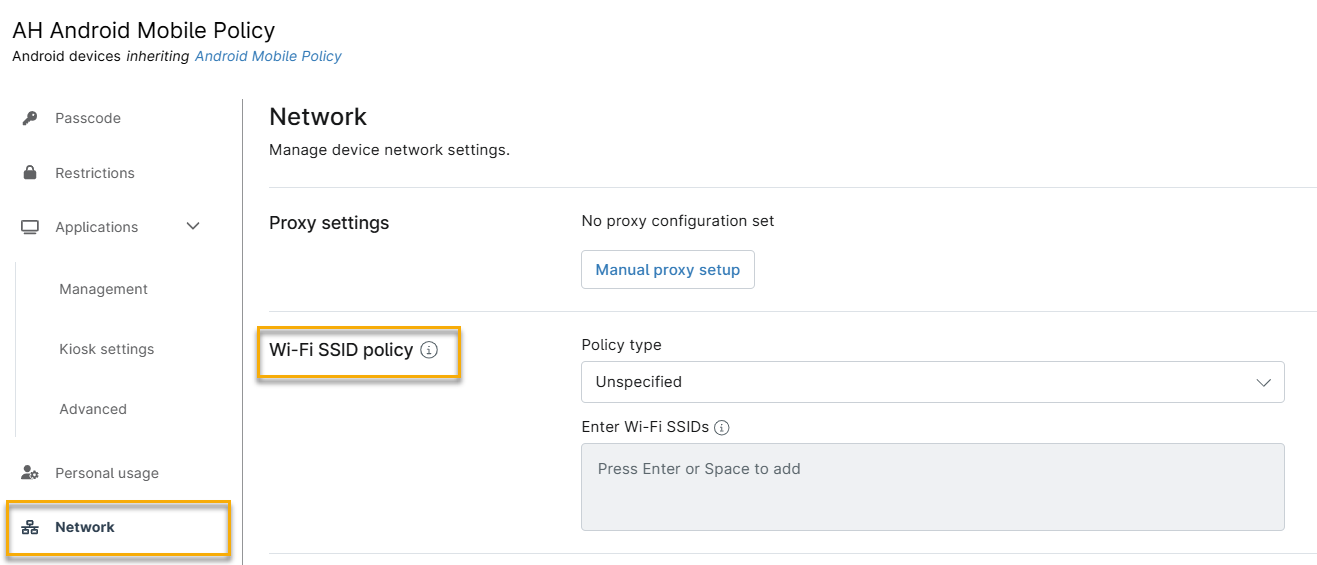
- On the policy's configuration page, click Network. The Wi-Fi SSID policy section contains the configuration settings.
Configure WiFi SSID Policy Settings
In the Policy type drop-down menu, select the setting for this Android policy:
- Unspecified: Do not enforce a policy on devices. Devices can connect to any WiFi network.
- Allowlist: Permit the SSIDs entered in the Enter Wi-Fi SSIDs list. Devices can connect to those WiFi networks and no others.
- Denylist: Block the SSIDs entered in the Enter Wi-Fi SSIDs list. Devices can connect to any WiFi network except those specified.
If you have selected Allowlist or Denylist above, enter the applicable SSIDs in the Enter Wi-Fi SSIDs field. When finished, click Save.
Configure WiFi Roaming Settings
- In the Network section, click the Wi-Fi roaming tab, then click Add Wi-Fi roaming.

- In the Add Wi-Fi roaming window, configure the following settings:
- Wi-Fi SSID: Enter the name of the WiFi network receiving the roaming policy.
- Roaming mode: Select the roaming behavior for this network. Choose one of the following:
- Unspecified: No roaming policy is enforced for this SSID.
- Device default: Use the device's standard Wi-Fi roaming behavior.
- Disabled: Deactivate WiFi roaming on this network.
- Aggressive: Allow quicker switching between access points on this network.
When finished, click Add, then click Save.
Additional Resources
Refer to NinjaOne Mobile Device Management (MDM): Android Policy Management for more information about configuring Android policies in NinjaOne.