
Topic
This article describes the conditions available in the NinjaOne policy editor. To learn how to work with policy conditions, refer to NinjaOne Endpoint Management: Policy Condition Configuration.
Environment
- NinjaOne Endpoint Management
- Microsoft Windows
- Apple macOS
- Linux OS
Description
You can proactively monitor your systems with minimal configuration based on conditions set at the policy level. When a selected condition meets the configured criteria, such as missing software or a memory threshold, NinjaOne can automate severity and priority assignment, send notifications to designated recipients, execute automation, and create a ticket.
We offer multiple predefined conditions for operating systems, virtual machines, and network management systems. We also provide templates that enable you to add various condition types to your policy quickly.
When you configure your conditions, you may be required to select criteria to trigger an action. The following table provides a description of common criteria requests.
| Condition Configuration Criteria | Definition |
|---|---|
| Up | The device or process is active. |
| Down | The device or process is turned off or inactive. |
| Exists | A variable, process, or other element is present on the device, or the device is present in a system. |
| Does not exist | A variable, process, or other element is not present on the device, or the device is not present in a system. |
Index
This article categorizes conditions by type, detailing the applicable platforms for each. Select a topic to continue.
- Agent Conditions
- Antivirus Health
- Backup Alerts
- Battery Monitoring
- CPU (Windows, macOS, Linux)
- Memory (Windows, macOS, Linux)
- Device Down (all OS types)
- Disk Active Time (Windows)
- Disk Transfer Rate (Windows)
- Disk Free Space (Windows, macOS, Linux)
- Disk Usage (Windows, macOS, Linux)
- Network Utilization (Windows, macOS, Linux)
- Process (Windows, macOS, Linux)
- Reboot Pending (Windows, macOS, Linux)
- Windows Service (Windows)
- Process Resource (Windows, macOS, Linux)
- System Uptime (Windows, Apple macOS, Linux)
- Windows Event (Windows)
- Critical Events (Windows)
- Windows SMART Status Degraded (Windows)
- Software (Windows)
- RAID Health Status (Windows)
- Patch CVSS Score (Windows, macOS, Linux)
- Script Result Condition (Windows, macOS, Linux)
- BitLocker Status (Windows)
- Custom Fields (Windows, macOS, Linux)
- Patch Last Installed (Windows, macOS, Linux)
- Daemon (macOS, Linux)
- FileVault Status (macOS)
- Virtual Machine Host Conditions
- Virtual Machine Conditions
- NMS Conditions
Agent Conditions
Agent conditions are conditions that you add to Agent policies in NinjaOne.

Antivirus Health (Windows)
The Antivirus Health condition triggers when an antivirus program is missing, deactivated, outdated, or when multiple antivirus programs are present on the endpoint. The accuracy of this condition relies on the Windows Security Center’s reporting. Some antivirus products may fail to report correctly or may not report at all.
| Criteria | Description |
|---|---|
| Detect Multiple Antivirus Installed | This condition checks for more than one antivirus program reporting to the Windows Security Center and returns a list of the detected antivirus programs. |
| Ignore Microsoft Defender Antivirus | Microsoft Defender Antivirus is pre-installed on new Windows systems. When users check this option, the system disregards all information related to Microsoft Defender. |
| Duration Detected | This condition denotes the time that elapses between detection and the triggering of any sub-condition. |
Backup Alerts (Windows)
The Backup Job Duration Alert and the Backup Job Last Success Job Threshold Alert conditions monitor the duration of backup completion and track the timestamp of the most recent successful backup.
Battery Monitoring (Windows, macOS, Linux)
The Battery Monitoring condition activates for any device equipped with a battery, including servers, once the specified threshold is met. The criteria for activation include:
- The current charge level of the battery
- Overall battery health, calculated as a percentage that compares the maximum capacity when new to the current maximum capacity
- Battery cycle count
There are several important considerations to remember when working with battery monitoring conditions:
- The condition applies only to batteries detected by NinjaOne
- Some batteries do not provide data for specific attributes
- NinjaOne cannot trigger this condition when it lacks the necessary information about those attributes
- You can view battery information in the Battery section on the device's detail page
- If the Battery section is absent, the device will not support the battery condition functionality
CPU (Windows, macOS, Linux)
The CPU condition triggers when CPU use exceeds, falls below, or equals the threshold defined in the condition configuration. You can also specify the time interval during which CPU utilization remains above, below, or equal to the defined percentage.
Memory (Windows, macOS, Linux)
The Memory condition activates when memory usage exceeds, falls below, or equals the threshold specified in the condition configuration. You can also define the time interval during which memory usage remains above or below the specified threshold, either in percentage or byte units.
Device Down (all OS types)
The Device Down condition activates if a device remains down for a predefined duration. You can set the condition type, duration, and the option to re-trigger the alert as long as the condition persists.
- In Advanced Settings, you can choose whether to trigger the condition again if it remains true after a reset. For instance, if you set the condition to alert for device down after three minutes with a reset interval of 90 seconds, the alert will trigger after three minutes, reset after 90 seconds, and trigger again following another three minutes if the device is still down. This option is available only for agent conditions.
- You should configure only one Device Down condition per policy. Configuring multiple Device Down conditions will result in the subsequent conditions being ignored.
Disk Active Time (Windows)
The Disk Active Time condition measures the percentage of elapsed time that the selected disk drives spend servicing read or write requests. Even with low megabytes per second (MB/s) usage, a high percentage of busy time can occur if the disk is heavily fragmented or engaged in many small operations.
This condition triggers when the disk's active time reaches a defined threshold in the condition configuration.
You can use various mathematical operators to evaluate this condition and specify the time interval during which the disk's active time remains above, below, or equal to that percentage.
Disk Transfer Rate (Windows)
The Disk Transfer Rate condition triggers when the disk's read or write speed reaches a specified threshold, either above, below, or equal to the defined limit.
Disk Free Space (Windows, macOS, Linux)
The Disk Free Space condition triggers when the disk free space meets a specified threshold defined in the condition configuration, whether it is above, below, or equal to the threshold. You can set the duration for how long the disk free space must remain above, below, or equal to the specified threshold (in percentage or byte units) for the condition to trigger.
Windows provides the following options:
- Boot volume only
- Volume labels mode (None, Include, and Exclude)
- Exclude volume labels
- Exclude removable disks
- Exclude boot volume
The volume label is the unique name assigned to each protected volume on the endpoint. When using it for inclusion or exclusion, enter the name exactly as it appears on the target device.
If you choose to use the drive letter, format it as C:, replacing C with the corresponding letter of the drive you wish to exclude.
Apple macOS and Linux OS only have one option: Exclude Mount Points.
Disk Usage (Windows, macOS, Linux)
The Disk Usage condition triggers when disk usage exceeds, drops below, or meets a specified threshold.
Windows provides the following options:
- Exclude Boot Volume
- Exclude Removable Disk
- Exclude Volume Labels
Apple macOS and Linux OS have one option: Exclude Mount Points.
Network Utilization (Windows, macOS, Linux)
The Network Utilization condition triggers when the in-bytes or out-bytes on a device exceed, fall below, or equal a specified threshold for a defined duration. You can specify the threshold using the following data rates:
- Gbps: gigabits per second
- Kbps: kilobits per second
- Mbps: megabits per second
- Tbsp: terabits per second
Process (Windows, macOS, Linux)
The Process condition activates when a designated process is up, down, exists, or does not exist at the endpoint.
- The System Uptime Delay setting enables you to define how long the agent will wait before it starts alerting about the specified process being down after system startup. This feature addresses instances where a process takes time to start following machine boot-up.
- The duration specifies how long the process must remain in the selected state before the alert triggers. The system uptime delay applies to processes that require more time to initialize during boot-up. If the process remains down after the specified duration, the alert triggers.
- You can now use a wildcard in the process or service fields. For example, using team* will activate the condition for teamviewer or teams.
- For Linux, you can also configure the duration and system uptime delay settings.
Reboot Pending (Windows, macOS, Linux)
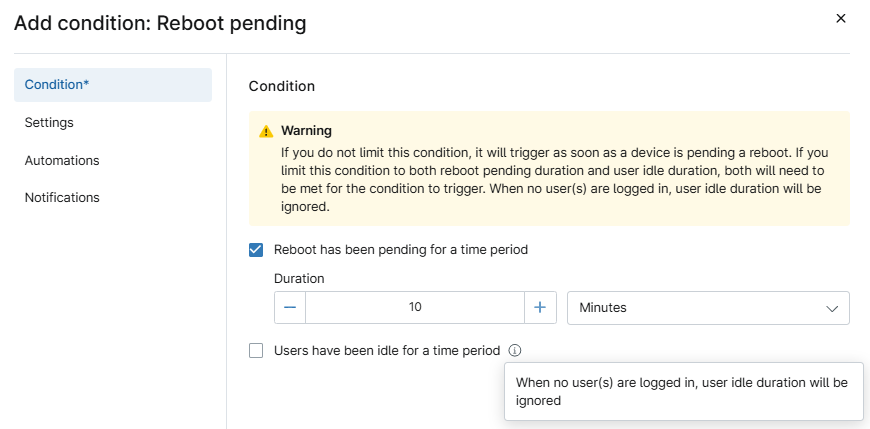
The Reboot Pending condition triggers based on the duration since NinjaOne flagged the system reboot and the idle duration of logged-in users. You can set conditions based on either or both factors and specify a duration of a specified number of minutes, hours, or days. When you select the checkbox, additional configuration options appear, allowing you to limit the condition.
The Duration dialog does not appear for idle users because the checkbox remains unselected. You can still apply the condition without selecting either of the boxes.
Windows Service (Windows)
The Windows Service condition triggers when a specific service is either up, down, exists, or does not exist at the endpoint.
When you create this condition, the system automatically populates a list of services by querying the devices in the relevant policy. To add a service that is not included in the list, type the service name and click Add: (service name) or press Enter on your keyboard.
The Start alerting after setting enables you to specify how long the agent should wait before it begins alerting about the specified process being down after startup. This feature addresses scenarios where there is a delay in a process starting after the machine boots up.
In Advanced Settings, you can choose to ignore the service if it is deactivated or set to manual startup on the local machine. Additionally, you can decide whether the condition should trigger again if it remains true after a reset. For example, if you have a condition monitoring a service that goes down, and that condition triggers, the agent will use a reset interval of 90 seconds. If you select the Trigger again if condition still true after reset option, the condition will reset and re-trigger every 90 seconds as long as the service remains down. The condition will not trigger if the service is in a Pending Start state.
Process Resource (Windows, macOS, Linux)
The Process Resource condition activates when a specific process uses a system resource (CPU or Memory) that exceeds, is less than, or is equal to a defined threshold for a specified time interval.
System Uptime (Windows, macOS, Linux)
The System Uptime condition helps ensure that you regularly reboot target endpoints to maintain their optimal performance. It triggers when the number of days since the last reboot surpasses a specified threshold.
Windows Event (Windows)
The Windows Event condition triggers when a specified combination of Source, Event ID, and Text occurs. You can set a condition to trigger only if the event occurs after a specified number of occurrences within a defined timeframe.
The Text field enables you to monitor any text in the General view of an event, and it is case-sensitive.
Refer to Policies: Windows Event Condition for instructions about adding a condition to monitor a Windows event.
Critical Events (Windows)
The Critical Events condition triggers when the number of critical event logs on a machine exceeds a specified threshold within a defined time interval. This condition triggers for events classified as Critical or Audit Failure.
Windows SMART Status Degraded (Windows)
The Windows SMART Status Degraded condition triggers for a device when the Win32_DiskDrive status returns any value other than OK. When this alert activates, it indicates that Windows has detected a SMART Status error, necessitating immediate action. You should also implement a Pred Fail status for alerts regarding predictive failures. The Pred Fail feature assesses the raw data reported to Windows by the drive to evaluate potential issues.
NinjaOne's threshold for predictive failure is lower than that of Windows. As a result, it may report a predictive failure before Windows or other SMART status monitoring tools do.
For more information about Win32_DiskDrive, refer to Microsoft's documentation (external link).
Software (Windows)
The Software condition enables you to monitor the presence of software on a machine. It checks if specific software appears in NinjaOne's software inventory for a device. The software name must match exactly with the name listed in the software inventory. Using wildcards can be helpful (for example, *Chrome*).
RAID Health Status (Windows)
The RAID Health Status condition enables monitoring of RAID failures through the event ID. NinjaOne offers a dedicated RAID Health Status monitor specifically designed for Dell and HP RAID controllers.
This condition operates with the following tools:
- Dell: The system uses the PERCCLI.exe utility to upload and display data in the device details.
- HP: The system employs the HPSSACLI utility to upload and display data in the device details.
When multiple RAID controllers exist, NinjaOne presents each controller in a separate tab. However, note that we currently do not offer support for HP's Mega RAID controllers.
Patch CVSS Score (Windows, macOS, Linux)
The Patch CVSS Score condition triggers when at least one patch has a CVSS score greater than or equal to a specified threshold for a designated number of days.
For example, you set the threshold to 9.0 or higher and maintain it for three days, and the system detects a patch on 2023-11-20 with a CVSS score of 9.8. In this case, the condition triggers if that patch remains unapplied by 2023-11-23.
If the CVSS score updates to a value lower than 9.0 before the end of the three-day period, the condition does not trigger. However, if NinjaOne initially detects the patch with a score lower than 9.0 and then updates it to exceed the threshold on day four, the condition triggers immediately upon detection of the higher CVSS score since the duration from the initial detection has surpassed the limit.
Script Result Condition (Windows, macOS, Linux)
This condition allows you to run a script and monitor specific result codes and output text. The evaluation script can be any custom script stored in your NinjaOne Script Library. You choose the frequency of the script execution and establish a timeout interval. Additionally, you can receive a notification if the script encounters an error and fails to execute properly.
Consider the following important points when working with this type of condition:
- The evaluation script must be a custom script; NinjaOne's native scripts are not applicable for this condition.
- The evaluation script will run with system privileges.
- The Script Error Notification option allows you to receive alerts when the script fails to execute successfully. This setting helps prevent false negatives.
- Once you add the condition and save the policy, the script will run according to your selected schedule.
- NinjaOne will not record entries in the Activity log indicating that the script is running based on the schedule you selected. Notifications will only occur if the condition triggers according to the script result code and output that you configured for monitoring.
When monitoring for specific text patterns, whether they contain, do not contain, start with, or end with certain text, the condition is sensitive to the exact match and is case-sensitive. For instance, if you set the condition to look for output that contains status enabled, it will not trigger if the output contains status is enabled or Status Enabled.
The With Output setting works in conjunction with the Result Code condition through a logical AND operator. You criteria must satisfy both parameters for the condition to trigger the alert. If the evaluation script generates only exit codes without any text string output, ensure you leave the With Output field empty and set the drop-down menu to Does Not Contain.
BitLocker Status (Windows)
This condition allows you to monitor the status of BitLocker on a device, determining whether it is active, inactive, locked, or unlocked. When the selected status has exceeded the configured duration, the condition will trigger.
Custom Fields (Windows, macOS, Linux)
Use this condition to monitor the values of configured custom fields. You can add multiple fields that must either meet all specified conditions to trigger the action or satisfy at least one of the selected conditions. The qualifier and value fields vary based on the selected field type.
The Automations permission for the custom fields must be Read Only to qualify for use with the condition.
Patch Last Installed (Windows, macOS, Linux)
This condition triggers when available patches have an installation pending for a specified amount of time. Specifically, it tracks the number of days since a patch was successfully applied.
Daemon (macOS, Linux)
This condition triggers based on the status of a particular daemon on the device.
For Linux devices, you can set an alert to begin monitoring after a specified time, ensuring that the condition supports closed-looping. In the Advanced Settings, you can also configure an additional trigger that attempts to reset the daemon automatically.
This condition provides auto-reset intervals once it no longer meets the initial requirements. In the Linux environment, you can specify the duration for which the process must remain in the selected state before triggering an alert. The system uptime delay defines the timeframe for processes that take longer to start after machine boot-up, issuing an alert if the process remains inactive beyond the specified period.
FileVault Status (macOS)
This condition monitors FileVault's status, determining whether it is active or inactive on the machine. You can specify a duration after which the condition will trigger if it meets the set criteria.
Virtual Machine Host Conditions
Virtual machine host conditions are conditions that you add to VM policies in NinjaOne. VM policies are separated by host and guest machines.
Aggregate CPU Usage
This condition triggers when the aggregate CPU usage is greather than, less than, or equal to the threshold percentage defined in the condition configuration. You must also specify the duration during which the CPU usage should remain above, below, or equal to the defined percentage for the condition to activate.
Memory Usage
This condition triggers when memory usage surpasses, falls short of, or meets the threshold set in the condition window. Define the duration for which the memory usage must be above, below, or equal to the specified threshold (in percentage or byte units) for the condition to activate.
Disk Usage
This condition triggers when disk usage crosses, fails to reach, or matches the threshold defined in the condition window. Specify the duration for which disk usage needs to be more than, less than, or equal to the threshold (in percentage or byte units) for the condition to activate.
Datastore Free Space
This condition triggers when the datastore free space is greather than, less than, or equal to the threshold established in the condition window. You also need to define the duration for which the free space must be above, below, or equal to the specified threshold (in percentage or byte units) for the condition to activate.
VM Host Uptime
This alert is essential for ensuring that you reboot VMware hosts frequently enough to maintain optimal performance. The alert triggers if the number of days since the last reboot exceeds the specified interval.
Bad Sensor Count
This condition triggers when the number of faulty sensors on a host is greather than, less than, or equal to the threshold defined in the condition window.
Sensor Health
This condition triggers when the specified sensors meet the designated states.
Virtual Machine Conditions
Virtual machine conditions are conditions that you add to VM policies in NinjaOne. VM policies are separated by host and guest machines.
Processor Usage
This condition triggers when the processor usage is greather than, less than, or equal to the threshold percentage defined in the condition window. You can specify the duration that the processor usage must remain above, below, or equal to the specified percentage for the condition to trigger.
Memory
This condition triggers when memory usage is greather than, less than, or equal to the threshold defined in the condition window. You can specify the duration that memory usage must remain above, below, or equal to the defined threshold, either in percentage or in byte units, before the condition activates.
Guest Operation Mode
This condition enables you to monitor the virtual machine's operational state, whether it is on, off, or suspended.
Checkpoint Size
This condition triggers when the snapshot size is greather than, less than, or equal to the threshold defined in the condition window. You can specify the duration that the snapshot size must remain above, below, or equal to the set threshold, in GB or MB, before the condition activates.
Checkpoint Lifespan
This condition triggers when the snapshot lifespanis greather than, less than, or equal to the threshold defined in the condition window. You can specify the duration that the snapshot lifespan must remain above, below, or equal to the specified threshold, measured in days, weeks, or months, before the condition activates.
Guest Tools Not Running
This condition monitors situations where Guest Tools do not run on a virtual machine.
NMS Conditions
The NMS conditions are conditions that you add to VM policies in NinjaOne. VM policies are separated by host and guest machines.
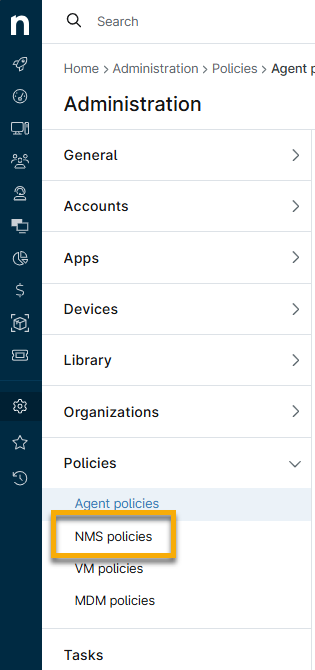
For more information about NMS policies, refer to NMS: Policy Management.
Configuration File
This condition monitors changes to the configuration file. When monitoring for changes in the file contents, you can specify whether you want to detect added or removed content, specific text to monitor, or specific text to ignore. In the the Configuration Backup tab within the NMS policy, you can specify the type of configuration to monitor. You can choose between Startup-config or Running-config.
Custom SNMP
This condition monitors custom device data points not included in manufacturer templates. Refer to NinjaOne NMS: Custom SNMP for more information.
HTTP
This condition monitors selected status codes and whether they contain or do not contain specified content text.
Memory
This condition triggers if memory utilization is greater than, less than, or equal to a certain threshold percentage defined in the condition window.
Network Adapter Traffic
This condition triggers if the ingoing or outgoing network adapter traffic is greater than, less than, or equal to a specified threshold, which you can define in various types of units.
Network Adapter Traffic Percent
This condition triggers if the ingoing or outgoing network adapter traffic is greather than, less than, or equal to a certain threshold percentage.
Network Adapter Status
This condition monitors specified statuss for the network adapter.
Network Adapter Status Change
This condition monitors when a network adapter changes to or from a specified status.
Ping Latency
This condition triggers if the ping latency is greater than, less than, or equal to a certain threshold percentage.
Ping Packet Loss
This condition triggers if the ping packet loss is greater than, less than, or equal to a certain threshold percentage for a specified duration.
Ping Response
This condition monitors whether a ping receives a response or not after a specified number of attempts.
Ports
This condition monitors the status of specified ports.
Processor
This condition triggers if processor utilization is greater than, less than, or equal to a certain threshold percentage defined in the condition window.
SNMP Trap
This condition monitors for two scenarios: whether any trap is received, and whether a trap containing a specific object identifier (OID) or a trap value with a designated target string is received.
Syslog
This condition monitors the syslog for the specified logic type, messages, facilities, and severities. Note that the Notice, Informational, and Debug severity levels may generate a significant number of alerts.
Additional Rescources
Refer to NinjaOne Policies: Resource Catalog to view more articles covering the topic of conditions.