
Topic
This article explains how to run scans on devices using Bitdefender GravityZone as an antivirus and remediate threats from NinjaOne.
Environment
- NinjaOne Integrations
- Bitdefender GravityZone
Description
When you enable Bitdefender GravityZone in NinjaOne, you can use it to scan managed devices for threats in NinjaOne. When you complete a full scan, the event deletes any previous active and blocked threats that were present before the scan started and presents fresh data for remediation.
If you have not already deployed the Bitdefender GravityZone antivirus to the device, use the instructions in our NinjaOne and Bitdefender GravityZone: Getting Started with the Integration article to deploy it.
Select a category to learn more:
Important Notes
If a scan reveals threats, NinjaOne will create an event in the Activities feed. View scan history under the Activities tab from the System Dashboard or at the device level. All Bitdefender activities show a B icon.
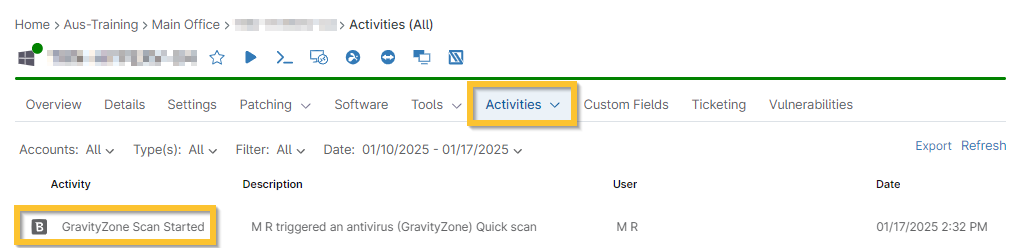
Figure 1: NinjaOne Device Dashboard → Activities → Bitdefender activity log- If you run a scan locally on the machine (not from the NinjaOne dashboard), it will not report the task in NinjaOne unless a threat is found.
- You can remove the ability for an end user to run scans locally on machines from your administrative account in GravityZone.
- If you delete or locally restore a threat, it will not be reported to NinjaOne.
- If enabled, technicians can receive notifications for scans and threat activities. Refer to Additional GravityZone Tools in NinjaOne for more information.
Run GravityZone Scans on Devices
- Navigate to a Device Dashboard for which you want to run an antivirus scan.
- Move your cursor over the action button and click Antivirus. Select your scan type.
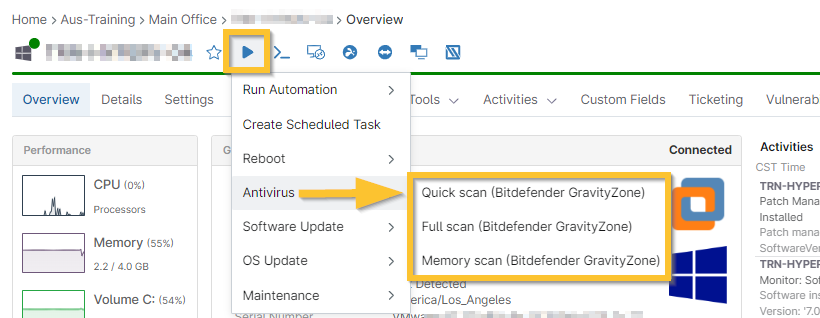
Figure 2: NinjaOne device dashboard → Action menu → Antivirus options
Identify Devices with Threats
Threats are reported when discovered by GravityZone; you will review alerts in NinjaOne when synced with GravityZone. Refer to the section within this article titled Synchronize Threats for more information.
After you run a scan on the device, NinjaOne will record any quarantined, active, or blocked threats. You can identify which devices show threats from the following locations:
- View Threats From the Devices Search Page
- View Threats From the System Dashboard
- View Threats From the Organization Dashboard
- View Threats at the Device Level
View Threats From the Devices Search Page
To view threats from the Devices search page, perform the following steps:
- Open Devices in the left navigation pane, click More Filters, and select "Activities."
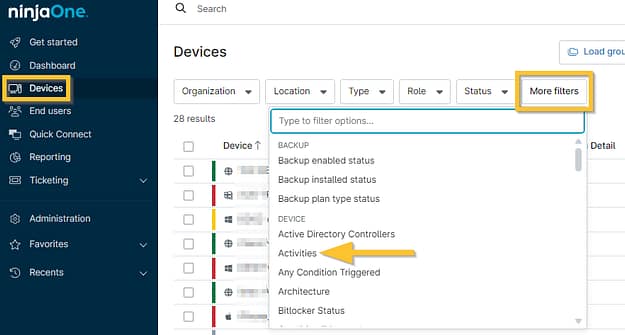
Figure 3: NinjaOne Devices search grid → More filters → Activities
- Select your preferred time span in the Activities filter modal and then click Add.
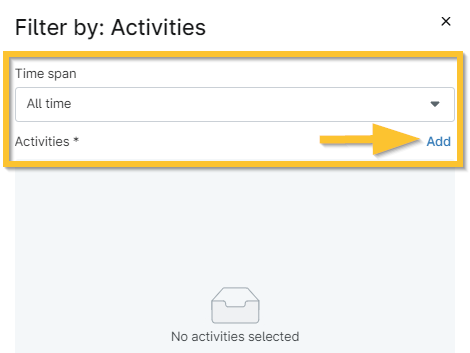
Figure 4: NinjaOne Devices search grid → More filters → Activities modal → Add
- Enter "GravityZone" into the search field and select the threat activities you want to review.
- Click Add and then click Apply.
- From the resulting list, click the device name to open the Device Dashboard and take action.
View Threats From the System Dashboard
Review the Device Health section on the Overview tab. A number greater than zero indicates the number of devices with a quarantined, active, or blocked threat.
Click the number to navigate to a pre-filtered search page that shows all infected devices for the specified threat.
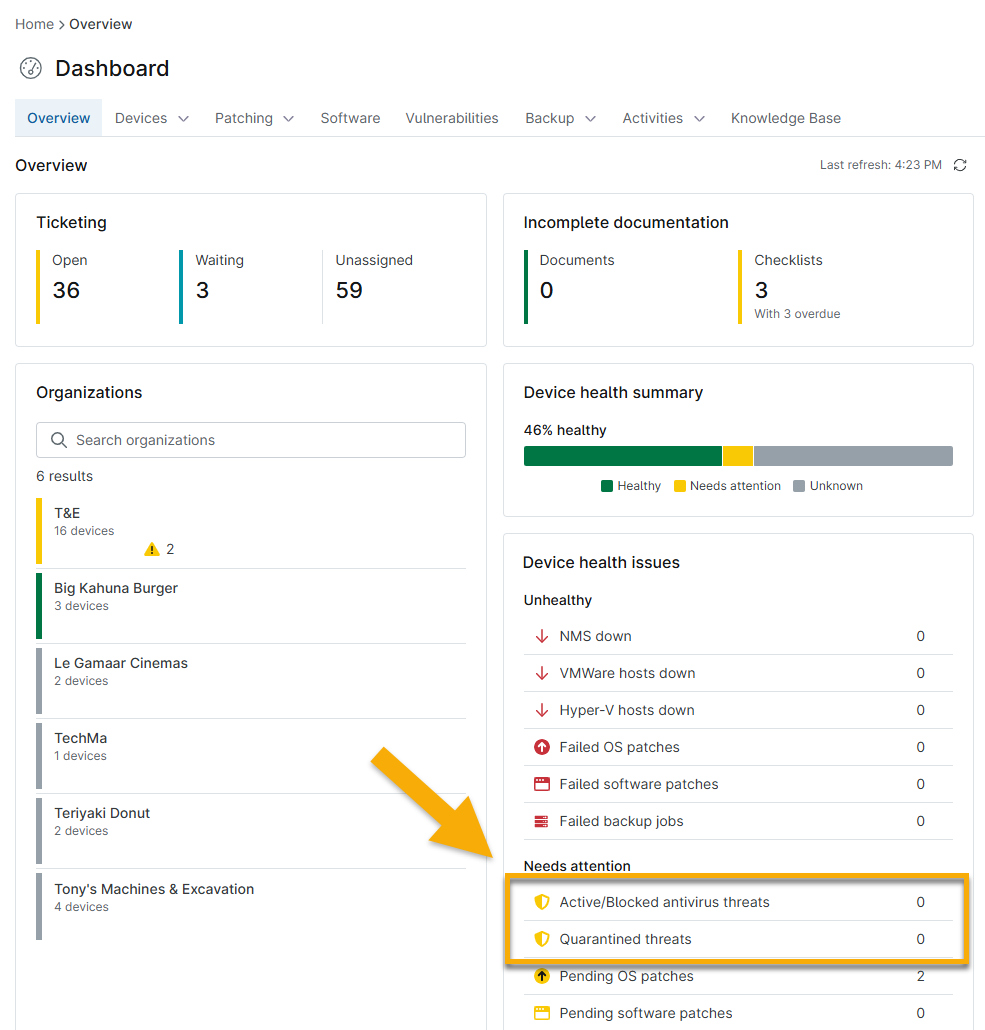
Figure 5: NinjaOne System Dashboard → Overview tab → Device health issues → Needs attention
You can also view threats by opening the Devices tab, selecting Threats, and then clicking Active/Blocked or Quarantined.
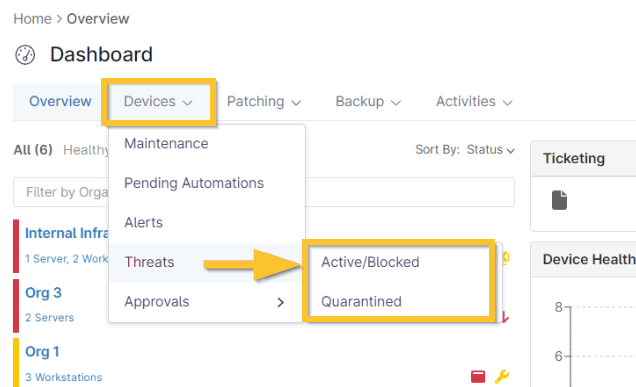
Figure 6: NinjaOne System Dashboard → Devices tab → Threats
View Threats from the Organization Dashboard
To view threats from the Organization Dashboard, perform the following steps:
- Select an organization from the System Dashboard. The health icons next to the organization’s name indicate whether it has one or more devices with a detected threat.
- From the Organization Dashboard, open the Devices drop-down menu and select Threats; then, click Active/Blocked or Quarantined.
- You can also click the number hyperlink displayed for a threat in the Organization Dashboard → Device Health section to navigate to a pre-filtered search page that shows all infected devices for that threat.
View Threats at the Device Level
To view threats from the Device Dashboard, perform the following steps:
Review the Health section at the bottom of the Device Dashboard → Overview page. This section displays only if there is an issue that needs attention and can include pending reboots and vulnerabilities.
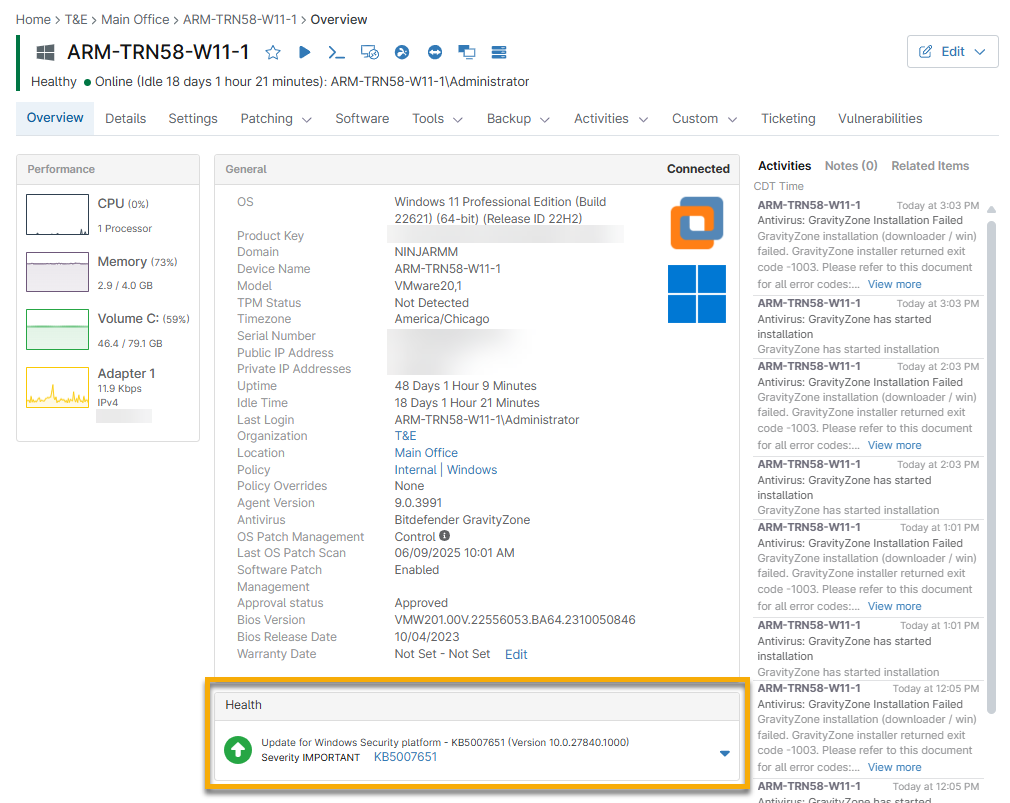
Figure 7: NinjaOne Device Dashboard → Overview → Health
Take Action on Threats
To manage quarantined threats:
From the Devices → Threats tab on either the system or Organization Dashboard, select the checkbox next to one or more devices to review available action options.
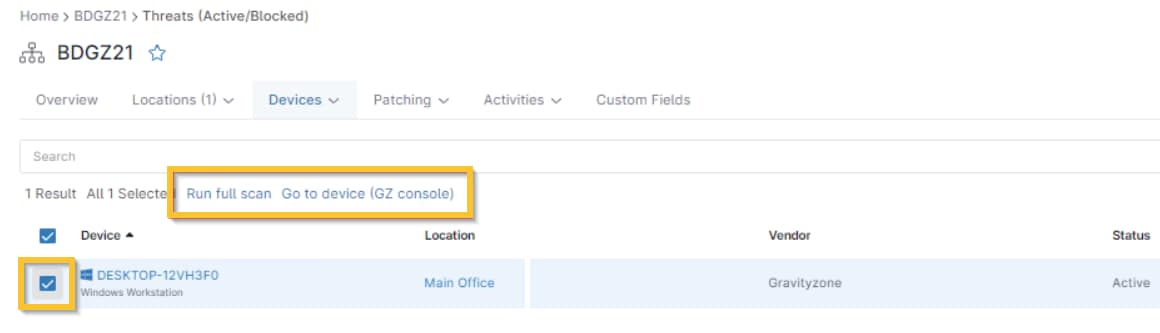
Figure 8: NinjaOne Device Dashboard → Devices → Threats → Take action
To take action on threats at the device level, click the down arrow on the right side of the threat notification in the Health section and select the desired option. You will see different options depending on whether the threat is quarantined (yellow icon) or active and blocked (red icon).
Available Actions for Threats
Active or blocked threat: Run a full scan to clear the threat (the BDGZ agent will perform the action configured for the device policy in BDGZ, such as disinfecting or moving to quarantine) or navigate to the GravityZone console to view detection details, change the policy threat control, or take other actions.
Quarantined threat: Restore threat, delete threat, or restore and add exclusion.
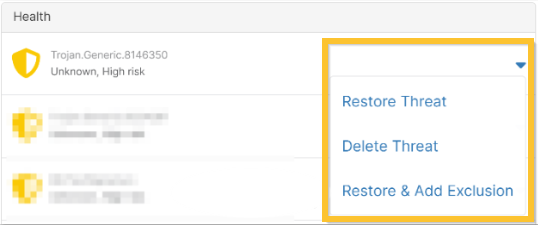
Figure 9: NinjaOne Device Dashboard → Health → Take action
Synchronize Threats
To determine what actions were taken specifically involving quarantined threats with BDGZ, you must initiate the "synchronize threats" process with Bitdefender. On the NinjaOne Device Dashboard for the affected device, open the Settings tab and click Synchronize Threats in the Bitdefender GravityZone widget.

Figure 10: NinjaOne Device Dashboard → Settings → Bitdefender GravityZone Synchronize Threats
Additional Resources
The following learning content will help you fully utilize the Bitdefender GravityZone feature set: