
Topic
This article explains how to add, modify, and assign administrative credentials in NinjaOne.
Environment
NinjaOne Endpoint Management
Description
NinjaOne's Credential Exchange allows partners to securely pass administrator credentials to devices for use in actions such as running scripts, patching, and remote desktop protocol (RDP) access.
Select a category to continue:
- Add Credentials for an Organization
- Edit or Delete Existing Credentials
- Assign Default Credentials for an Organization
- Change Default Credentials for a Single Device
- Additional Resources
Add Credentials for an Organization
To add credentials for an organization in NinjaOne, perform the following steps.
- Go to Administration → Organizations and select an organization to open the configuration page.
- Select the Credentials tab, and then click Add Credential.
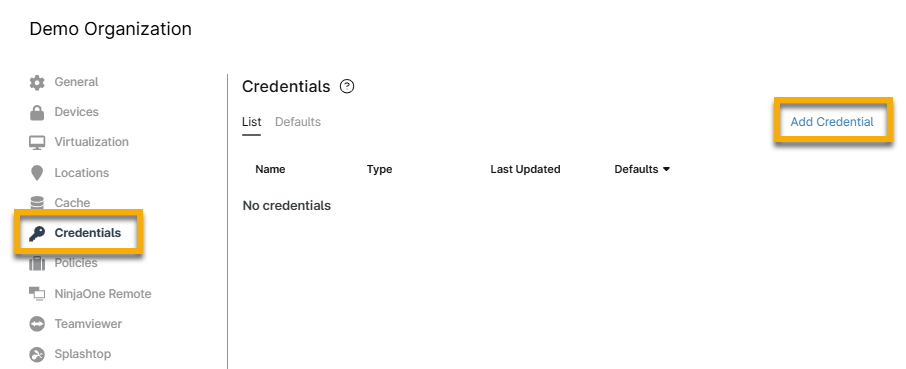
The New Credential configuration modal displays.
Choose the type of credential you would like to add from the drop-down menu. Refer to the following table for an explanation of each option:
Selection Description Username/Password Enter a name, username, and password, and then confirm the password. Specifying a domain is optional. When adding a domain to credentials, the DNS name (domain.local, for example) should be used rather than the NetBIOS name. SNMP V1 or V2C SNMP is used to discover, profile, and monitor your devices. It leverages a string to access the router network device. SNMP V3 Enter a name, port, username, and authentication type. Specifying a context is optional. If the Authentication Type is set to anything other than "None," an authentication password is required, and an encryption type can be set. If the Encryption Type is set to anything other than "None," an encryption password is required. Telnet/SSH The Secure Shell Protocol (SSH) is a cryptographic network protocol for operating network services securely over an unsecured network. Its most notable applications are remote login and command-line execution.
Telnet is an Internet-standard program and protocol used for transmitting and receiving unencrypted ASCII characters (plaintext) across a network.- Once you have filled out the required information for the credentials, click Add. The new credential now appears in the list for the organization.
Edit or Delete Existing Credentials
- Open the organization editor for the credentials you would like to edit, and then select the Credentials tab.
- Move your cursor over the credential and click Delete or Edit.
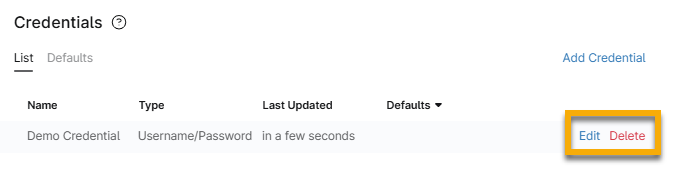
When editing, you must click Change to modify certain fields. Click Update to save your changes.

Assign Default Credentials for an Organization
- Open the organization editor, and then select Credentials. Open the Defaults tab.
- Select the credential you want to set as default for each of the drop-down menus.
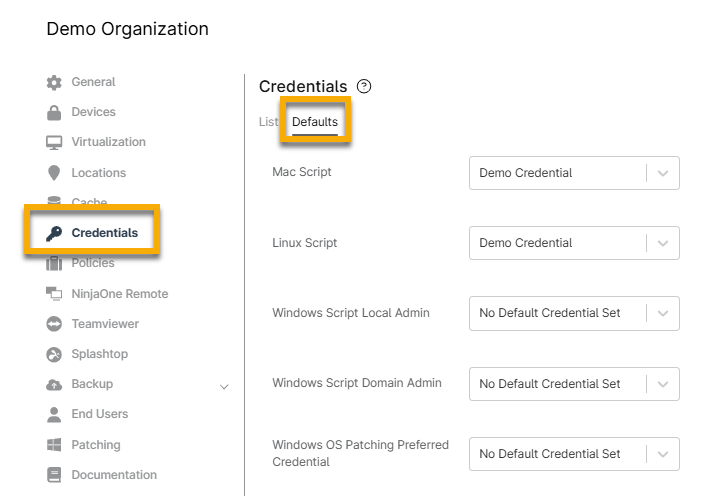
- Once default credentials are specified for scripting (Mac Script, Windows Script Local Admin, and Windows Script Domain Admin), you will have the option to select these credentials from the Run As menu when running a script via NinjaOne. For more information about scripting with NinjaOne, refer to Getting Started with NinjaOne's Automation Library (Scripting).
- Once default credentials are specified for RDP access (Automatic RDP Technician Access), you will have the option to select these credentials from the Credentials menu when initiating a RDP connection to a device. For more information about using RDP with NinjaOne, refer to Access Devices via Microsoft Cloud RDP.
- Once default credentials are specified for patching (Windows OS Patching Preferred Credential and Windows 3rd Party Patching Preferred Credential), these credentials will be automatically passed during Windows Patch Management and WSUS Server Setup and third-party patch management application cycles. For Windows OS patch management, if NinjaOne is unable to retrieve the set Windows OS patching preferred credentials, it will attempt to run the cycle as the System.
Change Default Credentials for a Single Device
- Go to a device dashboard and open the Settings tab. To learn more about using dashboards in NinjaOne, refer to NinjaOne Dashboards: Resource Catalog.
- Click Edit in the Credentials widget.
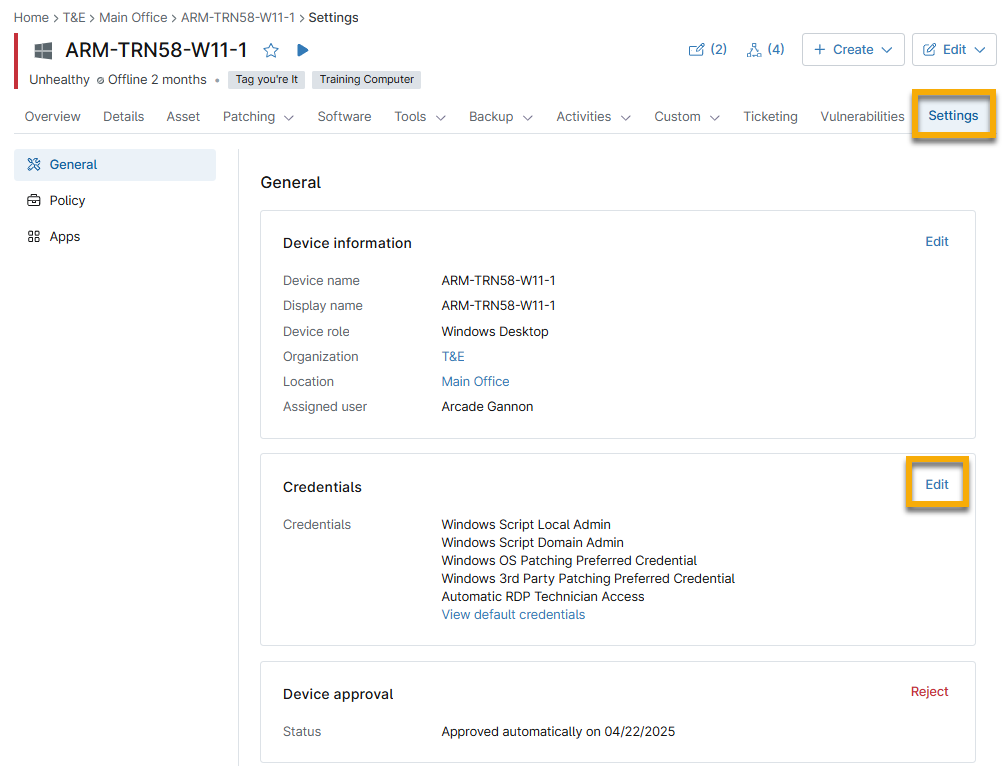
- Change the default credentials assigned to the device by selecting the desired credentials from the drop-down menu for each category. When you change the default credentials for a category, the yellow icon to the right of the drop-down menu will change from Inherited to Overridden. To keep your changes, click Update.
Additional Resources
For a list of frequently asked questions about Credential Exchange, refer to Credential Exchange: FAQ.