
Topic
This article discusses how to create and work with custom data tables within your summary reports.
Environment
NinjaOne Reporting
Description
In addition to preset data types, you can create custom data tables using selectable per-device data fields. These tables enable you to define, filter, and structure data to meet specific reporting requirements.
Creating a Custom Data Table
You can create custom data tables within new or existing summary reports. Refer to NinjaOne Reporting: Summary Reports for more information about creating and customizing summary reports.
- On the Create report template or Edit report template pages, click Customize.

- In the Sections window, choose Custom Data Table from the drop-down menu.
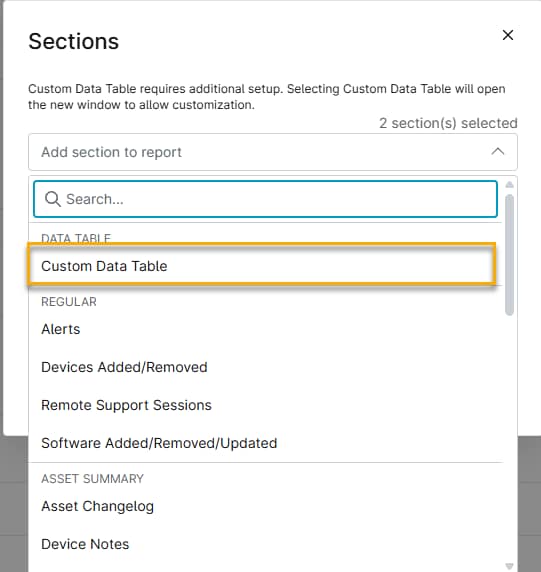
- Use the Name and Description fields to give your data table a name and describe its purpose.
- Click the Data set drop-down menu and select the report type. Available data sets include:
- Device – Device Search: The main window populates with a list of all devices. Use the filter options to narrow your search. The device list updates to display only devices that match your filter criteria.
- NinjaOne Billing – Agreement Profitability: This table displays profitability data for NinjaOne billing agreements, letting you report on revenue, cost, and margin performance.
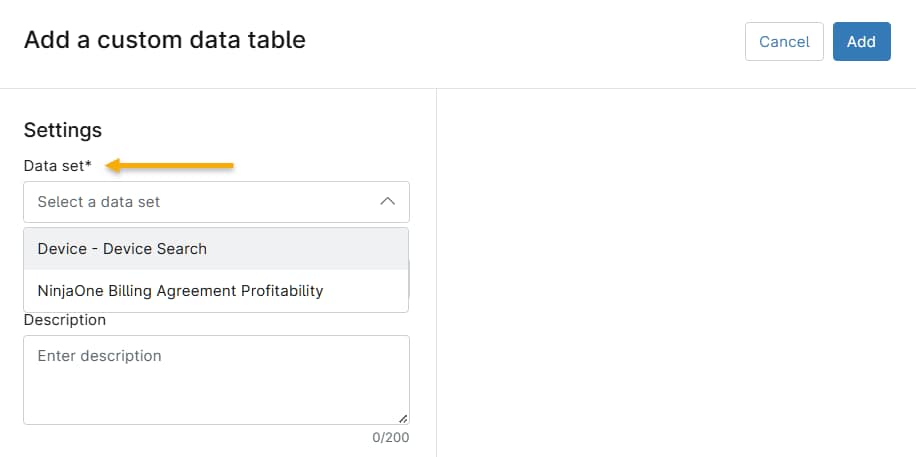
- After selecting the dataset, the table will populate either the device information for endpoints that meet your criteria or profitability information.

Working with Device Groups
You can add device groups from your environment to the custom data table. Refer to Search and Grouping for more information about how to create device groups.
Adding Device Groups
You must have the Device Search dataset selected to add device groups.
- On the Create Report Template page, click Customize, then select Custom Data Table from the Add section to report menu.
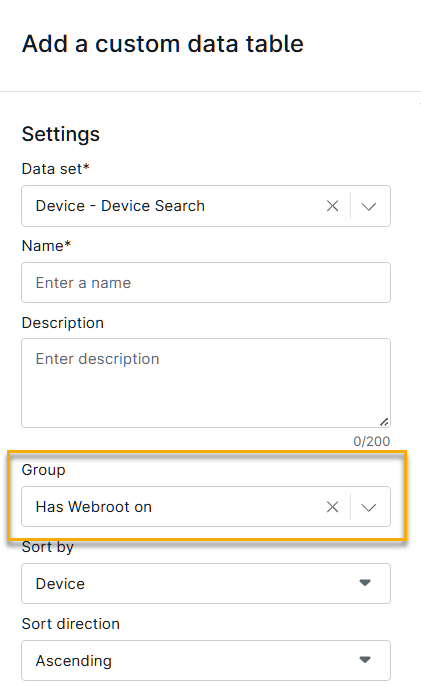
- In the Data set menu, select Device - Device Search. The Group menu appears.
- Use the Group drop-down menu to select the device group to include in the report.
Filtering Device Groups
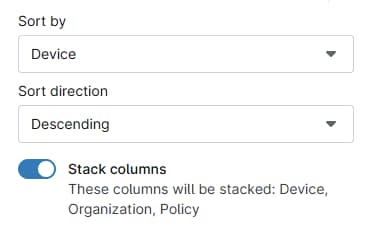
After creating the device group table, you can use the Sort by and Sort direction menus to rearrange the data. You can filter the group list by using the filter menus above the list.
Adding Additional Data Columns
Click the Columns drop-down menu to add data columns to your custom table.
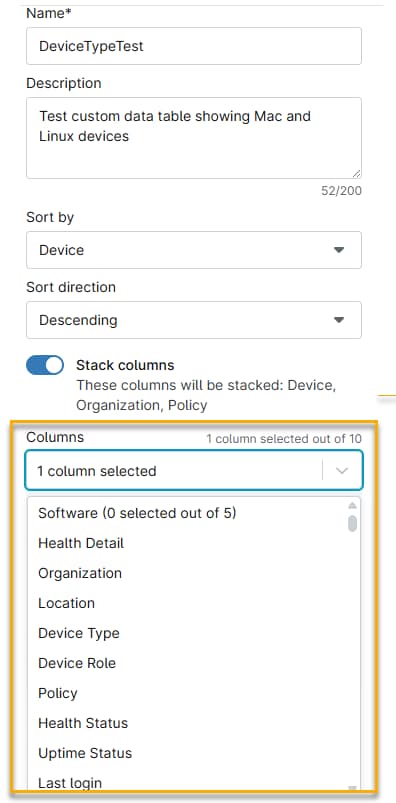
The columns you select will appear as a stack. Click the = icon for any column and drag it higher or lower in the stack to change the order in which it appears in the final report.

Use the Sort by fields to specify the sort order of the devices in the report.
When finished, click Save. NinjaOne will add the custom data table to your report.
Additional Resources
Refer to NinjaOne Reporting: Summary Reports to learn more about creating summary reports.