About:
System administrators can allow technicians to share Time-based one-time passwords (TOTP) codes for secure related items for Documentation Apps & Services, Knowledge Base, and Checklists.
There are two parts to TOTP codes:
- TOTP Secret — this is used to generate a one-time code based on the current time.
- TOTP Code — this is the code generated by the secret that is revealed after providing MFA authentication. This code allows logins credentials to be shared with only intended recipients while securing the data from others.
Activation:
Before you can start using TOTP codes, you must enable it in the Documentation app.
Under Administration > Apps > NinjaOne Documentation, open the TOTP tab and click Edit. You can then select "Enabled" from the settings modal that displays. 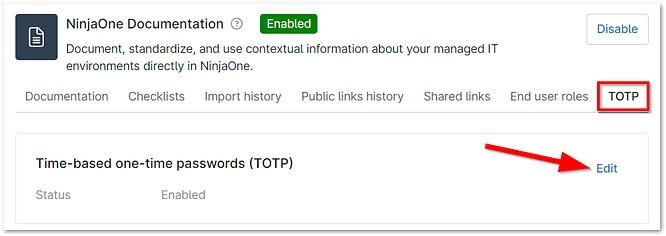
Permissions:
Permission for TOTP codes can be granted via technician account or account role.
Under Permissions: Documentation, find the TOTP Code access permission and select "Allow" from the dropdown.
Technicians also must have the permission Related items credentials set to "Allowed" to be able to see the code. 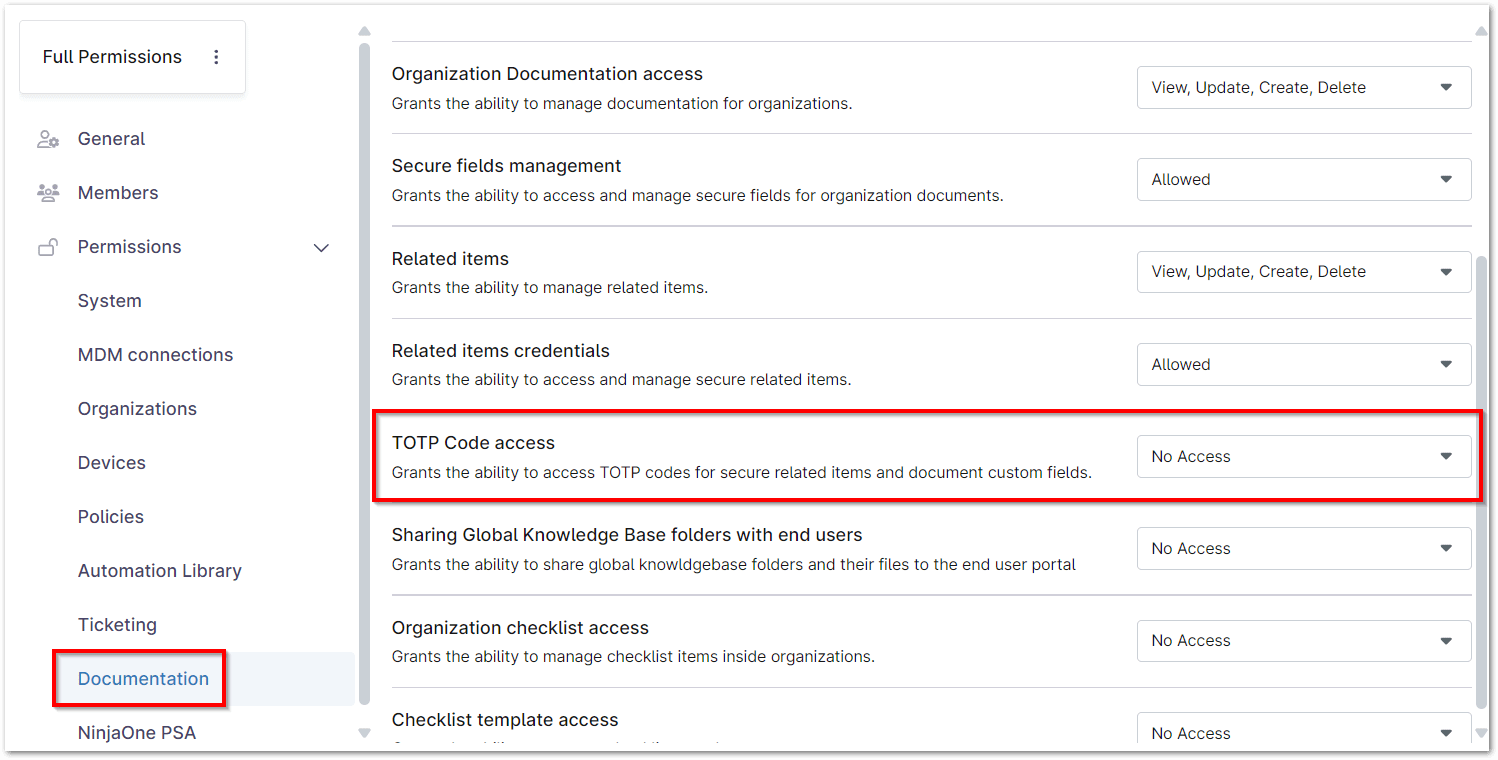
TOTP Secret for Secure Related Items:
When setting a secure related field for a file under the Documentation tab, you will see a new field for TOTP Secret. The secret must contain more than eight (8) characters, but does not require special characters.
Click Confirm in the modal and then click Save under Related Items to set the TOTP. 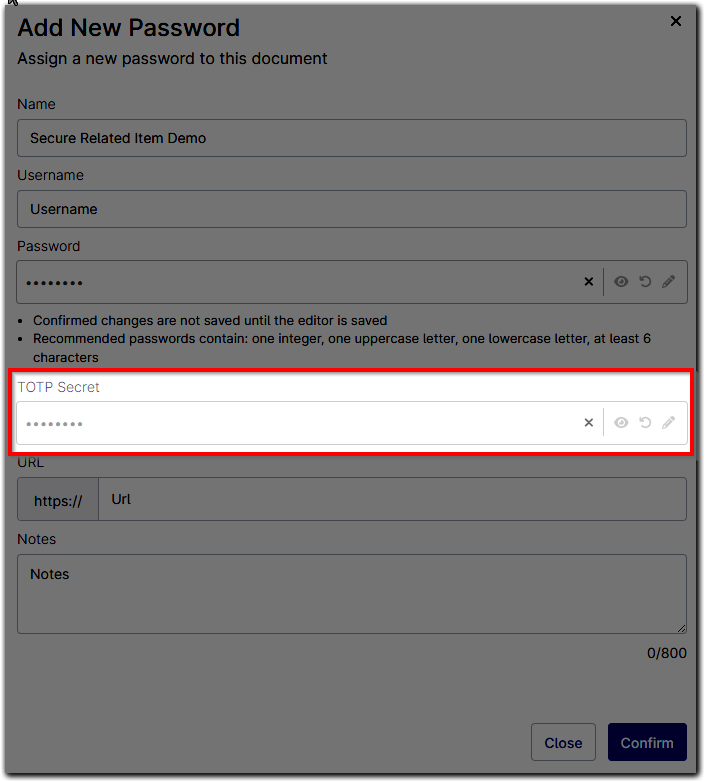
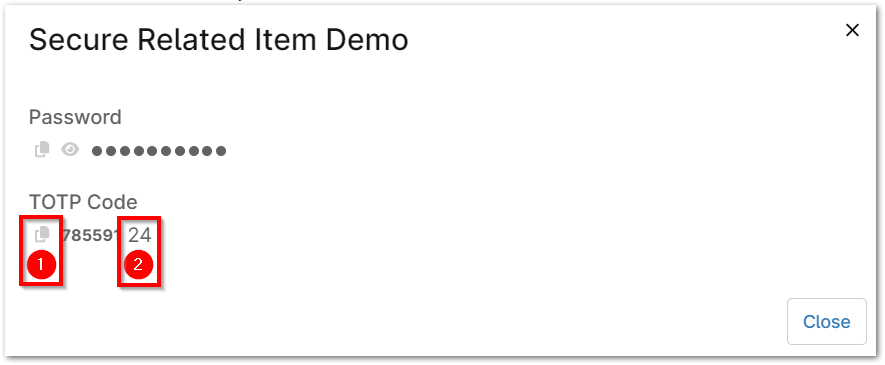
Once added, the secure field will display by name under Related Items. Click the item to open a modal that allows you to copy either the password or the TOTP code. You can update the code at any time while the Related Items section is in edit mode. 
Use the double paper icon (1) to copy the information. The TOTP code will refresh every 30 seconds, as indicated by the countdown next to the code (2).