
Issue
From time to time, one of your monitored devices may experience an unexpected reboot.
Environment
NinjaOne Endpoint Management
Cause
While NinjaOne has the capability to reboot your device (via Scheduled Tasks/Scripts, Windows Patch Management, ad-hoc scripts, etc.), an unplanned reboot may not have been pushed by NinjaOne. This document provides steps to follow to help determine what initiated and the reboot and why.
Resolution
To determine why a device rebooted, perform the following steps.
- Check the activity feed for the device in question at the time of the unexpected reboot.
- If NinjaOne played a role in initiating the reboot via a
If a technician deploys a script ad-hoc to reboot a device, the resulting Activity Feed entry will also indicate the user who initiated the script.
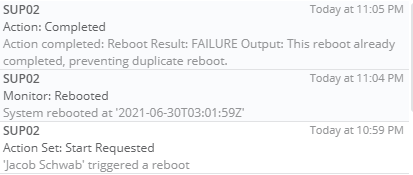
If a technician manually initiates a reboot of a device from the health dropdown for a device with a pending reboot, a message will be displayed in the Activity Feed indicating as such. The entry will include the user that pushed the reboot.

- If you see an 'Action' entry followed immediately by a 'Monitor: System rebooted' entry, this generally means that Ninja initiated the reboot.
- You can check what scheduled scripts you currently have configured and enabled from the 'Scheduled Scripts' tab under the policy (and/or the device-level policy overrides).
- You can check what scheduled tasks you currently have configured and enabled from Configuration > Tasks.
- Important Note: The 'Action' entry will be the same whether the reboot script was initiated ad-hoc or via a scheduled task/script.
- If Ninja played a role in initiating the reboot via
If you see a 'Patch management' entry indicating that a reboot has been scheduled immediately followed by a 'Monitor: System rebooted' entry, this generally means that Ninja initiated the reboot.- Important Note: The 'Patch management' entry will be the same whether the reboot script was initiated per your OS or software patching settings.
- If you determine that the reboot was initiated by OS or software patch management, but this reboot did not occur during an ideal time, we suggest making adjustments to your OS and/or software patch management policy settings.
- If you've checked the activity feed for the device in question and do not see evidence that Ninja triggered the reboot in question, consult your Event Logs.
- To do so, navigate to the Event Viewer locally on the device.

- Navigate to Windows Logs > System.

- Right-click System, and then select Filter Current Log.

- Add a filter for the following event IDs: 1074, 6006, 6008.
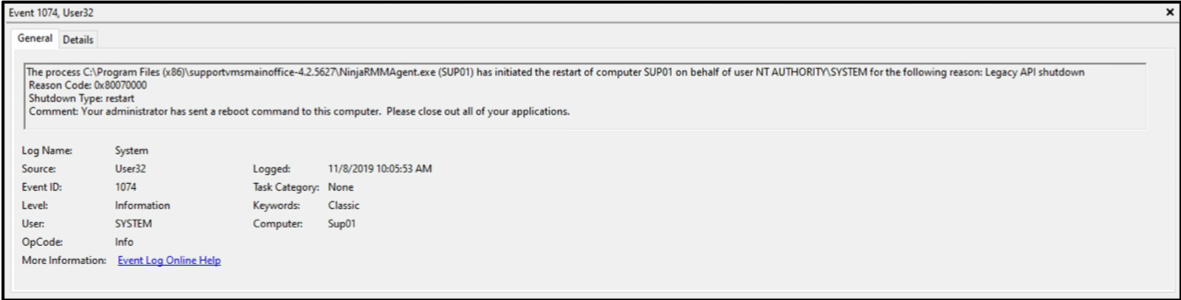
Click here for more information.Event ID Description 1074 Logged when an app (ex: Windows Update) causes the system to restart, or when a user initiates a restart or shutdown. 6006 Logged as a clean shutdown. It gives the message "The Event log service was stopped". 6008 Logged as a dirty shutdown. It gives the message "The previous system shutdown at time on date was unexpected". - From here, you will be able to filter through all incidents of reboots that the device has experienced recently. Here is an example of an event for a NinjaOne-initiated reboot:
 Here is an example of an event for a reboot that was pushed by the local machine via an application (not by NinjaOne):
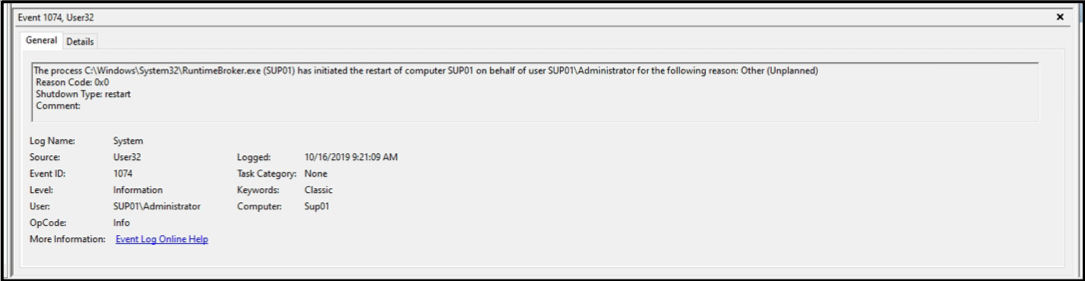 Important Note: NinjaOne-initiated reboots will only occur with event ID 1074 (since NinjaOne is an app causing the system to restart).
- To do so, navigate to the Event Viewer locally on the device.


If you need additional assistance, contact NinjaOne Support.