
In NinjaOne, asset tagging helps IT teams organize and manage devices more effectively. Tags let administrators group endpoints by department, location, client, or priority, making it easier to filter and take bulk actions. You can create custom tags to match your organization’s structure and apply them to one or multiple devices. Once applied, tags can be used across NinjaOne for reporting, automation policies, patch management, and monitoring. This ensures teams can quickly locate devices, apply consistent settings, and maintain better visibility across environments.
How to tag IT asset and set permission using Ninjaone
Important Notes:
- To create and assign tags, a technician’s NinjaOne account must have the appropriate permissions enabled. For guidance on assigning permissions to multiple technicians, see User Roles and Permissions.
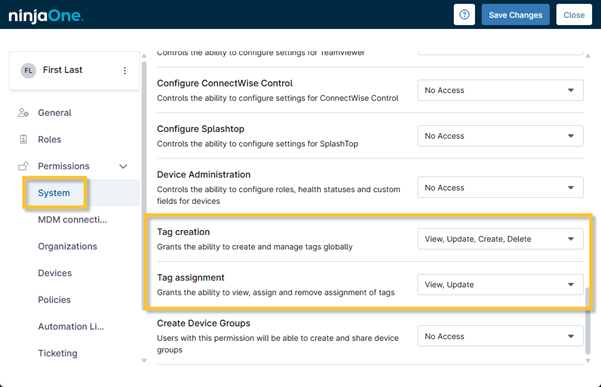
On the technician account or role configuration page, go to System and set the access level for Tag Creation and Tag Assignment.
- Sign in as a System Administrator.
- Go to Administration → Accounts → Technicians (or Technician Roles to edit a role).
- Open the technician account or role you want to change.
- In the editor, expand Permissions and open the System section.
- Find the tag-related permissions (look for Tag Creation, Tag Assignment).
- Use each permission’s drop-down to select the access level: View, Create, Update, or Delete.
- Click Save to apply changes.
- Verify: sign in as a user with that role and confirm they can only perform the allowed tag actions.
How to create a System Tag:
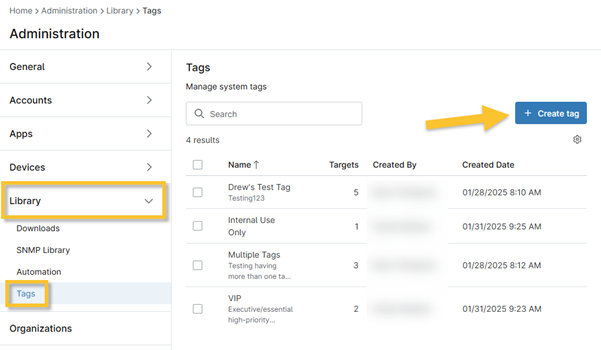
- In the left-hand menu, go to Administration > Library > Tags.
- Click Create Tag.
- In the Create Tag dialog, fill out the following:
- Name (required): Enter a short, descriptive name. Use a consistent naming format such as Dept-Location-Purpose (e.g., Finance-MNL-HighPriority).
- Description (optional): Add a brief note describing the tag’s purpose or owner (helpful for audits).
- Click Create to save the tag.
- Verify the tag creation by confirming it appears in the Tags list. Use the search or filter box if there are many tags.
Assigning a System Tag:
When you assign a tag, the device becomes a target. The Targets column on the Tags management page shows how many devices use that tag.
To assign a tag:
- Open the device dashboard from the Devices search page or organization dashboard.
- Click Edit → Tags.

- Select an existing tag from the drop-down, or click Create Tag and then select it after saving. Multiple tags can be added to a device.

- Click Update to apply.
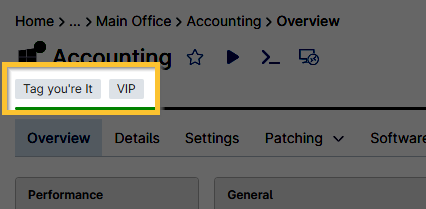
The tag will appear at the top of the device dashboard under the device name.
Merging and Deleting Tags:
- Go to Administration → Library → Tags and locate the tags you want to combine.
- Select the checkbox next to each tag to include it in the merge.
- Click Merge above the tag list.
- In the Merge modal, choose one of the two merge options (see below).
- Click Save to complete the merge. All selected tags will be consolidated according to the option you chose.

Merging Options:
When you merge tags in NinjaOne, a modal window will appear with two options for how you want to combine them:
- Merge into an existing tag — Choose an existing tag from the Merge with drop-down. All selected tags will be consolidated into that existing tag. The chosen tag remains in the Tags list and on any associated device dashboards.
- Create a new tag — Enter a name for a new tag that will combine all selected tags. After saving, the new tag appears in the Tags list and becomes available across NinjaOne.

Deleting Tags:
- On the Tags page, select the checkbox next to each tag you want to delete.
- Click Delete above the tag list.
- Confirm the deletion in the confirmation dialog. Deleted tags are removed from the Tags list and will no longer appear on device dashboards.
Creating a Custom Asset Tag Field
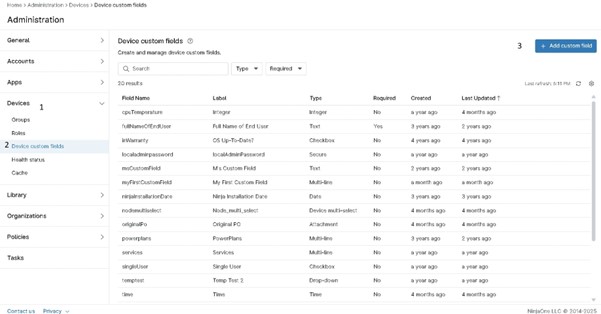
- Log in to NinjaOne and go to Administration from the main menu.
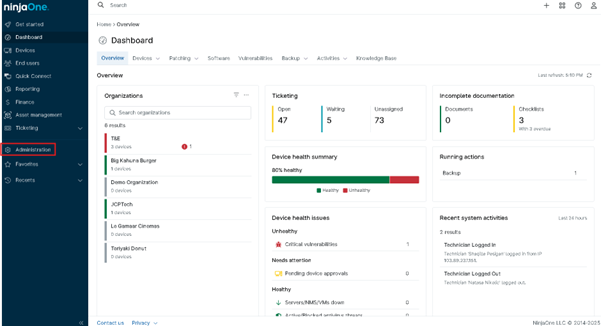
- Select Custom Fields: Under Devices, click Device Custom Fields.
- Configure Field Settings:
- Overview – Enter a descriptive Name (e.g., Asset Tag), set Type to Text, and choose whether it is Optional or Required.
- Inheritance – Define where values can be set (Device, End User, Location, Organization).
- Permissions & Access – Configure access for Automations, API, and Technicians.
- Details – Optionally add a description, tooltip, or footer text.
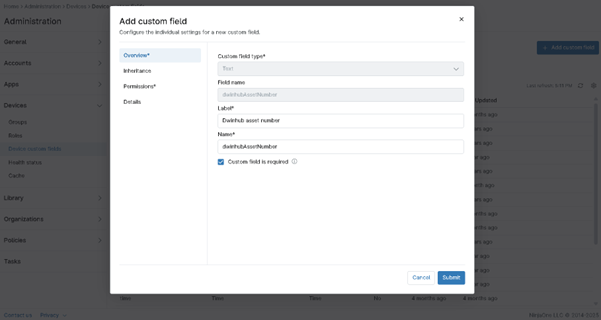
- Save: Click Save to create the custom field.
How to Find Tagged Devices in NinjaOne
Filter Search
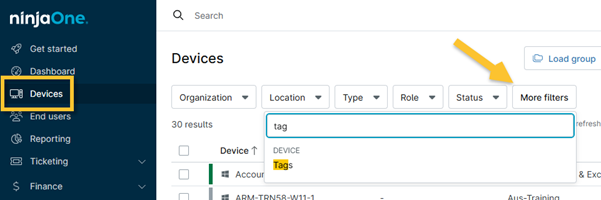
- In the left navigation pane, select Devices.
- Click More filters, type tag in the search field, and select Tags.
- From the Operator dropdown, choose a qualifier:
- Contains all selected tags – Devices with all chosen tags.
- Contains any selected tags – Devices with at least one chosen tag.
- Contains none of the selected tags – Devices without the chosen tags.
- Tags present – Devices with any tag.
- No tags present – Devices with no tags.
- From the Tags dropdown, select one or more tag names (may be locked depending on Operator).
- Click Apply.
Benefits of NinjaOne for IT Asset Tagging
- Unified Asset Visibility: View and track all devices—iOS, Windows, macOS, servers, and networks—from a single console with real-time inventory for easier deployment, monitoring, and reporting.
- Flexible & Custom Tagging: Use NinjaOne’s IT asset tagging software to create custom tags (e.g., location, department, cost center) for easier categorization, filtering, and management.
- Workflow Automation: Tags can be used to organize devices, automate routine tasks, and trigger specific actions (e.g., patching or alerts), helping reduce manual effort and improve consistency.
Best Practices for Using NinjaOne for IT Asset Tagging
NinjaOne’s IT asset tagging software helps IT teams organize, track, and automate asset management. Follow these IT asset tagging best practices for consistency and efficiency.
Establish Clear Standards: Use consistent tag formats and naming conventions to prevent duplicates.
Tag with Purpose: Apply tags that add operational value—by site, department, owner, or priority—and avoid over-tagging.
Control Tag Management: Limit tag creation to admins or managers. Configure technician permissions under System > Roles > Tag Creation/Assignment.
Integrate Tags into Workflows: Use tags to group devices for patching, monitoring, or software deployment, and to generate focused reports or alerts.