
Topic
This article explains how to find recently viewed or saved content.
Environment
NinjaOne Platform
Description
The Recents and Favorites menus in NinjaOne enable you to quickly navigate back to devices, organizations, groups, documents, or tickets that you were either recently viewing or have selected as items that you may wish to view frequently.
Index
Select a category to learn more:
Recently Viewed Content
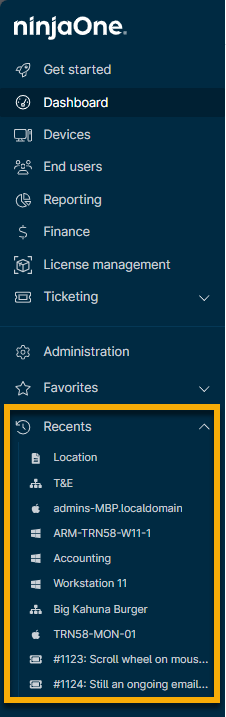
The Recents menu option on the sidebar menu of the NinjaOne console will list the 10 most recent devices, organizations, or groups that you have viewed in NinjaOne. Click the down arrow to expand the list and then click the entry to navigate back to the page.
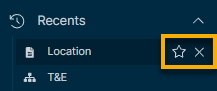
To remove an item from your Recents list, move your cursor over the row and click X.
To add an item from your Recents list to your Favorites list, move your cursor over the row and click the star icon.
View Content Saved to Favorites
The Favorites menu option on the sidebar menu of the NinjaOne console will list any devices, organizations, groups, tickets, or documents that you would like to save for easy viewing. This menu allows for quick navigation to these items. There is no limit to the number of items that you can include in your Favorites.
Click the down arrow to expand the Favorites menu. Click the item to navigate to that page.

After you add an item to your Favorites, you will notice that the star icon ( ) is highlighted in the console. You can click the highlighted star to remove the item from your Favorites.

To clear a single item from your Favorites list, move your cursor over the item and click the star icon.

How to Save Content to Your Favorites List
You can add devices, organizations, groups, tickets, and documents to your Favorites. To learn how, select the type of data or entity that you want to add as a favorite:
Add a Device as a Favorite
Navigate to the device dashboard and click the star to the right of the device name.

Add an Organization as a Favorite
Navigate to the organization dashboard and click the star to the right of the organization name.

Add a Search Group as a Favorite
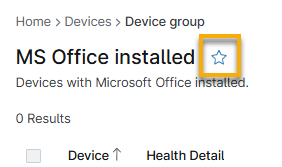
Navigate to the Devices search page. Create a new search group or click Load group and select a saved group. With the search group open, click the star to the right of the group name.
Add a Document as a Favorite
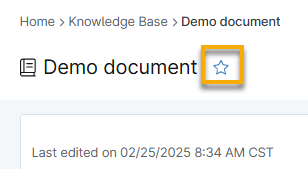
From any dashboard (system, organization, or device), open a document from the Knowledge Base tab. Click the star to the right of the document name. This function does not work with folders.
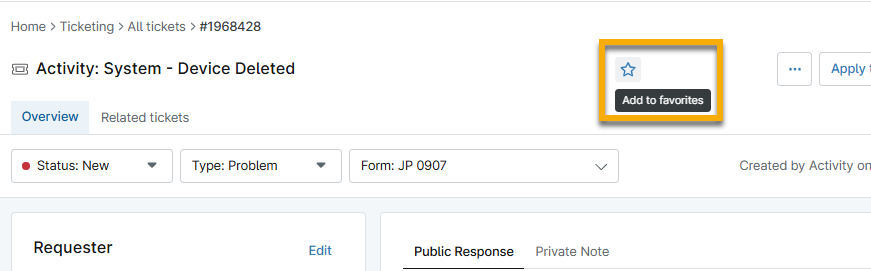
Add a Ticket as a Favorite
From within the ticket, click the star icon next to the ticket name.
Frequently-Asked Questions About Recent and Favorites
Select a question to review the answer:
- What can be displayed in my Recent or Favorites bar?
- Can I change the order in which items appear in my Recent or Favorites bar?
- How many recent items will NinjaOne list in my Recent bar?
- How many items can I pin to my Favorites bar?
- Can an item appear both in my Recents list and my Favorites list at the same time?
What can be displayed in my Recent or Favorites bar?
Devices, organizations, tickets, documents, or search groups can display in your Recents or Favorites lists.
Can I change the order in which items appear in my Recent or Favorites bar?
The order of the devices listed in the Recent list will be determined by which item you viewed most recently (with the most recent at the start of the list). Devices in the Favorites list will be listed in alphabetical order.
How many recent items will NinjaOne list in my Recent bar?
NinjaOne will show the 10 most recently viewed items in your Recents list.
How many items can I pin to my Favorites bar?
You can add as many items to your Favorites as you choose.
Can an item appear both in my Recents list and my Favorites list at the same time?
Yes. If you have recently viewed an item from your Favorites list, that item will also appear in your Recents list.