
Topic
This article explains how to use API (Application Programming Interface) and CLI (Command Line Interface) with NinjaOne's system tags. Learn more about NinjaOne tags at Getting Started with NinjaOne Device Tags.
Environment
NinjaOne platform
Description
Use NinjaOne system tags to classify devices (endpoints) beyond roles and custom fields. Tags can show the endpoint in a device search, assign specific automation and additional conditions to it, and enable you to filter queries to devices with that tag.
Select a category to learn more:
Use API with NinjaOne Tags
The NinjaOne CLI tool supports the following actions with asset tags:
- Create one or multiple tags
- Delete one or multiple tags
- List tags assigned to a device
- Remove a tag assignment from a device
- Assign a tag to a device
- Merge tags
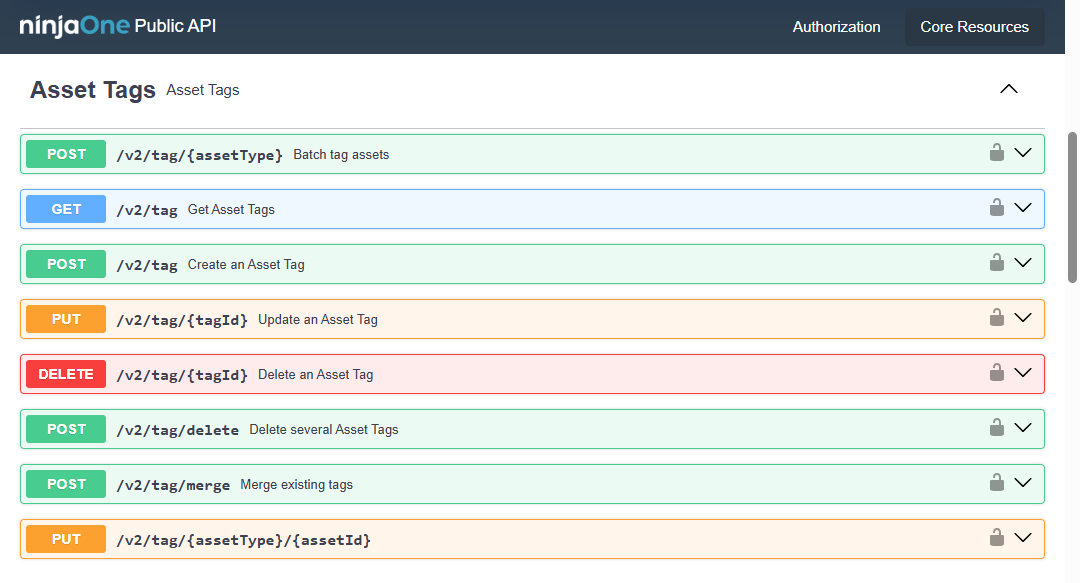
Figure 1: Public API endpoints for asset tags
Refer to NinjaOne Public API Operations for more information about using the API endpoints.
Use CLI Commands with NinjaOne Tags
Launch CLI or PowerShell on your endpoint to perform the following operations. To learn how to launch CLI or PowerShell, refer to Using Command Line Interface (CLI) in NinjaOne.
List all Tags
Use the following commands to list all tags.
- CLI: "tag_get"
- PowerShell: "Get-NinjaTag"
ninjarrm-cli tag-get
Tag 1
Tag 2
Tag 3

ninjarmm-cli tag-get
Access to tags is possible only from automation script.
Figure 2: Example CLI (One Item per line) → List tags
$Tags = Get-NinjaTag

$Tags
Tag 1
Tag 2
Tag 3

$Tag[1]
Tag 2
Figure 3: Example PowerShell (Array of strings) → List tags
Assign a Tag to a Device
Use the following commands to assign a tag to a device.
- CLI: "tag-set"
- PowerShell: "Set-NinjaTag"
ninjarmm-cli tag-set "Tag 1"

ninjarmm-cli tag-set "Non Existing Tag 1"
No tag with this name found

ninjarmm-cli tag-set "Tag 1"
Access to tags is possible only from automation script.
Figure 4: Example CLI (One Item per line) → Assign tags
Set-NinjaTag "Tag 1"
Set-NinjaTag -Name "Tag 1"

Set-NinjaTag "Non Existing Tag 1"
No tag with this name found
Figure 5: Example PowerShell (Array of strings) → Assign tags
Remove a Tag from a Device
Use the following commands to remove a tag from a device.
- CLI: "tag-clear"
- PowerShell: "Remove-NinjaTag"
ninjarmm-cli tag-clear "Tag 1"

ninjarmm-cli tag-clear "Non Existing Tag 1"
No tag with this name found

ninjarmm-cli tag-clear "Tag 1"
Access to tags is possible only from automation script.
Figure 6: Example CLI (One Item per line) → Remove tags
Remove-NinjaTag "Tag 1"
Remove-NinjaTag -Name "Tag 1"

Remove-NinjaTag "Non Existing Tag 1"
No tag with this name found
Figure 7: Example PowerShell (Array of strings) → Remove tags
Additional Resources
Refer to the following resource(s) to learn more about NinjaOne tags and using CLI: