
Topic
This article will show you how to ensure your devices reflect the correct "Managed" status in NinjaOne and correctly map organizations and devices between the software.
Environment
NinjaOne integration with Bitdefender GravityZone
Description
If you have not yet enabled Bitdefender GravityZone in NinjaOne, please see Bitdefender GravityZone: Integration Guide.
NinjaOne will maintain the GravityZone integration by:
- Maintaining GravityZone companies that are mapped to NinjaOne organizations.
- Installing (and reinstalling) the GravityZone agent on devices based on NinjaOne policy configuration.
- Ensuring NinjaOne-managed devices are always in the corresponding mapped GravityZone company.
Index
- Map the Organizations and Companies
- Managed Device Scenarios
- How to Find Unmanaged Devices in NinjaOne
Map the Organizations and Companies
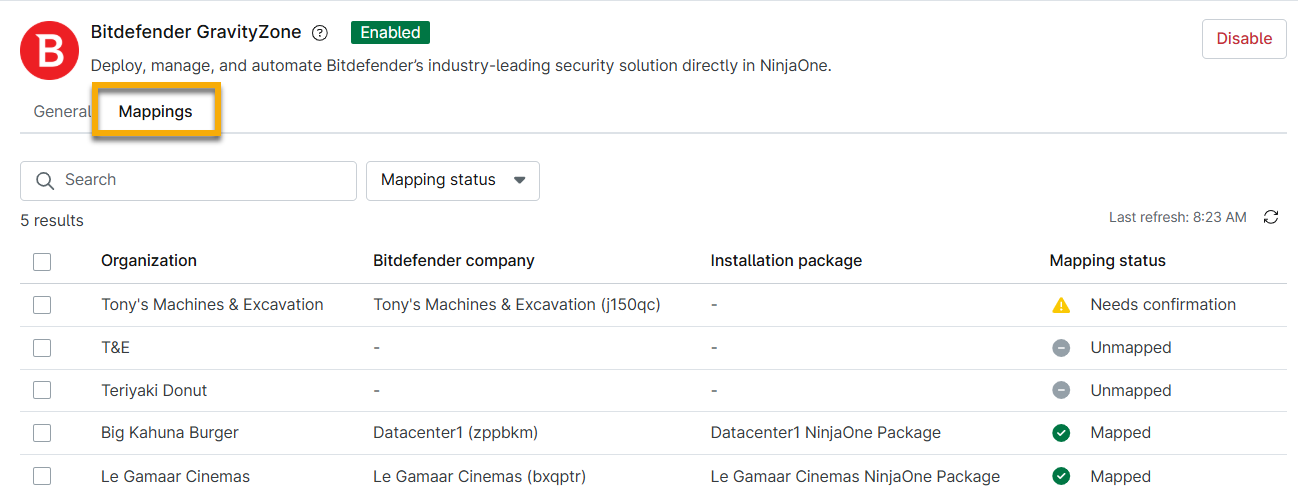
Once GravityZone has been deployed, you can use the Mappings tab on the app configuration page to add and confirm the relationships between NinjaOne organizations and GravityZone companies.
Add Mapping
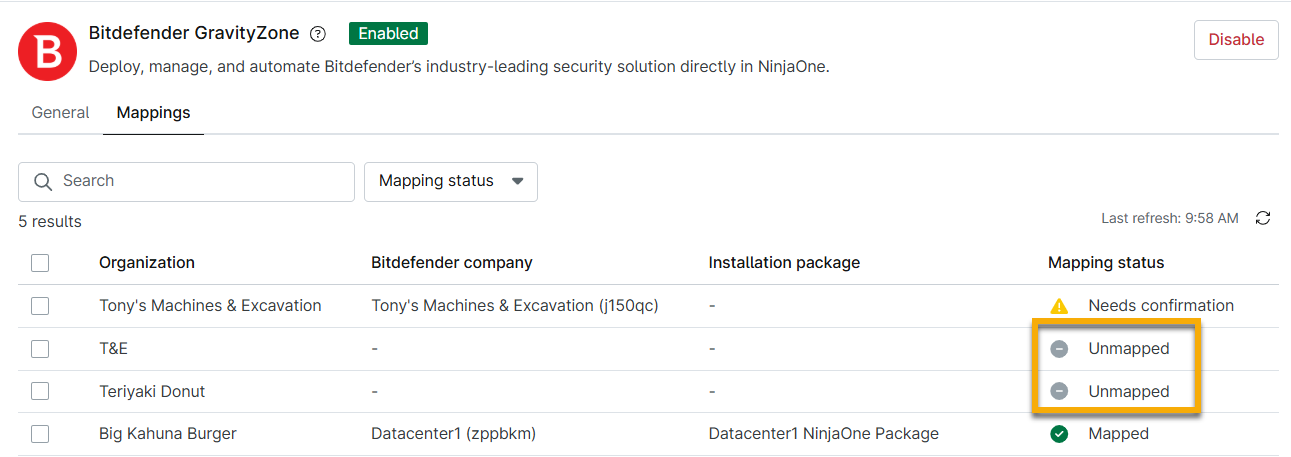
Organizations that have not been mapped to a GravityZone company will display "Unmapped" in the Mapping status column.
Once a company is mapped to an organization, it cannot be mapped to any other organization. The agent will be installed on managed devices if GravityZone is assigned as the antivirus at the policy level.
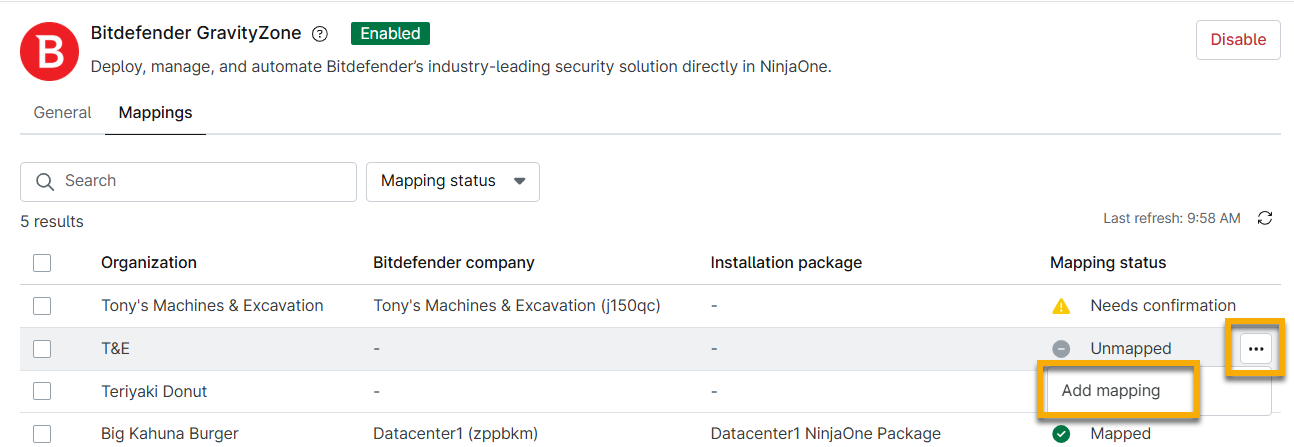
To map the organization, perform the following steps:
- Move your cursor over the unmapped row and click the ellipsis button. Select Add mapping.
The Add mapping modal displays.
- Select the GravityZone company that should be synced with the NinjaOne organization from the top drop-down menu. Select the company's associated NinjaOne installation package from the bottom drop-down menu.
- Click Confirm.
When the mapping is successful, the Mapping status column updates to display "Mapped."
Confirm Mapping
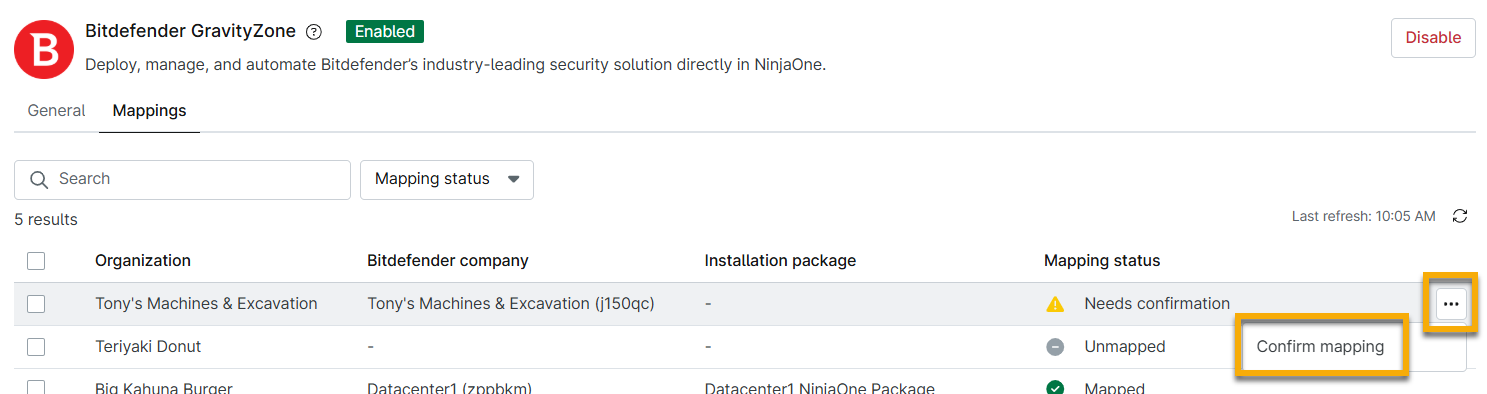
If the Mapping status column displays "Needs confirmation," you can confirm the mapping by performing the following steps:
- Move your cursor over the unmapped row and click the ellipsis button. Select Confirm mapping.
- Review the data in the modal and then click Confirm.
When the mapping is successful, the Mapping status column updates to display "Mapped."
Remove Mapping
Relationships with a "Mapped" status can be removed. Doing so will return it to an "Unmapped" status under the Mapping tab.
To remove a mapped relationship, perform the following steps:
- Move your cursor over the unmapped row and click the ellipsis button. Select Remove mapping.
- You can remove multiple mappings by selecting the checkbox next to the organization names and then clicking the Remove mappings button.
- Confirm the decision by clicking Remove in the modal.

Managed Device Scenarios
NinjaOne only syncs devices that have GravityZone selected as the antivirus at the policy level.
Devices added to NinjaOne exist in two states in GravityZone:
- Unmanaged: If the device existed in GravityZone before enabling the GravityZone integration in NinjaOne, the device remains in a non-NinjaOne-created GravityZone company. NinjaOne will not be able to manage that device under any circumstances, nor can the customer map devices to be managed in NinjaOne. This is due to complex workflows on Bitdefender GravityZone's end. You must uninstall the previous GravityZone deployment and allow NinjaOne to deploy it. This should correct the mapping, and the device will become managed.
- Once the mapping status changes, a log is automatically created in the Activity Feed for the device.
- Managed: If the device is either created in NinjaOne and recorded in GravityZone after the GravityZone/NinjaOne integration OR the device existed before the integration, but the GravityZone technician puts the device into the NinjaOne-created GravityZone organization, the device then maps to the appropriate GravityZone organization when moved within GravityZone or NinjaOne.
| Action | If Managed | If Not Managed |
|---|---|---|
| Company that is mapped to NinjaOne is manually deleted in GravityZone. | NinjaOne marks devices with "Needs Attention" and adds a note in Activities. | Does nothing. |
| Organization is manually deleted in NinjaOne. | Does nothing. | Does nothing. |
| Device is manually deleted in GravityZone and the GravityZone agent is uninstalled. | NinjaOne reinstalls the GravityZone agent on the device. | Does nothing. |
| Device is manually deleted in NinjaOne. | Does nothing. | Does nothing. |
| Endpoint is moved from one company to another in GravityZone. | NinjaOne moves the endpoint back to the mapped organization. | NinjaOne notifies the user that the device is unmanaged and needs to be moved back to the organization indicated under Settings on the device dashboard. |
| Endpoint is moved from one company to another in NinjaOne. | NinjaOne changes the device's GravityZone company membership. | Does nothing. |
| Policy is manually deleted in NinjaOne. | Does nothing. | Does nothing. |
How to Find Unmanaged Devices in NinjaOne
You can use the Load Group function on the Devices search page; type "gravity" into the search field to see the applicable options.
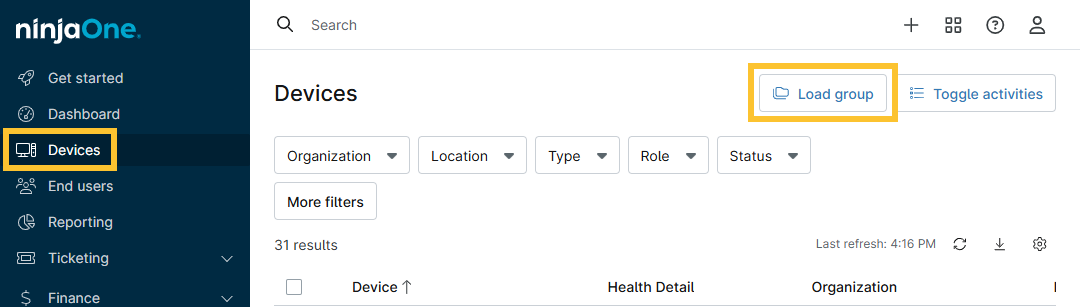
Figure 2: Load search group on Devices search page
Additional Resources
The following learning content will help you take full advantage of the Bitdefender GravityZone feature set.
- Bitdefender GravityZone Partner Account Registration and Provisioning
- Bitdefender GravityZone and NinjaOne: Enable and Install Modules
- Bitdefender GravityZone and NinjaOne: Threat Scan and Remediation
- Bitdefender GravityZone and NinjaOne: Troubleshooting
- Disable or Remove the GravityZone Integration in NinjaOne