
Topic
This article explains how to configure entity relationships for the NinjaOne IT Asset Management (ITAM) tool to manage your asset relationships from the Asset tab on the organization and device dashboards.
Environment
NinjaOne ITAM
Description
Before proceeding, ensure you have read NinjaOne ITAM: Getting Started.
You can use NinjaOne ITAM to create global entity-to-entity relationships, which provide the ability to extend the functionality of a traditional database through connections between assets.
After you configure the entity relationships, use the Asset → Asset Relations tab on the organization and device dashboards to associate entities with the organization and define the relationship between the organization and the entity.
Index
Select a topic to learn more.
- About Entity Relationships
- Create a Custom Entity Relationship
- Manage Asset Relations
- Additional Resources
About Entity Relationships
Entity relationships use configuration items (CIs) to denote the device, component, or other table entry that could be related to another device, component, or entry. You may notice CIs referred to as "entities" by other applications.
In this context, a relationship is a type of connection between devices that is typically directional, which means the relationship has a source and a target. You can use relationships to monitor the following reports:
- Impact analysis
- Root cause analysis
- Change management
- Service mapping
NinjaOne provides the following relationship types by default:
| Relationship Type | Description or Purpose |
|---|---|
| Depends on; Used by | This indicates that a CI depends on another to function (App→ Database). |
| Runs on; Hosts | This indicates that a CI runs on another CI (App→ Server or VM → Host). |
| Connected to | This is a generic connection, often used for networking hardware. |
| Contained in; Contains | This indicates that a CI is part of a larger CI (VM → Cluster, File → Folder). |
| Backs up; Backed up by | This defines the data backup or recovery relationship. |
| Monitored by; Monitors | This indicates a CI is being monitored (App → Monitoring Tool). |
| Installed on; Installs | This shows deployment (Software → Machine). |
| Owned by; Owns | This links CI to an owner, such as a person, team, or department. |
| Connected via | This describes a CI connected through a specific path or medium, which could be a cable. |
| Part of; Has Part | This is used in hardware to show a component structure (Disk → Server). |
| Impacts; Impacted by | This defines service dependencies for impact analysis. |
| Requires; Required by | This is similar to depends on, used in service design. |
| Relates to | This is a catch-all for non-hierarchical associations. |
| Accessed by; Accesses | This shows user or system access to a CI (User → System). |
| Deployed on | This indicates that a CI is deployed on another CI (Docker container → Kubernetes node). |
| Supports; Supported by | This indicates support structure or fallback (Primary server → Secondary server). |
| Replaces; Replaced by | The CIs have been retired and replaced by a new CI. |
Create a Custom Entity Relationship
You can create custom relationships to define or add custom capabilities. You will provide the capability and then build the out-of-the-box functionality within the tool.
Creating an entity relationship in the NinjaOne ITAM app will make the relationship accessible on the dashboards, where you can define relationships and entity types for specific organizations and devices. Refer to the section Manage Assets from the NinjaOne Dashboards within this article for more information.
To create an entity relationship, perform the following steps:
- Open the Entity relationships tab and click + Add relationship.
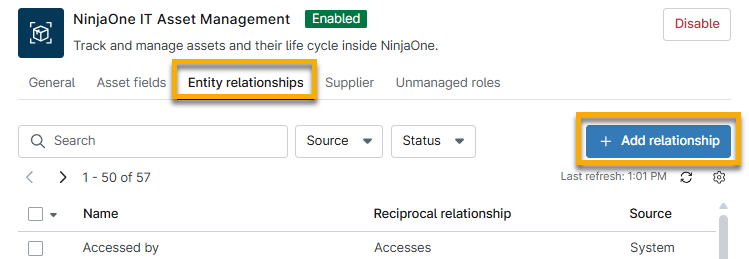
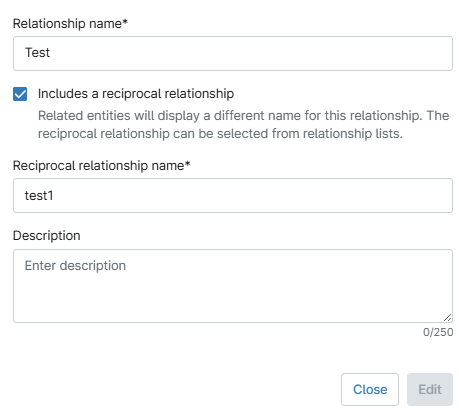
The Add relationship configuration dialog appears.
- Assign the Relationship name a unique identifier.
- When you select the Includes a reciprocal relationship checkbox, an additional field appears for Reciprocal relationship name. Assign the Reciprocal relationship name a unique identifier.
- In the Description field, explain how to use the relationship type.
- Click Add.
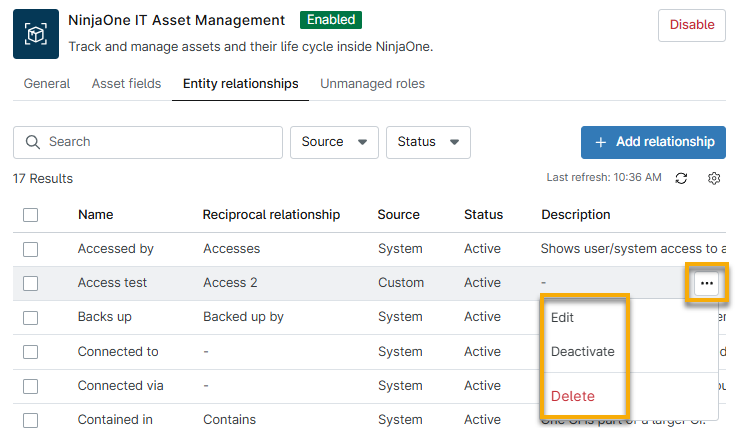
- To edit, deactivate, or delete the custom relationship, move your mouse cursor over the row and click the actions menu.
Manage Asset Relations
To manage entity relationships from the dashboard, refer to the following steps:
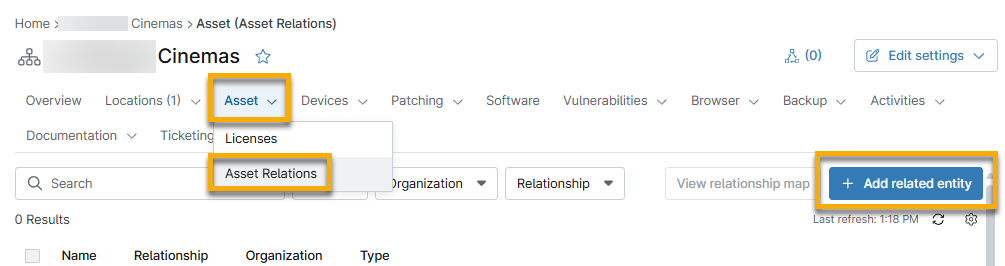
- Open the Assets tab and select Asset Relations.
- Click Add related entity.
- Select the relationship type from the top drop-down menu. For an explanation of system relationships or instructions for creating custom relationships, refer to Getting Started With NinjaOne IT Asset Management.
- Select the Entity type. Your selection in this drop-down menu determines which configuration fields appear in the dialog. For this example, we will use the Device entity type. Refer to the following table for a list of resources to help you set up the entity.
| Entity Type | Required Data |
|---|---|
| Apps & Services document | Organization, template, and document. For more information, refer to NinjaOne Documentation: Apps & Services. |
| Checklist | Organization, template, and checklist. For more information, refer to NinjaOne Documentation: Checklists. |
| Contact | Organization and contact name. Create new contacts at Administration → Accounts → Contacts. |
| Credential | Organization and credentials. For more information, refer to NinjaOne Organizations: Credential Exchange. |
| Device | Organization and device name. |
| End user | End user name. For more information, refer to User Management: Resource Catalog. |
| Knowledge Base article | Source and article name. For more information, refer to NinjaOne Documentation: Knowledge Base Feature. |
| Location | Organization and location. For more information, refer to Organizations: Locations. |
| Organization | Organization name. For more information, refer to NinjaOne Platform: How to Find an Organization ID. |
| Technician | Technician name. For more information, refer to User Management: Resource Catalog. |

- Complete the rest of the fields as applicable and then click Add.
- Click the hyperlink in the Name column to navigate to the entity detail page in NinjaOne.
To edit or remove this entry, move your cursor over the row and click the ellipsis button.

View Relationships
Reading or viewing relationship types, along with the settings, is important to understand their functional capabilities. You can review specific details and allow others to understand why they exist and how they work.
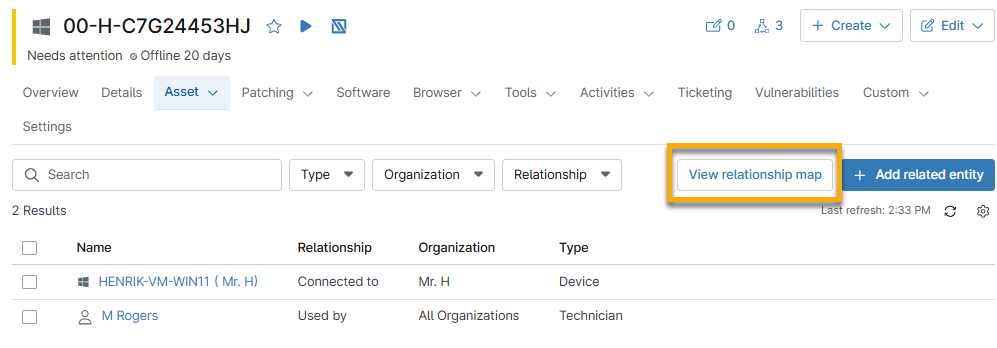
To view a list of all relationships related to the organization, end user, or device, click View relationships. These relationships are recorded on their related dashboards.
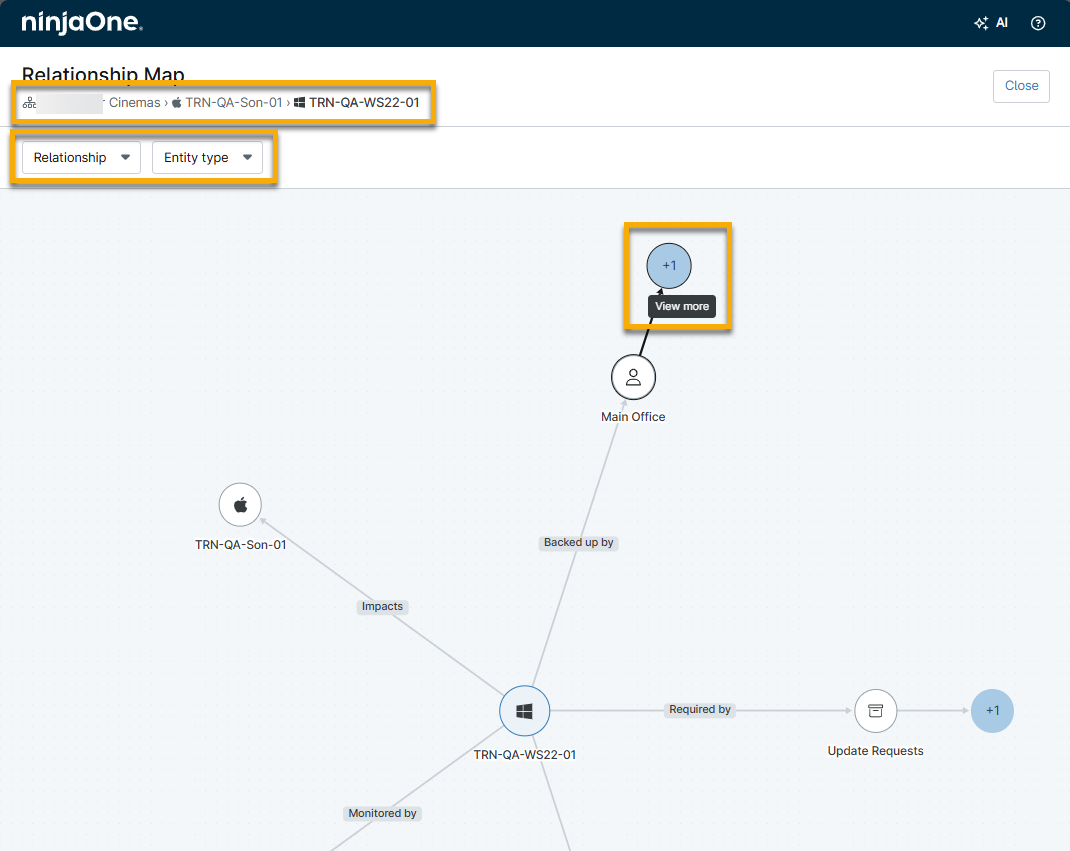
If the asset has multiple related entities, you can use the drop-down menus to filter the relationship and entity type. Click the diagram to expand more data. As you expand the data, the Relationship Map page will update to show the navigation trail, which you can click to return to previous map views. Other actions you can take on this map include zooming in or out and dragging the details on the page.
Additional Resources
Refer to the following resources to learn more about the NinjaOne ITAM feature: