
Topic
This article provides an overview of the Organizations page in NinjaOne SaaS Backup.
Environment
NinjaOne SaaS Backup
Description
Organizations in NinjaOne SaaS Backup are companies or individuals who back up their data through our partners. As a NinjaOne partner, NinjaOne SaaS Backup allows you to set parameters for all your organizations via the Organizations page in your partner portal.
Access the Organization page by clicking Organizations in the navigation pane of your partner portal.
Refer to the sections below for more information about the Organizations page:
- Organizations Page Components
- Organization Details
- Exporting Organization Details
- Editing Personal Information
- Additional Resources
Organizations Page Components
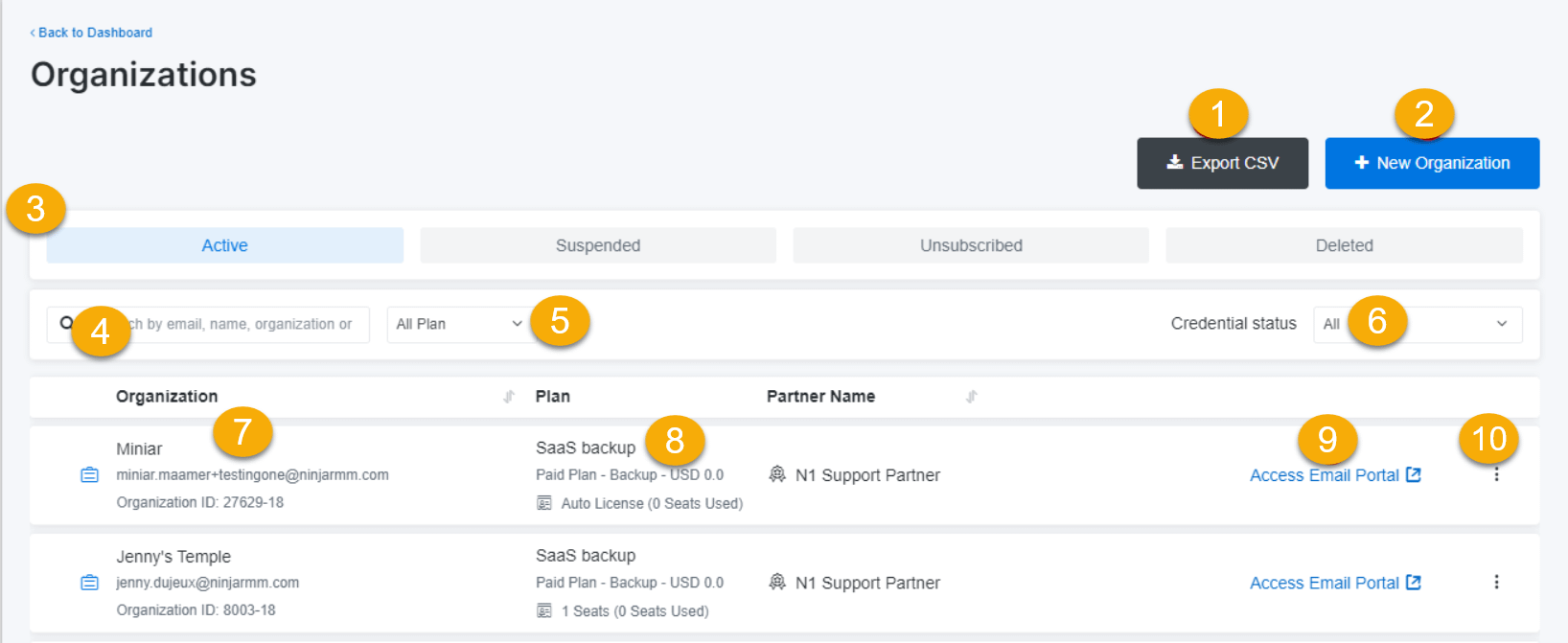
Here are all the components of the Organizations page:
- Export CSV: Download an organization's data into CSV format, displaying the same values as on the page.
- New Organization: Click the button to create a new organization.
- Status tab: Four statuses refer to the organization's subscription: Active, Suspended, Unsubscribed, and Deleted. By default, the system shows an active organization. The chosen filter is indicated with a blue tab.
- Organization Search: Search for a specific organization by Organization name or Organization ID. You don't have to remember the full text. The system can show a result even if you input a partial text. The system also allows you to input special characters.
- Plan Filter: Filter by plan type. There are four options: All, Personal, Backup, and Archiver.
- Credential Status Filter: Filter by credential status. There are two options: All and Need Authentication.
- Organization info: This component contains an icon, organization name, email address, and organization ID. The system automatically fills in the organization name for all organizations that subscribe to the basic or personal plan type.
- Plan Information: This component contains the plan name, plan type, price, and details regarding seat and storage usage.
- Log in as a Client: Navigate to the customer (end-user) portal by impersonating the user. This option allows partner administrators access to an end-user portal. Partner administrators won't be able to use this option if they are not first assigned to a group. The system will display a pop-up message to notify them when this happens.
Action button ( ellipsis): Opens a drop-down menu to access the organization's details.
- View Details: Access the organization's settings page to manage general info, features, and subscriptions. You can also view login accounts, credentials, and journal entries.
- Go to the Credential Page: This only appears when the organization has a credential error.
- Send Reset Password: Send a password reset link via email.
By default, a page displays a maximum of 20 organizations. The page will display Previous and Next buttons if there are more than 20 organizations.
Organization Details
To view an organization's details, click the organization's name in the list or click the View Details button in the Action drop-down menu (ellipsis) at the end of the organization's listing. You can't view organization details if the subscription status has been deleted.
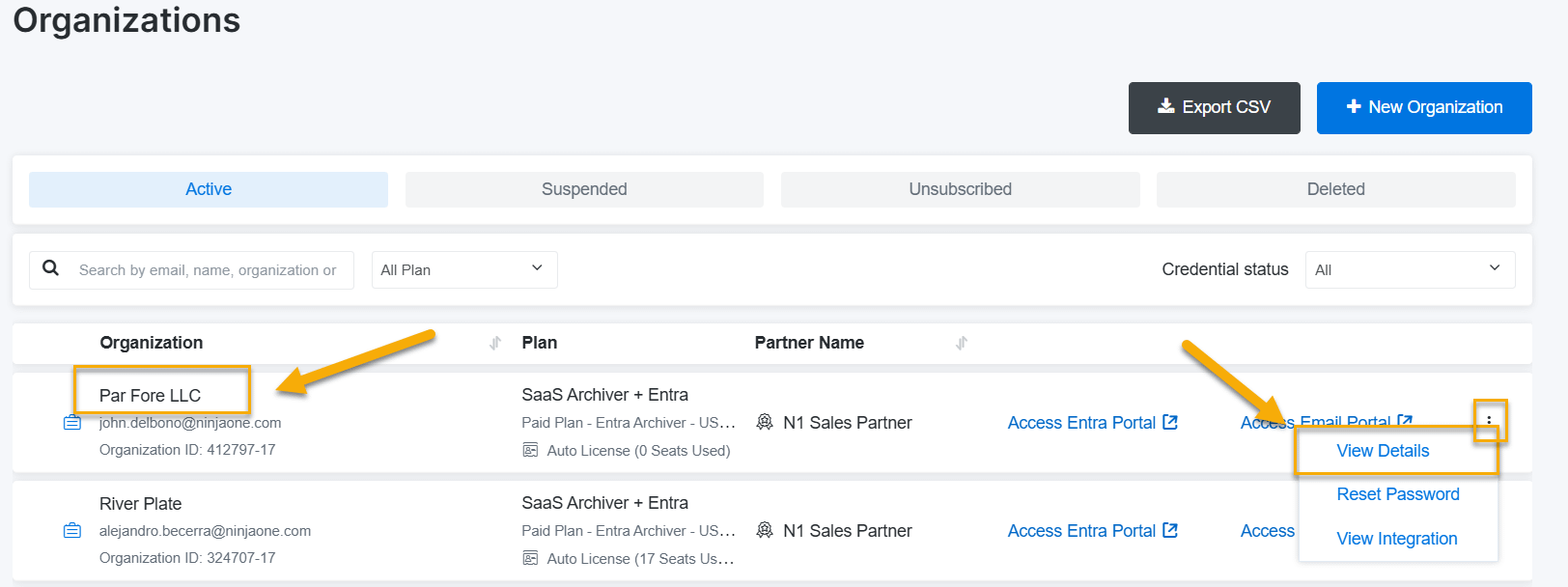
There are six sections for the organization's details. Click the links below to learn more about each section.
- General Details
- Login Accounts
- Subscriptions
- Features
- Credentials
- Journaling (Archiver plan only)
General Details
The General tab contains the following information:
- Icon: Relates to the plan type. Basic or personal plan types display different icons, while the basic and archive plan icons are the same.
- Organization name: Followed by status.
- Organization's owner email address: Followed by ID.
- Plan type
- Seat/storage used info
- Tab: Active tab marks with blue.
- Personal Info: Contains the organization ID, name, owner's email address, organization name, country, and date created. There is an Edit feature here.
- Plan Subscription: Contains information about the organization's plan (Personal, Backup, or Archiver).
- Seats: Displays the license usage of the organization. It won't appear on a basic or personal plan type.
- Tooltips: Place your cursor over the blue information icons to view additional information about the seat type.
Login Accounts
The Login Accounts tab lets you view detailed info of the organization's owner email and other backed-up emails, including ID, email address, API token, last sign-in date, and created date.
Subscriptions
The Subscriptions tab allows you to update, suspend, unsubscribe, or delete a subscription and view subscription history.
Here are the components of Subscriptions:
- Update Subscription: It allows you to change your plan and increase or decrease the number of seats.
- Auto License toggle: You can turn auto license on or off. If it is on, it means the organization will have the ability to add backup without worrying about its available seats. The billing calculation will also be affected. It is only available on the Basic and Archive plan types.
- Suspend: This will suspend all user logins for the subscription. The backup and billing for the subscription will continue. However, the users won't be able to access their backups.
- Unsubscribe: When this option is selected, NinjaOne SaaS Backup will cancel future backups and mark the backed-up data for deletion, which will occur after 45 days. The system will stop billing at the 45-day mark. You can reactivate the subscription within 45 days by selecting Reactivate on the same page. Doing so will resume the backup process from that time.
- Delete: When you choose this option, NinjaOne SaaS Backup immediately purges the entire subscription and stops billing. You should use this option with extreme caution, as the system will instantly delete all backed-up data, and it will not be recoverable.
- Subscription History List: This list displays the subscription history of an organization from its initial creation. If there is more than one action a day, the system will record only the last edit.
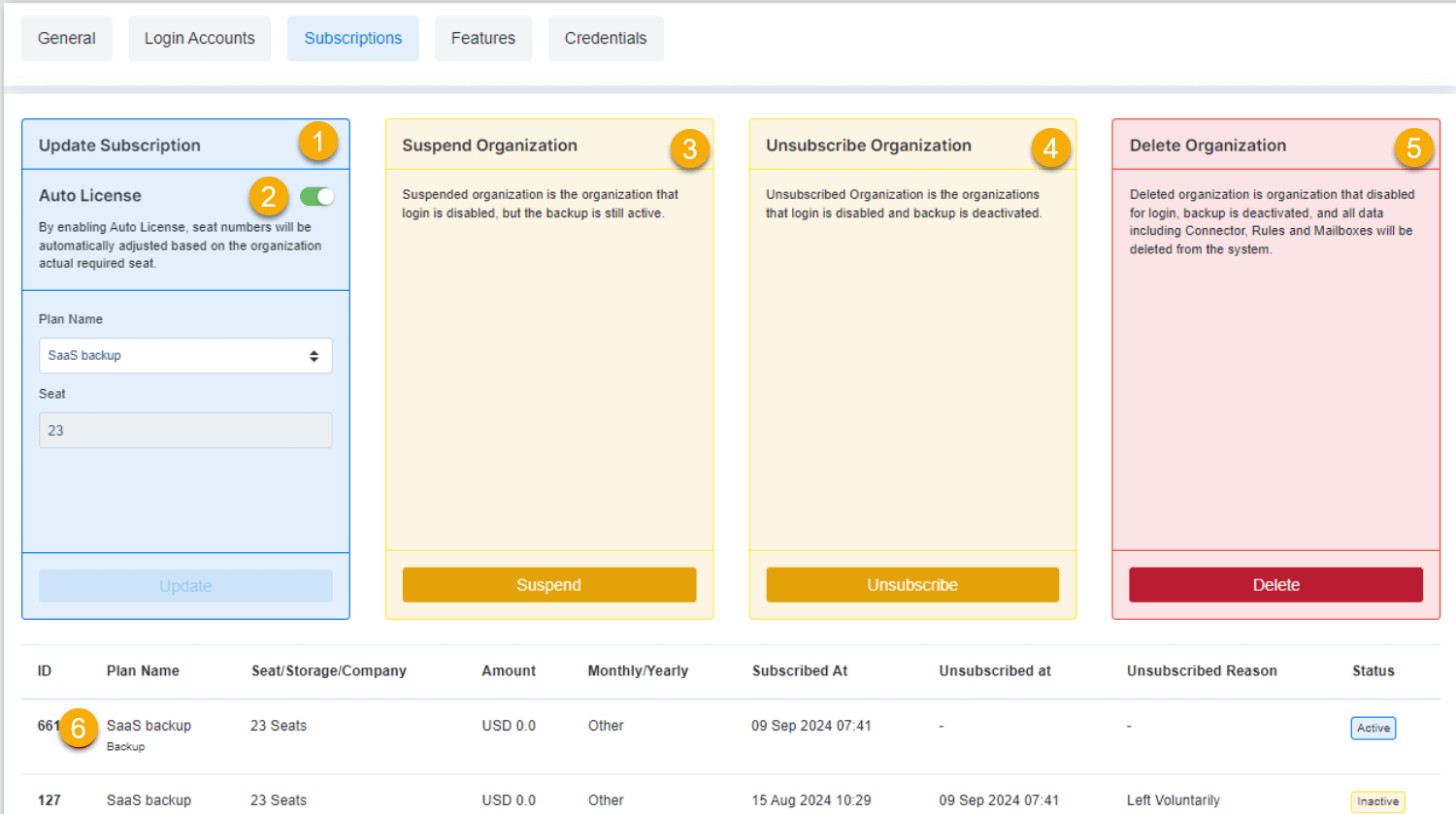
To update subscriptions, follow these steps:
- Open the Organization Details page and click the Subscriptions tab.
- In the Update Subscription widget, change the plan name or increase the number of seats. (You must deactivate Auto License for this step to work.)
- Click Update.
- When the modal appears, input the new value, then click Yes, Continue.
- You can only update the plan type from backup to archive.
- You cannot downgrade accounts.
Auto License
Auto license is a feature that you can enable from the Subscriptions section, which enables organizations to add backups, and have the system automatically adjust the seat numbers based on the required seats.
To enable auto license, follow these steps:
- Open the Organization Details page and click the Subscriptions tab.
- In the Update Subscription widget, enable the Auto License toggle (it will be green when activated).
- When the modal appears, enter the new value, then click Yes, Continue.
The system shows two types of alerts:- You can only update the plan type from Backup to Archive.
- You cannot downgrade accounts.
Features
The Features tab allows you to set some features that will affect the abilities of an organization.
Here are the components of Features:
- Download Setting: When you set this download setting, the system will limit the download size when organizations download emails in PST format. The default value is per 1 GB, and the maximum size limit is per 10 GB.
M365 AD Group Backup: Relates to the add backup feature that allows you to easily back up multiple mailboxes by grouping them on the Microsoft side.
Important Note: The system only allows you to use the feature if you have added M365 admin credentials on the end-user portal. Otherwise, the system disables this option and displays a tooltip text informing you of these rules.- WORM Storage: A configurable feature. You can access it if our sales team enables it. If WORM Storage is ON, the Data Protection Officer feature will be disabled.
- Insights: A business intelligence tool that shows information on email volume, attachments, and storage, and visualizes it in a chart.
- Data Protection Officer: A configurable feature. You can access it if our sales team enables it. It relates to the deletion process.
- Compliance: A configurable feature. You can access it if our sales enable it. It is only available on the archiver plan.
- M365 In-Place Archive Backup: Allows for the backup of in-place archives for M365 mailboxes.
- M365 Private Chat Backup: A configurable feature. You can access it if our sales enable it. It is only available on the archiver plan.
Credentials
The Credentials tab shows a list of tenants, statuses, and actions.
Here are the components of Credentials:
- Important Notice banner: Briefly explains the purpose of the credential page.
- Detail Information: Contains a domain name, the number of accounts on its domain, backup status, and action needed when the system detects an error.
Journaling (Archiver Plan Only)
The Journaling tab displays information about the journal ID for each organization. The Journaling tab is only available for an organization with the Archiver plan.
Here are the components of Journaling:
- Tab: The active tab is marked in blue.
- Copy button: Displays the journal ID.
Exporting Organization Details
To export a CSV file of organization data, follow these steps:
- From the NinjaOne SaaS Backup partner portal, navigate to the Organizations page.
- Choose an organizational status.
- Perform a search (optional).
- Click Export CSV.
- Click the Yes, Continue button on the confirmation pop-up.
- Open the mailbox to view and download your exported CSV. The email title will be "Your CSV Download is Ready."
The system shows a link following this file name format: Organization Status, Organization, Partner Name, Generated Date and Time.
Editing Personal Information
To edit personal information, follow these steps:
- Navigate to the Organizations page.
- Click any area of the organization or click View Details in the Action menu (ellipsis), on a selected organization.
- Click Edit.
- When the modal appears, input the new value, then click Yes, Continue button. Be cautious when performing this action, as it will impact future logins.
The system displays two types of alerts:- A success alert
- An error alert is displayed when the system detects a problem
Additional Resources
Here are links to additional information regarding organizations in NinjaOne SaaS Backup:
- NinjaOne Backup: Linking SaaS Backups to a NinjaOne Organization
- NinjaOne SaaS Backup: Adding Custom Favicons and Logos
- NinjaOne SaaS Backup: Adding, Removing, or Transferring Organizations
The NinjaOne Dojo provides documentation for the NinjaOne SaaS Backup integration. For resources specific to the full NinjaOne SaaS Backup platform, including release notes and troubleshooting guides, visit the NinjaOne SaaS Backup Help Center.