
Topic
This article provides instructions for pushing automatic updates for Android mobile devices. For iOS, refer to NinjaOne Mobile Device Management (MDM): Apple OS Update Management.
Environment
- NinjaOne Mobile Device Management (MDM)
- Android OS
Description
With automatic updates, the device will immediately implement updates as soon as they are available.
- If you want to use the device's default update process, keep the setting at "Unspecified".
- To have more control, use the "Windowed" mode to allow technicians to define a time period each day to check for and apply updates.
Index
Android Automatic Updates
To allow automatic updates for Android devices:
- Click Administration in the left navigation pan and open the Policies tab; select MDM Policies.

Figure 1: NinjaOne → Administration → Policies → MDM Policies
- Select an Android policy.
- On the policy configuration page, open the Security tab. Scroll down and select "Automatic" for Type under System Update Configuration.
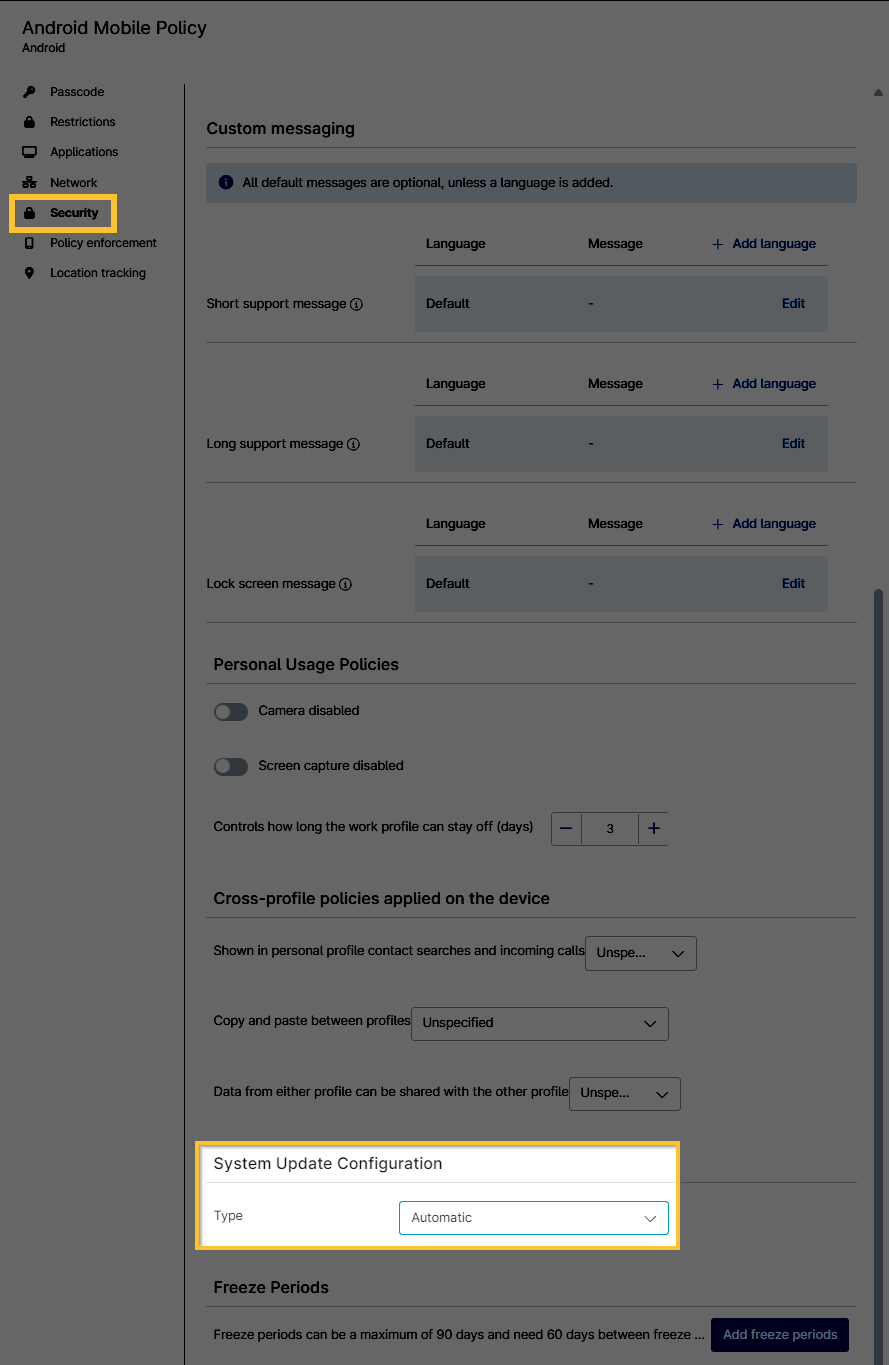
Figure 2: NinjaOne Android policy editor → Security → System Update Configuration
Android System Update Configuration Options
| Type | Action |
|---|---|
| Unspecified | Follows the device's update behavior, which typically requires an end user to accept the system update. |
| Automatic | Installs OS updates automatically when they become available. |
| Windowed | Installs OS updates based on the specified daily schedule. This also configures Play Store apps to be updated within this window. If you are using an app in kiosk mode, you must set the device updates to "Windowed" to ensure that kiosk mode is updated automatically. With the "Windowed" option, new configuration fields will display. You must select the minute of the day you want the update process to start and end (for example, if Start Minutes has a value of "60", the process starts at 1AM). NinjaOne recommends keeping the update window between a maximum of 4 hours; do not set the process to start at midnight and finish at 11:59PM the following day, as this will cause the process not to function properly. Note: The update occurs according to the time zone set for the physical device, rather than the time zone set in NinjaOne. |
| Postpone | OS updates are postponed up to a maximum of 30 days before pushing installation. |
Freeze Periods
At the bottom of the Security section, freeze periods can be used to block installation of all incoming system updates—including security patches—between a defined start and end date. Once a freeze period ends, normal policy behavior (i.e., unspecified, automatic, windowed, or postponed) is applied.
- The end date of a freeze period must be no earlier than the start date, and no later than 90 days from the start date. If you select a later date first and then select an earlier date, the system automatically sets the earliest date as the start, regardless of the order in which it was clicked.
- Each freeze period must be separated by at least 60 days to prevent freezing the device indefinitely. NinjaOne automatically enforces this rule by deactivating any date that falls within those 60 days, so they cannot be accidentally selected on the calendar. In the Figure below, a freeze period exists for April 01 to April 30, so the dates prior to July 01 are deactivated and cannot be selected.

Figure 3: NinjaOne Android policy editor → Security → Add freeze periods configuration modal
- You can only set freeze periods within the current calendar year. Leap years are ignored in the freeze period calendar and comply with the following rules:
- If February 29 is set as the start or end date, then the freeze period starts or ends on February 28.
- The device's system clock treats February 29 as February 28.
- When calculating the number of days in a freeze or separation period, February 29 is not counted as a day.
Freeze periods for Android policies are built around Android software development; to learn more, please refer to the Android API Reference documentation.
Additional Resources
NinjaOne provides customers the ability to set policies defining what iOS versions are approved and when by defining deadlines for their Apple devices. This allows devices to update even if they are locked with a passcode. To learn more, refer to NinjaOne Apple MDM: OS Update Management
For more documentation covering our MDM tool, refer to NinjaOne Mobile Device Management (MDM): Resource Catalog