
Topic
This article discusses the Autodiscover and Auto-Licensing features in NinjaOne SaaS Backup.
Description
NinjaOne offers multiple tools that allow you to set up organizations:
- Autodiscover: When this feature is enabled, NinjaOne will scan the environment once a day to check for new users and automatically add them to backups.
- AD Group Filtering: Works in conjunction with Autodiscover to limit NinjaOne to scan a specific group within the environment.
- Auto-licensing: When this option is enabled, the number of licenses for an organization will adjust up or down depending on what is needed in order to back up all users.
The use of Autodiscover in conjunction with auto-licensing allows NinjOne to detect, add, and license users in order to back them up with no manual intervention required. If needed, you can enable AD Group filtering as well to limit this to just users that you add to the group.
Autodiscover (AD)
Autodiscover monitors whether any new mailboxes or SharePoint sites are available under the backup. When a new mailbox or site is found, it will automatically be added to Backup. Partners can enable email notifications to be notified if there aren’t enough seats under the organization (click here to learn about enabling notifications in the Partner Portal).
Enable Autodiscover:
- On the End-User Portal, click the menu on the top right of the page.
- Click Account Settings.
- Select the Auto-Discover tab. This is where you can enable for all or pick specific domains.
Enable Auto-Discover for SharePoint:
- On the End-User Portal, Click the “add backup” button.
- Click the option under add from existing and then click the “Sites” button at the top of the page.
- On the right side of the page, you can enable the AutoDiscover feature.
- Learn more about Auto-Discover for SharePoint here.
Exclusion List:
If Auto-Discover is enabled, you would need to temporarily disable it in order to add additional users to the exclusion list. Once those users have been added, you can re-enable auto-discover.
AD Group Backup
AD Group Backup allows you to add backups more efficiently. Once the AD Group is registered, our system monitors if any new users are added or if any existing users are removed on the M365 side. The corresponding account’s backup is activated or deactivated based on the status.
How to Add Users from an AD Group to Backup
- Select the Organizations tab.
- Choose an organization, click the ellipsis (three vertical dots), and then click View Details.
- Select the Features tab.
- Enable the M365 Backup by AD Group toggle, input the AD Group name, and then click the Yes, continue button. The name of the AD Group used must match exactly what exists within the tenant (including capitalization and spacing) or it could result in an error. Please note that if the organization still needs to add an M365 backup, it will show the instructions.
- You can click Checking Now to verify the registered AD Group. If you get an error on this step, please double check that the name matches exactly the group within your tenant.
*Dynamic groups are not supported due to limitations with Microsoft Graph API.
Auto-Licensing
Auto-Licensing will allow NinjaOne to automatically adjust the seat count for an organization. For Example, consider a client with 10 active mailboxes backed up with the current purchased seats being 10. If 5 new mailboxes are added to Backup under the End-User Portal, Auto License would automatically add 5 seats to the organization. Similarly, when mailboxes are deleted from Backup, seats would be automatically reduced based on the current usage.
To enable auto-licensing for an organization, please use the following steps:
- Sign into the partner portal and navigate to the "Organizations" tab.
- Locate the organization in question, click on it, and go to the "Subscriptions" tab.
- You should see a blue box that shows the plan assigned to the organization and the number of current seats. You should also see the switch for auto-licensing.
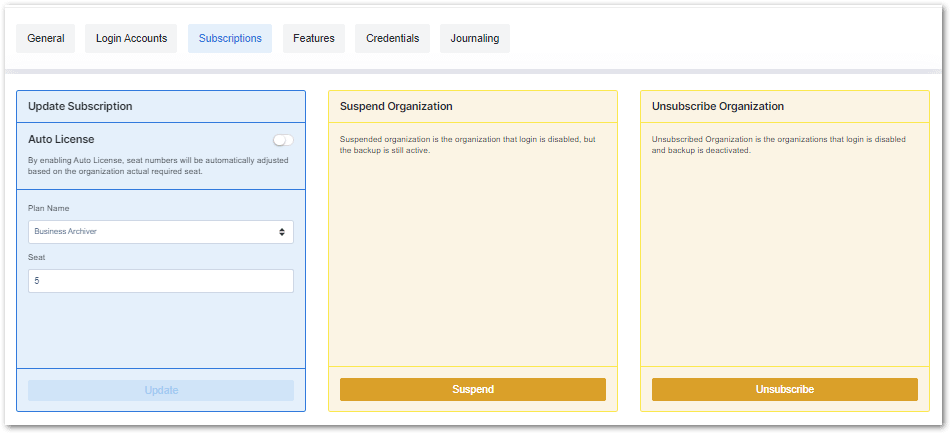
- Switch on auto-licensing.
Additional Resources
The NinjaOne Dojo provides documentation for the NinjaOne SaaS Backup integration. For resources specific to the full NinjaOne SaaS Backup platform, including release notes and troubleshooting guides, visit the NinjaOne SaaS Backup Help Center.