
Topic
This article covers the many ways you can check SentinelOne activities and threats and perform antivirus scans from the device dashboard in NinjaOne. For instructions on enabling SentinelOne in NinjaOne, please see SentinelOne: Integration Guide.
Environment
NinjaOne and SentinelOne integration
Description
Please select a category below to learn more.
- General Information
- View SentinelOne Agent Status
- Perform a Full Disk Scan
- Remediate Threats on SentinelOne Devices
- View SentinelOne Activities in NinjaOne
- Additional Resources
General Information
The device dashboard displays the status of SentinelOne in the Antivirus section.
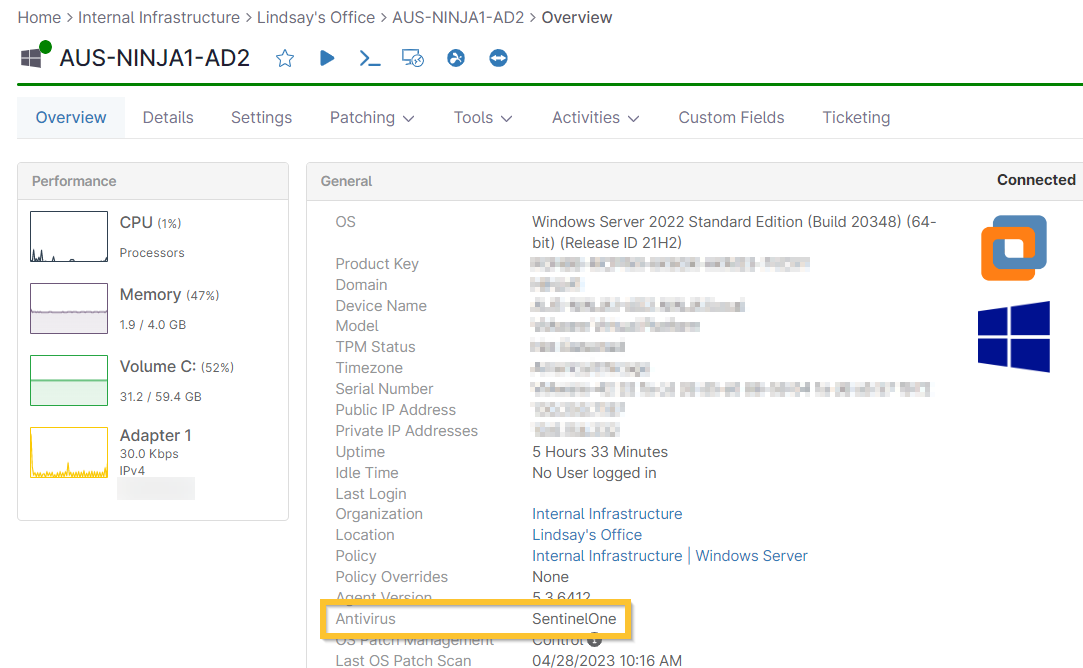
Figure 1: NinjaOne device dashboard → Overview → General information
View SentinelOne Agent Status
On the device dashboard, open the Settings tab to view the installed application information.
When the status is "online," this indicates that the device is communicating properly with the SentinelOne agent.

Figure 2: NinjaOne device dashboard → Settings → Applications
Perform a Full Disk Scan
SentinelOne can run full disk scans. This option can be found after clicking the action button on the device dashboard or by selecting a device within the Devices tab.
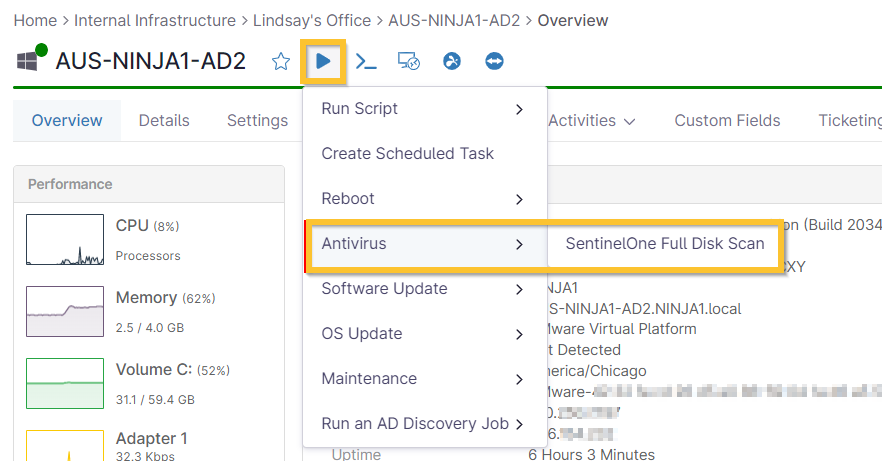
Figure 3: NinjaOne device dashboard → Action → Antivirus → SentinelOne Full Disk Scan
To run a full disk scan from the Devices tab:
- Enter the name of the device into the search field; you can also filter the device list by Additional Filters → Policies → select the policy with the SentinelOne antivirus enabled.
- Activate the checkbox next to the device needing to be scanned (device must be online for scan to run).
- Move your cursor over Run at the top of the device list; select Antivirus and then click SentinelOne Full Disk Scan.
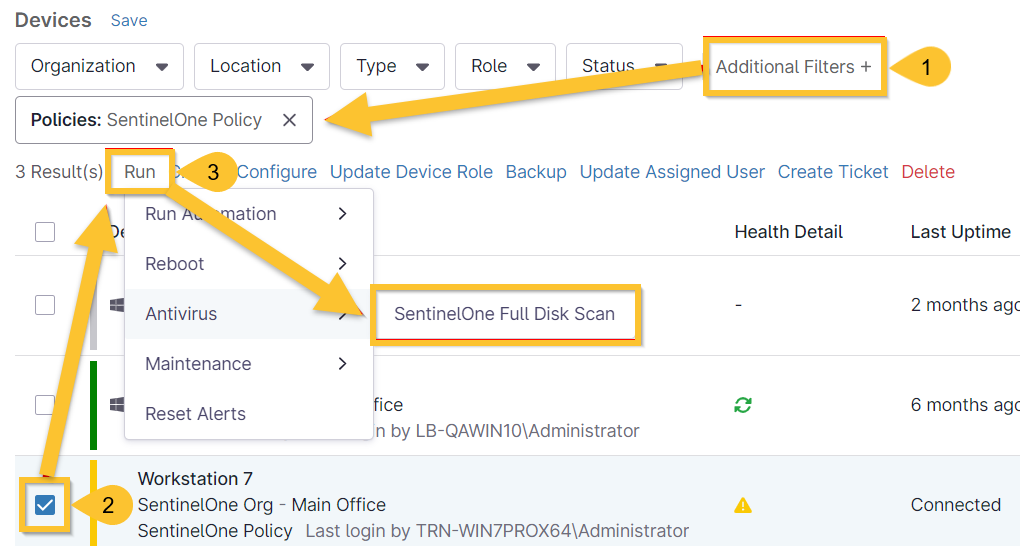
Figure 4: NinjaOne Devices page → Filter and run full disk scan
You can also perform this action directly from the search field.
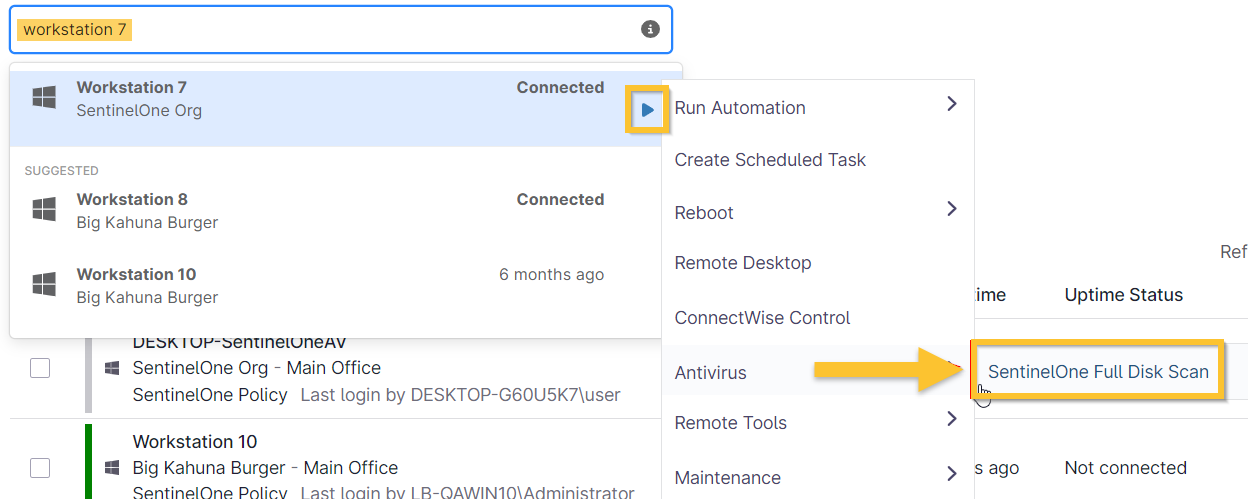
Figure 5: NinjaOne search → Run full disk scan
Remediate Threats on SentinelOne Devices
NinjaOne pulls data every 5 minutes. If SentinelOne is able to resolve a detected threat within this time, you may not see threat data on the NinjaOne dashboard under the Health section; however, the Activities tab should still show that the threats appeared and were mitigated/resolved.
Detected and remediated threats do not show up in the database for new devices.
- Use the Devices search grid to find device.
- On the device dashboard, review the Health section at the bottom of the screen.
- Click the down arrow next to the threat notification and click Remediate Threat in SentinelOne.
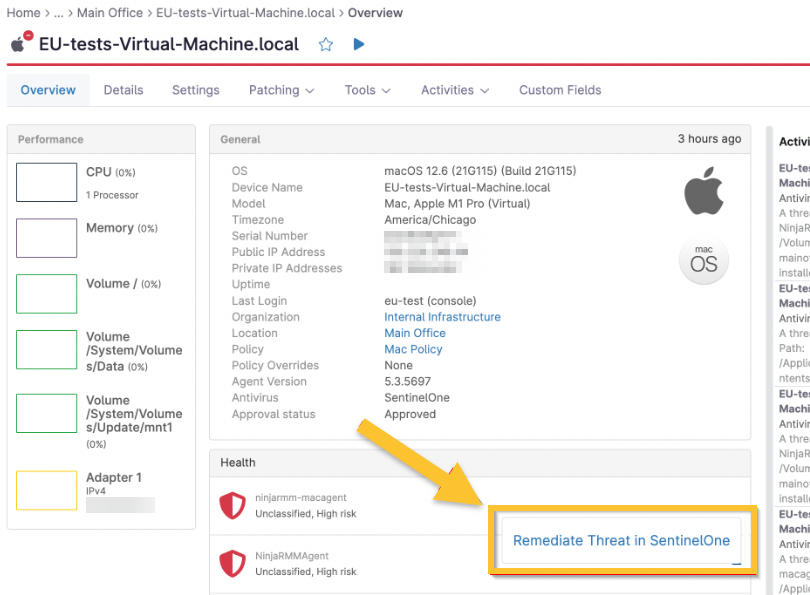
Figure 6: NinjaOne device dashboard → Health → Remediate Threat in SentinelOne
You will be taken out of NinjaOne and into the threat overview page in the SentinelOne console.
To update the status of the threat to "Resolved," use the Incident Status dropdown in SentinelOne. The device dashboard in NinjaOne will reflect the new status.
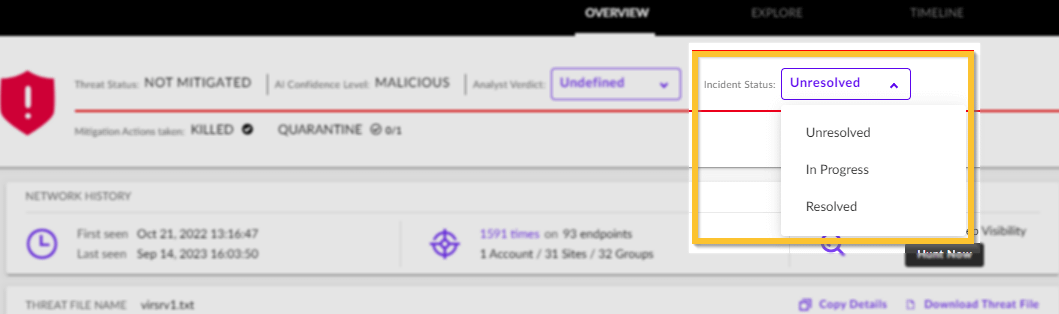
Figure 7: Set the status in SentinelOne
View SentinelOne Activities in NinjaOne
SentinelOne activities can be viewed on system, organization, or device dashboards, and are marked with a SentinelOne icon next to the description (see below). Activities are configured from the policy editor or from global administration—see Activity Feed for instructions.
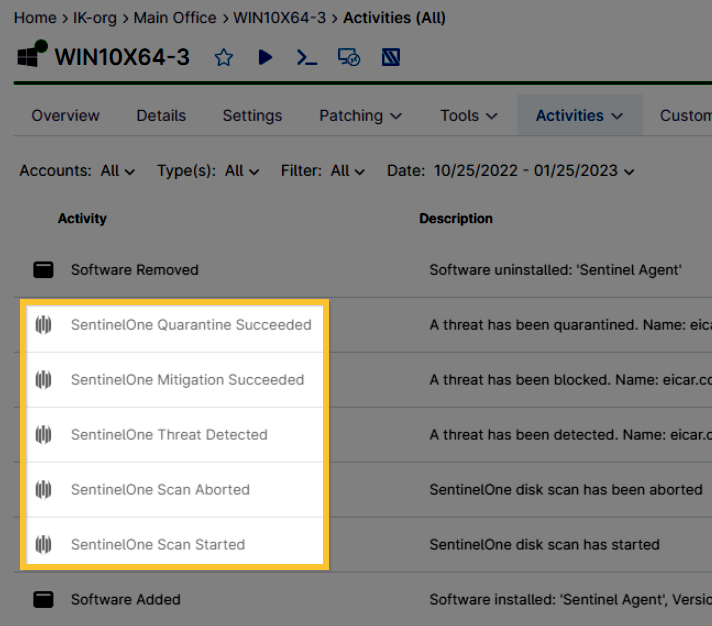
Figure 8: SentinelOne activities
There are multiple places in NinjaOne where these activities can be viewed:
System Level Dashboard
- Click Dashboard in the left navigation pane.
- Open the Activities drop-down menu and select All. This tab is also available on the organization and device dashboards if you want to limit the level of SentinelOne activities to view.
- Click the Type filter and select SentinelOne under Device.

Figure 9: NinjaOne system dashboard → Activities → Type is SentinelOne
A list of all SentinelOne activities on the system level display on the page.
SentinelOne Activities by Organization
- Follow Steps 1–3 from the System Level Dashboard Instructions.
- Select one or more organizations from the Organization(s) filter.
A list of all SentinelOne activities on the organization level displays.

Figure 10: NinjaOne system dashboard → Activities → Type is SentinelOne → Select organization
SentinelOne Activities by Device
- Follow Steps 1–3 from the System Level Dashboard instructions.
- SentinelOne activities can happen at the system or device level. If the activity occurred at the device level, the Target column will contain a hyperlink. Click the hyperlink to open the device dashboard.

Figure 11: NinjaOne system dashboard → Activities → Target hyperlink
- Filter the device dashboard Activities → All section for SentinelOne-specific activities.
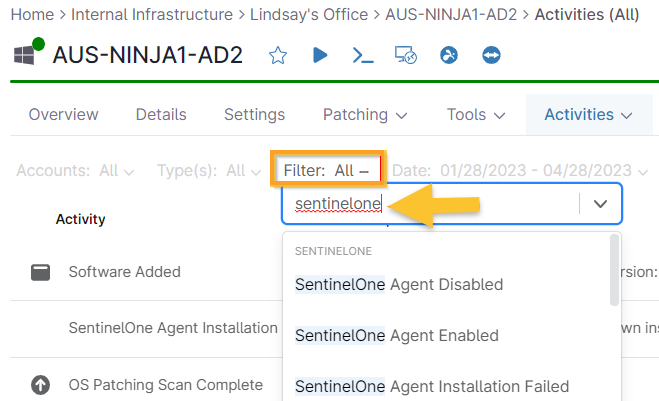
Figure 12: NinjaOne device dashboard → Activities → Filter for SentinelOne