
Topic
This article explains how to monitor disk encryption on your devices from NinjaOne.
Environment
- NinjaOne Endpoint Management
- Microsoft Windows
- Apple macOS
Description
NinjaOne's BitLocker and FileVault encryption management allows you to monitor disk encryption on Windows and macOS devices (BitLocker for Windows, FileVault for macOS) directly from NinjaOne.
View additional tutorials in our video library.
Index
- Check the BitLocker Status
- Check the FileVault Status
- Enable Notifications for BitLocker or FileVault Status Changes
- Additional Resources
Check the BitLocker Status
To review the status of BitLocker on your device, perform the following steps:
- Navigate to the device dashboard in NinjaOne. You can filter for specific device qualities in the Devices search grid. Refer to Find and Manage Endpoints from the Devices Search Page for more information.
- Open the Details tab on the device dashboard.
- Select Disk Volume from the menu on the left.
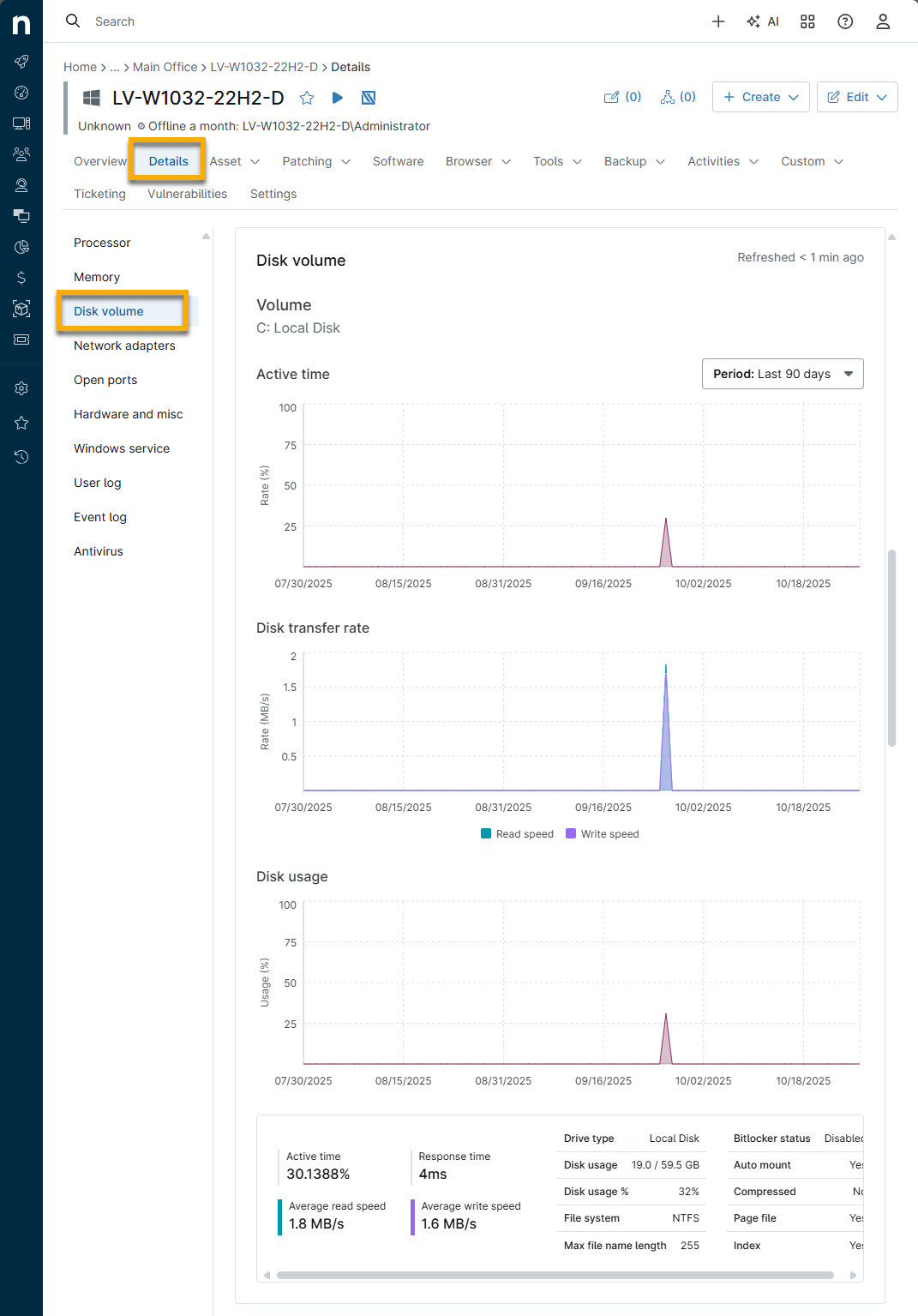
The BitLocker Status will be listed for each volume.
- If BitLocker is enabled, click the starred hyperlink next to Recovery Key to view the key. You will also have the option to copy the recovery key to your clipboard.

Check the FileVault Status
To review the status of FileVault on your device, perform the following steps:
- Navigate to the device dashboard in NinjaOne.
- Open the Details tab.
- Select Disk Volume from the menu on the left.
The FileVault Status will be listed for each volume.
Enable Notifications for BitLocker or FileVault Status Changes
To receive notifications for status changes, perform the following steps:
- Navigate to the policy editor (Administration → Policies) for which you would like to enable BitLocker or FileVault activity notifications, and open the Activities tab.
- Depending on the policy editor opened (for Windows or for macOS), you must expand the applicable dropdown.
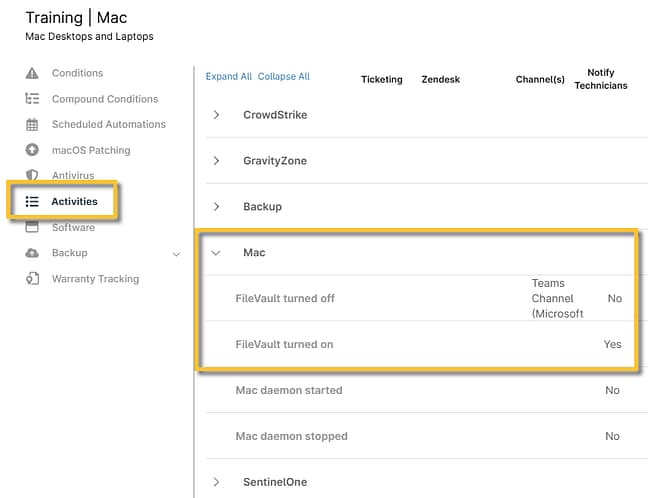
Figure 3: NinjaOne → Mac policy configuration page → Activities → Mac FileVault activities
- Click the BitLocker or FileVault activity needing notifications enabled.
The Activity configuration modal displays. - Use the dropdown tools to set up notification details and channels. For more information about activities, refer to NinjaOne Platform: Device and System Activity Notification Feed.
Additional Resources
You can utilize conditions to monitor BitLocker and FileVault status and report on this information.
- For more information about conditions, please see Policies: Conditions.
- For more information about reporting, please see Reporting: Types of Reports.
For a list of frequently asked questions about BitLocker/FileVault management, please see BitLocker and FileVault Encryption Key Management: FAQ.