
Topic
Learn how to create and manage time entries for NinjaOne's Billing tool.
Environment
NinjaOne Billing
Description
Use NinjaOne Billing to manage agreements, view invoices, and recalculate prices on time entries. You can pdate time entries separately and split time between Normal hours and Off-hours and configure a certain number of hours included per time entry product for each billing period. Technicians will be able to view the amount of time remaining for the currently selected product when logging time entries on tickets.
To use this feature, you must have NinjaOne's Billing tool enabled. Refer to NinjaOne Billing: Getting Started with Professional Services Automation (PSA) if you have not already enabled the application. You can then configure the Invoices data to control how time entry items are displayed on invoices.
Important Considerations
- You cannot remove an agreement from the ticket if there are unbilled products associated with it.
- The agreement must be active.
- If the organization is deleted, NinjaOne will remove the agreement from the ticket.
- If you change which agreement the ticket uses, you must save the ticket before adding new products.
- You must select a new agreement if you change which organization owns the ticket.
Want to learn more about NinjaOne Billing? Check out our video library.
Index
Select a category to learn more:
- Working with Time Entries
- Hourly Cost for Technicians
- Using Billing with NinjaOne Ticketing
- Block Time
- Additional Resources
Working with Time Entries
Once enabled, the NinjaOne Billing tool provides a Finance tab in the sidebar menu. You can also perform these actions from the Finance tab on the organization dashboard.
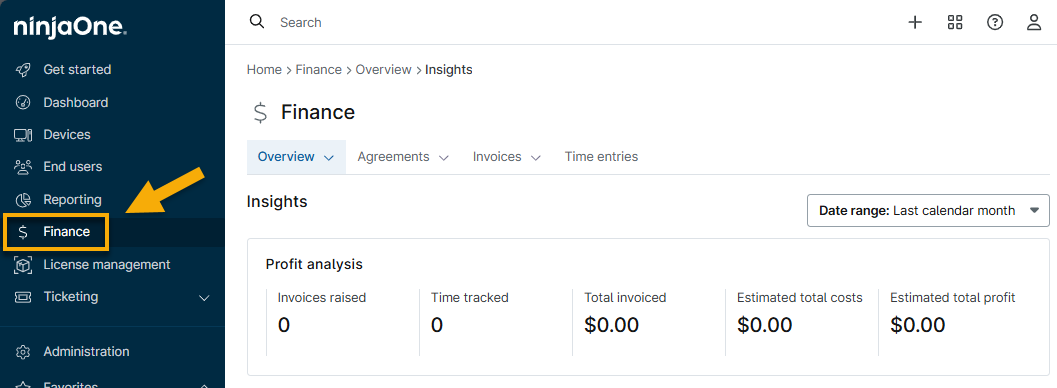
Figure 1: NinjaOne Finance tab
The Time Entries section on the Finance dashboard is connected to NinjaOne Ticketing. You can use tickets to record the time a technician spends working on them. Each time a technician works on a ticket, that time is recorded individually on the Time Entries table. For example, if a technician spends 20 seconds on the ticket to submit a public response to the requestor and then returns to the ticket at a later time to spend five minutes resolving it, then there will be two entries on the table.
You can perform the following actions in the Time entries tab:
- Sorting: The Time Entries table can be filtered by the organization, agreement (if assigned), work type (normal hours or off hours), work start date (the first day that the technician worked on the ticket), price (charge), product name, agreement product name, whether it is billable or charged, and by time range.
- You can also sort the data by clicking the column header.
- Use the table settings (gear) icon to add or remove columns.
- Actions: You can recalculate the price charged for the time entries or edit the service agreement or associated product. This includes any products related to the ticket, such as a new HDMI cable or mouse cursor. When recalculating the price, NinjaOne's logic will use the creator to determine the default product.
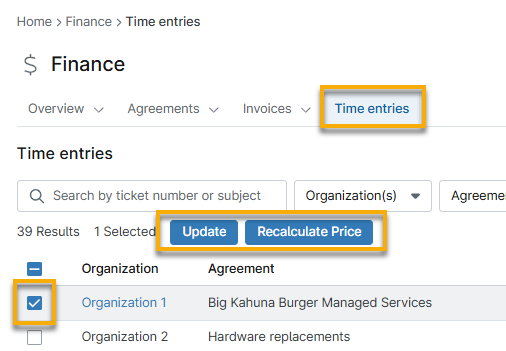
- Click the hyperlink in the Ticket number or Ticket subject column to open and manage the ticket associated with the time entry.
- You can update the service agreement and product for multiple tickets in bulk by selecting multiple checkboxes. These tickets must be assigned to the same organization; if they are not, you can only recalculate the price of tickets in bulk.
- Tickets must have a service agreement assigned to them to add products. Refer to Use Billing with NinjaOne Ticketing in the following section to learn more.
- You cannot remove service agreements from a ticket if unbilled products are assigned; however, you can assign a different agreement to which the product will be billed.
- NinjaOne will assign unbilled ticket products to the next invoice generated for the assigned agreement. The ticket related to the product will appear in the invoice description.
Hourly Cost for Technicians
Navigate to a technician's account or role configuration page and open the General → Finance tab to provide an hourly cost. This field enables you to track the estimated costs for each of your customers, including base wage, expected productivity, additional expenses such as taxes, benefits, paid time off, training, and other overheads.
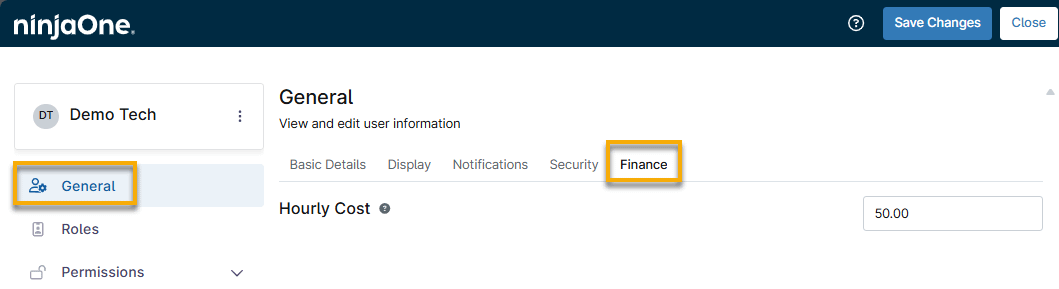
Only system administrators or technicians with NinjaOne Billing → Administrative Actions access can update this field. When you update this field, you will also have the option to update existing time entries for the technician.
If you do not enter a value for this field, time entries will use the default hourly cost as configured for the time entry product.
Using Billing with NinjaOne Ticketing
Bill products through NinjaOne ticket requests (for example, a new network cable or hardware support). Refer to our Ticketing: Resource Catalog to learn more about NinjaOne Ticketing.
You can use agreements created at Finance → Agreements to invoice tickets. You can only use agreements that are assigned to the organization named on the ticket.
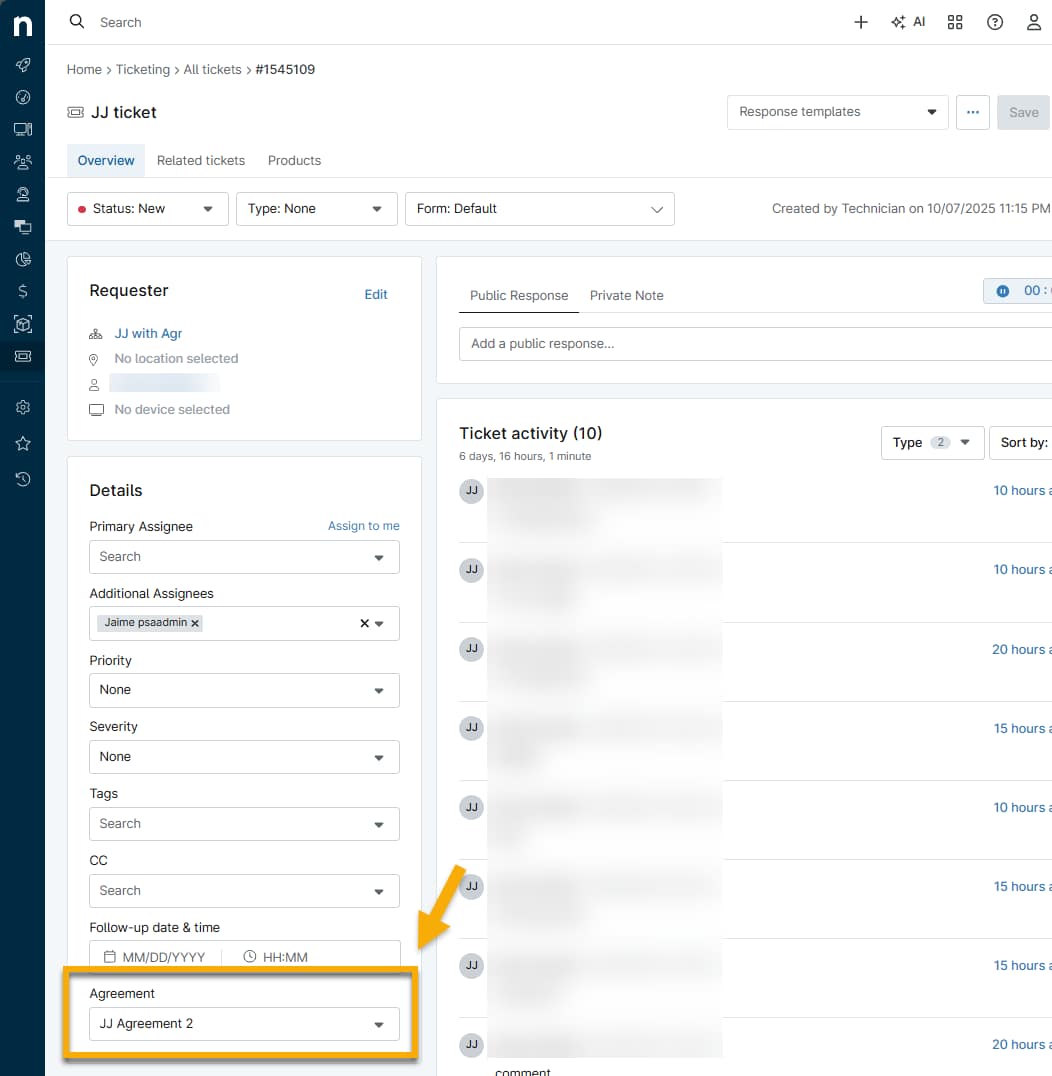
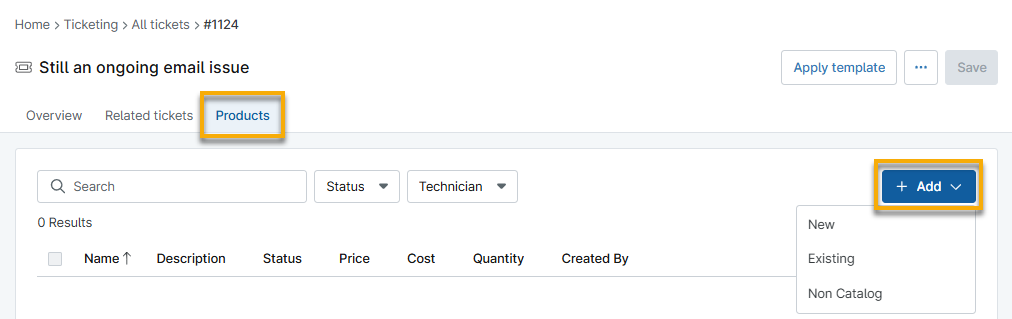
Products can be added to tickets through the Products tab. Refer to NinjaOne PSA Products to learn more.
Block Time
Create a labor ticket time entry product for automated billing of ticket time entries. This product includes time entries logged in NinjaOne Ticketing. These are calculated automatically and converted into line items on the invoice as the amount of time tracked. You can configure what time entry products will match.
You can configure a certain number of hours included per time entry product for each billing period. Technicians will be able to view the amount of time remaining for the currently selected product when logging time entries on tickets.
Additional Resources
Refer to NinjaOne Billing: Resource Catalog to learn more about NinjaOne Billing.