
Topic
This article explains where to find and how to use NinjaOne's Public Application Programming Interface (API).
Environment
- NinjaOne Documentation
- NinjaOne Public API
Description
Use NinjaOne's Public API page to view all available requests in NinjaOne and their functions, construct sample queries, and view or copy responses.
Select a topic to learn more:
- Where to Find the API Resources
- Explore the API
- How to Test or Send the API Request
- Additional Resources
Where to Find the API Resources
For a full list of all API queries, refer to the NinjaOne Public API documentation, which you can access from the Help resources menu in the top right corner of NinjaOne. The link is at the bottom of the menu.
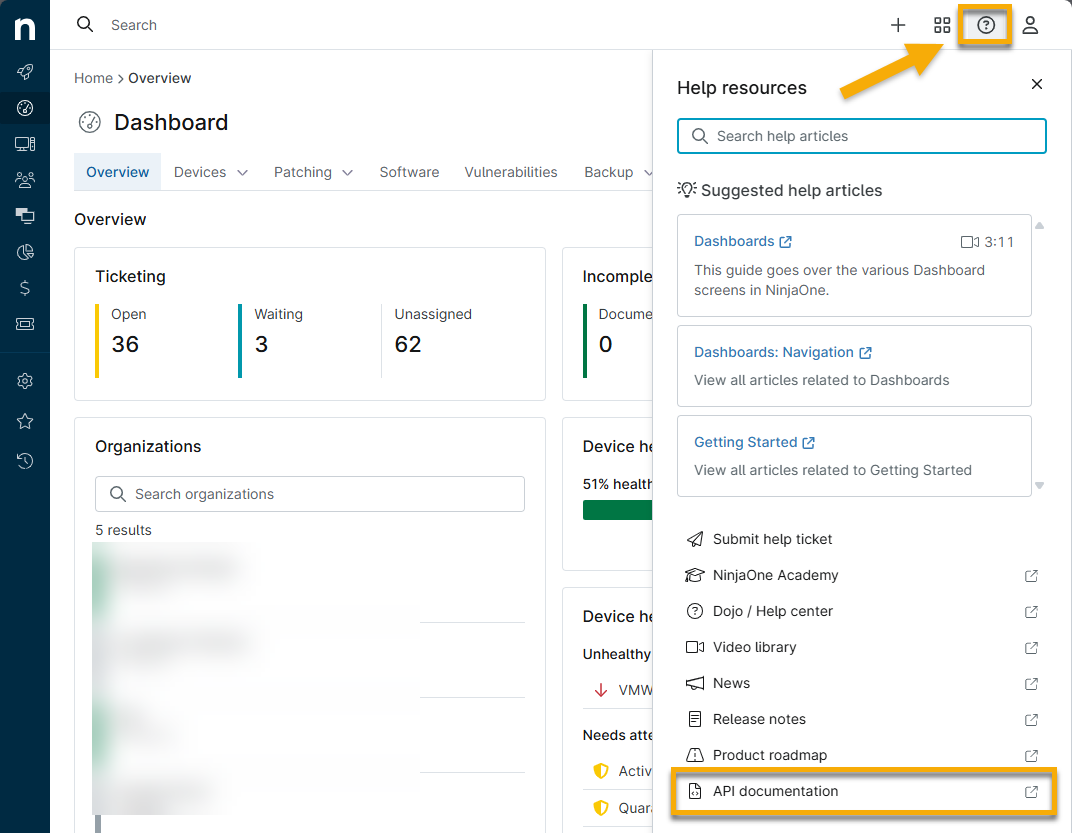
The NinjaOne Public API provides additional resources for device filter syntax and webhooks. Click the links provided in the API documentation to learn more:
- Device Filter syntax: Explains the syntax requirements for the Device filter parameter URL-encoded string.
- Webhooks: Describes how to configure a webhook integration.

Explore the API
NinjaOne provides a Public API so you can view a comprehensive index of templates for the API entities. Available operations include POST, GET, PATCH, DELETE, and PUT request methods.
Authorization
The NinjaOne Public API uses OAuth 2.0 to authenticate requests. OAuth 2.0 allows applications to obtain access to NinjaOne resources that are made available via the API.
Click Authorization to review the documentation describing authorization requirements in the NinjaOne Public API.

Refer to NinjaOne Documentation: Public API 2.0 Authorization to learn how to configure these settings.
API Schemas
You can find API schemas at the end of the API template list. The API schema defines the required parameters and constraints of data exchanged in the API calls, so you can mitigate errors when interacting with the API.

API Changes
We are enhancing the API documentation for better organization and visibility. To view the new API documentation, perform the following steps.
- Click Details here, where it says API coming changes at the top of the page, to learn more.

- From the NinjaOne Public API beta page, click Core Resources to view the new layout. Click Return to previous site to view the original API documentation.

- Refer to the Test Endpoints from the Public API 2.0 section to learn how to interact with the page.
How to Test or Send the API Request
Test a Request Method
While you are in the Public API, you can test and then execute a request method by performing the following steps:
- Expand a query to view the details and click Try it out. Some queries, such as the one in Figure 7, may require you to input a parameter. Parameters may be optional to organize or limit the data shown in a response. To learn how to obtain a parameter ID, refer to the section of this article titled How to Find Query Identifiers.
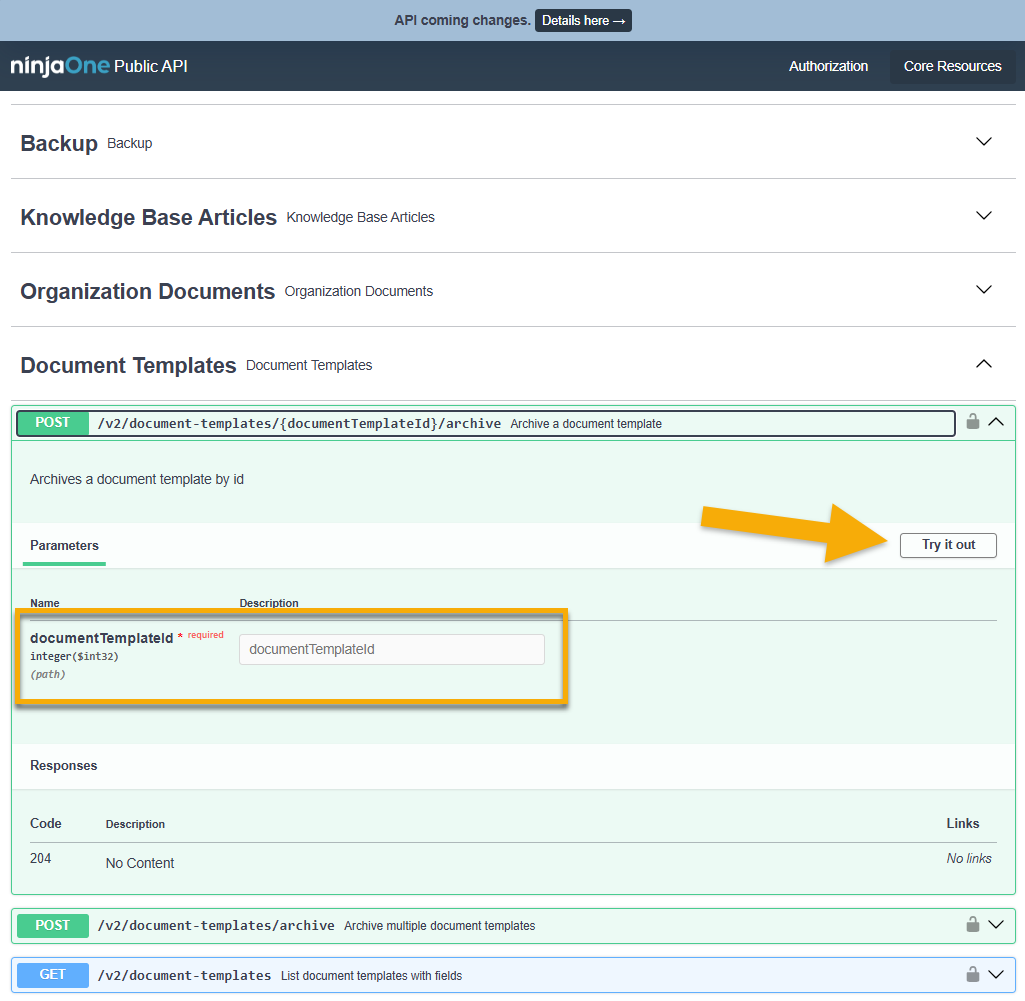
- After you input the necessary parameters, click Execute. The response to the query will appear in the Responses section for that template.

- Once the response is complete, you can copy the request URL or click Download to save the response as a JSON file.
You can use the customizable API requests with GUI-based platforms, such as Postman, for browsing or testing. To learn how to use Postman, refer to Postman Docs | Postman Docs (external link). For Postman application support, refer to Postman support center (external link).
Test Endpoints from the Public API 2.0
Within the NinjaOne Public API beta, access the queries from the sidebar menu. The requests will operate similarly to the previous section, but you must ensure you have authorization configured before using it. Refer to NinjaOne Documentation: Public API 2.0 Authorization to learn how to configure these settings.
- Select your query from the sidebar menu to view the details.
- Enter your authorization into either the Token or sessionKey field, depending on your preferred authorization method.
- Enter the parameters, if necessary.
- Click Send API Request.
- View the Response.

How to Find Query Identifiers
Certain API queries may require you to input an identifier, such as an organization or device ID. In most cases, you can use the core system entities and resources to find this data. The following steps provide an example for obtaining an organization ID so you can return a list of locations within the NinjaOne Public API.
- Expand the /v2/organizations query and click Try it out. Then, click Execute.
- Copy the value for "id".
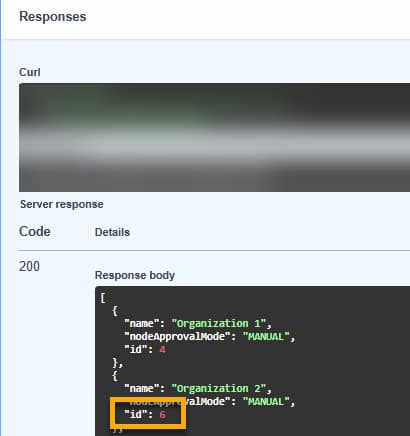
- Navigate to the /v2/organization/{id}/locations query.
- Click Try it out and paste the copied value into the id field.

- Click Execute and view the response.
Additional Resources
Refer to the following resources to learn more about the NinjaOne API.