
Topic
This article explains how to enable and install add-on modules via NinjaOne and GravityZone.
Environment
- NinjaOne Integrations
- Bitdefender GravityZone
Description
NinjaOne integrates with GravityZone, which uses the API and is configured at the policy level through the SDK. For information about the Bitdefender SDK, refer to Bitdefender SDK: Integration Guide.
For instructions on enabling the Bitdefender GravityZone integration in NinjaOne, refer to Getting Started with the Bitdefender GravityZone Integration.
Select a category to learn more:
GravityZone Modules in NinjaOne
You must purchase the Paid add-on modules for Bitdefender GravityZone. Contact your Account Manager for more information.
To view your active modules in NinjaOne, perform the following steps:
- From NinjaOne, click Administration in the left navigation pane and select Organizations. If you need to create a new organization, refer to the instructions at NinjaOne Endpoint Management: Creating and Editing Organizations.
- Click an organization name to open the editor and select Bitdefender GravityZone. If you cannot find this section, ensure that the organization is properly mapped for the integration; refer to Bitdefender GravityZone Managed Device Mapping for instructions.

Enable and Install Additional Modules in GravityZone
To enable the additional modules from the GravityZone console, perform the following steps:
- Log in to your Bitdefender GravityZone account.
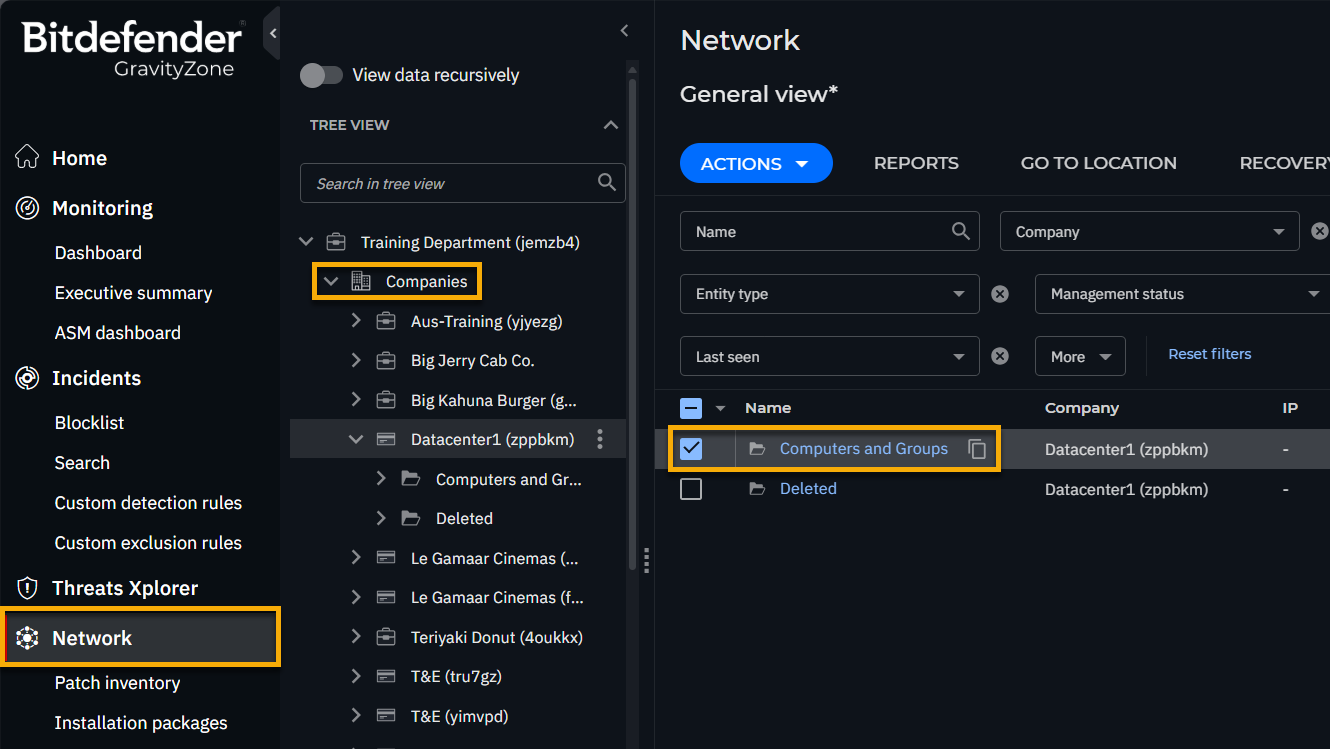
- Click Network in the left navigation pane and then filter to your companies or organizations.
- Select an organization and then select the checkbox next to Computers and Groups.
- Click Actions and select Reconfigure agent.
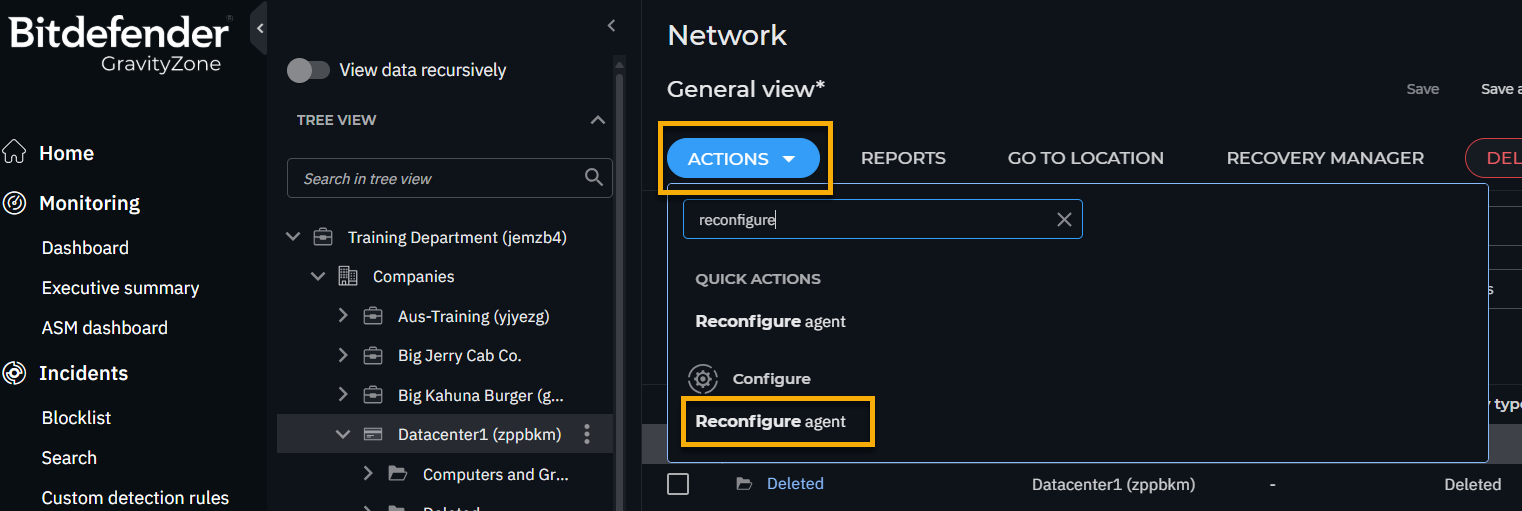
- Add or remove modules and adjust the toggle switches for each module to manage the settings. Be sure to save any changes you make before leaving this window.
- Repeat this process for all other companies.
Additional Resources
The following learning content will help you maximize the benefits of the Bitdefender GravityZone feature set.