
Topic
This article discusses the Patch Management dashboard in NinjaOne Endpoint Management.
Environment
NinjaOne Patching
Description
The Patch Management dashboard shows all your critical patching data in one place. The dashboard is located in the Patching tab on the NinjaOne dashboard.
Patch Management: Dashboards: OS Patch Management (NinjaOne Inc. 01:42)
Select a topic to continue:
- Software Patches
- OS Patches
- Managing Patches by Status
- Filtering Patches by Status
- Patch CVE Data
- Additional Resources
Software Patches
The Patching page provides a holistic view of the software installed across all your managed endpoints and third-party software patch data (if you have third-party patching enabled for any of your policies). Use the Pending → Software patches drop-down menu to list all patches by status.
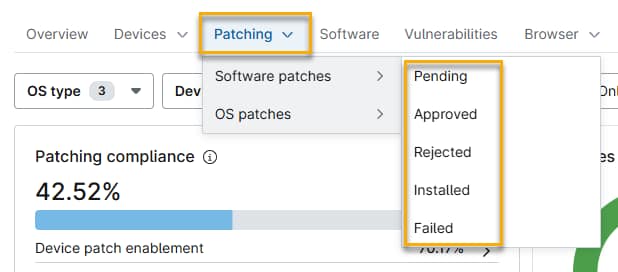
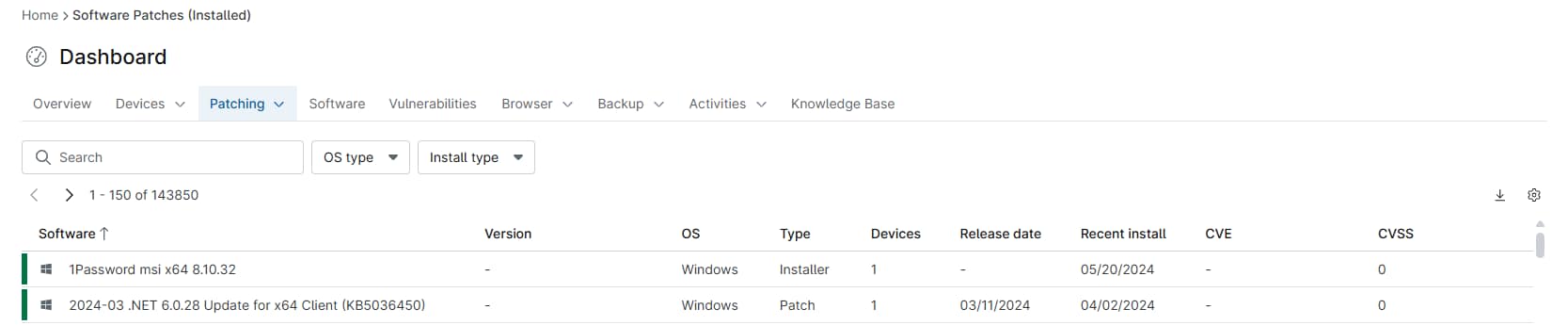
- In the Pending, Approved, Rejected, and Failed views, the Version column displays the most recently detected software version at the time of the last scan. A newer version may be installed based on vendor release timing.
- On the Installed view, the Version column shows the version of the software that NinjaOne installed.
Approving and Rejecting patches
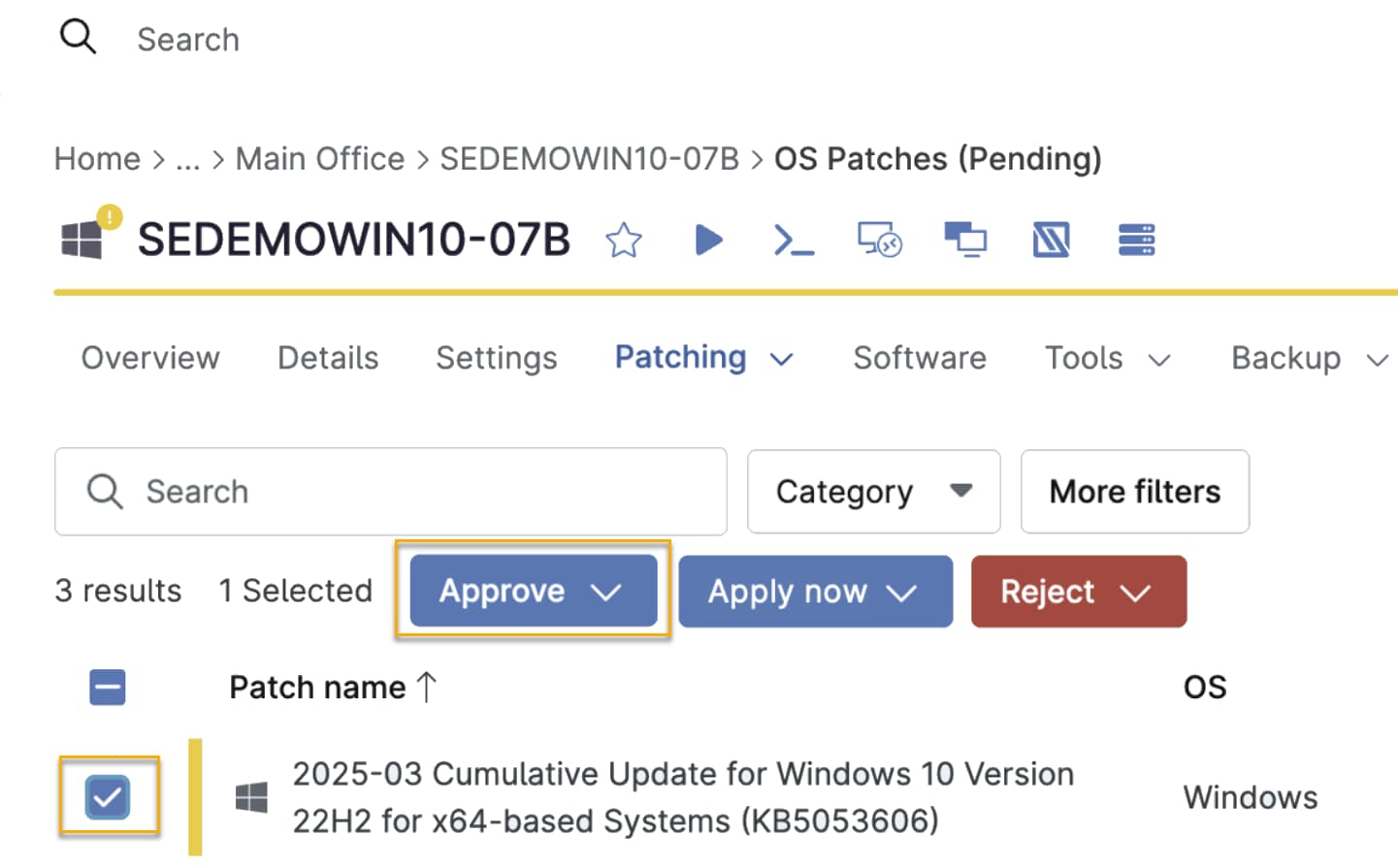
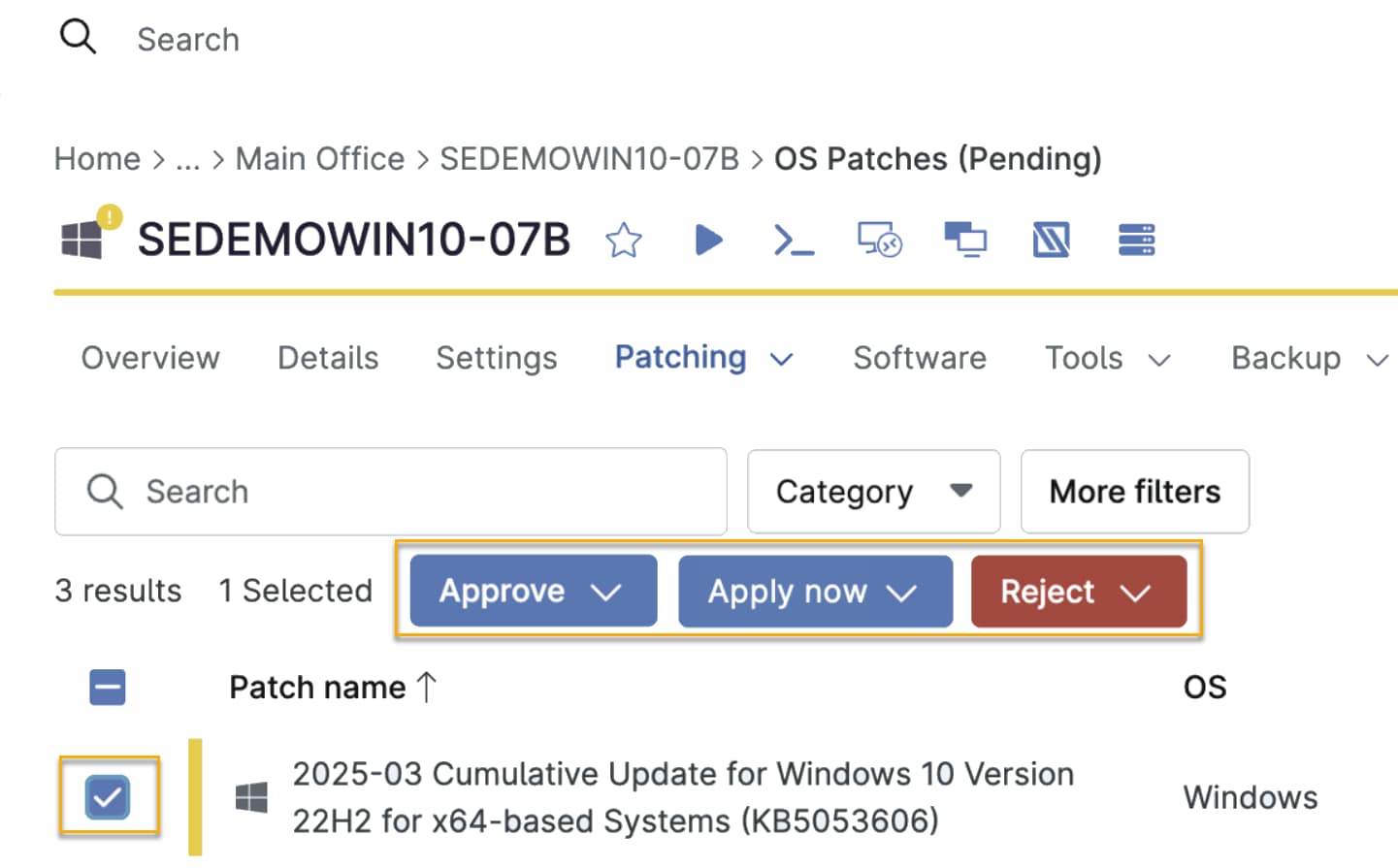
You can affect a patch by checking its checkbox and selecting the desired option. For example, you can opt to approve or reject a pending patch. The options available depend on the patch's current status.
Applying Patches Immediately
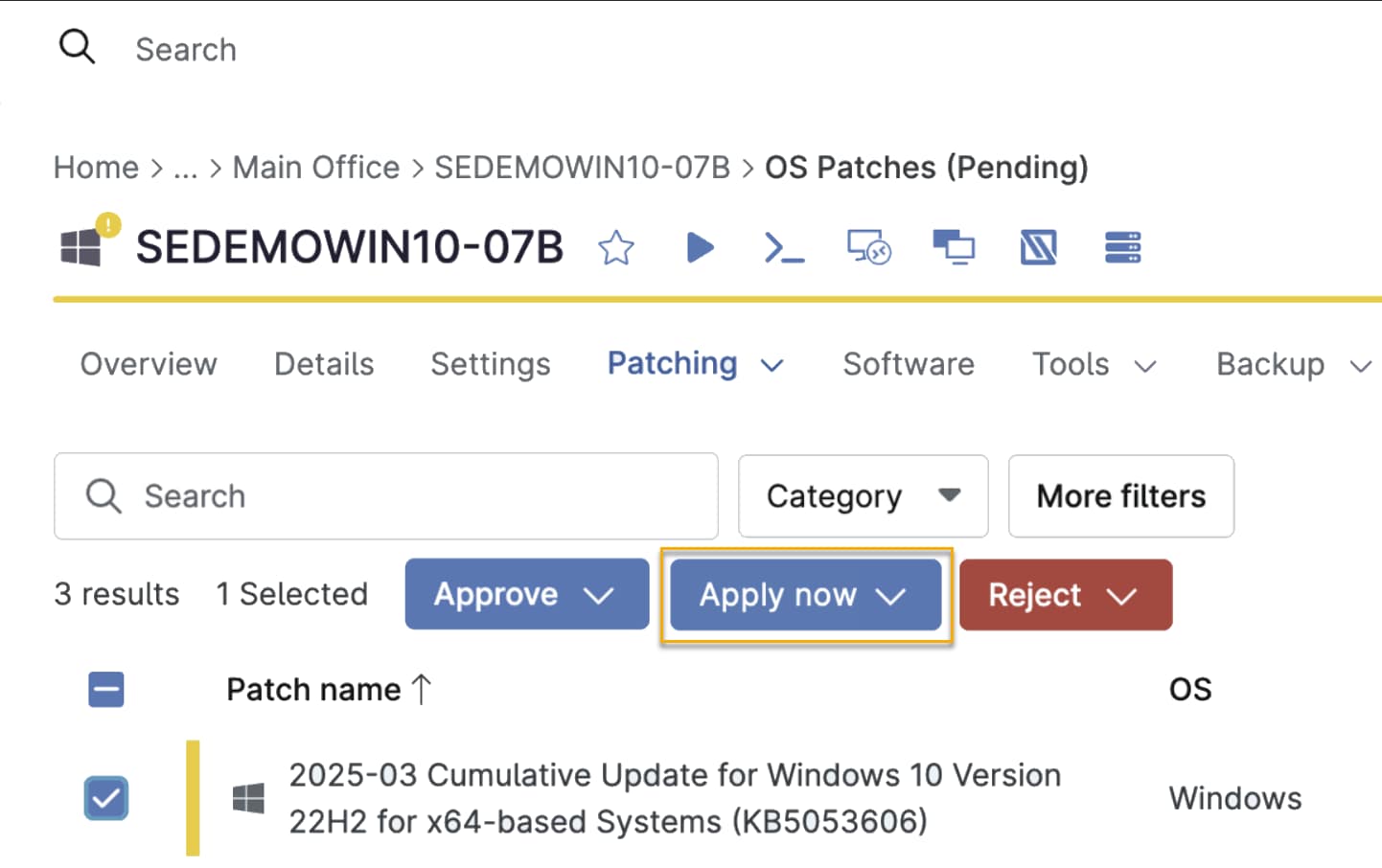
If a situation requiring a rapid response arises (such as a zero-day exploit fix or hotfix), you can click Apply now to apply the patch immediately. This patch application will circumvent your patching policy.
Exporting Patch Data
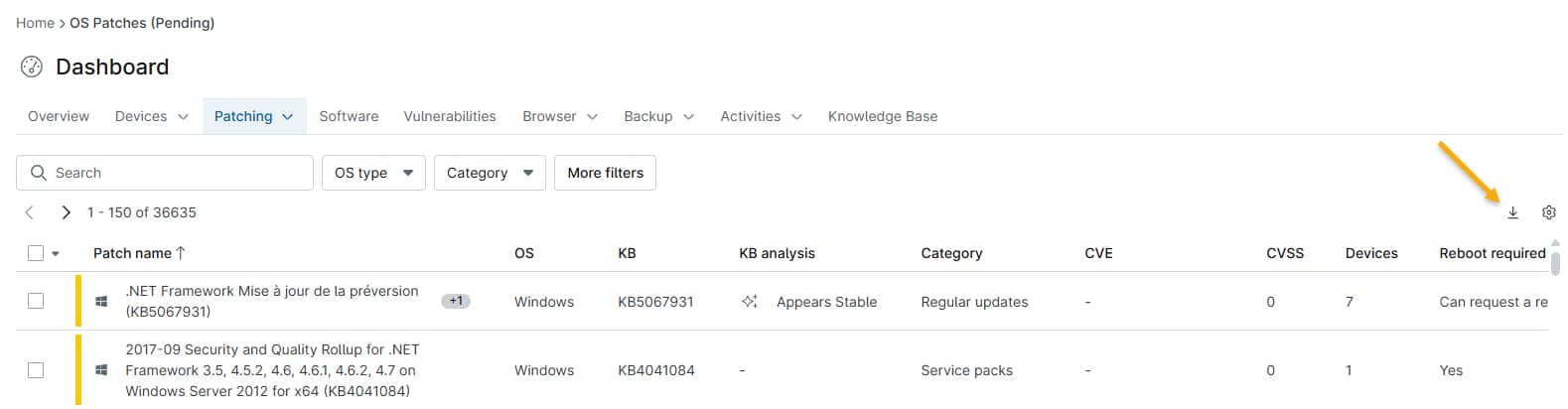
You can export the listed data to a .csv file by clicking the Export icon.
OS Patches
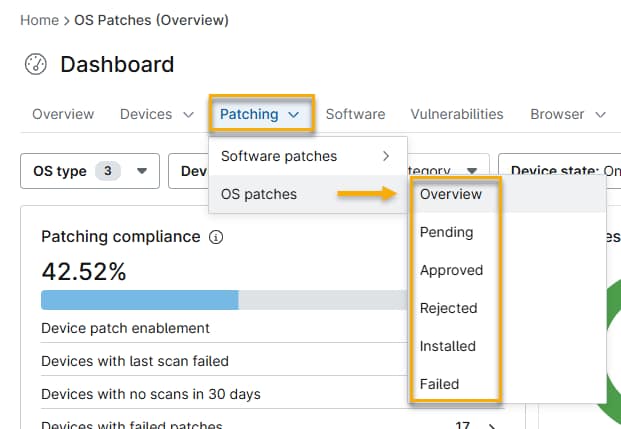
The OS Patches dashboard provides a holistic view of the OS patching data from devices across your entire NinjaOne environment. This dashboard is only visible if Windows Patch Management is activated for at least one of your NinjaOne policies. Use the Pending → Software patches drop-down menu to list all patches by status.
Patching Status Definitions
This table contains columns used in the Pending, Approved, Rejected, Installed, and Failed views.
| Column | Description |
|---|---|
| Patch | List the patch name and the KB number. The KB number in blue is a hyperlink to the Microsoft article outlining information about that KB. |
| Patch ID | List the patch ID value for the device, which is a unique identifier that Microsoft assigns to a patch. There can be multiple patches that have the same KB but different Patch IDs. |
| KB | Show the Microsoft-assigned number that identifies a Windows patch. |
| Category | List a value that is pulled directly from the Microsoft Update Catalog data for each patch. |
| OS | Identify the OS to which the patch is related. |
| Devices | Liink to a list of the devices that currently have that patch in the respective status. |
| Reboot required | List a value that NinjaOne obtains directly from the Microsoft Update Catalog data for each patch, and determine if a reboot will be required once the patch has been installed. |
| Release date | Display the date (MM/DD/YYYY) of the patch. |
This table contains columns used only in the Installed and Failed views.
| Column | Description |
|---|---|
| Status | List a value that will be either "Succeeded" for installed patches or "Failed" for failed patches. |
| Uninstall supported | Identify if there is support for uninstallation. Selecting the checkbox next to a patch that has uninstall support will give you the option to uninstall. |
| Recent | Provide the date of the most recent successful installation or installation attempt. |
| First | Show the date of the first successful installation or installation attempt. |
| Installed/Attempted by | Show what entity installed, or attempted to install, the patch.
|
Patch Management Dashboard Overview
The Patch Management dashboard provides a comprehensive view of all your critical patching data at a glance.
Accessing the Patch Management Dashboard
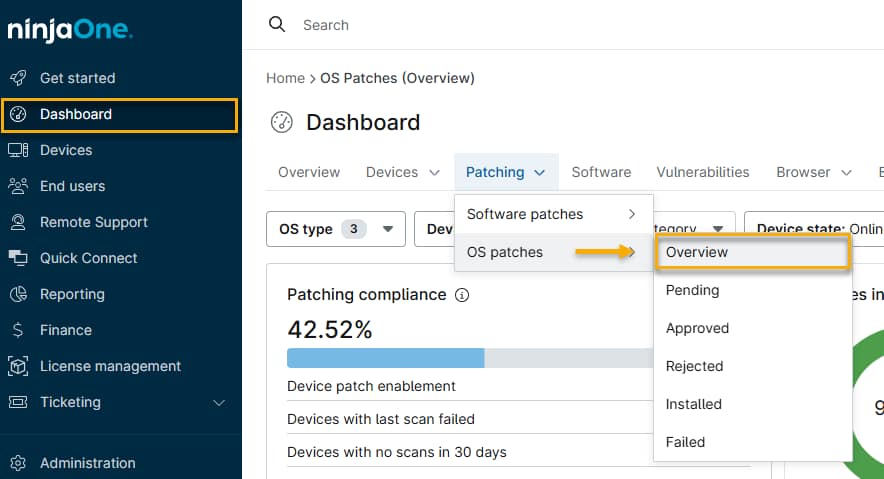
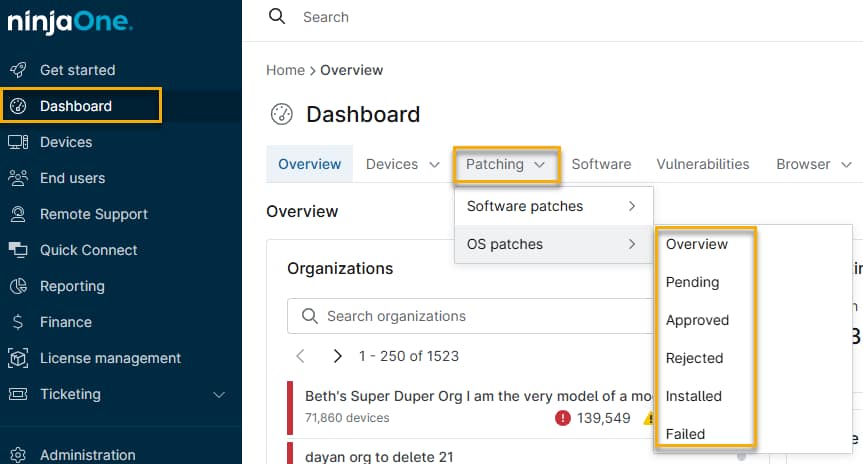
In NinjaOne, navigate to Dashboard → Patching, then select Software patches or OS patches → Overview.
OS Patching Overview Dashboard Widgets
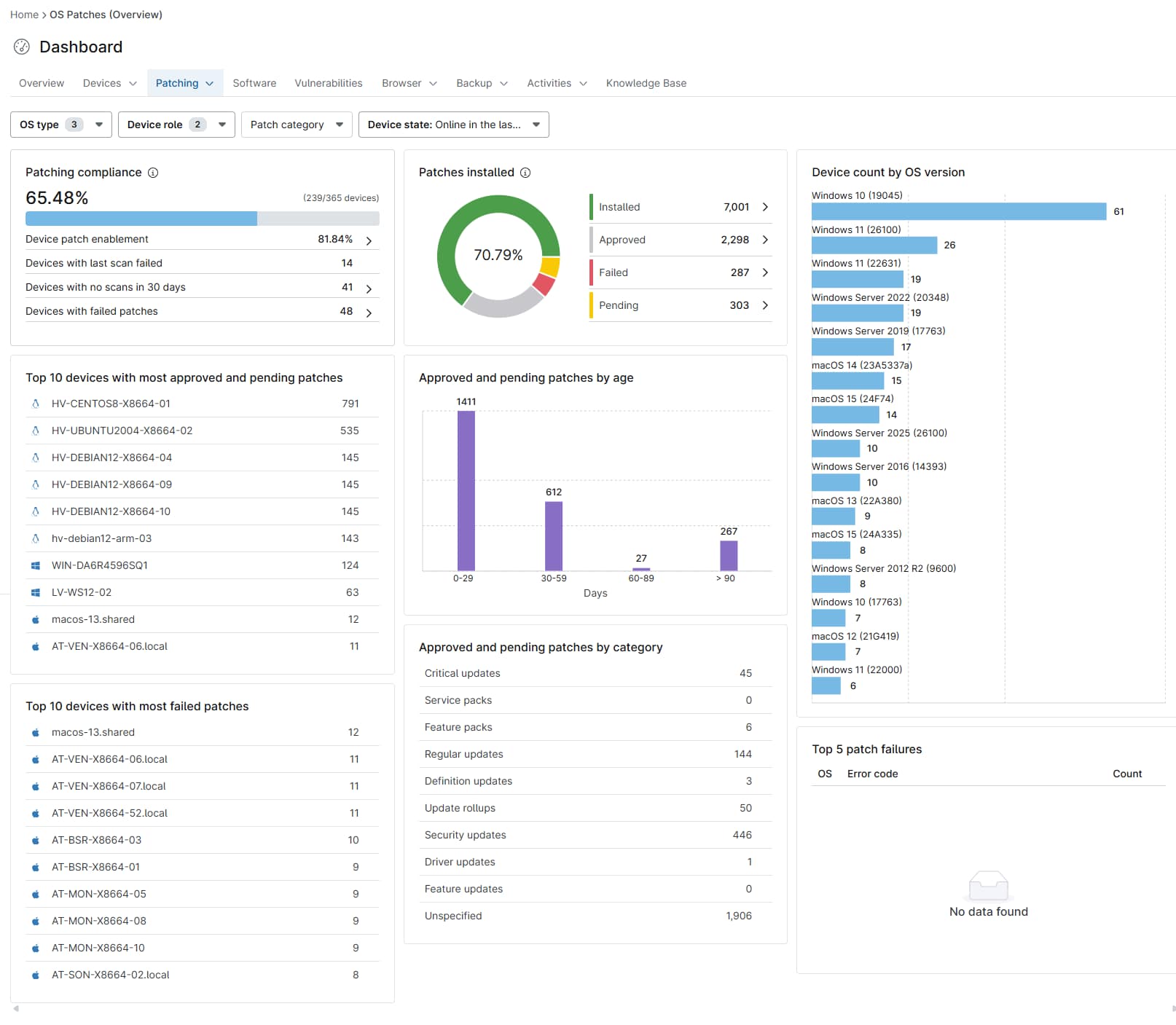
This dashboard displays a series of widgets, which are described in the Patch Management Dashboard Widgets Explained table below.
Patch Management Dashboard Widgets Explained
| Widget Name | Description |
|---|---|
| Patching compliance | Show patch-enabled devices that are fully patched (excluding rejected patches). Click the right arrow (>) on each row to view additional details. |
| Patches installed | Display the percentage of available patches that have been successfully installed (excludes rejected patches). |
| Device count by OS version | Select a display of the following device count types:
|
| Top 10 devices with most approved and pending patches | Display a list of devices with the largest number of approved or pending patches. |
| Approved and pending patches by age | Create a graph showing the number of available patches in the approved or pending state, grouped by patch age (the date the patch was released). |
| Top 10 devices with most failed patches | Show a list of devices with the largest number of failed patch installations. |
| Approved and pending patches by category | Present the number of approved and unapplied patches by the following categories:
|
| Top 5 patch failures | Generate a list of operating systems with the most failed patches; this widget shows specific failure codes. More information on these failures can be found in the dashboard's Patching tab under OS → Failed. |
Filtering Patches
Filters are located in the Patching drop-down menu and above the Patching dashboards widgets, and all options (except for Device state) are selected by default.

You can filter data by:
- OS type
- Windows
- Linux
- Apple macOS
- Device type
- Workstation
- Server
- Patch category: The bar graph only shows devices on which the selected patch has been installed. Any other devices with pending, approved, or failed patches count toward the remaining number of devices.
- Critical updates
- Service packs
- Feature packs
- Regular updates
- Definition packs
- Update rollups
- Security updates
- Driver updates
- Feature updates
- Unspecified
- Device state
- Show all: Data displays for all devices, whether online or offline.
- Currently online: Data displays for all online devices.
- Currently offline: Data displays for all offline devices.
- Online in the last (7, 30, 60, 90 days): Data displays for all devices online for the time selected.
Reading the Patch Lists
For Windows, macOS, and Linux devices, the Software Patches and OS Patches pages display patch information in the following columns:
| Column Name | Description |
|---|---|
| Patch name | Show the listed name of the patch. |
| OS | Display the operating system for which the patch is intended. |
| KB | The unique identification number assigned to the patch. |
| KB analysis | Provide information on the contents, scope, and issues the patch addresses. |
| Category | Identifyhe overall patch type (security update, OS update, etc.). |
| Install status | Describe whether the patch is currently properly installed. |
| CVE | Show the unique identifier of the issue the patch addresses, as listed in the Common Vulnerabilities and Exposures (CVE) Database. |
| CVSS | Present the Common Vulnerability Scoring System (CVSS) score of the issue the patch addresses. This helps prioritize which patches to apply first. |
| Devices | Display the number of managed devices that will receive the patch. |
| Reboot required | This column indicates whether reboots are automatic or whether you can reboot on request. |
| Release date | Show the date the patch was released. If no release date is available, NinjaOne will display the date the patch was first detected. |
Managing Patches by Status
NinjaOne technicians can manage patches from the Dashboard page. Refer to Windows Patch Management: Approving, Rejecting, Uninstalling, and Updating Software for more information.
Options include:
- Approving rejected patches
- Rejecting approved and failed patches
- Uninstalling installed patches
To perform the actions above:
- In NinjaOne, click Dashboard, then select the patch type from the Patching tab on the System dashboard (either from the Software or OS drop-down menu).
- Check the checkbox next to the patch name, then click Approve or Reject.
Uninstalling/Rejecting Installed Patches
You can uninstall Windows patches that support rollback via the Installed patch list in the system, organization, or device-level dashboards. The list includes a column indicating if the patch supports uninstalls. This Microsoft documentation (external link) describes the method NinjaOne uses to determine if a patch supports uninstalls.
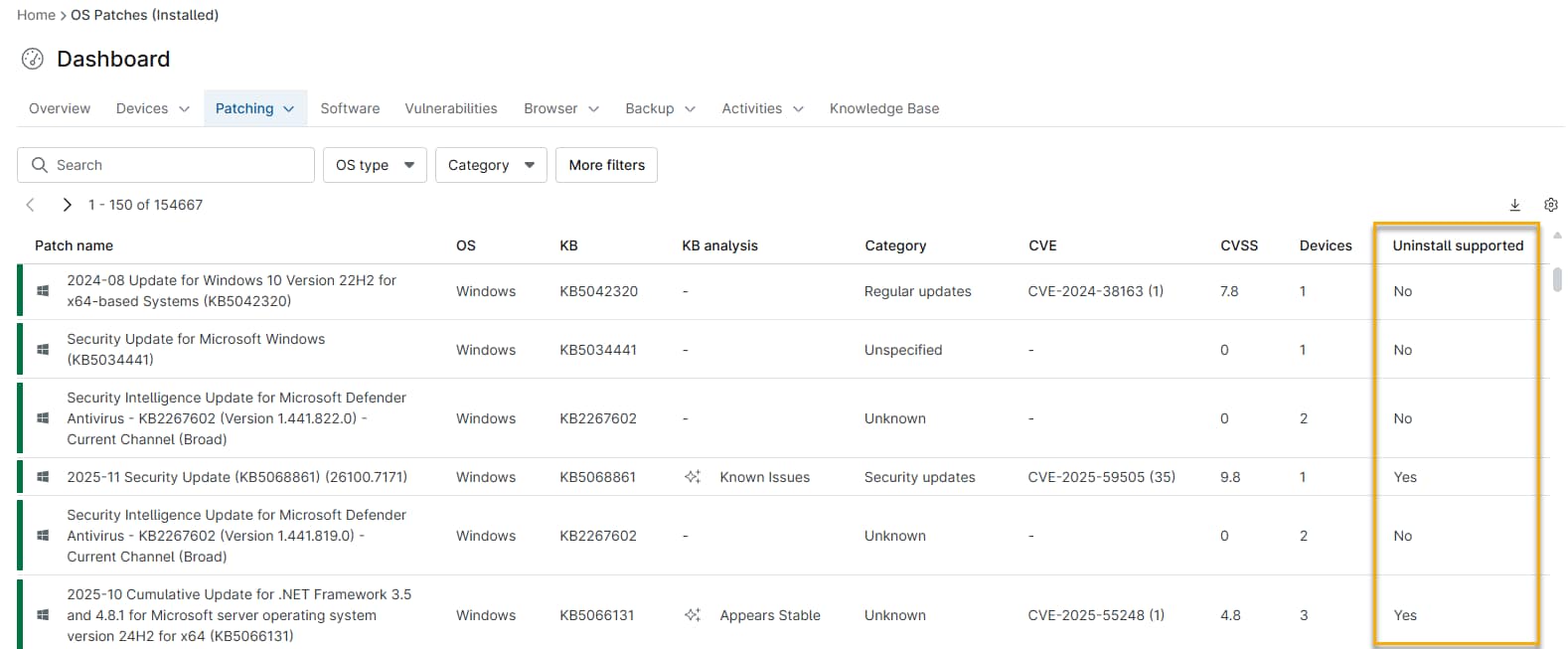
Click the ellipsis (three dots) next to a patch that supports uninstalls for the option to uninstall that patch.

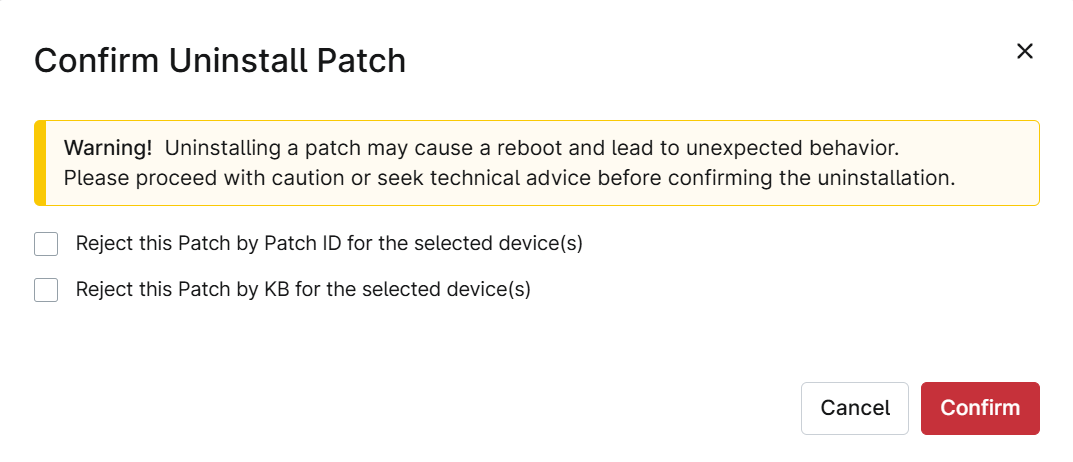
Clicking Uninstall will prompt you to confirm uninstallation. The prompt also lets you reject the patch from installing in the future by KB or Patch ID. To avoid any unintended disruptions, the system will double-prompt users to confirm the patch uninstall.
Reinstalling Rejected Patches
If a patch was rejected by Patch ID, another patch with the same KB may attempt to install. This attempt may occur because Microsoft released the same KB, but with a different Patch ID than the patch that the system initially rejected.
Filtering Patches by Status
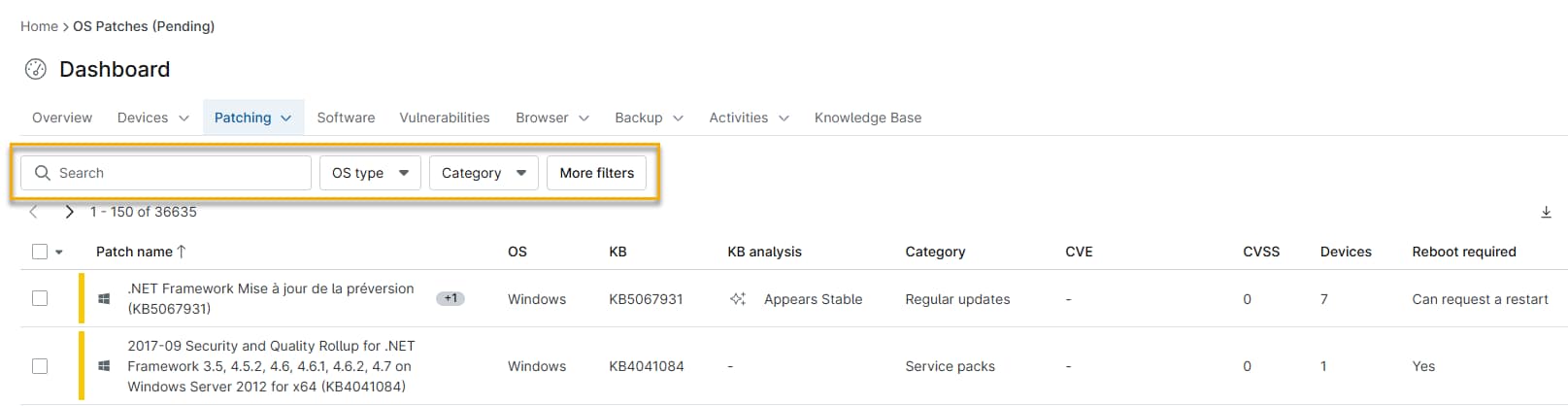
Use the search bar above each patch list to find a patch by its name, Common Vulnerability and Exposure (CVE) number, Microsoft knowledge base documentation number (KB), patch identification number, or category.
Patch CVE Data
The Common Vulnerabilities and Exposures (CVE) List is a publicly maintained list of vulnerabilities and exposures compiled by The MITRE Corporation. The Common Vulnerability Scoring System (CVSS) indicates the severity of an information security vulnerability.
- Patches with multiple associated CVEs will be listed in parentheses, displaying the full list when clicked.
- The CVE and CVSS data are gathered directly from the NIST database.
NinjaOne extracts CVEs from each patch's changelogs. Unique CVEs in upgrades for each patch are listed in the CVE field and sent to the server.
- Enter a CVE number into the search field to find the patch.
- Click the CVE hyperlink to view a list of all CVEs and their severity by Common Vulnerability Scoring System (CVSS).
The CVSS number is displayed in black text next to the CVE—the higher the number, the more severe the vulnerability is. The impact is decided based on the following score criteria:
- Critical: greater than or equal to 9.
- High: greater than or equal to 7 and less than 9.
- Medium: greater than or equal to 4 and less than 7.
- Low: greater than 0 and less than 4.
- None: equal to 0.
The National Vulnerability Database
Click the CVE number to navigate outside of NinjaOne to the National Vulnerability Database, which has more information, such as references to advisories, solutions, and tools, weakness enumeration, and known affected software configurations.
The Copy to Clipboard option allows you to paste the data into an Excel spreadsheet with proper formatting.
Additional Resources
Refer to the articles below to learn more about working with patch management.