
Issue
This article discusses an issue where Microsoft Windows OS patches installed by NinjaOne do not display in the Windows Update history.
Environment
NinjaOne Patching
Cause
Starting with Windows 10, Microsoft changed the Settings → Windows Update → Update history screen to only show updates installed directly by Windows. As a result, updates installed by NinjaOne do not appear in the update list, even though they are installed successfully.
This missing information does not mean updates are skipped or missing. Windows still records them in its servicing database, and they remain fully queryable, verifiable, and uninstallable.
Resolution
All Windows OS patches installed through NinjaOne use Microsoft’s official Windows Update API to install the patches. The only limitation is that they do not appear in the Windows Update history list on the Settings page. This behavior is expected on Windows 10 and later, and is a limitation inherent to Windows itself.
Although the Windows Update history UI may not display them, you can still confirm update installation in multiple reliable locations, both within NinjaOne and on the Windows machine.
Method 1: Confirm through the NinjaOne OS Patches Installed View (Recommended)
This view shows all updates recorded by Windows, regardless of whether NinjaOne, Windows Update, or another tool installed them. NinjaOne queries the full Windows Update Agent history stored on the device, showing every installation record. If a Windows update is listed in Ninja’s installed view, then Windows has recorded it as installed on that machine.
To view installed OS patches, navigate to Dashboard → Patching → OS patches → Installed.

Method 2: Confirm in the Windows Uninstall Updates List
Even if the update history in Windows doesn’t show installed OS patches, the Uninstall Updates list usually does. Windows populates this page from the servicing database, not the Windows Update history list, so that it shows all uninstallable updates. This method does not require you to uninstall software; you will only check for its presence in the list.
- In Windows, navigate to Settings → Windows Update, then select Update history.

- Scroll to Uninstall updates.
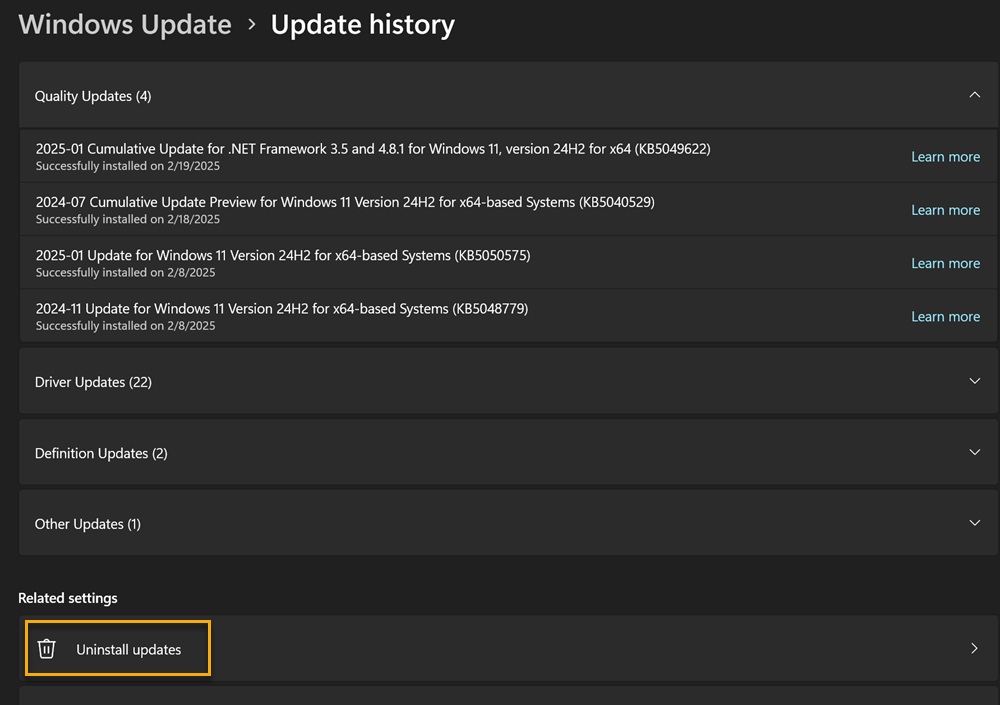
Method 3: Confirm by Querying Installed Updates via PowerShell
You can query installed updates directly by using PowerShell. This script will list results from the Windows Update Agent (WUA) history on the device:
# Truncate helper
function Trunc($text, $max = 50) {
   if ($null -eq $text) { return "" }
   if ($text.Length -le $max) { return $text }
   return $text.Substring(0, $max) + "..."
}

$Session = New-Object -ComObject Microsoft.Update.Session
$Searcher = $Session.CreateUpdateSearcher()
$HistoryCount = $Searcher.GetTotalHistoryCount()
$HistoryPatch = $Searcher.QueryHistory(0, $HistoryCount) | Select-Object `
   Date,
   @{ Name = "Title"; Expression = { Trunc $_.Title 60 } },
   @{ Name = "Operation"; Expression = {
       switch ($_.operation) {
           1 { "Installation" }
           2 { "Uninstallation" }
           3 { "Other" }
       }
   }},
   @{ Name = "Status"; Expression = {
       switch ($_.resultcode) {
           1 { "In Progress" }
           2 { "Succeeded" }
           3 { "Succeeded With Errors" }
           4 { "Failed" }
           5 { "Aborted" }
       }
   }},
   @{ Name = "ClientApplicationID"; Expression = { Trunc $_.ClientApplicationID 40 } }

$HistoryPatch | Format-Table -AutoSize
This script queries the Windows Update Extensible Storage Engine (ESE) database, located on the machine at C:WindowsSoftwareDistributionDataStoreDataStore.edb, and retrieves all installed updates from the local device history, including:
- Installation date
- Patch Title
- Operation
- Status
- Who installed the update