
Topic
This article explains how to get started with the NinjaOne SaaS Backup Integration in NinjaOne.
Environment
- NinjaOne
- NinjaOne SaaS Backup Partner Portal
- NinjaOne SaaS Backup End-user Portal
Description
NinjaOne SaaS Backup is a cloud backup platform that helps businesses securely back up, manage, recover, and protect their business information. Automated backups simplify the backup, recovery, and compliance experience. NinjaOne SaaS Backup works with Microsoft 365 (Email, OneDrive, SharePoint, Contacts, Calendars, Tasks, and Teams), Google Workspace (GWS) (including Calendars, Contacts, and Tasks), and other IMAP email servers. NinjaOne uses 256-bit (AES) encryption at rest and in transit, supporting multi-factor authentication (MFA).
After you have activated the NinjaOne SaaS Backup integration on the Administration → Apps page, you're ready to set up a new organization to back up.
Enable SaaS Backup for your Organization
To enable SaaS Backup for an organization in NinjaOne, follow these steps:
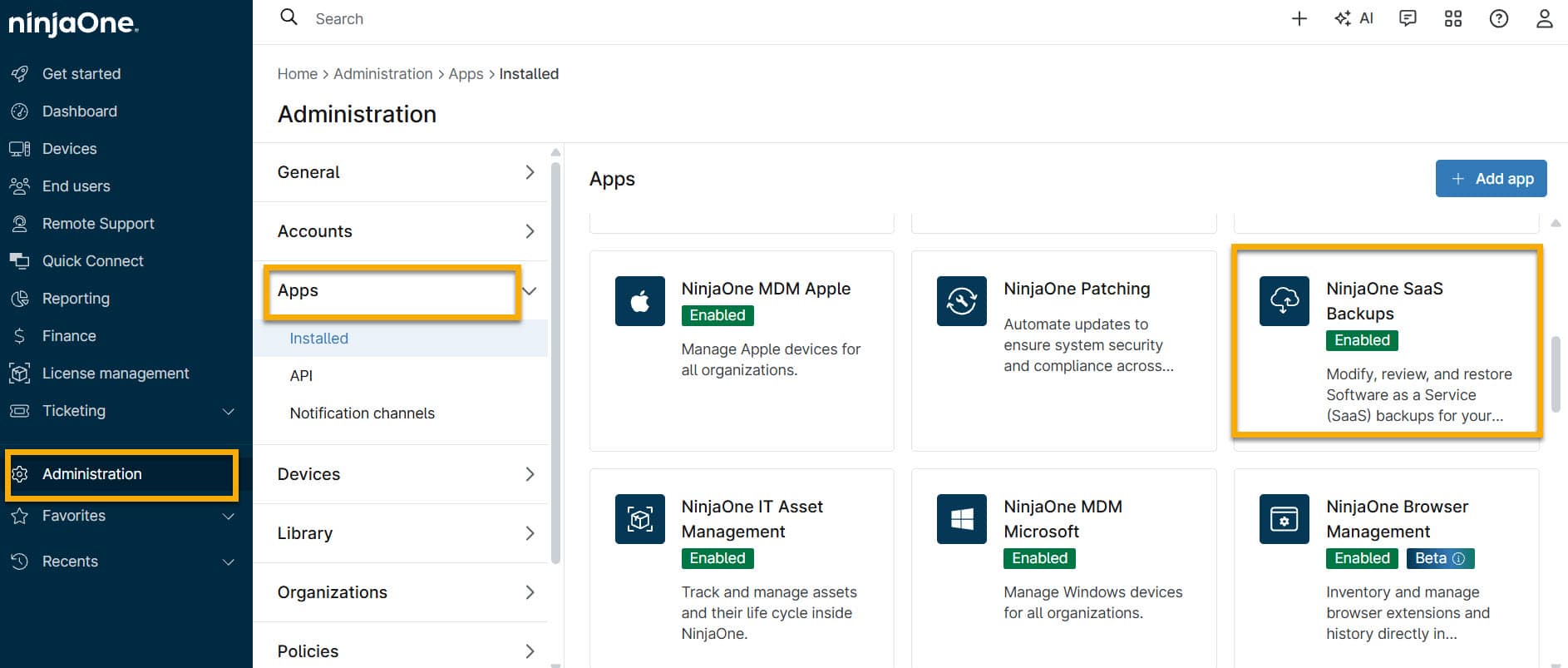
- Log in to NinjaOne and navigate to Administration → Apps→ NinjaOne SaaS Backup.
- Click the NinjaOne SaaS Backup tile to launch the application.
- Click the Organizations tab.
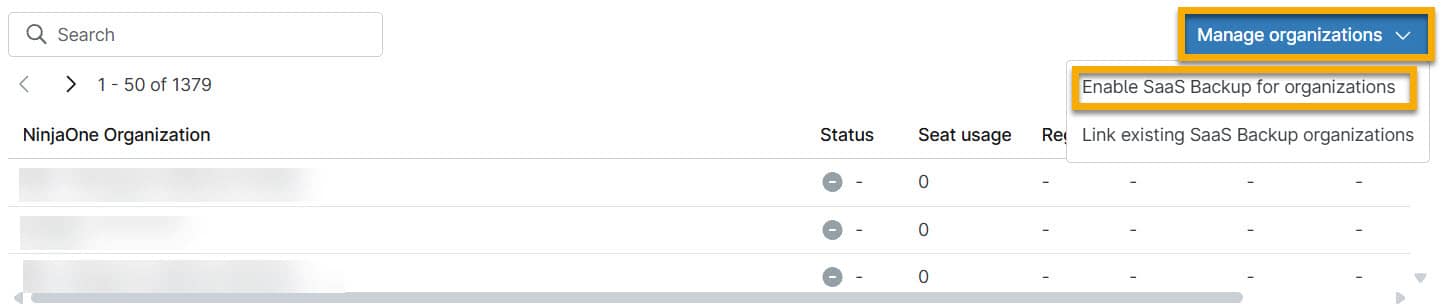
- Click the Manage Organizations drop-down menu and select Enable SaaS Backup for Organizations.
NinjaOne SaaS Backup will display a list of all the organizations you manage. - Click the Manage Organizations drop-down menu, and select Enable SaaS Backup for Organizations.
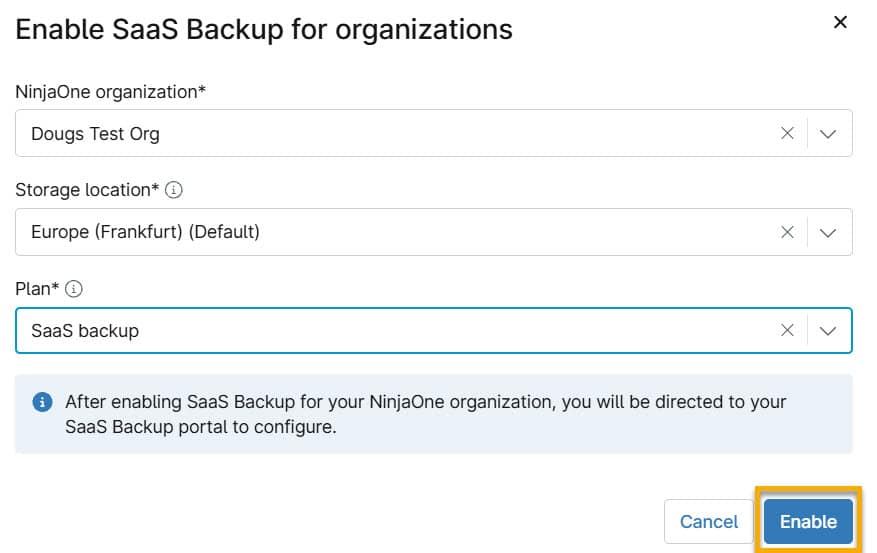
- NinjaOne will display the Enable SaaS Backup for Organizations dialog. Use the drop-down menus to specify your choices for the following options:
- NinjaOne organization: Select the NinjaOne organization that you want to add to SaaS Backup.
- Storage Location: Specify the location to be used for storage of your SaaS Backup data.
- Plan: Choose the Backup plan you wish to use.
The Backup plan options vary by region. You may have some or all of these plan options:
| Plan | Description |
|---|---|
| SaaS Backup | Backups run up to 12 times daily based on a predetermined schedule and whether a data change is detected. Includes emails and additional data depending on your tenant (Microsoft 365 or Google Workspace). |
| SaaS Archiver | Stores copies of all incoming and outgoing emails for continuous real-time email backup. |
| Entra Backup | Same as SaaS Backup, but also includes Microsoft Entra ID backup capabilities |
| Entra Archiver | Same as the Archiver plan, but also includes Microsoft Entra ID backup capabilities |
- After you've made your selections, click Enable.
NinjaOne will launch the Add Backup page in your new SaaS Backup Partner Portal so that you can configure your new plan.
- On the Add Backup page, click the sign-in link for the application you want to add backups for.

NinjaOne SaaS Backup will redirect you to the sign-in page for the application you selected. You'll need to log in to your tenant with administrative privileges to configure the required access permissions. The configuration instructions will differ depending on the specific application.
- Follow the configuration instructions provided in the specific application. For detailed information about configuring your tenant, review these documents:
- NinjaOne SaaS Backup: Adding an M365 Tenant to Backups (start at step 4).
- NinjaOne SaaS Backup: Backing up Google Workspace (start at step 2).
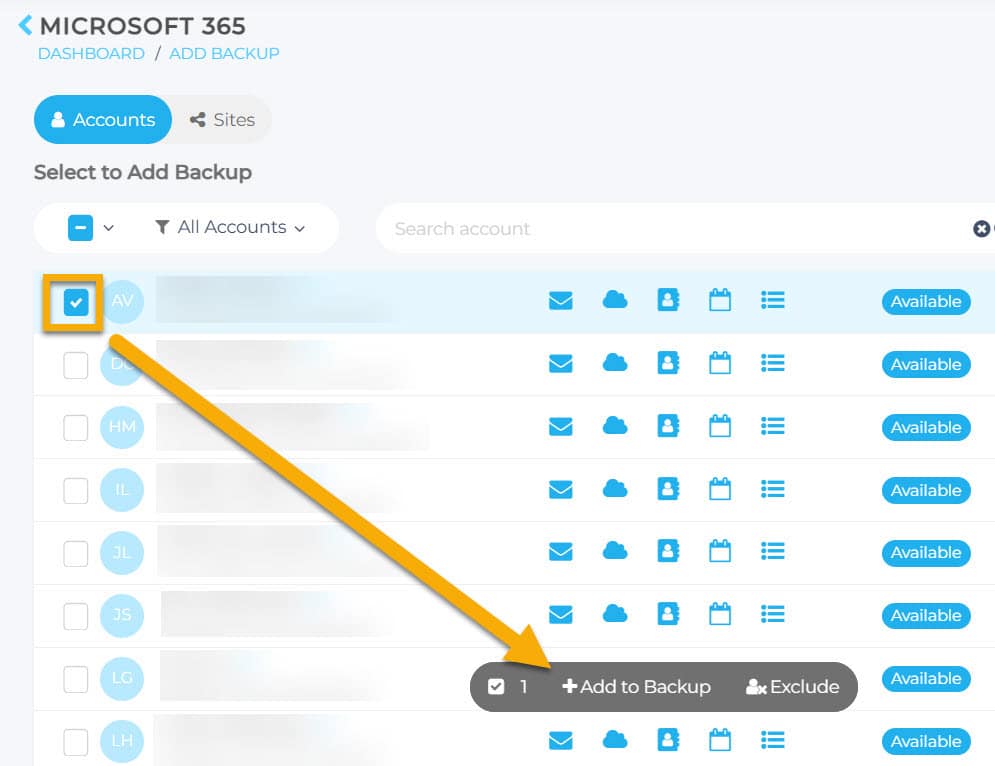
- After setting up the tenant using the above steps, the Add Backup page on your NinjaOne SaaS Backup End-User Portal will open. The End-User Portal lists all user accounts in your tenant. You can choose which users you want backed up by selecting the box next to their name, then selecting + Add to Backup.
SaaS Backup Partner Portal in NinjaOne
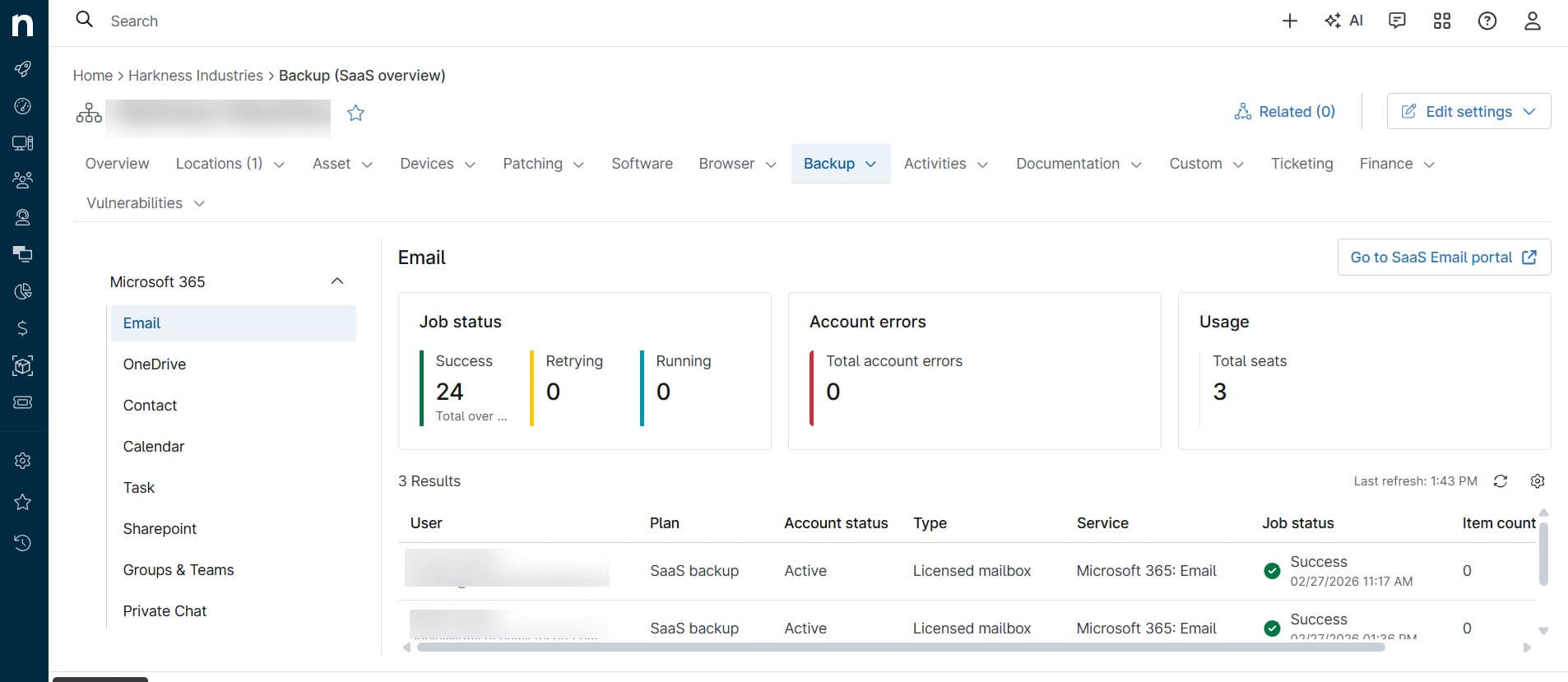
With setup complete, you can now access both the SaaS Backup Partner Portal and the End-User Portal, and monitor and manage your SaaS Backups directly from the SaaS Back dashboard in NinjaOne. For instructions about using this dashboard, refer to NinjaOne SaaS Backup: The SaaS Backup Dashboard.
Additional Resources
You can access these resources for more information about NinjaOne SaaS Backup:
- NinjaOne SaaS Backup: Glossary of Terms
- NinjaOne SaaS Backup: Linking to a NinjaOne Organization
- NinjaOne SaaS Backup: Integrating Dropsuite accounts into NinjaOne.
- NinjaOne SaaS Backup: Getting Started With Archiver
The NinjaOne Dojo provides documentation for the NinjaOne SaaS Backup integration. For resources specific to the full NinjaOne SaaS Backup platform, including release notes and troubleshooting guides, visit the NinjaOne SaaS Backup Help Center.