
Topic
This article explains how to use Microsoft Windows system environment variables when specifying the folder path for file and folder backups.
Environment
NinjaOne Backup
Description
When specifying the folder path for file and folder backups on Windows systems, you can enter an exact folder path, or simplify the process by using Windows system environment variables to add or exclude folders and files in your backups.
Windows has pre-existing variables, or you can create your own. You can enter these variables in the Included folder path of your backup. Refer to the Creating or Modifying Windows System Variables section below for more information on creating system environment variables.
To create a new backup plan with variable inclusions, follow these steps:
Navigate to the policy you'd like to edit.
Select Backup → File/Folder plan.
Select Folders.
Select Included folder path.
Type a variable path.
Click Update.
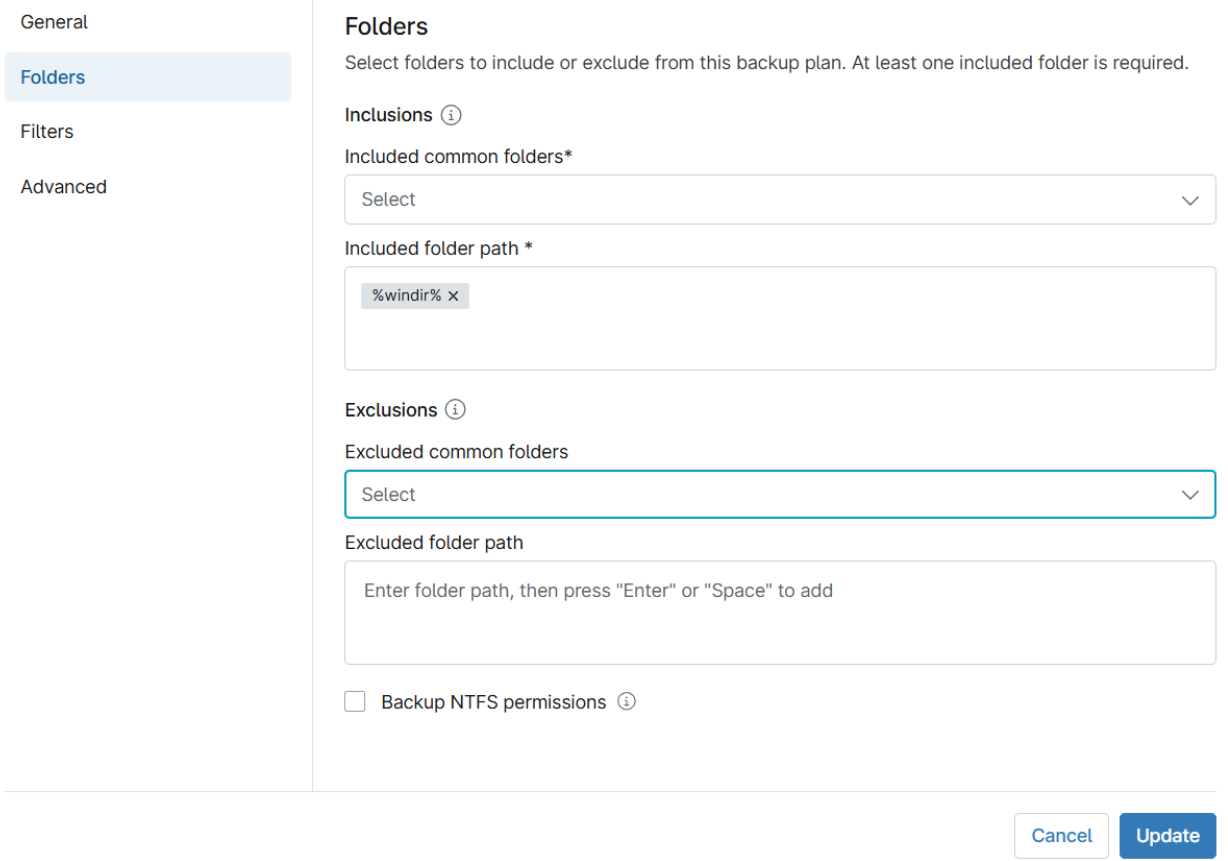
Figure 1: Folders (click to enlarge)

To exclude folders from your backup plan, repeat the above process, but select the Exclude folder path box to enter the folder path you want to exclude.
Creating or Modifying Windows System Variables
To create or modify environment variables in Microsoft Windows, follow these steps:
- On your Windows machine, navigate to Properties, or Windows Control Panel → System.
- Choose Advanced system settings.
- On the Advanced tab, click Environment Variables.
- Click New to create a new variable. Click Edit to modify an existing variable.

Additional Resources
You can access these resources for more information on file and folder backups.