
Topic
This article explains how to delete tickets and restore deleted tickets in NinjaOne.
Environment
NinjaOne Ticketing
Description
When deleting tickets manually, technicians will be prompted with a warning. NinjaOne stores deleted tickets in the Deleted Tickets board for the next 30 days, after which they are permanently deleted. You can permanently delete a ticket before the 30-day retention period ends.
Parent tickets with children cannot be deleted.
Select a topic to learn more:
Delete a Ticket from a Ticketing Board
To permanently delete a ticket from the board:
- Select the ticket to permanently delete.
- Select one or more tickets to delete by activating the applicable checkbox to the left of the ticket name.
- Click the Delete button at the top of the table.
- Click Delete again to confirm.
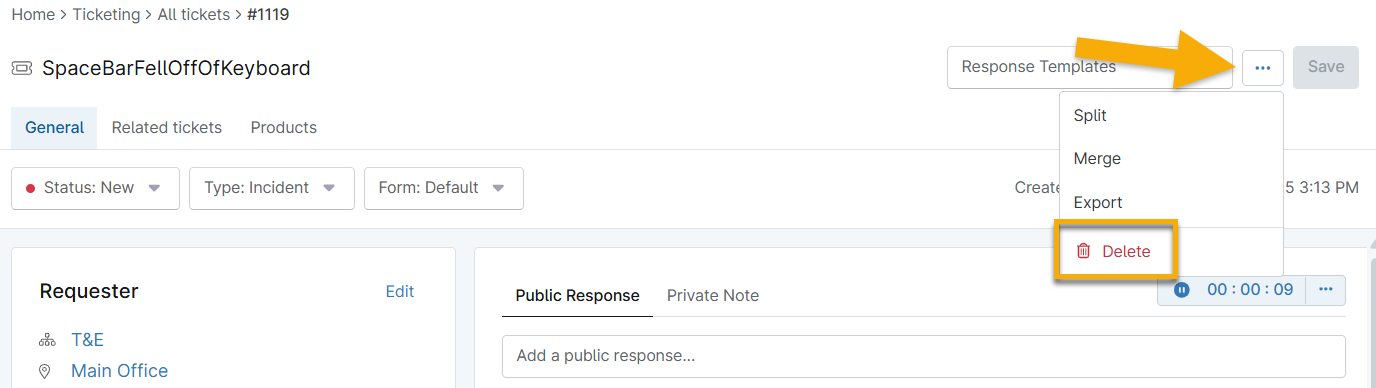
Delete a Ticket from within the Ticket
To permanently delete a ticket from within the ticket:
- Open the action menu in the top right corner and then select Delete.
- Click Delete again in the pop-up to confirm.
Delete a Ticket Permanently
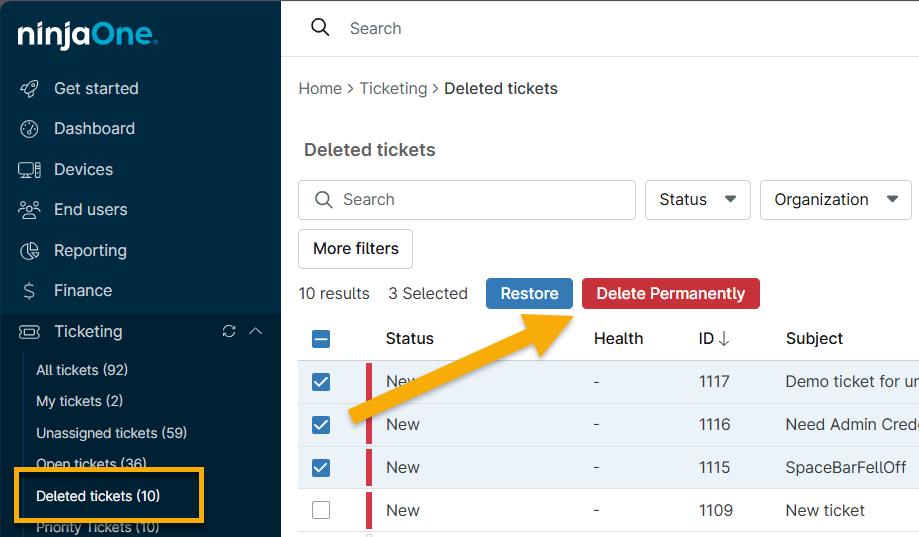
To permanently delete a ticket, perform the following steps.
- Open the Deleted ticket board from the navigation sidebar. You may need to select the Show All option to view this board.
- Select one or more tickets by clicking the applicable checkbox to the left of the ticket name.
- Click Delete Permanently.
Restore a Ticket
You cannot restore condition tickets if the same device already has open condition tickets.
- Open the Deleted ticket board from the navigation sidebar. You may need to select the Show All option to view this board.
- Select one or more tickets by clicking the applicable checkbox to the left of the ticket name.
- Click Restore.
The ticket is restored.
Additional Resources
Refer to NinjaOne Ticketing: Resource Catalog to learn more about this feature.