
Topic
This article explains how to monitor VMware ESXi virtual machines (VMs) in NinjaOne.
Environment
NinjaOne Endpoint Management
Description
NinjaOne can monitor VMware ESXi virtual machines (VMs) without requiring an agent installed on the hypervisor. NinjaOne uses a monitor delegate, a device in your organization with the NinjaOne agent installed, to connect to the ESXi host using stored credentials and gather VM data through the host's application programming interface (API). Before adding an ESXi VM, you must have a NinjaOne account with the correct permissions, a configured monitor delegate, and a set of VMware credentials stored in NinjaOne's credential exchange.
Select a topic to learn more:
- About the Monitor Delegate
- Prerequisites
- Set Up an ESXi Virtual Machine
- Designate a Monitor Delegate
- Additional Resources
About the Monitor Delegate
The monitor delegate is a device that NinjaOne uses as a proxy to authenticate with the ESXi host and collect VM data in your organization. Your NinjaOne organization must have a dedicated monitor delegate to communicate with the ESXi virtual machines within it.
- If no monitor delegate exists, you must add it before you can add virtual machine hosts.
- You can only add one host per monitor delegate.
To be available for selection as a monitor delegate, a device must:
- Have the NinjaOne agent installed.
- Be online and connected to NinjaOne.
- Belong to the organization to which you are adding a host.
Prerequisites
You need the following to add an ESXi VM to NinjaOne:
- A NinjaOne account with the correct permissions.
- A configured monitor delegate. Refer to About the Monitor Delegate for requirements.
- VMware credentials stored in NinjaOne's credential exchange.
Setting Up an ESXi Virtual Machine
To set up a new ESXi VM host in NinjaOne, perform the following steps:
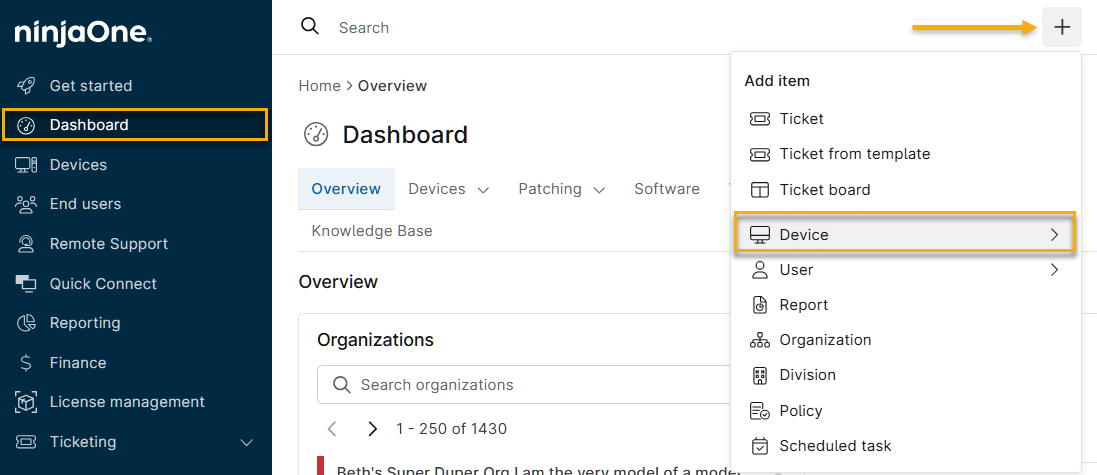
- In NinjaOne, click Dashboard, then click the Add icon and select Device.
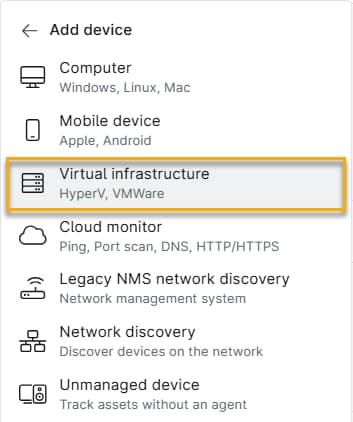
- In the Add Device menu, select Virtual Infrastructure.
- The Add a virtual machine host window opens. Select VMware ESXi, then enter the following ESXi configuration information.
| Option | Description |
|---|---|
| Organization | Select the NinjaOne organization to which the host belongs. |
| Monitor delegate | Select the device that NinjaOne uses to authenticate with the ESXi host and collect VM data. |
| DNS/IP | Enter the hostname or IP address of the ESXi host. |
| API port | Enter the port number you are using to communicate with the VMware ESXi API. The default port number is 443. |
| Credential | Select the stored credential set that NinjaOne uses to authenticate against the ESXi host's API. Refer to NinjaOne Endpoint Management: Credential Exchange for more information about storing credentials. |
- Click Test host. NinjaOne tests your connection and credential validity. If the test does not succeed, NinjaOne displays the reason for the failure. After the test succeeds, click Add host. NinjaOne displays the added host as a device in the dashboard.
Designate a Monitor Delegate
You can designate any device in your organization that meets the monitor delegate requirements as a monitor delegate.
- In the NinjaOne organization's dashboard, navigate to Edit settings → Edit organization.
- The organization's configuration settings open. Select Virtualization.
- In the Virtualization list, move your cursor over the device, then click Edit when the option appears.
- The Edit ESXi Host window opens. Click Test. Confirm window name and button label.]
- After the test succeeds, click Update.
Additional Resources
To learn about monitoring VMs in NinjaOne, refer to NinjaOne Endpoint Management: Monitoring Virtual Machines.