
Topic
This guide provides the NinjaOne Mobile Device Management (MDM) enrollment process for Apple mobile devices, including iPads. If you want to use Apple Business Manager to manage devices, continue setup using this article and then refer to MDM: Apple Enrollment Sync with ADE / ABM (Optional).
Environment
- NinjaOne MDM
- Apple iOS
- Apple iPadOS
Description
For an overview of all MDM features, refer to What is Mobile Device Management (MDM).
The NinjaOne Apple MDM allows for multi-tenancy management, which means more control over mobile devices with different connections from within NinjaOne.
- Multiple Automated Device Enrollment (ADE) programs connect to support different ABMs for device enrollment using a single APNs push certificate.
- NinjaOne synchronizes current ADE device records to reflect default organization, location, and device role updates.
- You can view device data, such as the number of devices related to each connection, license availability and expiration, user ID, and more.
- Policy management deployment is not limited to how APNs are associated with the device, meaning there are fewer policies to manage in NinjaOne.
Index
Select a topic to learn more.
- Enable Device Enrollment with APNs
- Renew the APNs Certificate
- Delete the APNs Certificate
- Additional Resources
Enable Device Enrollment with APNs
Before adding the devices to NinjaOne and registering them with the MDM, you must activate NinjaOne Apple MDM and enroll in APNs, which requires a signed certificate from Apple (instructions included below). APNs is a cloud service that allows approved third-party apps installed on Apple devices to send push notifications from a remote server to users over a secure connection.
Important Notes:
- System administrators must set up a technician's permissions so they can create new APNs certificates.
- If enrolling in the optional ADE, you need to generate a token for use with Apple Business Manager. Refer to NinjaOne Apple MDM: Integrate with ABM for Automated Device Enrollment (Supervised Devices) for instructions.
- If you do not renew the APNs certificate before it expires within Apple's 30-day grace period, NinjaOne MDM cannot manage the devices; you must re-enroll them into the NinjaOne software. It is critical not to let the APN certificate expire.
- Each new certificate requires a different private key; this allows for the migration of devices to a new NinjaOne division if necessary.
To enable NinjaOne MDM, perform the following steps.
- Navigate to Administration → Applications → Installed. Select NinjaOne MDM Apple and click Enable.
- Stay in the Apple Push Notification service tab and click Add APNs certificate.

The Add Apple Push Notification service certificate dialog displays.
- Click Download file to obtain the certificate signing request (CSR). This action will download the CSR to your computer.
- Click Apple certificate portal and then click Continue to open the Apple Certificate Portal in a new tab.
In the Apple Certificate Portal, enter the Apple ID assigned to the device or create a new one.
We recommend using an account controlled by an organization rather than an individual user account. The account should be one that the organization can access. Locking access to the account will cause issues when renewing the certificate and require the organization to re-enroll all Apple devices. Though you are required to use an Apple ID and renew the certificate annually, NinjaOne MDM will not require the Apple ID for the individual devices.- Enter the authenticator code to proceed.
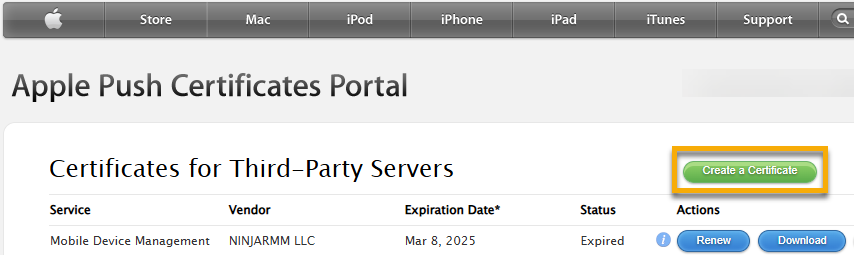
- In the Apple Push Certificates Portal, click Create a Certificate.
- Read the Terms of Use and click Accept.
- Click Choose File to upload the CSR file you downloaded in Step 3 of this guide, then click Upload.

- Click Download to obtain the Privacy-Enhanced Mail (PEM) file.

- Return to NinjaOne. In the Add Apple Push Notification service certificate dialog, click Upload File to upload the PEM file you downloaded in the previous step.
- Enter the same email you used to create the Apple ID in the Enter Apple ID* field, and then give the APNs certificate a name to distinguish it from other certificates added to the MDM. Click Save.

Confirmation of enrollment status will appear on the Apple Push Notification service page in NinjaOne with the associated Apple ID. From here, you can edit, renew, or delete the APNs certificate. To see these options, move your mouse cursor over the certificate name and then click the actions menu.

Renew the APNs Certificate
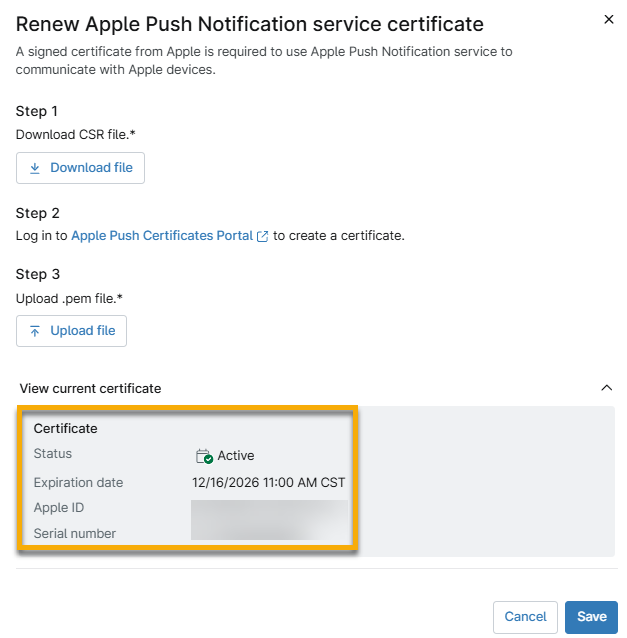
You can renew an APNs certificate regardless of expiration date. NinjaOne will show you the current certificate status and expiration date when you begin the renewal process.
You must follow the same process as described in the previous section. Once complete, the Expires in column will update to reflect the new expiration date, which should be one year from the renewal date.
Delete the APNs Certificate
System administrators and technicians with the appropriate permissions can reset the MDM configuration. Once removed, you can enroll the MDM again using the same account or a different one.
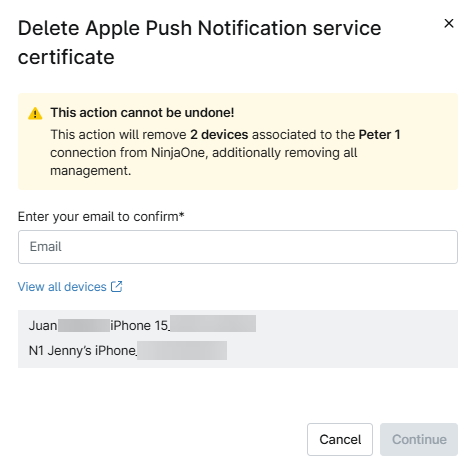
When you attempt to delete an APNs certificate, NinjaOne will prompt you to confirm and show you the devices that will be affected by the action.
Additional Resources
Refer to NinjaOne MDM: Resource Catalog to learn more about NinjaOne MDM.