
Environment
NinjaOne platform
Topic
Time Zone Settings Explained
All time displays in the system remind you that it is either based on local time (current browser time), or the system time.
If you prefer your date group to display in the European format (DD/MM/YYYY), ensure your time zone is set to a European time zone, and your General profile language is also set correctly under your profile name in the upper-right section of the NinjaOne console.
An example of time based on local time would be the activity feed, which is present in various dashboards:
An example of time based on system time would be the alerting options in the organization editor (Administration > Organizations):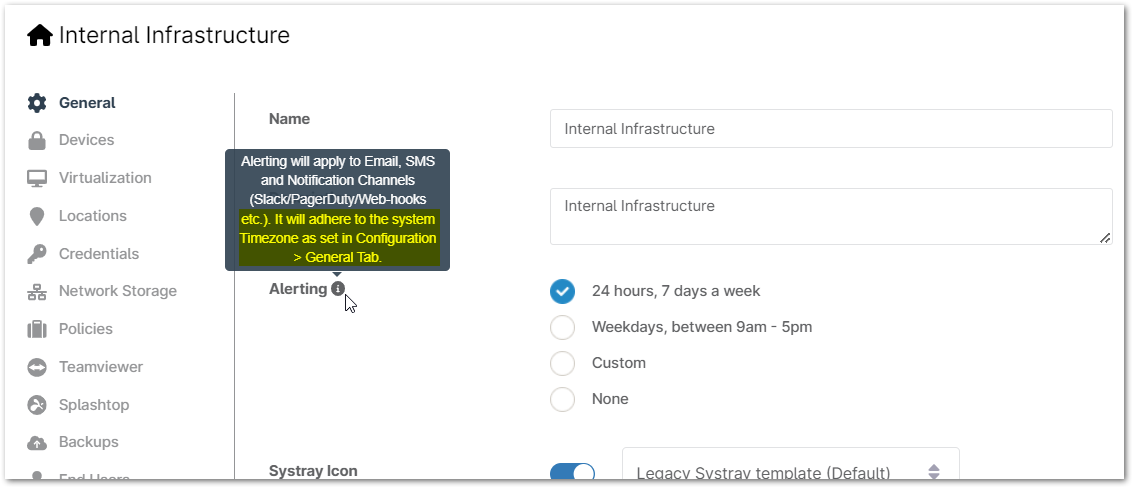
Tooltips have been placed next to time-related items for clarity.
In addition, you can also customize policy actions (Administration > Policies) based on a specific time zone, or have the devices run actions according to its own local time. The following is an example from patch management (all time settings in policy have this option):
Changing the Time Zone
When you first sign into your NinjaOne account, the default time zone will be set to America/Los Angeles.
- Click Administration in the left navigation pane and select General. The Settings page displays by default.
- Click Edit on the right side of the page under Time Zone.
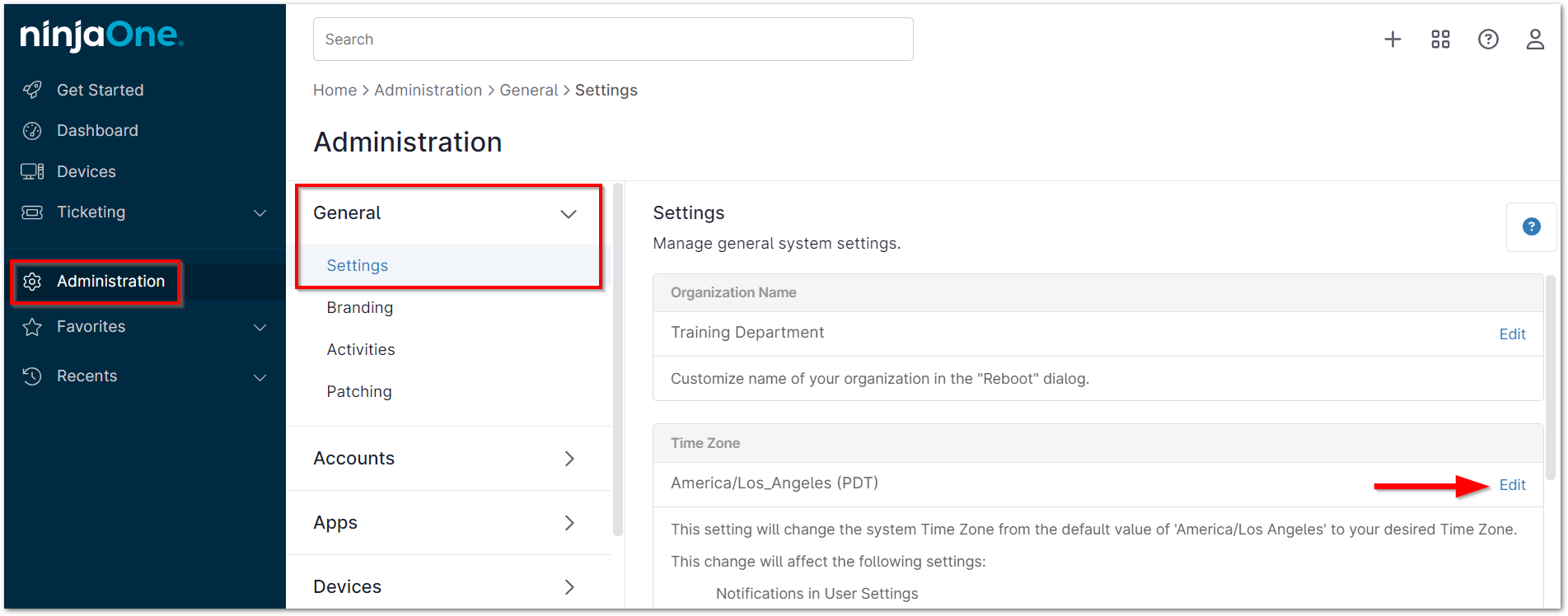
The Time Zone drop-list displays in a popup window. - Select your location. If your location isn't one of the first listed, click Show More Locations to view additional options.
